> ## Documentation Index
> Fetch the complete documentation index at: https://docs.cloudthinker.io/llms.txt
> Use this file to discover all available pages before exploring further.

# Artifacts

> Generate comprehensive reports, build custom dashboards, and export data for analysis

CloudThinker provides powerful reporting and dashboard capabilities to visualize your cloud infrastructure, track optimization progress, and share insights with stakeholders.

***

## The Problem With Cloud Reporting

Generating a meaningful cloud report currently requires pulling data from 5+ sources (Cost Explorer, Security Hub, CloudWatch, Datadog, Kubernetes dashboards), formatting it in a consistent way, writing an executive summary, and embedding it into slides or a document. This takes a senior engineer 3–4 hours per report and produces a document that's already partially stale by the time it's distributed.

Most teams settle for either: (1) automated but shallow exports (CSV from Cost Explorer), or (2) manually crafted but infrequent reports. Neither serves stakeholders well.

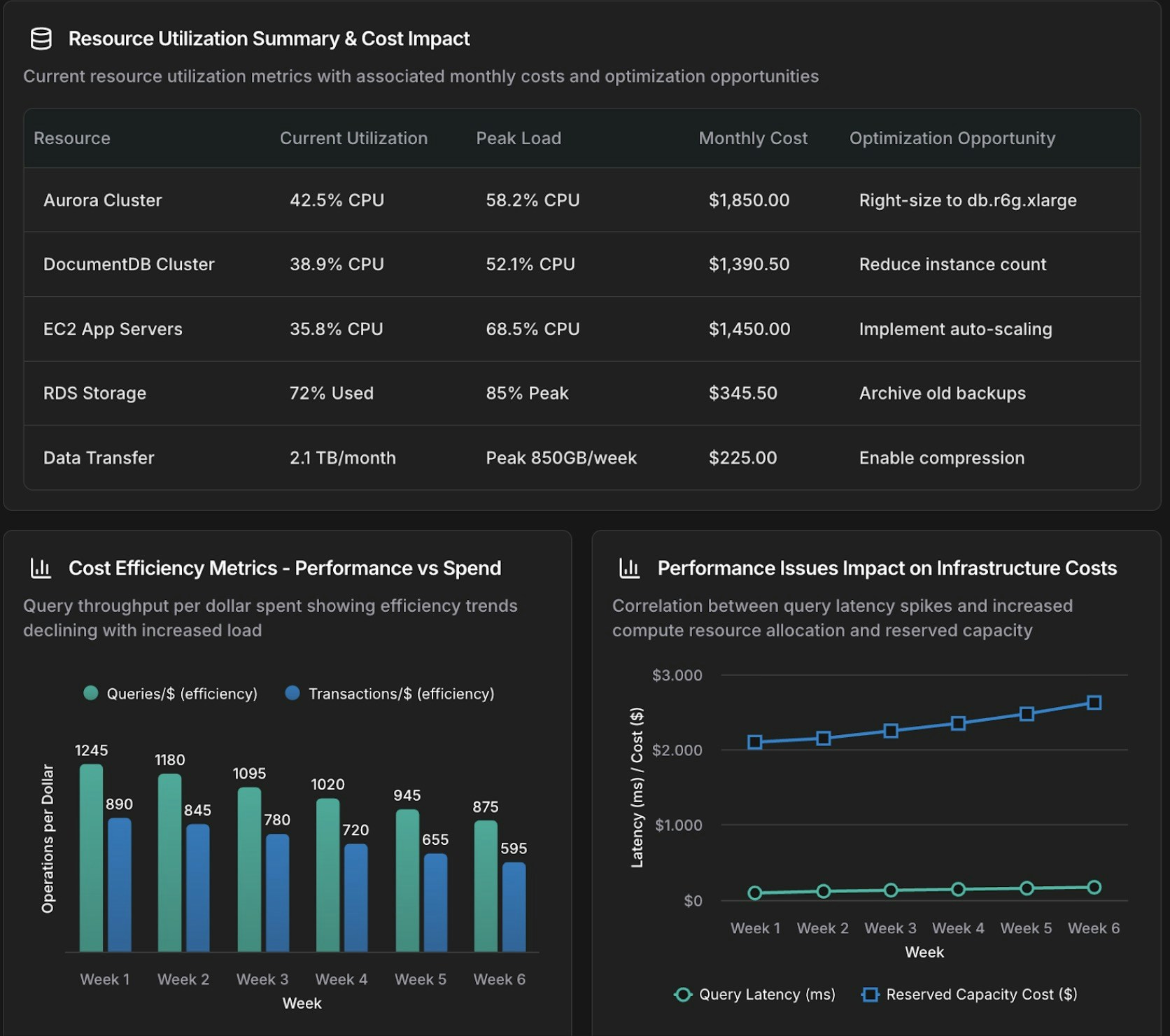
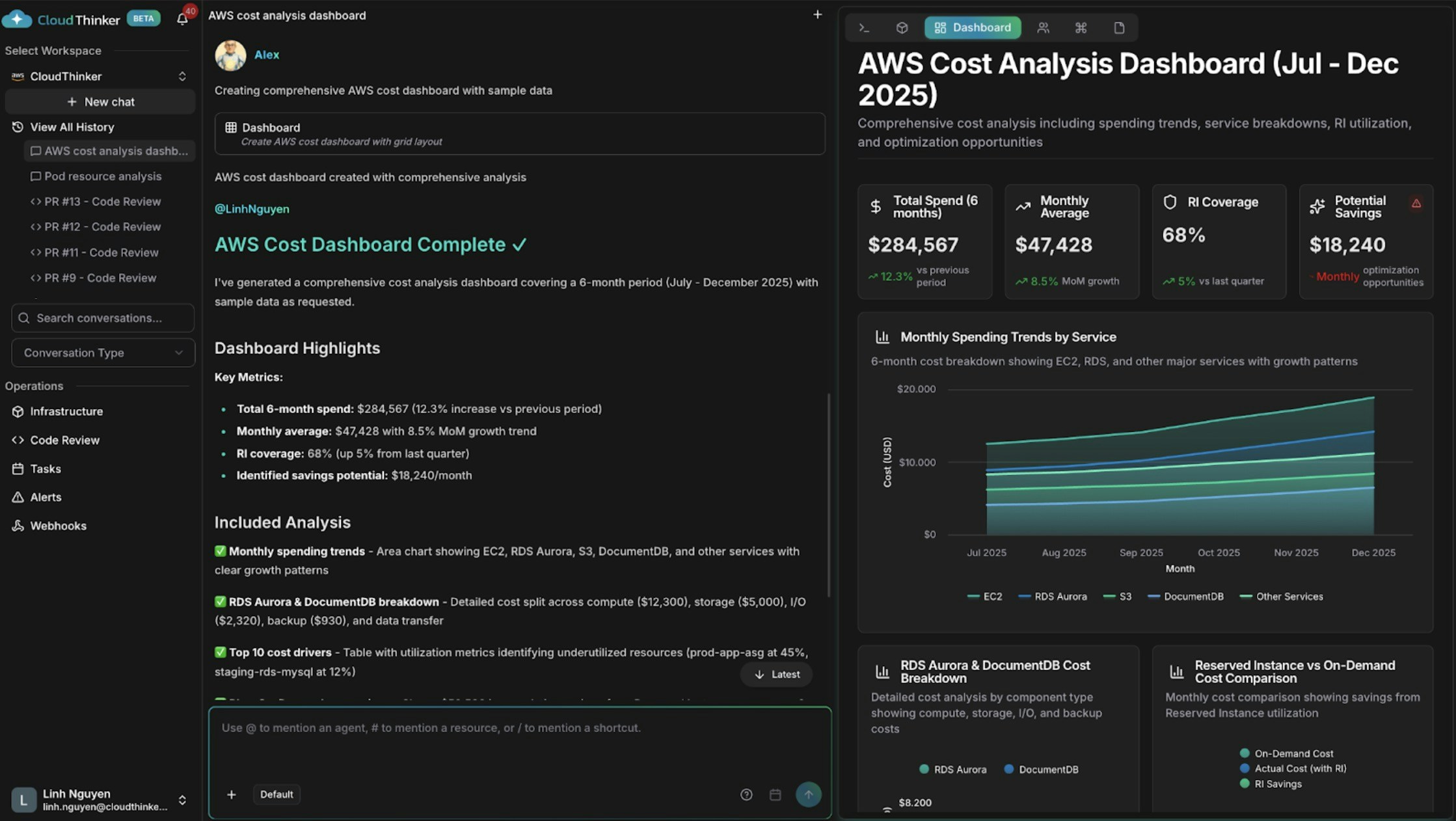
CloudThinker's `#report` and `#dashboard` capabilities produce AI-generated, data-backed reports and dashboards in seconds — from a single prompt, combining data across all [connections](/guide/connections/overview).

***

## Dashboard Types

<CardGroup cols={2}>
  <Card title="Overview Dashboard" icon="gauge">
    High-level summary of your cloud infrastructure, costs, and security posture
  </Card>

  <Card title="Cost Dashboard" icon="dollar-sign">
    Detailed cost analytics, trends, and optimization opportunities
  </Card>

  <Card title="Security Dashboard" icon="shield">
    Security posture, compliance status, and vulnerability tracking
  </Card>

  <Card title="Custom Dashboards" icon="palette">
    Build your own dashboards with drag-and-drop widgets
  </Card>
</CardGroup>

***

## Built-in Dashboards

### Overview Dashboard

Your workspace homepage displays:

* **Resource Count**: Total discovered resources by provider
* **Cost Summary**: Current month spend and trend
* **Active Recommendations**: Pending optimizations by priority
* **Recent Activity**: Latest agent conversations and actions
* **Security Score**: Overall security posture rating

### Cost Dashboard

Detailed cost analytics including:

* **Spending Trends**: Daily, weekly, and monthly views
* **Service Breakdown**: Costs by cloud service
* **Top Resources**: Highest-cost individual resources
* **Anomaly Indicators**: Unusual spending patterns
* **Forecast**: Projected end-of-period costs

### Security Dashboard

Security overview featuring:

* **Compliance Score**: Current compliance percentage
* **Open Findings**: Security issues by severity
* **Recent Scans**: Latest security audit results
* **Remediation Progress**: Tracking of fixes

***

## Custom Dashboards

Create dashboards tailored to your needs:

### Creating a Dashboard

1. Navigate to **Dashboards**
2. Click **Create Dashboard**
3. Name your dashboard and set visibility
4. Add widgets from the widget library
5. Arrange and resize as needed
6. Save and share

### Widget Types

| Widget                                         | Description             | Data Sources                         |
| ---------------------------------------------- | ----------------------- | ------------------------------------ |
| **Line Chart**                                 | Trends over time        | Costs, metrics, counts               |
| **Bar Chart**                                  | Comparisons             | Services, accounts, resources        |
| **Pie Chart**                                  | Distribution            | Cost allocation, resource types      |
| **Number Card**                                | Single metric           | Totals, percentages, scores          |
| **Table**                                      | Detailed data           | Resources, recommendations, findings |
| **Heatmap**                                    | Intensity visualization | Utilization, activity                |
| **[Topology](/guide/infrastructure/topology)** | Resource relationships  | Infrastructure diagrams              |

### Widget Configuration

Each widget supports:

* Data source selection
* Time range filtering
* Grouping and aggregation
* Custom labels and colors
* Refresh interval

***

## Agent-Generated Dashboards

Ask agents to create dashboards on demand:

```bash theme={null}
# Cost dashboard
@alex #dashboard AWS spending by service for last 30 days

# Security dashboard
@oliver #dashboard security compliance status across all accounts

# Performance dashboard
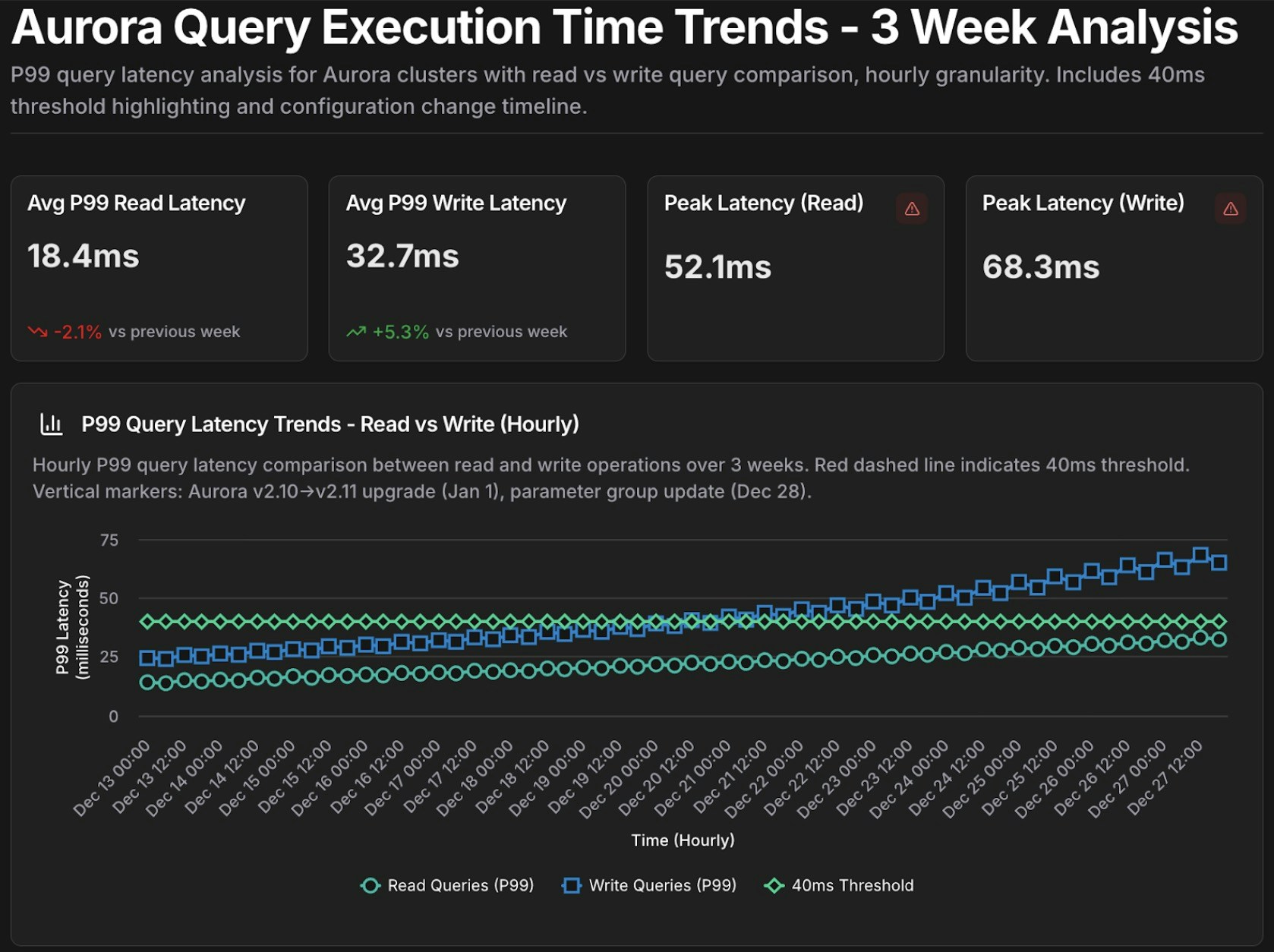
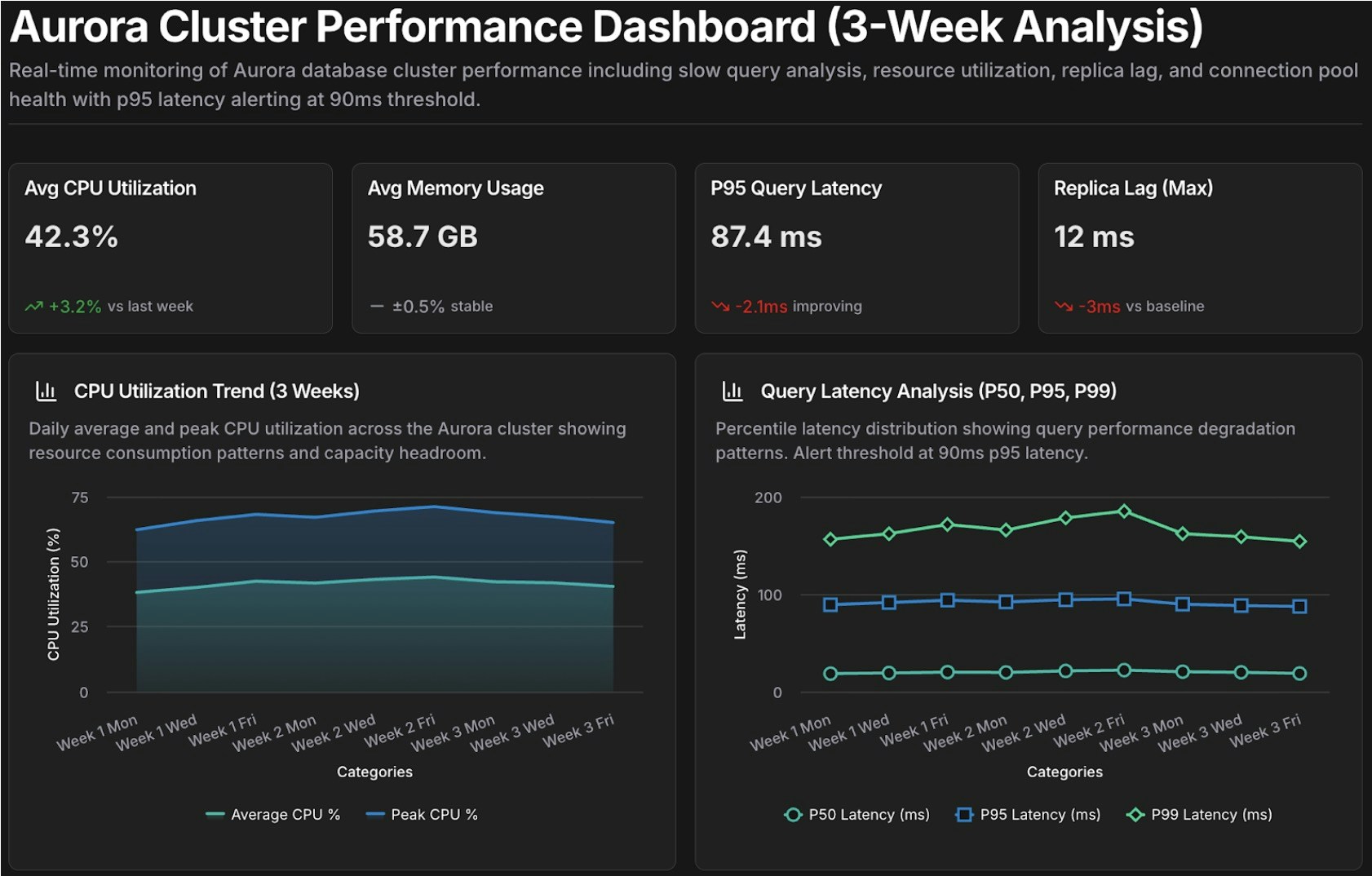
@tony #dashboard database query performance trends

# Kubernetes dashboard
@kai #dashboard cluster resource utilization

# Executive dashboard
@anna #dashboard executive summary of infrastructure health
```

### Dashboard Prompt Patterns

Structure dashboard requests for best results:

```bash theme={null}
# Specify metrics
@alex #dashboard [metrics] for [scope] over [time period]

# Request comparisons
@alex #dashboard compare [metric A] vs [metric B] for [scope]

# Include breakdowns
@alex #dashboard [metric] by [dimension] for [scope]
```

***

## Reports

Generate detailed reports for stakeholders:

### Report Types

<Tabs>
  <Tab title="Cost Reports">
    * Monthly cost summary
    * Cost allocation by team/project
    * Reserved instance utilization
    * Savings plan coverage
    * Budget variance analysis
  </Tab>

  <Tab title="Security Reports">
    * Compliance assessment
    * Vulnerability summary
    * IAM audit report
    * Security findings digest
    * Remediation tracking
  </Tab>

  <Tab title="Infrastructure Reports">
    * Resource inventory
    * [Well-Architected](/guide/infrastructure/assessment) assessment
    * Architecture review
    * Capacity planning
    * Change summary
  </Tab>

  <Tab title="Executive Reports">
    * Monthly infrastructure review
    * Quarterly business summary
    * ROI analysis
    * Optimization progress
    * Risk assessment
  </Tab>
</Tabs>

### Generating Reports

Create reports through conversation:

```bash theme={null}
# Cost report
@alex #report monthly cost summary for January

# Security report
@oliver #report quarterly security assessment

# Executive report
@anna #report executive infrastructure summary for Q4
```

### Report Formats

Reports can be generated in multiple formats:

| Format       | Use Case                                  |
| ------------ | ----------------------------------------- |
| **PDF**      | Formal reports, sharing with stakeholders |
| **HTML**     | Web viewing, email embedding              |
| **Excel**    | Data analysis, custom manipulation        |
| **CSV**      | Data export, integration                  |
| **Markdown** | Documentation, wiki integration           |

***

## Scheduled Reports

Automate report generation and distribution:

### Setting Up Scheduled Reports

1. Create or select a report template
2. Click **Schedule**
3. Configure:
   * Frequency (daily, weekly, monthly)
   * Time and timezone
   * Recipients (email, Slack)
   * Format preferences
4. Enable the schedule

### Distribution Options

* **Email**: Send as attachment or inline
* **Slack**: Post to channel or DM
* **[Webhook](/guide/webhooks/overview)**: Send to external systems
* **Storage**: Save to S3 or cloud storage

***

## Data Export

Export data for external analysis:

### Export Options

| Data Type           | Formats    | Contents                           |
| ------------------- | ---------- | ---------------------------------- |
| **Resources**       | CSV, JSON  | Resource inventory with attributes |
| **Costs**           | CSV, Excel | Cost data by dimension             |
| **Recommendations** | CSV, JSON  | Optimization recommendations       |
| **Findings**        | CSV, JSON  | Security and compliance findings   |
| **Metrics**         | CSV, JSON  | Time-series metrics data           |

### Bulk Export

Export large datasets:

1. Navigate to the data view
2. Apply filters as needed
3. Click **Export**
4. Select format and options
5. Download or schedule delivery

### API Access

Access data programmatically via the API:

```bash theme={null}
# Export resources via API
GET /api/workspaces/{id}/resources?format=json

# Export cost data
GET /api/workspaces/{id}/costs?start=2024-01-01&end=2024-01-31
```

***

## Data Visualization

### Interactive Charts

All charts support:

* Zoom and pan
* Tooltip details
* Click-through to details
* Legend filtering
* Time range selection

### Visualization Libraries

CloudThinker uses industry-standard libraries:

* **Highcharts**: Time series and comparisons
* **Mermaid**: Architecture diagrams
* **React Flow**: Topology visualization

***

## Sharing & Collaboration

### Dashboard Sharing

Share dashboards with your team:

* **Workspace Members**: Full access by default
* **Read-Only Links**: Share with external stakeholders
* **Embedded Dashboards**: Embed in wikis or portals
* **PDF Export**: Static snapshot sharing

### Report Sharing

* Email distribution lists
* Slack channel posting
* Shareable links (with expiration)
* Access-controlled sharing

***

## Best Practices

<AccordionGroup>
  <Accordion title="Design for Your Audience">
    Create different dashboards for different stakeholders: detailed views for engineers, summaries for executives.
  </Accordion>

  <Accordion title="Set Appropriate Refresh Rates">
    Balance data freshness with system load. Real-time isn't always necessary; hourly updates often suffice.
  </Accordion>

  <Accordion title="Use Consistent Time Ranges">
    Align time ranges across widgets for accurate comparisons. Use relative ranges (last 30 days) for evergreen dashboards.
  </Accordion>

  <Accordion title="Schedule Reports Strategically">
    Time reports to arrive when stakeholders can act on them. Monday morning for weekly reviews, first of month for monthly.
  </Accordion>

  <Accordion title="Archive Old Reports">
    Maintain a history of reports for trend analysis and audit purposes. Set up automatic archival policies.
  </Accordion>
</AccordionGroup>

<CardGroup cols={2}>
  <Card title="Cost Analytics" icon="chart-line" href="/guide/cost-optimization/analytics">
    Deep dive into cost-specific analytics
  </Card>

  <Card title="Infrastructure Analytics" icon="server" href="/guide/infrastructure/analytics">
    Learn about infrastructure dashboards
  </Card>
</CardGroup>