> ## Documentation Index
> Fetch the complete documentation index at: https://docs.cloudthinker.io/llms.txt
> Use this file to discover all available pages before exploring further.
# Auto Mode
> Let AI approve agent actions automatically so chats flow without click-by-click approval
Auto Mode lets a classifier auto-approve safe agent write actions so chats flow without stopping at every step. Each write is checked against **what you asked for** — actions that match your intent run through, anything outside it still pauses for approval. Reads always run free.
***
## Why Auto Mode
Approval prompts protect you, but on a long chain of agent actions they slow chat to a crawl. Auto Mode keeps the safety net — a classifier reviews each write before it runs — and only interrupts you when judgment is actually needed.
* **Anchored to your request.** The classifier compares each proposed action against the message you sent. If the agent drifts off course, the action pauses for approval.
* **Faster chats.** Routine writes flow through; you stop click-clicking Approve.
* **Still safe.** Reads bypass the classifier entirely. Writes get reviewed one-by-one.
* **Falls back to asking.** When the action goes beyond what you asked for, or the classifier can't decide, you see the normal Approve / Cancel prompt.
* **Reversible anytime.** Flip it off mid-conversation and per-tool rules resume immediately.
***
## Turn it on
Two places — pick whichever is in front of you.
Click the **Auto mode** chip in the composer.
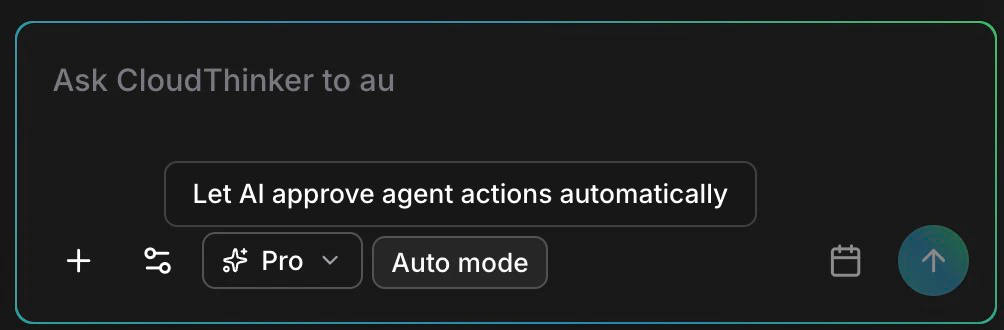
The Auto mode chip sits next to the model selector in the composer.
Open **Approval** in workspace settings and use the **Auto Mode** toggle at the top.
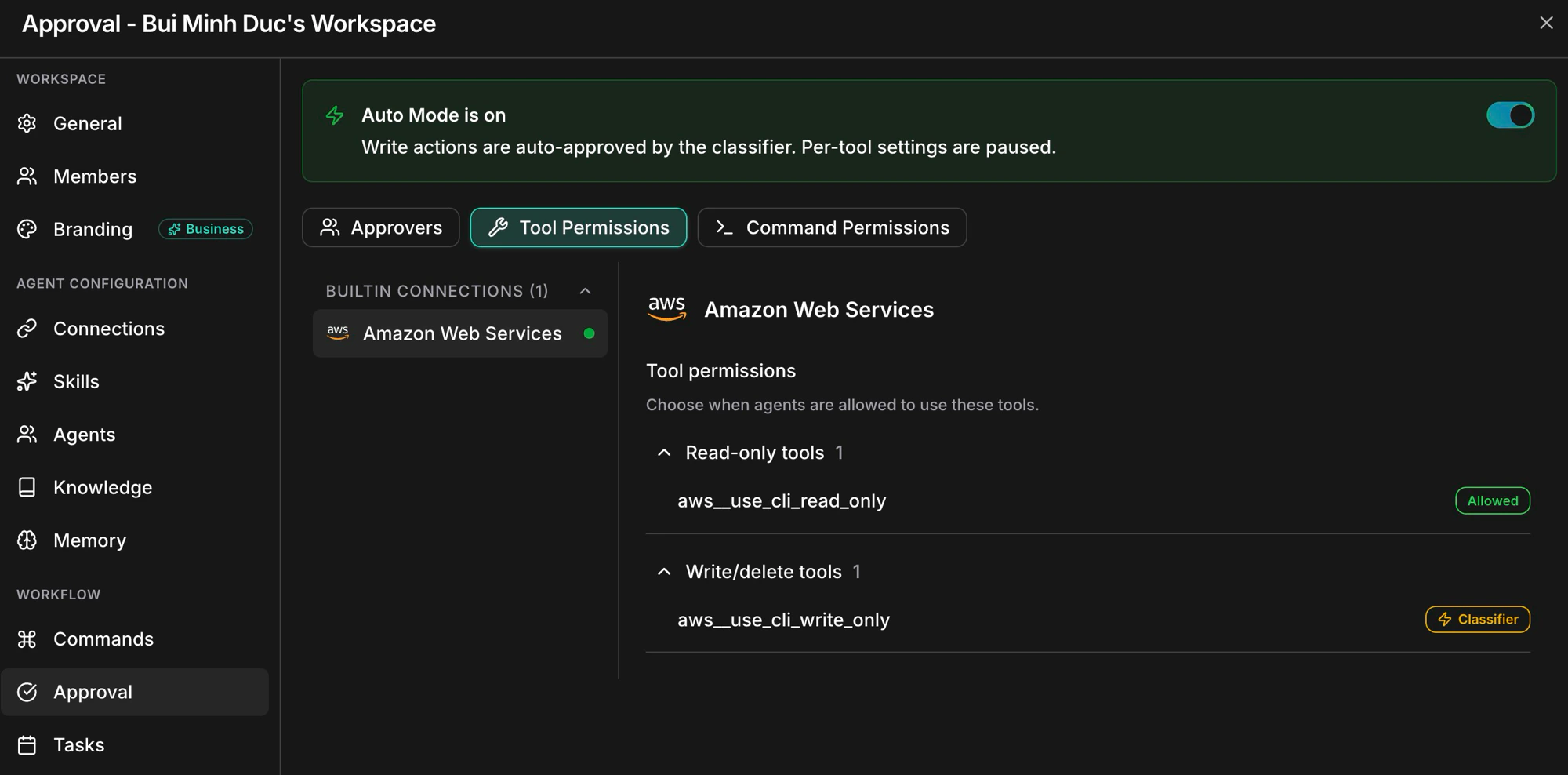
Approval settings — Auto Mode banner sits above the permission tabs.
Auto Mode is **workspace-scoped**. Turning it on from a chat persists for every conversation in that workspace until you turn it off.
***
## What you'll see in chat
Auto-approved actions show a small **"Auto-mode allowed this"** line under the tool call. No button to click.
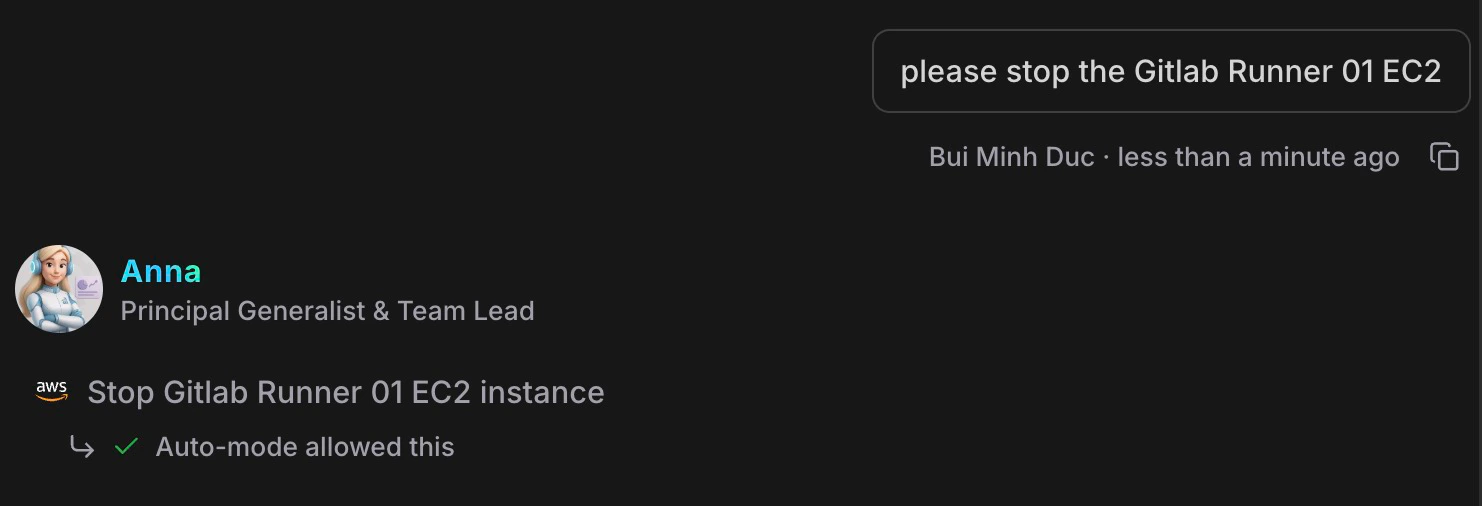
Each auto-approved action stays visible with a confirmation line — you can scroll back and see what ran.
Risky actions still show the regular Approve / Cancel prompt, just like with Auto Mode off.
***
## How it decides
The classifier reads two things together: **your original message** and the **specific action** the agent wants to run. If the action is a faithful step toward what you asked for, it goes through. If it drifts — wrong resource, wider scope, or a verb you didn't ask for — it pauses.
| Action | What happens |
| ------------------------------------------------------------------------------------------------------------ | --------------------------------------- |
| **Reads** (list, describe, get) | Always run — classifier not invoked |
| **Writes that match your intent** | Auto-approved, "Auto-mode allowed this" |
| **Writes that go beyond your intent** (different resource, wider scope, destructive verb you didn't ask for) | Still asks |
| **High-risk writes** (IAM, broad blast radius, irreversible) | Still asks even when intent matches |
| **Same action that keeps failing** | Blocks to prevent runaway loops |
The classifier is the policy. You can't edit its rules — that's intentional so behavior stays consistent across workspaces.
***
## Examples
| Allowed | Asks anyway |
| -------------------------------------------------------------------------------------------------------------------------------------------------------------------------------------------------------------------------------------------------------------------------------------------------------------- | ----------------------------------------------------------------------------------------------------------------------------------------------------------------------------------------------------------------------------------------------------------------------------------------------------------------------------------- |
| **You said:** "please stop the staging EC2 instance"
**Agent ran:** `Stop EC2 instance` on the staging instance
**Why allowed:** The action matches the verb (*stop*), the resource type (*EC2*), and the specific instance you named. Stop is also reversible — you can start it again. | **You said:** "please stop the staging EC2 instance"
**Agent tried:** `Terminate EC2 instance` on the staging instance
**Why it asks:** *Terminate* is destructive and irreversible — you asked to stop, not delete. Auto Mode pauses and shows the normal Approve / Cancel prompt so you can correct course. |
***
## Auto Mode and per-tool settings
When Auto Mode is **on**, the per-tool **Requires Approval** flags on the Approval page are **paused**. Each write tool shows an orange **⚡ Classifier** badge instead of Allowed / Requires Approval — that's the classifier deciding case-by-case in place of the static rule.
Read-only tools keep their green **Allowed** badge and run as before.
Turn Auto Mode off and per-tool rules resume **unchanged** — nothing you configured there is lost.
Tools you've set to **Disabled** stay disabled even when Auto Mode is on. Auto Mode never enables a tool you've turned off.
***
## Safety rails
| Control | Description |
| -------------------------------- | ------------------------------------------------------------------------------------------------------------------------------------------------------------ |
| **Per-action review** | The classifier looks at each write call individually, not the conversation as a whole |
| **Audit trail** | Every auto decision is logged so you can review what ran and why |
| **Self-pausing** | If the classifier itself becomes unresponsive, Auto Mode pauses and the banner switches to a paused state — you go back to manual approval until it recovers |
| **Toggle anytime** | Flip Auto Mode off mid-conversation; takes effect on the next tool call |
| **Disabled tools stay disabled** | Auto Mode never overrides a tool you've turned off |
***
## When to use it
| Good fit | Leave it off |
| --------------------------------------------------------------------------------------------------------------------------------------------------------------------------------------------------------- | ---------------------------------------------------------------------------------------------------------------------------------------------------------------------------------------------------- |
| Dev and staging workspaces
Exploratory chats where you'd otherwise click Approve dozens of times
Long multi-step plans run by Anna
Recurring tasks where you've already vetted the pattern | Production workspaces with sensitive resources
First-time use of a new connection — build trust manually first
Compliance-sensitive environments where every change needs a human sign-off |
***
## FAQ
The classifier judged the action high-risk — usually destructive verbs, IAM changes, or actions with a wide blast radius. Approve / Cancel as normal.
Auto Mode blocks when the same action has failed several times in a row, to avoid runaway loops. Rephrase the request or fix the underlying issue, then try again.
Not directly — the classifier rules are fixed so behavior stays consistent everywhere. If you want stricter control, leave Auto Mode off and use **Tool Permissions** on the Approval page to set per-tool rules manually.
No. A tool you've set to Disabled stays disabled. Auto Mode only changes how **approval** decisions get made, never **whether** a tool can be used.
Auto Mode pauses itself and the banner switches to a paused state. Approvals fall back to manual until it recovers — no action runs without a decision being made.
Per workspace. Toggling it on from one chat persists across every conversation in that workspace until you turn it off.
***
## Related
Per-tool permissions, approvers, and command permissions
What agents can produce — dashboards, reports, slides
How agents work and collaborate
Set up cloud and service connections