> ## Documentation Index
> Fetch the complete documentation index at: https://docs.cloudthinker.io/llms.txt
> Use this file to discover all available pages before exploring further.

# Tasks & Scheduling

> Create, schedule, and manage automated tasks for recurring operations

CloudThinker's task system allows you to automate [recurring tasks](/guide/recurring-tasks), schedule periodic analyses, and manage workflows across your cloud infrastructure.

## Task Types

<CardGroup cols={2}>
  <Card title="On-Demand Tasks" icon="play">
    Execute immediately when triggered manually or via API
  </Card>

  <Card title="Scheduled Tasks" icon="clock">
    Run automatically based on cron schedules
  </Card>

  <Card title="Event-Driven Tasks" icon="bolt">
    Triggered by webhooks or system events
  </Card>

  <Card title="Recurring Tasks" icon="repeat">
    Execute on a regular interval (daily, weekly, monthly)
  </Card>
</CardGroup>

***

## Creating Tasks

### From the Console

1. Navigate to **Tasks** in your workspace
2. Click **Create Task**
3. Configure task details:
   * Name and description
   * Agent to execute
   * Prompt/command to run
   * Schedule (optional)
4. Save and optionally enable

### From Conversation

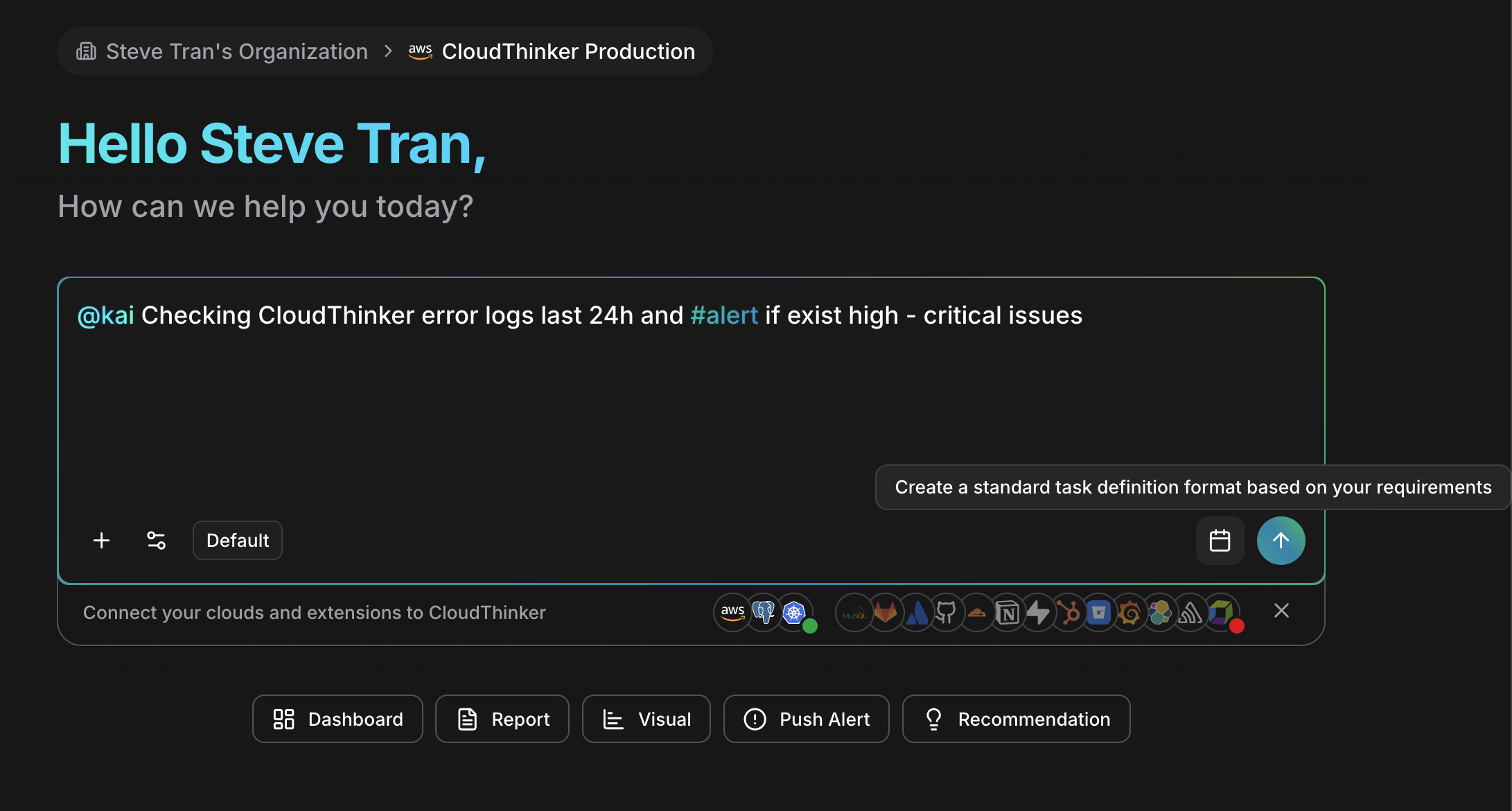
Create tasks directly from agent conversations:

```bash theme={null}
# Create an on-demand task
@alex create a task to analyze EC2 utilization

# Create a scheduled task
@alex schedule daily cost report at 8 AM

# Create a recurring task
@anna create weekly infrastructure review task for Mondays
```

***

## Task Templates

Save common operations as reusable templates:

### Built-in Templates

CloudThinker includes templates for common operations:

| Template                   | Agent                          | Description                            |
| -------------------------- | ------------------------------ | -------------------------------------- |
| **Daily Cost Report**      | [Alex](/guide/agents/alex)     | Summarize daily spending and anomalies |
| **Weekly Security Audit**  | [Oliver](/guide/agents/oliver) | Comprehensive security scan            |
| **Database Health Check**  | [Tony](/guide/agents/tony)     | Performance and health metrics         |
| **K8s Cluster Review**     | [Kai](/guide/agents/kai)       | Cluster utilization and issues         |
| **Infrastructure Summary** | [Anna](/guide/agents/anna)     | Cross-agent infrastructure overview    |

### Custom Templates

Create custom templates for your organization:

1. Navigate to **Tasks > Templates**
2. Click **Create Template**
3. Define the template:
   * Name and category
   * Agent assignment
   * Prompt text (supports variables)
   * Default schedule
4. Share with your workspace

#### Template Variables

Use variables in templates for dynamic content:

```bash theme={null}
# Template with variables
Analyze {{resource_type}} costs for {{environment}} environment
and generate recommendations with minimum savings of ${{min_savings}}

# Example usage
resource_type: EC2
environment: production
min_savings: 100
```

***

## Scheduling with Cron

Define precise schedules using cron expressions:

### Cron Expression Builder

CloudThinker includes a visual cron builder to help create schedules:

| Field        | Values | Example              |
| ------------ | ------ | -------------------- |
| Minute       | 0-59   | `0` (on the hour)    |
| Hour         | 0-23   | `8` (8 AM)           |
| Day of Month | 1-31   | `1` (first of month) |
| Month        | 1-12   | `*` (every month)    |
| Day of Week  | 0-6    | `1` (Monday)         |

### Common Schedules

| Schedule             | Cron Expression |
| -------------------- | --------------- |
| Every day at 8 AM    | `0 8 * * *`     |
| Every Monday at 9 AM | `0 9 * * 1`     |
| First of each month  | `0 0 1 * *`     |
| Every 6 hours        | `0 */6 * * *`   |
| Weekdays at 6 PM     | `0 18 * * 1-5`  |

### Timezone Support

All schedules run in your workspace timezone (configurable in settings).

***

## Task Execution

### Execution Flow

<Steps>
  <Step title="Queue">
    Task is queued for execution based on schedule or trigger
  </Step>

  <Step title="Start">
    Agent begins executing the task prompt
  </Step>

  <Step title="Process">
    Agent analyzes, generates results, and takes configured actions
  </Step>

  <Step title="Complete">
    Results are stored and notifications sent
  </Step>
</Steps>

### Execution Options

Configure how tasks execute:

* **Timeout**: Maximum execution time (default: 30 minutes)
* **Retries**: Number of retry attempts on failure
* **Notification**: Alert on completion/failure
* **Output**: Where to store results (conversation, report, etc.)

***

## Managing Tasks

### Task Status

| Status        | Description                                |
| ------------- | ------------------------------------------ |
| **Active**    | Task is enabled and will run on schedule   |
| **Paused**    | Task is disabled but retains configuration |
| **Running**   | Task is currently executing                |
| **Completed** | Last run completed successfully            |
| **Failed**    | Last run encountered an error              |

### Task History

View execution history for each task:

* Execution timestamp
* Duration
* Status and outcome
* Output/results
* Error details (if failed)

### Bulk Operations

Manage multiple tasks at once:

* Enable/disable selected tasks
* Update schedules in bulk
* Delete obsolete tasks
* Export task configurations

***

## Task Notifications

Configure notifications for task events:

### Notification Triggers

* **On Start**: Notify when task begins
* **On Complete**: Notify when task finishes successfully
* **On Failure**: Alert when task encounters an error
* **On Output**: Notify when specific conditions are met in results

### Notification Channels

* Email notifications
* Slack messages
* Webhook calls
* In-app notifications

```bash theme={null}
# Configure task notifications
@alex configure daily cost report to notify #finops-team on Slack when complete
```

***

## Task Workflows

Chain multiple tasks together:

### Sequential Workflows

Execute tasks in order:

```yaml theme={null}
Workflow: Monthly Infrastructure Review
Tasks:
  1. Alex: Run cost analysis
  2. Oliver: Run security audit
  3. Kai: Run Kubernetes review
  4. Tony: Run database health check
  5. Anna: Compile executive summary
```

### Parallel Execution

Run independent tasks simultaneously:

```yaml theme={null}
Workflow: Daily Health Check
Parallel:
  - Alex: Cost anomaly detection
  - Oliver: Security scan
  - Kai: Cluster health
  - Tony: Database health
Then:
  - Anna: Aggregate and report
```

### Conditional Tasks

Execute tasks based on conditions:

```yaml theme={null}
Workflow: Cost Alert Response
Trigger: Budget alert
Tasks:
  1. Alex: Analyze cost spike
  2. If severity = high:
     - Anna: Create incident
     - Notify finance team
  3. Create recommendations
```

***

## Integration with External Systems

### API Triggers

Trigger tasks via the CloudThinker API:

```bash theme={null}
# Trigger task via API
POST /api/tasks/{task_id}/run
Authorization: Bearer <api_key>
```

### Webhook Triggers

Configure tasks to run on external events via [Webhooks](/guide/webhooks/overview):

1. Create a webhook endpoint in CloudThinker
2. Configure external system to call the webhook
3. Map webhook payload to task parameters

### CI/CD Integration

Run tasks as part of deployment pipelines:

* Post-deployment cost analysis
* Pre-release security scan
* Infrastructure validation

***

## Best Practices

<AccordionGroup>
  <Accordion title="Use Descriptive Names">
    Name tasks clearly to indicate their purpose, schedule, and scope. Example: "Daily-EC2-CostAnalysis-Production"
  </Accordion>

  <Accordion title="Set Appropriate Timeouts">
    Configure timeouts based on expected task duration. Too short causes failures; too long delays feedback.
  </Accordion>

  <Accordion title="Configure Failure Alerts">
    Always set up notifications for task failures to catch issues early.
  </Accordion>

  <Accordion title="Review History Regularly">
    Periodically review task execution history to identify patterns and optimize schedules.
  </Accordion>

  <Accordion title="Use Templates">
    Create templates for common patterns to ensure consistency and reduce configuration errors.
  </Accordion>
</AccordionGroup>

***

## What's Next

<CardGroup cols={2}>
  <Card title="Operations Hub" icon="play" href="/guide/operations-hub">
    Browse pre-built operations that can be scheduled as tasks
  </Card>

  <Card title="Recurring Tasks" icon="repeat" href="/guide/recurring-tasks">
    Configure daily, weekly, and monthly operational cadences
  </Card>

  <Card title="Webhooks" icon="webhook" href="/guide/webhooks/overview">
    Trigger tasks from external events and push results to your systems
  </Card>

  <Card title="Notifications" icon="bell" href="/guide/notifications">
    Configure where task completion alerts are delivered
  </Card>
</CardGroup>
