> ## Documentation Index
> Fetch the complete documentation index at: https://docs.cloudthinker.io/llms.txt
> Use this file to discover all available pages before exploring further.
# Runbooks
> Connect your team's operational runbooks so AI agents can find and execute remediation steps during incidents
When an incident hits production, your team has runbooks—step-by-step procedures for common failures like pod restarts, database failovers, or scaling operations. The problem is finding the right runbook at 3 AM and executing it correctly under pressure.
CloudThinker Runbooks bridges that gap. During an [RCA investigation](/guide/incident/root-cause-analysis), AI agents automatically search your connected runbook sources, find the relevant procedure, and execute remediation commands—with policy-driven approval controls that keep humans in the loop for destructive operations.
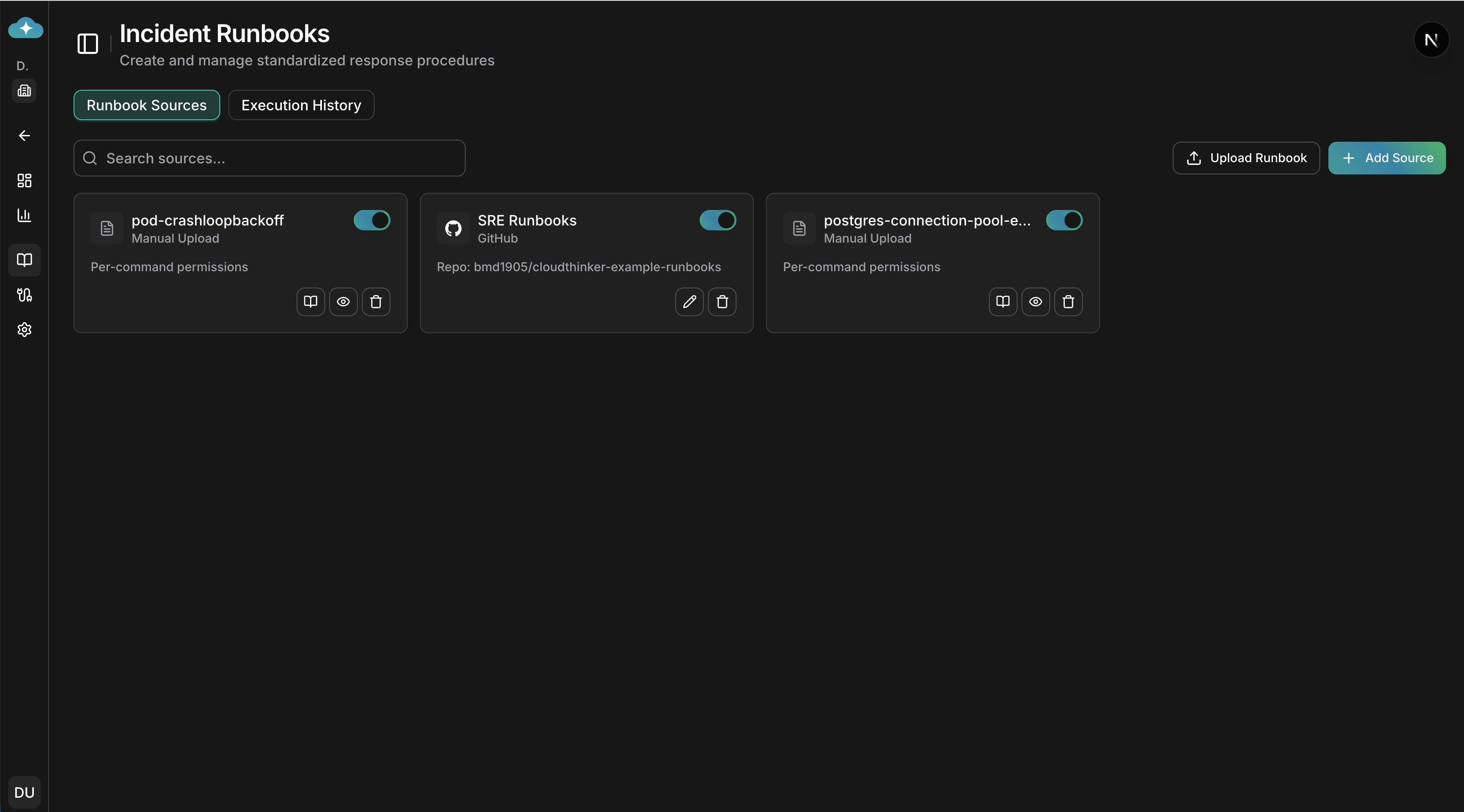
Runbook Sources dashboard with manual uploads and connected repositories
***
## How runbooks work
Link your existing runbook repositories—Confluence, GitHub, GitLab—or upload markdown files directly.
When an incident triggers [Root Cause Analysis](/guide/incident/root-cause-analysis), the AI agent searches your connected sources for relevant runbooks based on the incident context and affected services.
Before executing any commands, the system evaluates your workspace [approval policies](/guide/approval). Depending on the policy, commands are either auto-executed, queued for approval, or blocked.
For commands requiring approval, you receive notifications via email, Slack, and in-app. Approve or reject directly from any channel. Approved commands execute immediately.
***
## Connecting runbook sources
Navigate to **Deep Response Engine > Runbooks** to manage your sources. CloudThinker supports four source types, each suited to different workflows.
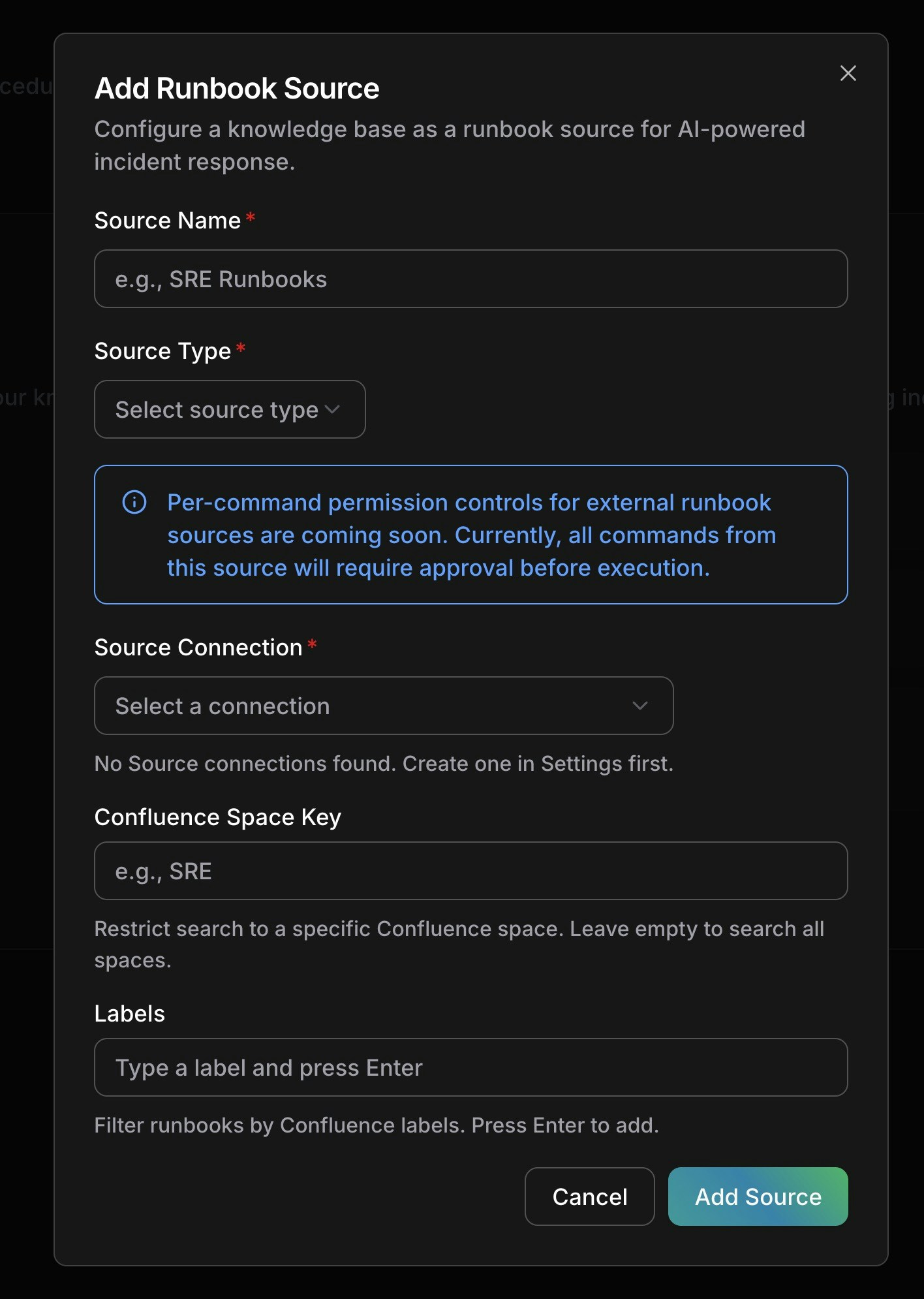
Adding a new runbook source with Confluence configuration
### Confluence
Connect your Confluence knowledge base to let agents search wiki pages for operational procedures.
**Setup:**
1. Click **Add Source** on the Runbooks page
2. Enter a name (e.g., "SRE Runbooks")
3. Select **Confluence** as source type
4. Choose your Atlassian connection (set up in [Connections > Atlassian](/guide/connections/atlassian))
5. Optionally restrict search to a specific **Space Key** (e.g., `SRE`)
6. Add **Labels** to filter pages (e.g., `runbook`, `incident-response`)
7. Click **Add Source**
**How agents search:** During RCA, agents use Confluence's CQL query language to find pages matching the incident context within your configured space and label filters.
### GitHub
Point agents at a GitHub repository containing your runbook markdown files.
**Setup:**
1. Click **Add Source**
2. Select **GitHub** as source type
3. Choose your GitHub connection (set up in [Connections](/guide/connections/overview))
4. Select the **repository** containing your runbooks
5. Set the **branch** (defaults to `main`)
6. Optionally set a **path prefix** to restrict search (e.g., `docs/runbooks/`)
7. Configure **file patterns** to match (defaults to `*.md`)
8. Click **Add Source**
**How agents search:** Agents use the GitHub API to list and read files matching your path and pattern filters, then analyze content for relevance to the current incident.
### GitLab
Same workflow as GitHub, using your GitLab connection instead.
**Setup:**
1. Click **Add Source**
2. Select **GitLab** as source type
3. Choose your GitLab connection
4. Select the **repository**, **branch**, **path prefix**, and **file patterns**
5. Click **Add Source**
**How agents search:** Agents use the GitLab API to search and retrieve matching files from your repository.
### Manual upload
Upload markdown runbook files directly when your procedures aren't stored in an external system.
**Setup:**
1. Click **Upload Runbook** on the Runbooks page
2. Drag and drop `.md` files (up to 20 files, 5 MB each)
3. Edit filenames if needed before confirming
4. Click **Confirm Upload**
After upload, CloudThinker automatically extracts write commands (like `kubectl apply`, `aws` mutations, `helm install`) from code blocks in your markdown. These extracted commands become the basis for [per-command permissions](#per-command-permissions).
***
## Per-command permissions
Manual runbooks unlock a unique safety feature: **per-command permission controls**. When you upload a markdown file, CloudThinker's AI reads through the code blocks and extracts every write/mutating command—giving you granular control over what the agent can execute autonomously.
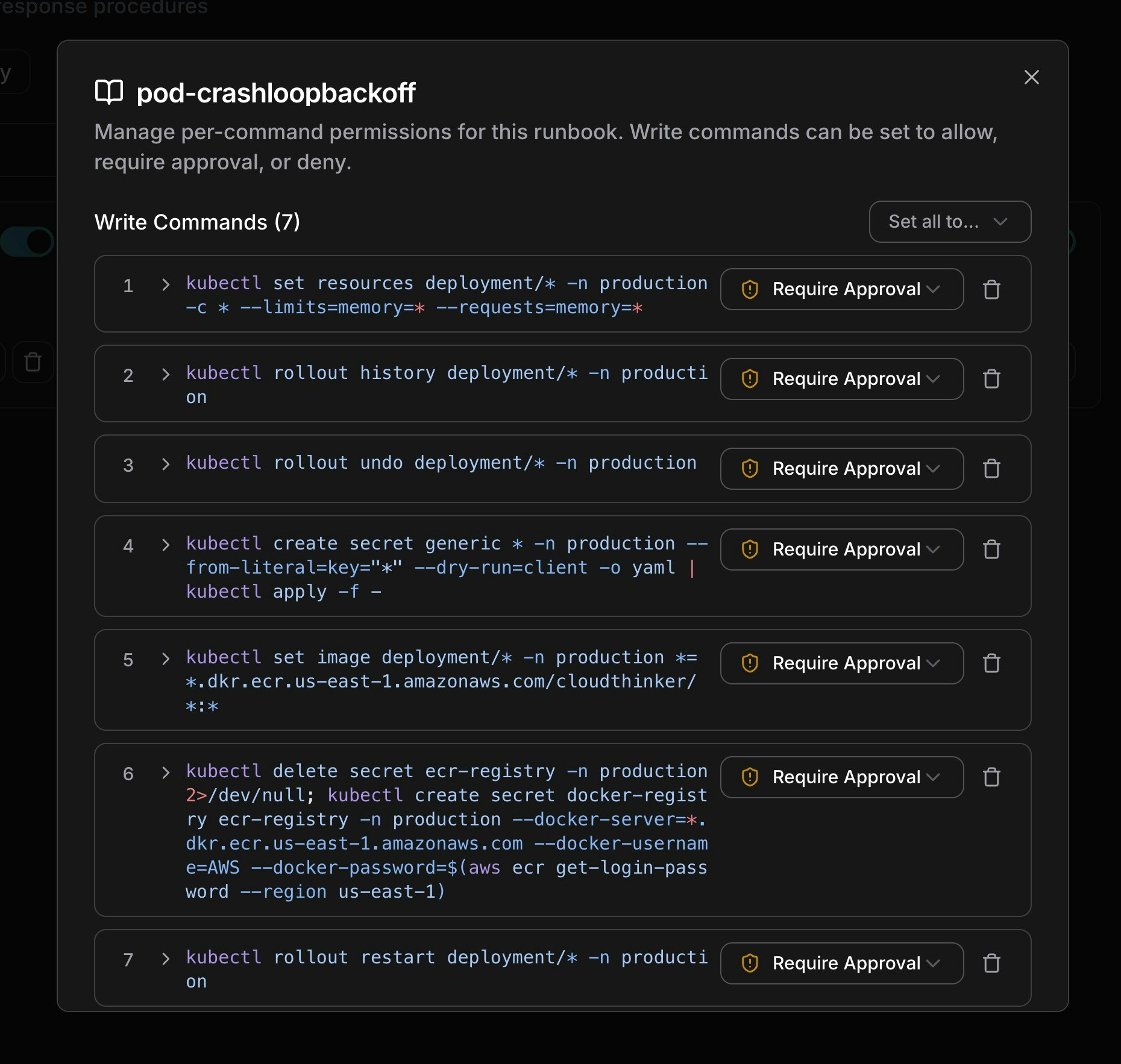
Per-command permission controls for a pod-crashloopbackoff runbook
### How it works
1. **Automatic extraction**: After upload, the system parses all code blocks and identifies shell commands that modify infrastructure (e.g., `kubectl set resources`, `kubectl rollout restart`, `kubectl delete`)
2. **Read-only commands are skipped**: Commands like `kubectl get`, `kubectl describe`, and `kubectl logs` are not extracted—agents can always run read-only commands
3. **Each command gets a permission**: Every extracted write command starts with **Require Approval** by default
### Permission levels
| Permission | Behavior |
| -------------------- | -------------------------------------------------------------------------------------- |
| **Allow** | Agent executes the command immediately without human approval |
| **Require Approval** | Agent requests approval before execution. You're notified via email, Slack, and in-app |
| **Deny** | Agent cannot execute this command |
### Managing commands
From the runbook detail dialog:
* **Set all permissions at once**: Use the "Set all to..." dropdown to bulk-change all commands to Allow, Require Approval, or Deny
* **Change individual permissions**: Click the dropdown next to any command to adjust its permission level
* **Add a command**: Type a new command pattern and press Enter to add it to the list
* **Remove a command**: Click the delete icon to remove a command from the policy
* **View full command**: Click the expand arrow to see multi-line or long commands in full
Per-command permissions are currently available for manually uploaded runbooks. For external sources (Confluence, GitHub, GitLab), all commands require approval by default. Per-command controls for external sources are coming soon.
***
## Approval workflow
When an agent finds a relevant runbook during RCA and the policy requires approval, the following flow occurs:
### Approval flow
1. **Agent discovers runbook**: During investigation, the agent searches your sources and identifies a matching procedure
2. **Policy evaluation**: The system checks your workspace approval policies against the runbook and its commands
3. **Notification sent**: If approval is required, you receive notifications on all configured channels:
* **Email**: Runbook title, source link, and policy reason
* **Slack**: Interactive notification with incident context
* **In-app**: Badge on the incident showing pending approvals
4. **You approve or reject**: Click Approve to let the agent proceed, or Reject to block execution
5. **Agent continues**: On approval, the agent executes the runbook commands. On rejection, the agent continues the investigation without executing
### Approval states
| Status | Meaning |
| ------------ | --------------------------------------------------------------------- |
| **Pending** | Waiting for human approval—agent is paused on this step |
| **Approved** | Human approved—commands are executing or completed |
| **Rejected** | Human rejected—agent skipped this runbook and continued investigating |
### Execution states
After approval, each execution tracks its outcome:
| Status | Meaning |
| --------------- | ---------------------------------------------------------------- |
| **Not Started** | Approved but commands haven't run yet |
| **Completed** | All commands executed successfully |
| **Failed** | One or more commands failed during execution |
| **Skipped** | Execution was skipped (e.g., approval expired or was superseded) |
### Viewing execution history
Switch to the **Execution History** tab on the Runbooks page to see all runbook executions across incidents. You can:
* Search by runbook title
* See policy decisions, approval status, and execution outcomes
* Track which runbooks were used for which incidents
***
## Best practices
**Source Organization:**
* Name sources descriptively (e.g., "K8s Emergency Runbooks", "Database Failover Procedures")
* Use path prefixes and file patterns to keep searches focused and fast
* For Confluence, use labels to categorize runbooks by domain (e.g., `kubernetes`, `database`, `networking`)
**Permission Strategy:**
* Start with **Require Approval** for all commands (the default) until you build confidence
* Gradually move well-tested, low-risk commands to **Allow** (e.g., scaling operations, log collection)
* Keep destructive commands (delete, drop, force) on **Require Approval** permanently
* Use **Deny** for commands that should never be automated (e.g., production database drops)
**Runbook Quality:**
* Write runbooks in markdown with clear code blocks using shell language hints (` ```bash `)
* Use one command per line for best extraction results
* Include context about when each procedure should be used—agents use this to match runbooks to incidents
* Keep runbooks focused: one procedure per file works better than a single document covering everything
***
## Next steps
Learn how AI agents investigate incidents and when runbooks are triggered during the analysis workflow.
Configure workspace-level approval policies that control what agents can execute autonomously.