> ## Documentation Index
> Fetch the complete documentation index at: https://docs.cloudthinker.io/llms.txt
> Use this file to discover all available pages before exploring further.

# Assessment

> Assess infrastructure health, compliance, and optimization.

Run [Well-Architected](/guide/infrastructure/assessment) assessments across any connected cloud. Screenshots show AWS, but the workflow is provider-agnostic.

***

## The Problem

Well-Architected assessments are valuable but expensive to run. AWS's own Well-Architected Tool asks hundreds of questions via a manual questionnaire — filling it out accurately requires an engineer who knows the environment deeply, takes 2–4 days, and produces a point-in-time report that's stale the moment your infrastructure changes.

Third-party assessments from cloud consultants cost $15,000–$50,000 and happen once or twice a year. The result: most teams either skip assessments entirely or run them only when an audit requires it — meaning architectural risks compound undetected for months.

***

## How Existing Tools Compare

| Tool                          | What It Does                                 | What's Missing                                                                                                |
| ----------------------------- | -------------------------------------------- | ------------------------------------------------------------------------------------------------------------- |
| **AWS Well-Architected Tool** | Manual questionnaire for 6 pillars           | Completely manual — requires engineer time to fill out; no automated discovery of actual infrastructure state |
| **AWS Trusted Advisor**       | Automated checks against \~50 best practices | Limited scope, no framework mapping, no multi-cloud, no AI analysis                                           |
| **Cloud consultants**         | Expert-led assessments                       | Expensive (\$15K–50K), infrequent, findings go stale before remediation completes                             |
| **Security CSPM tools**       | Security pillar only                         | Cover one pillar (security), not cost, performance, reliability, or operational excellence                    |

CloudThinker Assessment automates what normally takes days of manual work — reading your actual infrastructure configuration and mapping it against Well-Architected pillars automatically.

***

## What Makes This Different

* **Automated, not questionnaire-based**: agents read your actual infrastructure configuration — no manual Q\&A required
* **All 6 pillars**: [Cost Optimization](/guide/cost-optimization/overview), Security, Reliability, Performance Efficiency, Operational Excellence, and Sustainability in one run
* **Runs on your discovered resources**: scoped to the exact resources you care about — production only, specific services, specific regions
* **Actionable findings**: every finding includes effort, risk, dollar savings estimate, and step-by-step remediation — not just "this is a gap"
* **Repeatable**: run monthly or after major infrastructure changes — not once a year

<Note>Assessments are available on the Advanced plan.</Note>

<iframe width="100%" height="400" src="https://www.youtube.com/embed/huyPTnrhOvw" title="CloudThinker Infrastructure Assessment Tutorial" style={{ borderRadius: '12px', border: 'none' }} allow="accelerometer; autoplay; clipboard-write; encrypted-media; gyroscope; picture-in-picture" allowFullScreen />

***

## Prerequisites

* A cloud connection with the permissions your agents need to assess resources.
* [Resources](/guide/infrastructure/resources) already discovered in CloudThinker; assessments only evaluate discovered resources.
* Optional: tag or resource filters ready if you want to scope the run.

<Note>
  Assessments are limited to discovered resources. [CloudKeepers](/guide/infrastructure/cloudkeepers) automations
  still operate across any resources you permit in your cloud connection.
</Note>

***

## Step-by-Step Guide

### Step 1: Create an Assessment

<Steps>
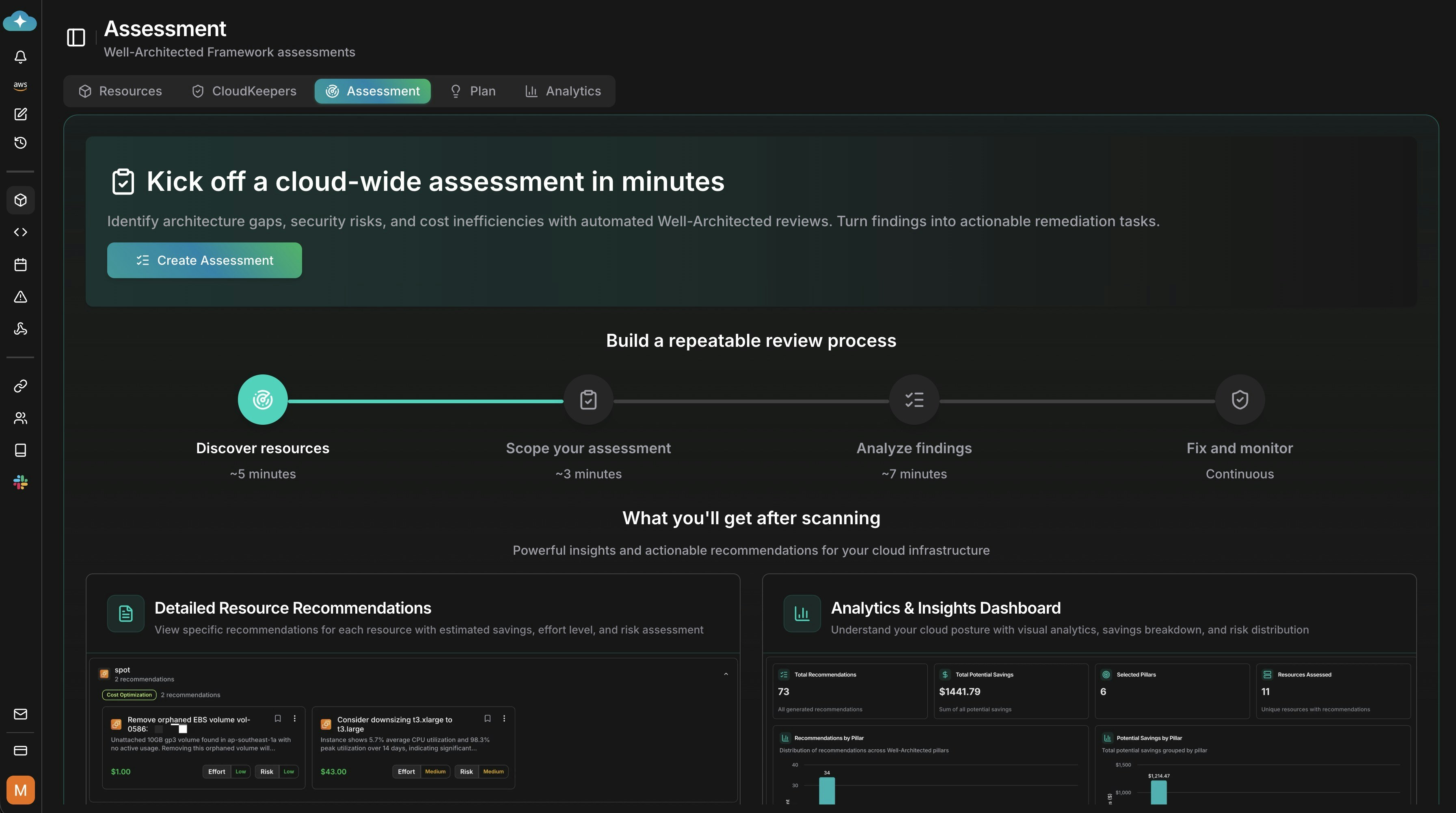
  <Step title="Open Assessment and start a run">
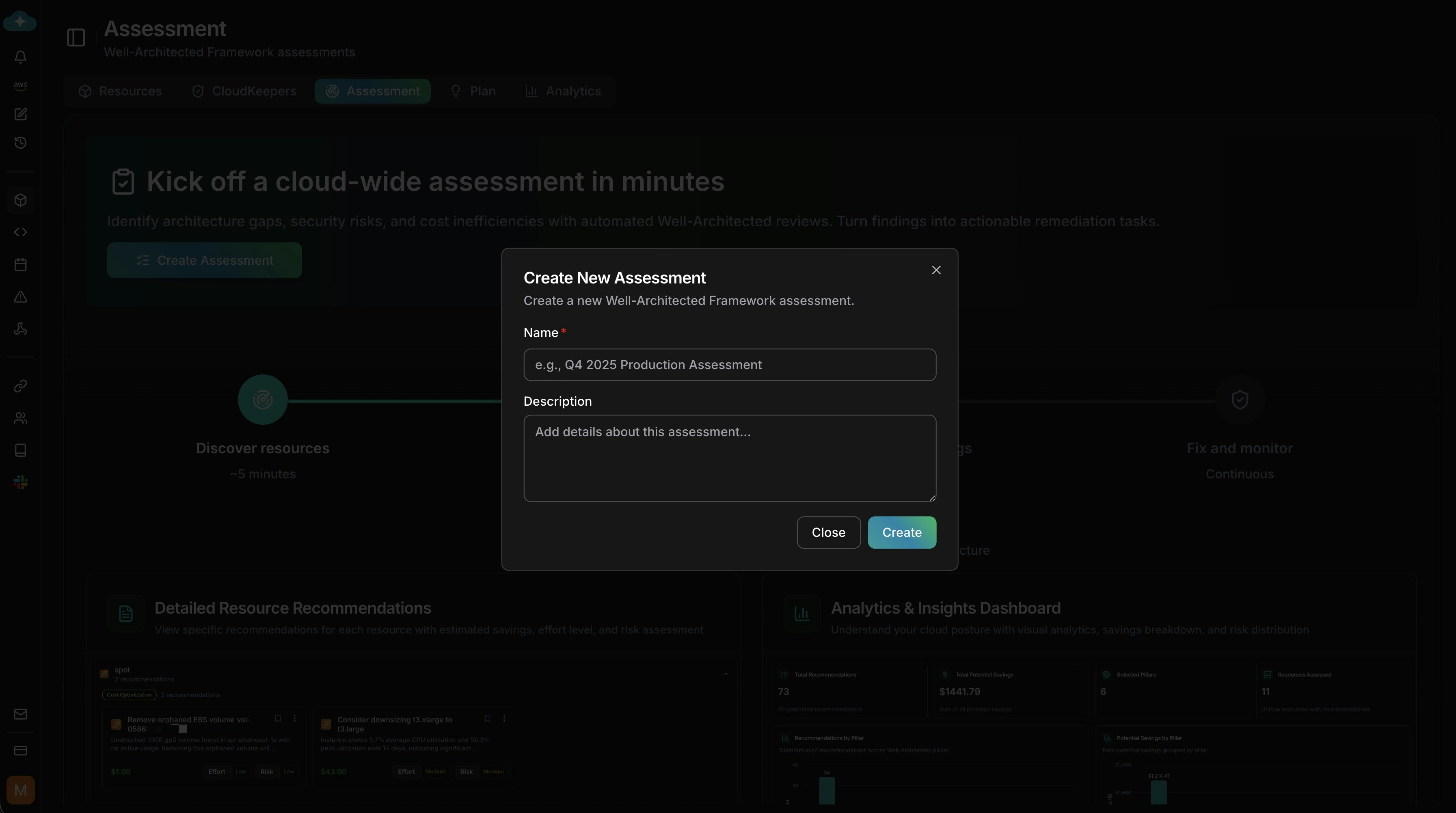
    Go to **Assessment** and click **Create Assessment**.

    <Frame>
      <img src="https://mintcdn.com/cloudthinker/CRR3umkwT7id1rQX/images/infrastructure/assessments/1-assessment-landing-cta.jpg?fit=max&auto=format&n=CRR3umkwT7id1rQX&q=85&s=081383c859a9f9a97e13a5adacf37520" alt="Assessment landing with create CTA and overview timeline" width="3586" height="2002" data-path="images/infrastructure/assessments/1-assessment-landing-cta.jpg" />
    </Frame>
  </Step>

  <Step title="Name your assessment">
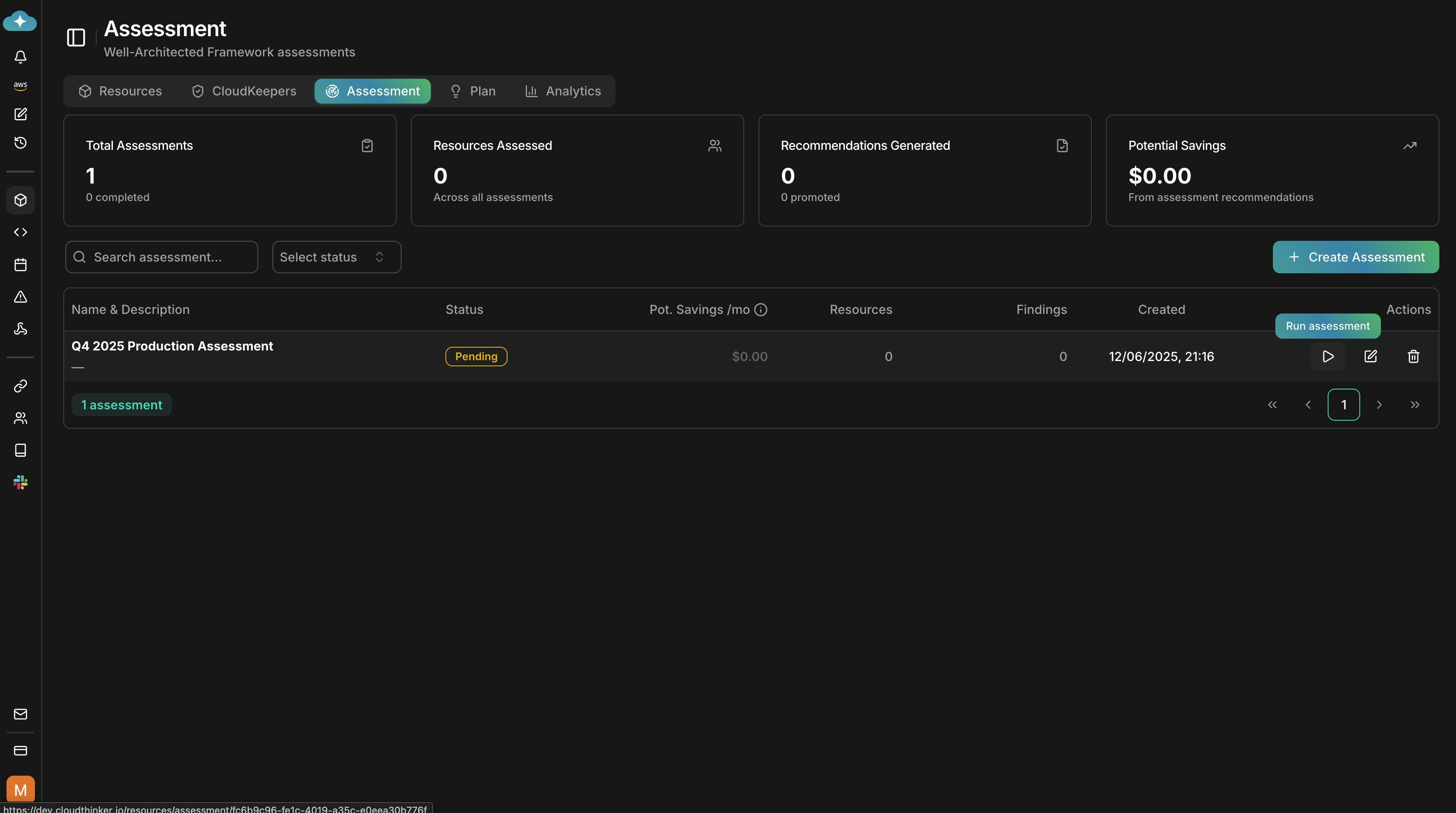
    Enter a clear name and optional description, then choose **Create**.

    <Frame>
      <img src="https://mintcdn.com/cloudthinker/CRR3umkwT7id1rQX/images/infrastructure/assessments/2-assessment-create-modal.jpg?fit=max&auto=format&n=CRR3umkwT7id1rQX&q=85&s=801273dbb86e7b16300d8a1534353a2d" alt="Modal to name and describe a new assessment" width="3586" height="2002" data-path="images/infrastructure/assessments/2-assessment-create-modal.jpg" />
    </Frame>
  </Step>

  <Step title="Find your draft">
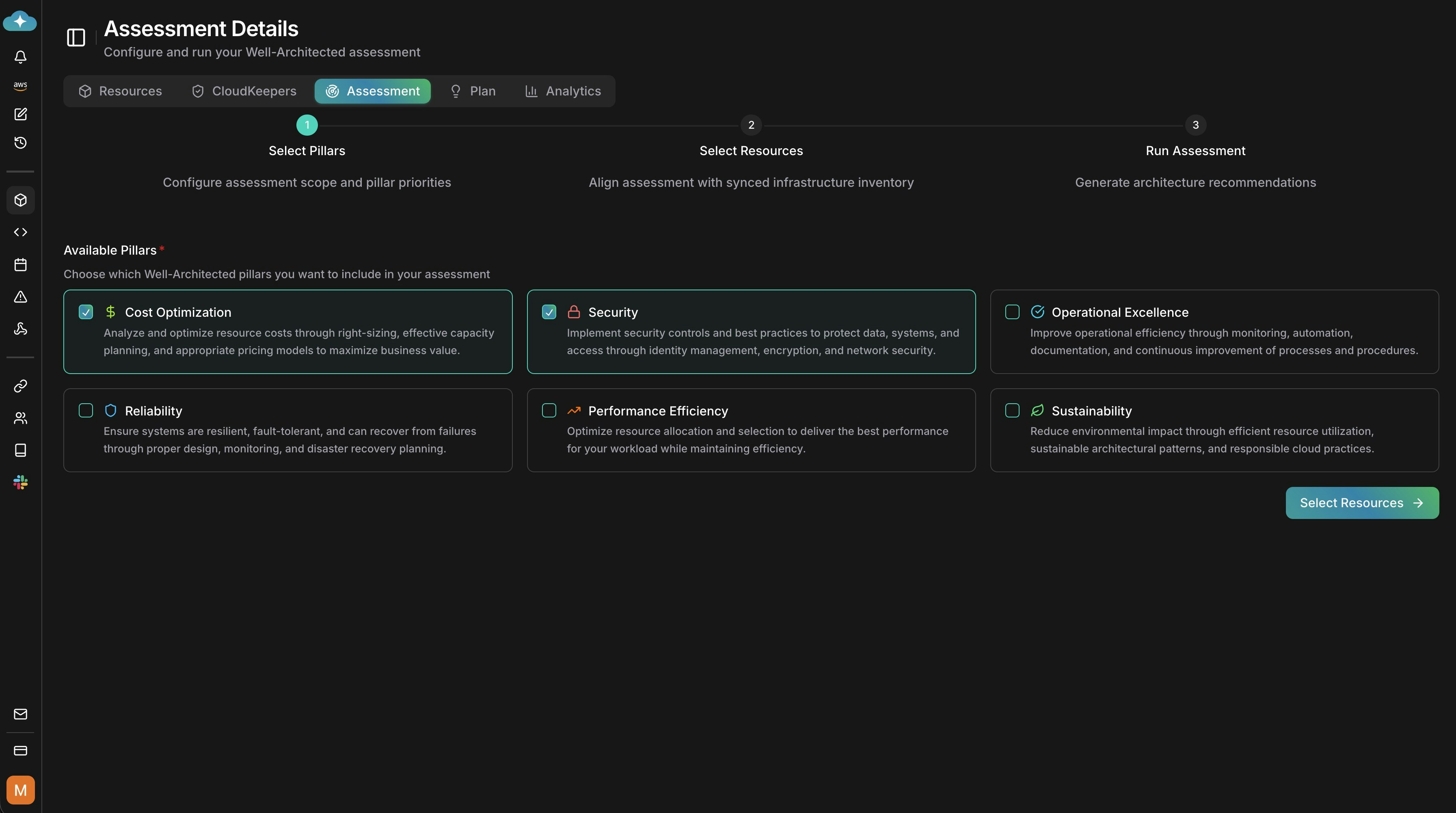
    Your new assessment appears in the list with status **Pending**. Click **Run assessment** to configure it.

    <Frame>
      <img src="https://mintcdn.com/cloudthinker/CRR3umkwT7id1rQX/images/infrastructure/assessments/3-assessment-list-run.jpg?fit=max&auto=format&n=CRR3umkwT7id1rQX&q=85&s=c114c52b82017b2452ce98c970732c49" alt="Assessment list showing a pending assessment with run action" width="3586" height="2002" data-path="images/infrastructure/assessments/3-assessment-list-run.jpg" />
    </Frame>
  </Step>
</Steps>

### Step 2: Configure the Assessment

<Steps>
  <Step title="Select Well-Architected pillars">
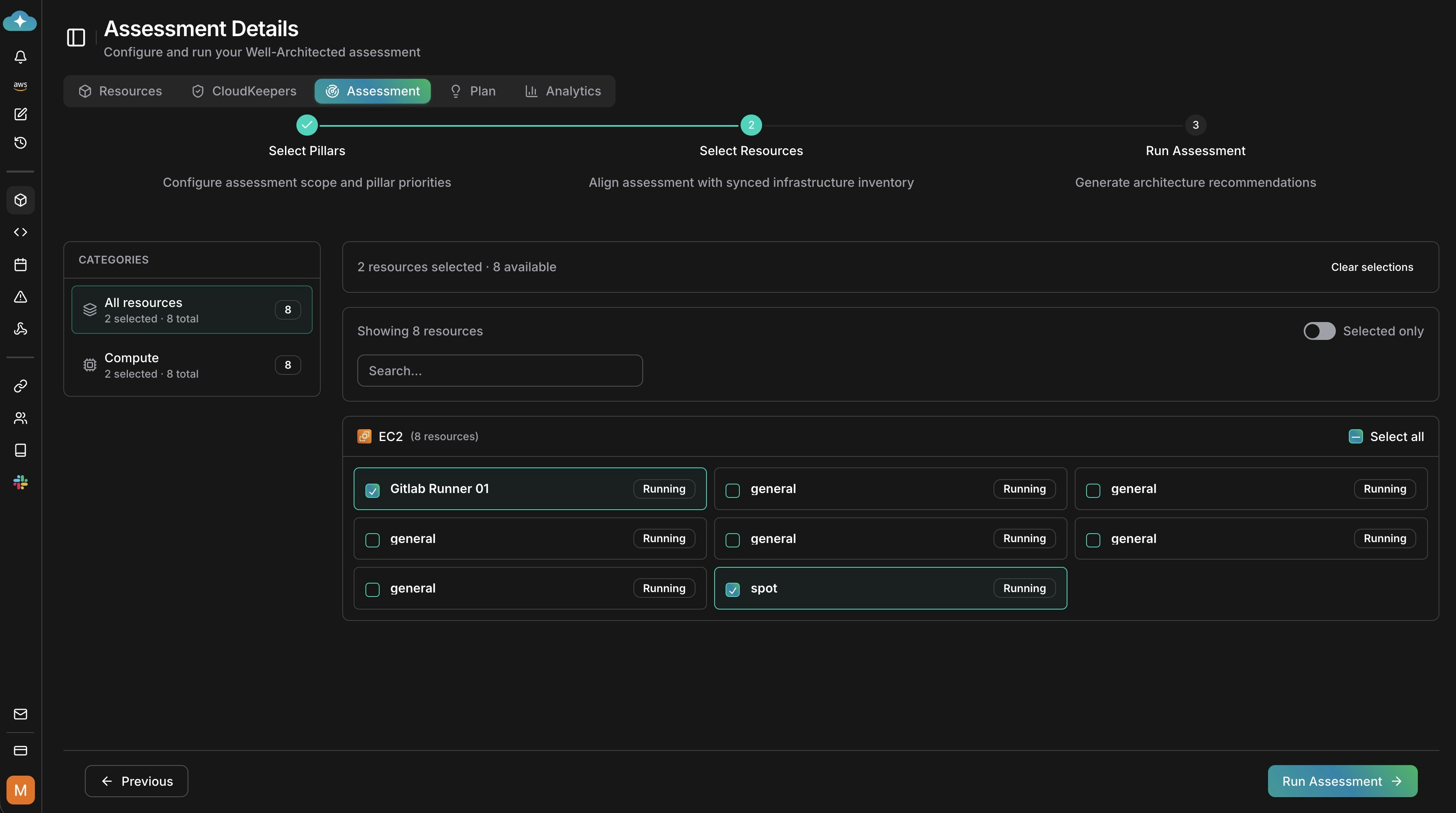
    Pick the pillars to evaluate (e.g., Cost Optimization, Security, Reliability, Performance Efficiency, Operational Excellence, Sustainability).

    <Frame>
      <img src="https://mintcdn.com/cloudthinker/CRR3umkwT7id1rQX/images/infrastructure/assessments/4-assessment-select-pillars.jpg?fit=max&auto=format&n=CRR3umkwT7id1rQX&q=85&s=b8a45a60cbfc1d6b1b62f37c53d75691" alt="Pillar selection step for the assessment" width="3586" height="2002" data-path="images/infrastructure/assessments/4-assessment-select-pillars.jpg" />
    </Frame>
  </Step>

  <Step title="Select resources to assess">
    Choose the discovered resources you want to include. You can scope to categories or specific resources. Only discovered resources are assessable.

    <Frame>
      <img src="https://mintcdn.com/cloudthinker/CRR3umkwT7id1rQX/images/infrastructure/assessments/5-assessment-select-resources.jpg?fit=max&auto=format&n=CRR3umkwT7id1rQX&q=85&s=ca1c4c2ead4837c3d2bdc3280e8dfde8" alt="Resource selection step with filters and toggles" width="3586" height="2002" data-path="images/infrastructure/assessments/5-assessment-select-resources.jpg" />
    </Frame>
  </Step>

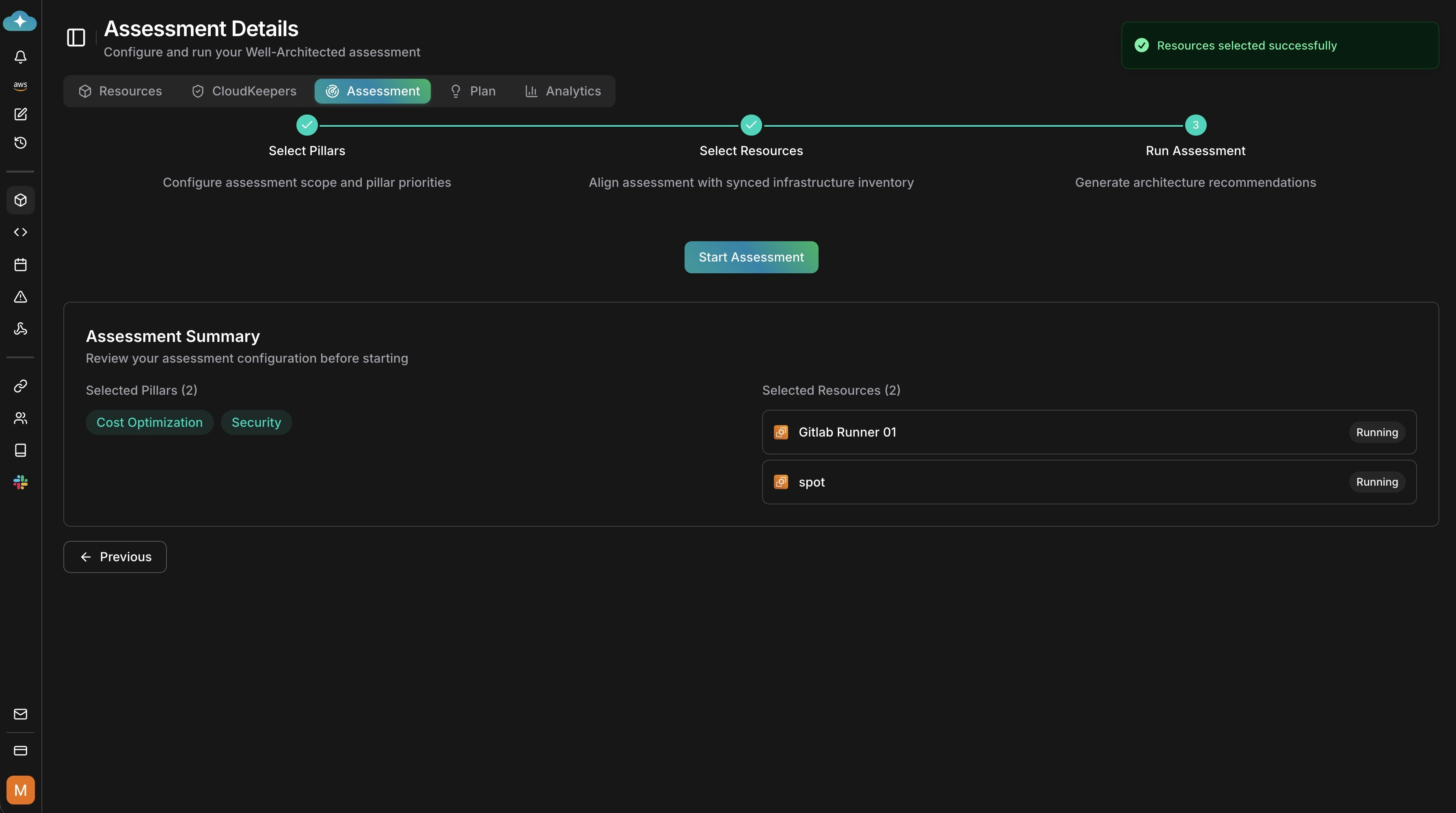
  <Step title="Review and start">
    Confirm pillars and selected resources, then click **Start Assessment**.

    <Frame>
      <img src="https://mintcdn.com/cloudthinker/CRR3umkwT7id1rQX/images/infrastructure/assessments/6-assessment-summary.jpg?fit=max&auto=format&n=CRR3umkwT7id1rQX&q=85&s=ef9eb55eed7992740c32c61156ca0fb8" alt="Assessment summary before starting" width="3586" height="2002" data-path="images/infrastructure/assessments/6-assessment-summary.jpg" />
    </Frame>
  </Step>
</Steps>

### Step 3: Review Results and Take Action

<Steps>
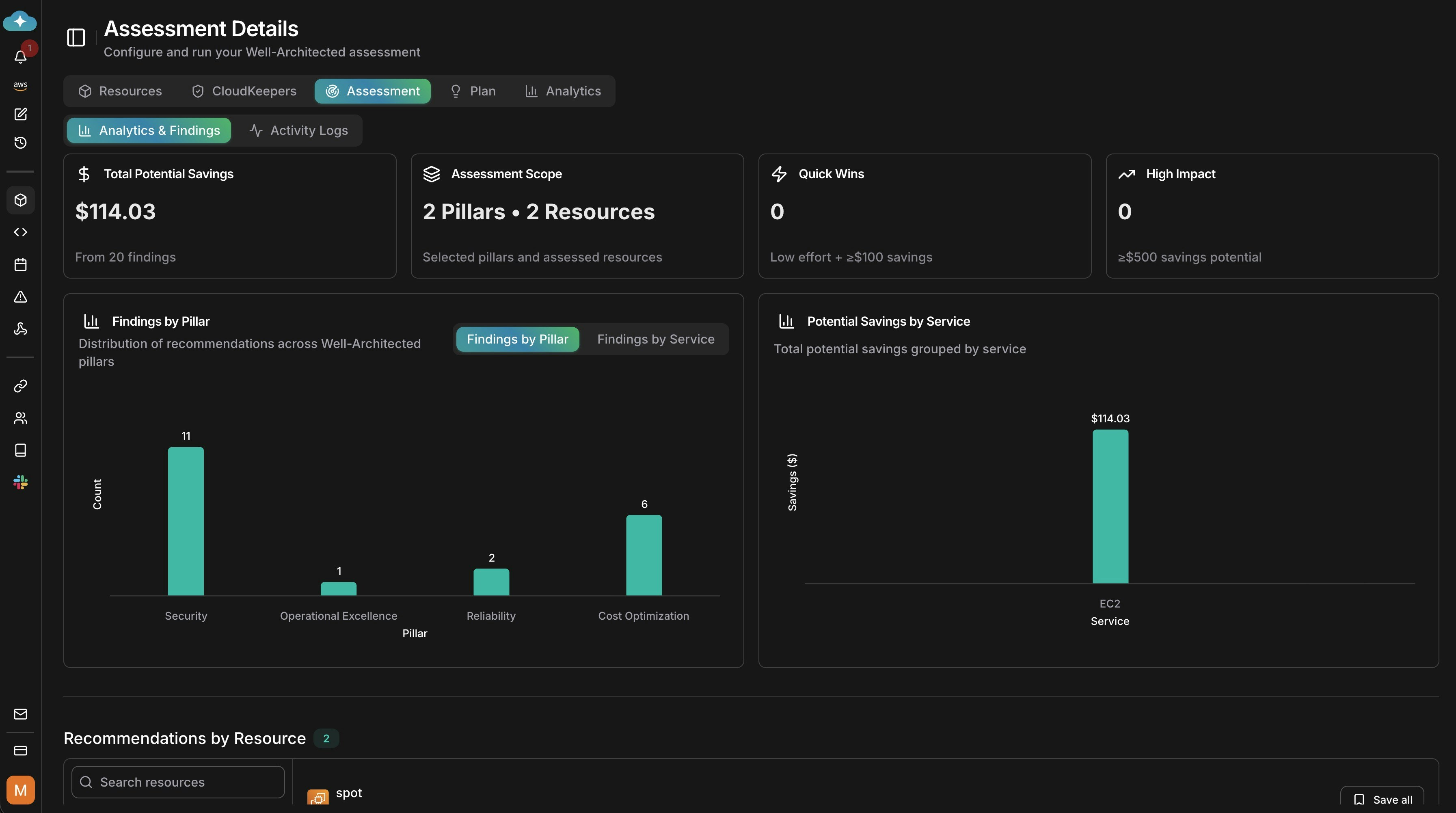
  <Step title="View analytics and findings">
    After the run, review analytics for findings by pillar, potential savings, and scope.

    <Frame>
      <img src="https://mintcdn.com/cloudthinker/CRR3umkwT7id1rQX/images/infrastructure/assessments/7-assessment-analytics-dashboard.jpg?fit=max&auto=format&n=CRR3umkwT7id1rQX&q=85&s=65012ef5500036b36d85d57dc0455cb5" alt="Analytics dashboard with findings by pillar and savings by service" width="3586" height="2002" data-path="images/infrastructure/assessments/7-assessment-analytics-dashboard.jpg" />
    </Frame>
  </Step>

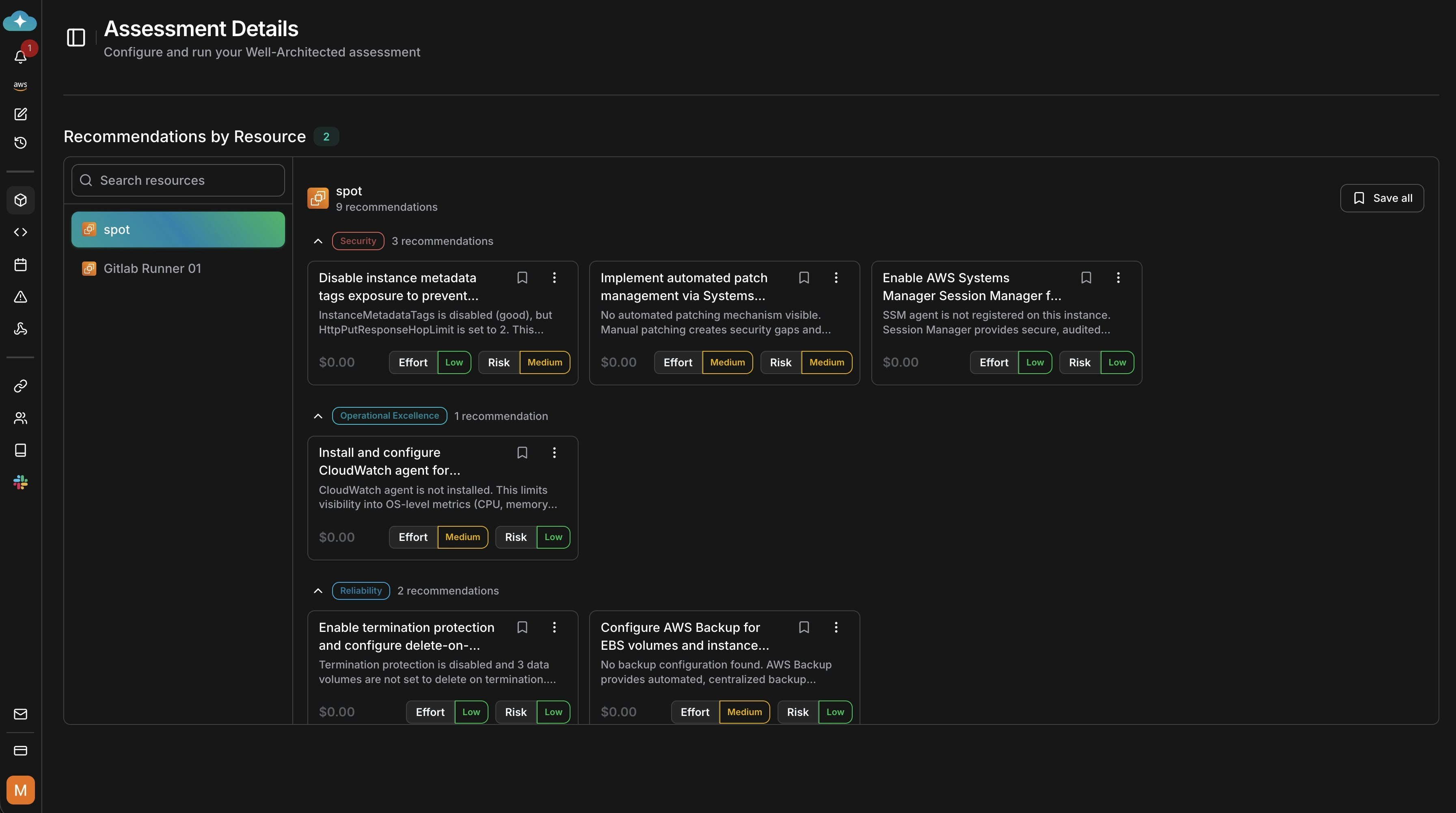
  <Step title="Drill into recommendations">
    Expand recommendations by resource to see effort, risk, and remediation details you can action.

    <Frame>
      <img src="https://mintcdn.com/cloudthinker/CRR3umkwT7id1rQX/images/infrastructure/assessments/8-assessment-recommendations.jpg?fit=max&auto=format&n=CRR3umkwT7id1rQX&q=85&s=c2a82be2464ce399dd6925952ba7498e" alt="Recommendations list grouped by resource with effort and risk" width="3586" height="2002" data-path="images/infrastructure/assessments/8-assessment-recommendations.jpg" />
    </Frame>
  </Step>

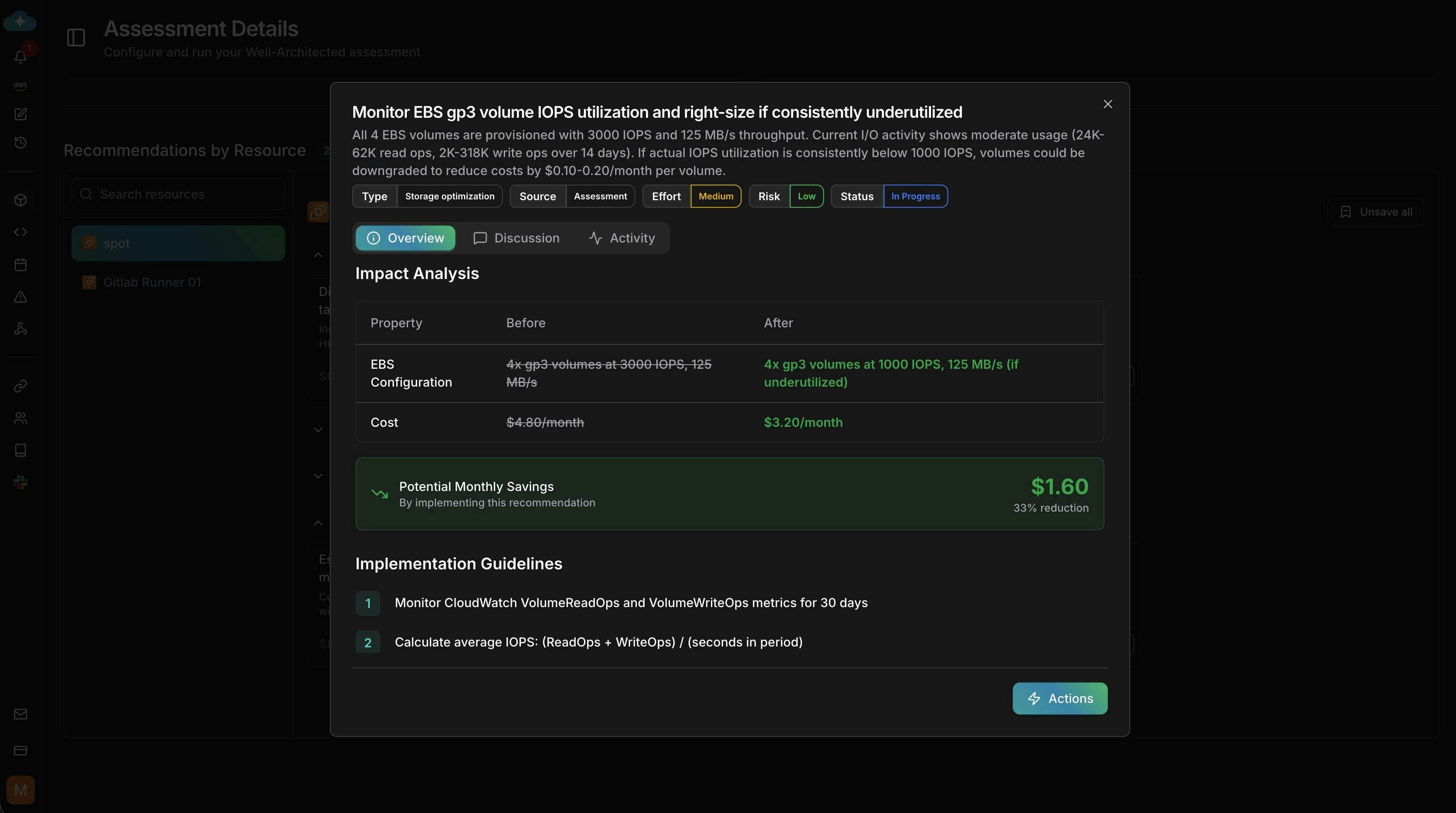
  <Step title="Open recommendation details">
    Click a recommendation to view impact analysis, savings, and implementation guidelines.

    <Frame>
      <img src="https://mintcdn.com/cloudthinker/9iwDeaqZV0tEjZUF/images/infrastructure/shared/9-assessment-recommendation-detail.jpg?fit=max&auto=format&n=9iwDeaqZV0tEjZUF&q=85&s=e9e8250af608bba471283c8f946f85c1" alt="Recommendation detail with impact analysis and implementation guidelines" width="3586" height="2002" data-path="images/infrastructure/shared/9-assessment-recommendation-detail.jpg" />
    </Frame>
  </Step>

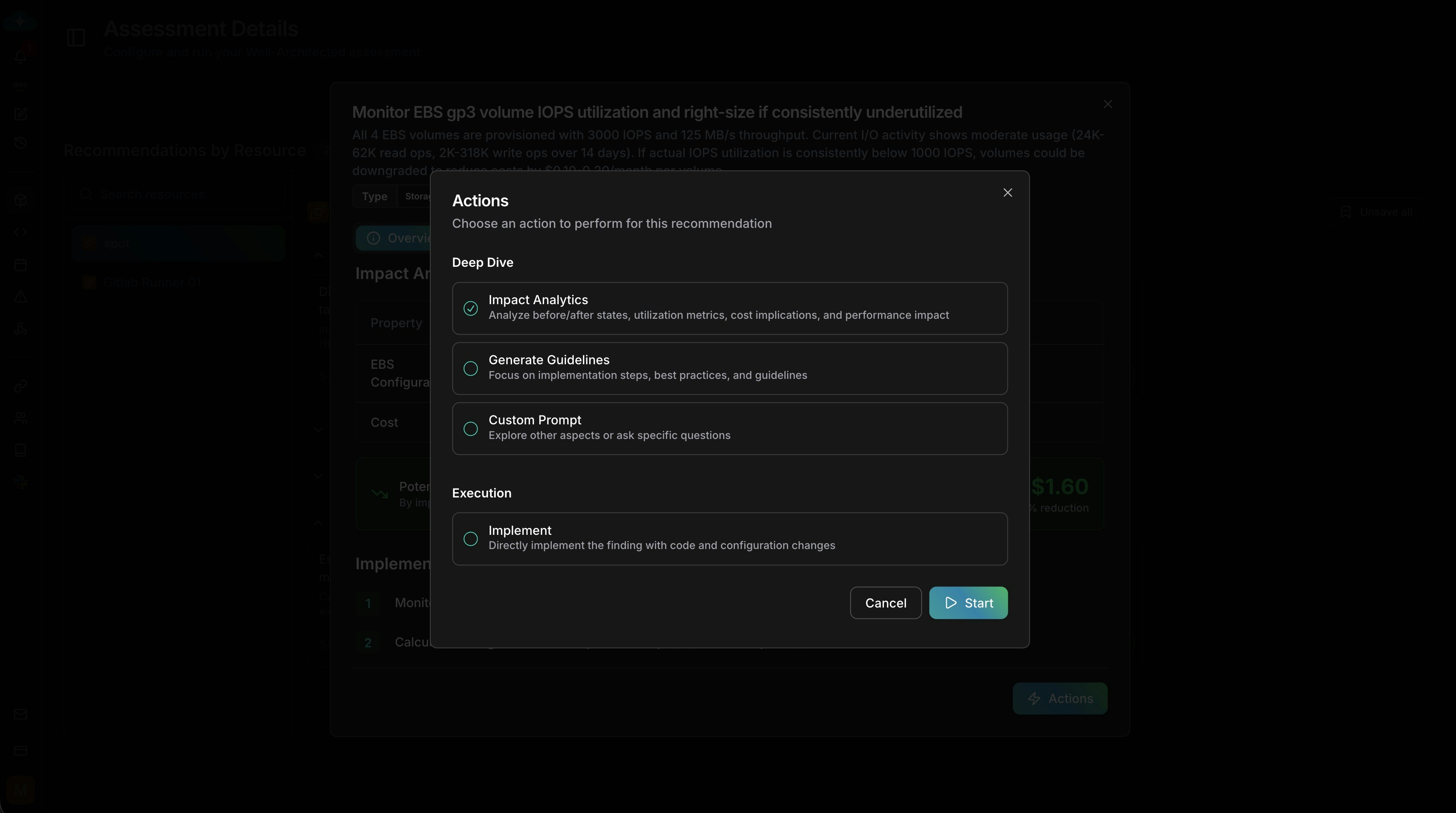
  <Step title="Take action">
    Choose how to proceed: run Impact Analytics, generate guidelines, ask a custom prompt, or implement directly. Click **Start** to launch the action.

    <Frame>
      <img src="https://mintcdn.com/cloudthinker/9iwDeaqZV0tEjZUF/images/infrastructure/shared/10-assessment-action-modal.jpg?fit=max&auto=format&n=9iwDeaqZV0tEjZUF&q=85&s=69a59b3c1a3f11ca50929e767a03f16b" alt="Action modal with options for analytics, guidelines, prompts, and implementation" width="3586" height="2002" data-path="images/infrastructure/shared/10-assessment-action-modal.jpg" />
    </Frame>
  </Step>
</Steps>

<Note>
  Recommendations are drafted by default—save them to make them appear on the
  [Plan](/guide/infrastructure/plan) page.
</Note>

***

## What's Next

<CardGroup cols={2}>
  <Card title="Plan" icon="list-check" href="/guide/infrastructure/plan">
    Save assessment findings to Plan to track implementation and ROI
  </Card>

  <Card title="CloudKeepers" icon="radar" href="/guide/infrastructure/cloudkeepers">
    Set up daily guardrails to maintain the standards your assessment identified
  </Card>

  <Card title="Resources" icon="cubes" href="/guide/infrastructure/resources">
    Discover additional resources to include in your next assessment run
  </Card>

  <Card title="Cost Optimization" icon="piggy-bank" href="/guide/cost-optimization/overview">
    Deep-dive into cost findings from the Cost Optimization pillar
  </Card>
</CardGroup>