> ## Documentation Index
> Fetch the complete documentation index at: https://docs.cloudthinker.io/llms.txt
> Use this file to discover all available pages before exploring further.

# Resources

> Infrastructure resources overview for CloudThinker operations.

Track every cloud asset, run targeted discovery, and act on cost/security/performance findings in one place. Screenshots use AWS as an example, but flows apply to any supported cloud.

***

## The Problem

Cloud infrastructure grows faster than it's tracked. Resources get provisioned for a project, the project ends, and the resources keep running. Tags are inconsistent. Nobody has a definitive answer to "how many EC2 instances do we have and what are they all doing?"

Traditional approaches:

* AWS Console: must click through each service and region manually
* `aws ec2 describe-instances` + spreadsheets: scripts break, output needs manual processing
* AWS Config: powerful but complex to query, no built-in recommendations
* Third-party CMDB tools: expensive, require agent installation, go stale quickly

The result: untracked resources are invisible to cost, security, and performance analysis. You can't optimize what you can't see.

***

## How Existing Tools Compare

| Tool                      | What It Does                                | What's Missing                                                                |
| ------------------------- | ------------------------------------------- | ----------------------------------------------------------------------------- |
| **AWS Console**           | Browse resources by service                 | No cross-service inventory, no optimization actions                           |
| **AWS Config**            | Configuration tracking and compliance rules | Complex query language, no AI recommendations, no multi-cloud                 |
| **AWS Resource Explorer** | Cross-region resource search                | Search only, no cost/security analysis, no actions                            |
| **ServiceNow CMDB**       | Enterprise configuration database           | Requires agent installation, expensive, goes stale without active maintenance |
| **Terraform state**       | IaC-managed resource inventory              | Only covers IaC-managed resources; manual/console-created resources invisible |

CloudThinker Resources gives you live discovery, cross-cloud inventory, and direct optimization actions — all in one view, without writing scripts or maintaining agents.

***

## What Makes This Different

* **On-demand and continuous discovery**: scan on demand or let [CloudKeepers](/guide/infrastructure/cloudkeepers) continuously monitor — no agents to install
* **Tag-based scoping**: focus discovery on specific environments (production, staging) without noise
* **Inline optimization**: hover over any resource to immediately run cost optimization, security scan, or performance check
* **Cloud-agnostic**: same workflow for AWS, GCP, and Azure — not separate tools for each provider

<iframe width="100%" height="400" src="https://www.youtube.com/embed/mHFUL4_1XaQ" title="CloudThinker Infrastructure Resources Tutorial" style={{ borderRadius: '12px', border: 'none' }} allow="accelerometer; autoplay; clipboard-write; encrypted-media; gyroscope; picture-in-picture" allowFullScreen />

***

## What you get

* Complete inventory across accounts with resource type filters and tags
* On-demand and continuous discovery across AWS services
* Inline actions to optimize cost, scan security, and check performance

***

## Prerequisites

* At least one cloud account connected (images show AWS, but any supported cloud works)
* Tags you want to use for scoping (e.g., `ENV=dev`, `Environment=production`)

***

## Quick Start

<Steps>
  <Step title="Open Resources">
    Go to **Infrastructure → Resources** to start discovery.
  </Step>

  <Step title="Select cloud & services">
    Choose the account, pick service types to scan, and scope with tags.
  </Step>

  <Step title="Review inventory">
    See discovered assets, savings potential, and run actions per resource.
  </Step>
</Steps>

***

## How access and automation work

* Agents can operate on any resources your cloud permissions allow, not just the ones you discovered. Discovery makes it easier to manage those resources inside CloudThinker.
* **[CloudKeepers](/guide/infrastructure/cloudkeepers)** runs across all permitted resources in your cloud; it is not limited by resource discovery scope.
* **[Assessment](/guide/infrastructure/assessment)** requires discovered resources first and only evaluates the resources that have been discovered.

***

## Step-by-step guide

<Steps>
  <Step title="Launch discovery">
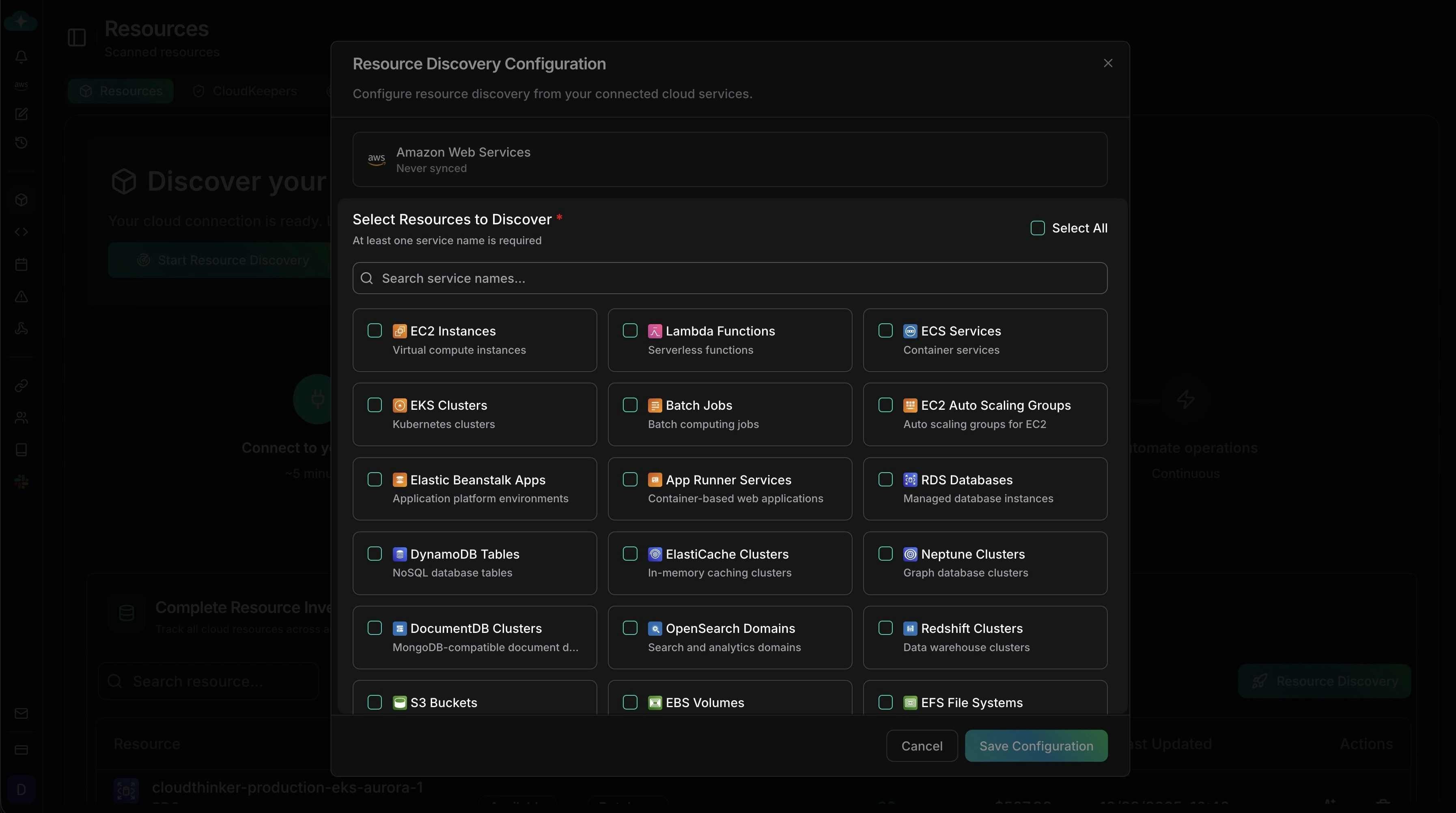
    Click **Connect** for your cloud (AWS shown here) and start **Resource Discovery**.
    The banner shows the flow: connect, run first scan (\~30s), then automate.

    <Frame>
      <img src="https://mintcdn.com/cloudthinker/9iwDeaqZV0tEjZUF/images/infrastructure/resources/1-resource-discovery-landing.jpg?fit=max&auto=format&n=9iwDeaqZV0tEjZUF&q=85&s=8df802a8126a6994e16a70e9934553d6" alt="Resources landing with Connect AWS CTA and how-it-works timeline" width="3588" height="2004" data-path="images/infrastructure/resources/1-resource-discovery-landing.jpg" />
    </Frame>
  </Step>

  <Step title="Pick services to scan">
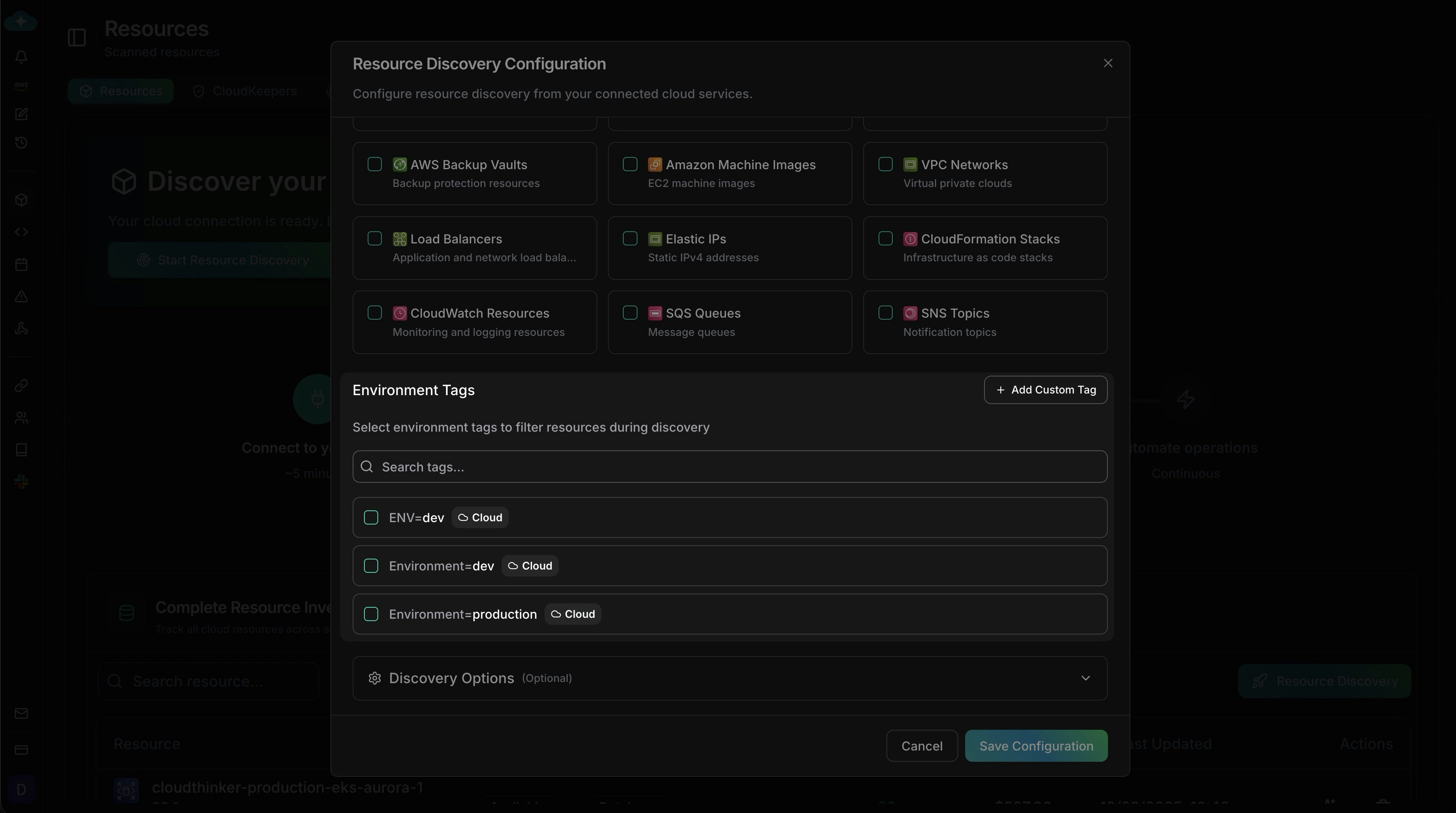
    Choose the services you want to include (names vary by cloud; AWS shown in the screenshot). Use **Select All** or search to narrow, then save when it matches your discovery scope.

    <Frame>
      <img src="https://mintcdn.com/cloudthinker/9iwDeaqZV0tEjZUF/images/infrastructure/resources/2-resource-discovery-services.jpg?fit=max&auto=format&n=9iwDeaqZV0tEjZUF&q=85&s=7d741c3e4aba56fea6eab79e3ac681d7" alt="Service selection modal with AWS service tiles" width="3588" height="2004" data-path="images/infrastructure/resources/2-resource-discovery-services.jpg" />
    </Frame>
  </Step>

  <Step title="Scope by tags">
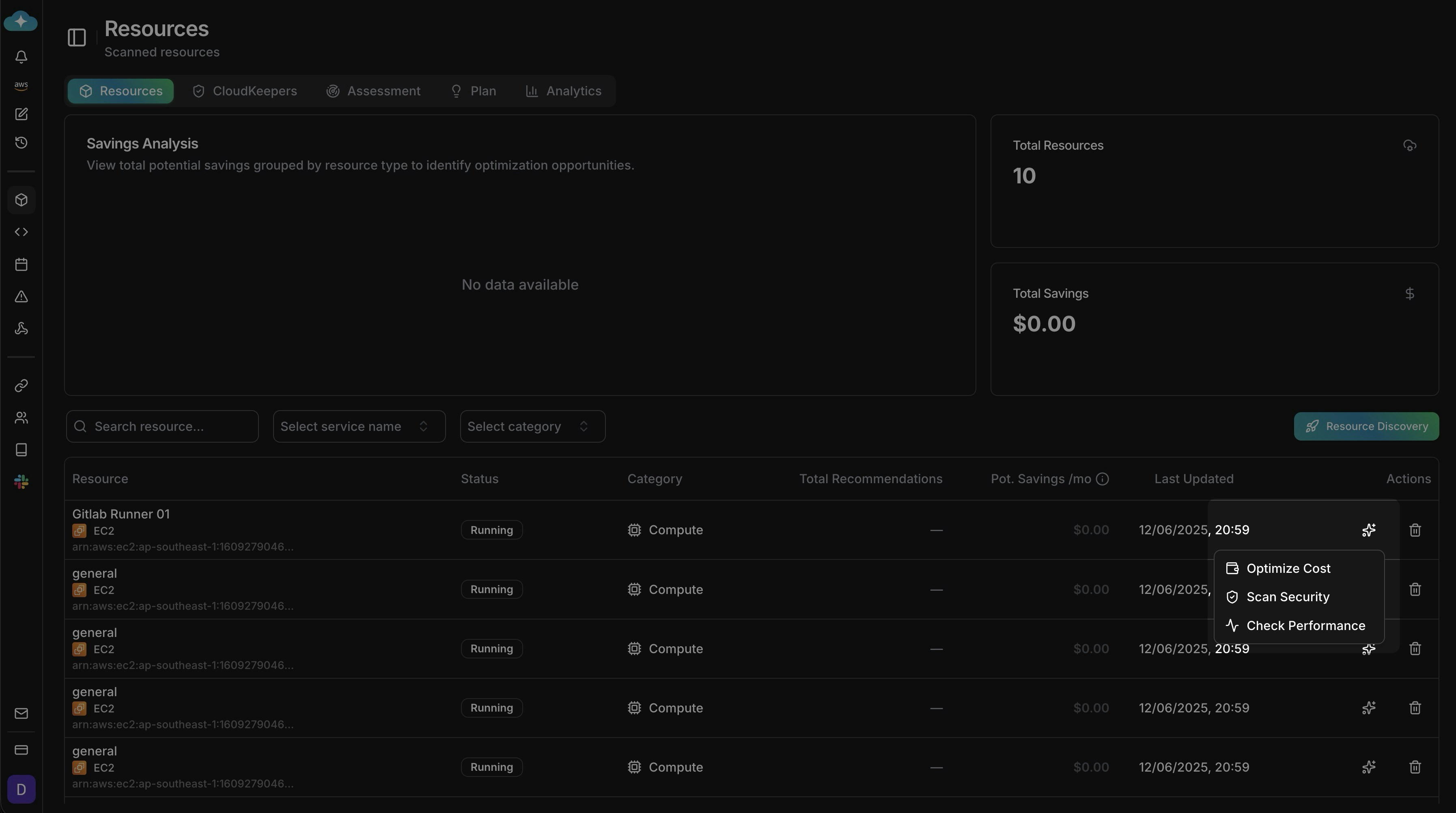
    * **No selected tags** → scan all tags/resources.
    * **Selecting tags** → only resources matching those tags are scanned.

    Add environment tags (e.g., `ENV=dev`, `Environment=production`) or **Add Custom Tag** for teams/projects/cost centers to focus the crawl.

    <Frame>
      <img src="https://mintcdn.com/cloudthinker/9iwDeaqZV0tEjZUF/images/infrastructure/resources/3-resource-discovery-tags.jpg?fit=max&auto=format&n=9iwDeaqZV0tEjZUF&q=85&s=db1655feb89cd4d3c258560a034c9d2e" alt="Environment tag filters for resource discovery" width="3588" height="2004" data-path="images/infrastructure/resources/3-resource-discovery-tags.jpg" />
    </Frame>
  </Step>

  <Step title="Review inventory and act">
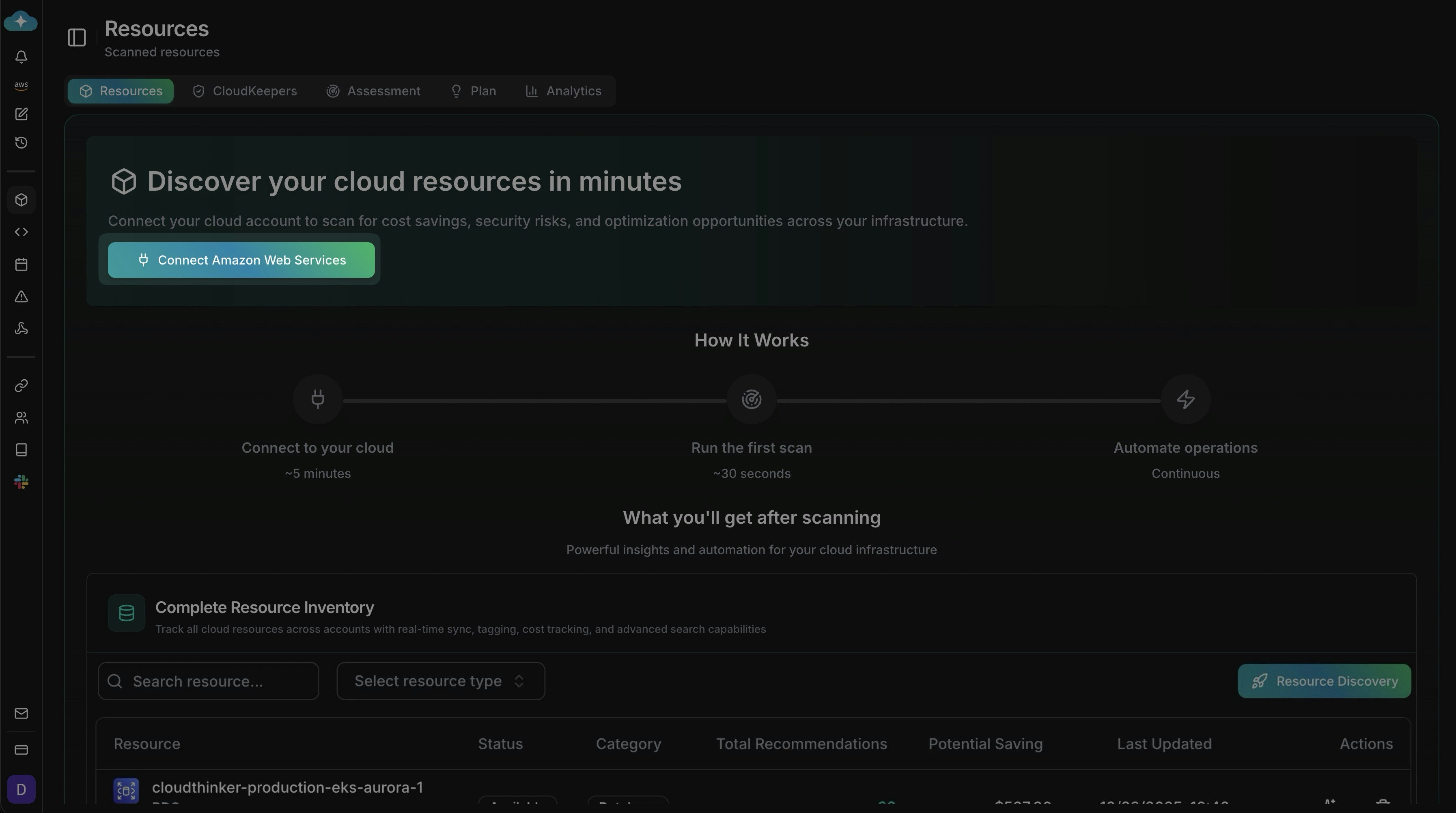
    * See totals, potential savings, and per-resource entries.
    * Filter by resource name, service, or category (e.g., Compute).
    * Hover **Actions** to run **Optimize Cost**, **Scan Security**, or **Check Performance** on a resource.

    Use this to triage new findings and trigger targeted actions quickly.

    <Frame>
      <img src="https://mintcdn.com/cloudthinker/9iwDeaqZV0tEjZUF/images/infrastructure/resources/4-resource-inventory-table.jpg?fit=max&auto=format&n=9iwDeaqZV0tEjZUF&q=85&s=f8e8d58a0ee2664274f827e49bd38945" alt="Resource inventory with savings and inline actions" width="3588" height="2004" data-path="images/infrastructure/resources/4-resource-inventory-table.jpg" />
    </Frame>
  </Step>
</Steps>

***

## Tips

* Start broad, then narrow with tags to avoid missing critical resources.
* Keep discovery configurations versioned (note which services/tags you scan).
* After each scan, action high-value recommendations first (cost/security).

***

## What's Next

<CardGroup cols={2}>
  <Card title="CloudKeepers" icon="radar" href="/guide/infrastructure/cloudkeepers">
    Set up continuous monitoring so new resources are automatically evaluated
  </Card>

  <Card title="Assessment" icon="clipboard-check" href="/guide/infrastructure/assessment">
    Run a Well-Architected assessment on your discovered resources
  </Card>

  <Card title="Plan" icon="list-check" href="/guide/infrastructure/plan">
    Manage and track recommendations from resource optimization actions
  </Card>

  <Card title="Topology" icon="diagram-project" href="/guide/infrastructure/topology">
    Visualize discovered resources and their dependencies
  </Card>
</CardGroup>