> ## Documentation Index
> Fetch the complete documentation index at: https://docs.cloudthinker.io/llms.txt
> Use this file to discover all available pages before exploring further.
# Notifications Center
> Configure and manage role-specific notifications across email, Slack, and Microsoft Teams channels for timely cloud operations alerts
Stay informed about critical cloud operations with intelligent, role-specific notifications. Configure how and where you receive alerts for CloudThinker features with flexible severity filtering and multiple delivery channels.
***
## The problem with alert fatigue
Generic cloud alerting sends everything to everyone — and when everyone gets everything, nobody reads anything. Security engineers don't need to see every cost recommendation. Finance teams don't need Kubernetes OOMKill alerts. On-call engineers don't need compliance digest emails at 3 AM.
The result: critical alerts get buried in noise, teams disable notifications entirely, and important findings go unacted on.
CloudThinker's Notifications Center solves this with role-based routing and severity filtering: each team member configures what they care about, at what severity threshold, through which channel — so the right person gets the right alert at the right time.
| Feature | Description |
| ------------------------------------------------- | ----------------------------------------------------------------------------------------------------- |
| **Smart Routing** (channel-based delivery) | Route notifications to email or Slack channels based on feature categories and severity levels |
| **Alert Fatigue Control** (intelligent filtering) | Configure severity thresholds to receive only the alerts that matter to your role |
| **Multi-Channel Support** (flexible preferences) | Receive notifications via email, Slack, Microsoft Teams, or any combination, tailored to each feature |
| **Multi-Workspace** (workspace isolation) | Configure separate notification preferences for each workspace you manage |
***
## Quick start
In CloudThinker, navigate to **Settings > Notifications**
Choose which CloudThinker feature you want to configure notifications for
(Alerts, Agents & Tasks, Code Review, etc.)
Toggle Email, Slack, and/or Microsoft Teams on for the selected feature
Choose your minimum severity threshold (Critical, High, Medium, Low)
For external email recipients, confirm the verification link sent to your
email address
***
## Configuration interface
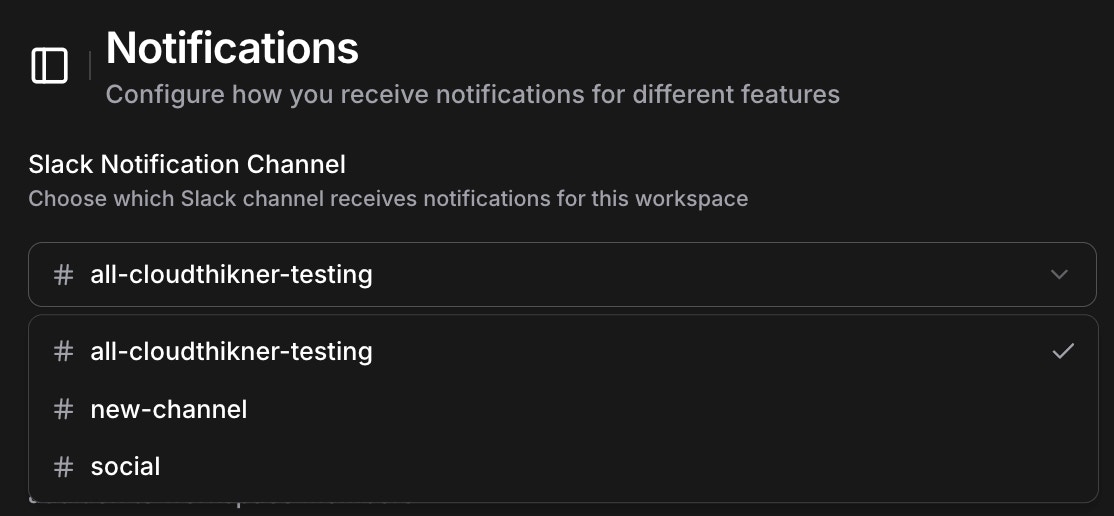 The notification system organizes around CloudThinker's core features, allowing independent configuration for each area. Access comprehensive settings by selecting each feature category.
### Feature categories
Configure notifications independently for each area:
* **Alerts** - Critical and operational alert notifications for system events
* **Agents & Tasks** - Agent interruptions and task completions
* **[Code Review](/guide/code-review/setup) / Pipeline Monitoring** - Code review findings with severity breakdown, pipeline execution status, and failure notifications
* **[CloudKeepers](/guide/infrastructure/cloudkeepers) / [Assessment](/guide/infrastructure/assessment)** - Cost optimization recommendations and AWS assessment updates
* **Discussions** - Team discussion activity, replies, and resolved discussions
* **Resources** - Infrastructure resource changes and updates
***
## Channel configuration
Each feature category supports flexible channel configuration with independent control:
### Email notifications
The notification system organizes around CloudThinker's core features, allowing independent configuration for each area. Access comprehensive settings by selecting each feature category.
### Feature categories
Configure notifications independently for each area:
* **Alerts** - Critical and operational alert notifications for system events
* **Agents & Tasks** - Agent interruptions and task completions
* **[Code Review](/guide/code-review/setup) / Pipeline Monitoring** - Code review findings with severity breakdown, pipeline execution status, and failure notifications
* **[CloudKeepers](/guide/infrastructure/cloudkeepers) / [Assessment](/guide/infrastructure/assessment)** - Cost optimization recommendations and AWS assessment updates
* **Discussions** - Team discussion activity, replies, and resolved discussions
* **Resources** - Infrastructure resource changes and updates
***
## Channel configuration
Each feature category supports flexible channel configuration with independent control:
### Email notifications
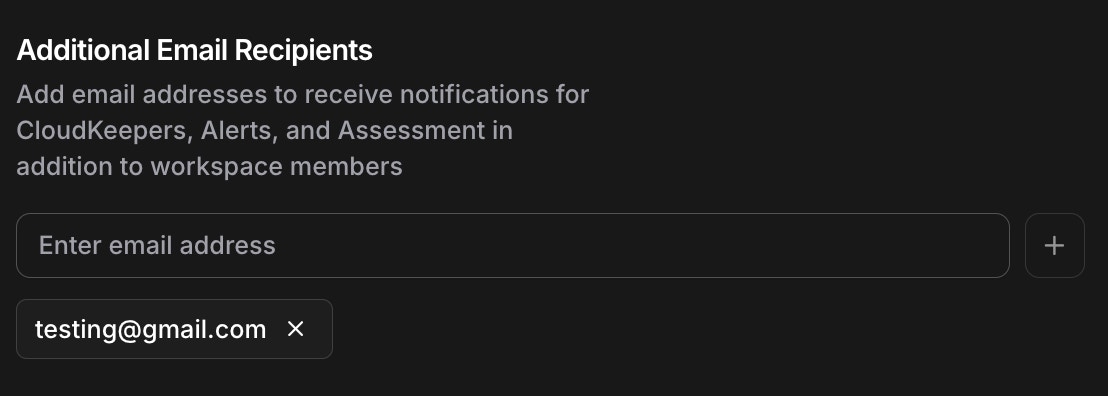 Send notifications to verified email addresses, supporting both workspace members and external recipients.
**Key Features:**
* Verified external recipients for security
* Multiple email addresses per feature
* Workspace member defaults
* Email verification required for external addresses
### [Slack integration](/guide/slack-integration)
Send notifications to verified email addresses, supporting both workspace members and external recipients.
**Key Features:**
* Verified external recipients for security
* Multiple email addresses per feature
* Workspace member defaults
* Email verification required for external addresses
### [Slack integration](/guide/slack-integration)
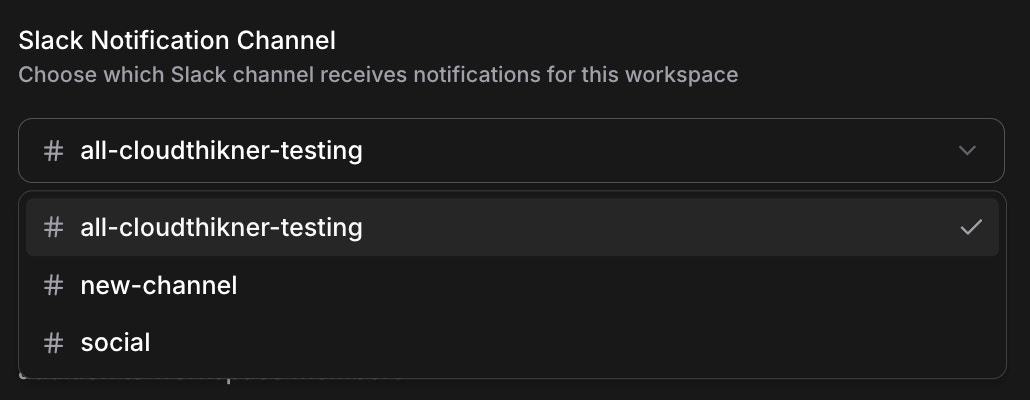 Route notifications to Slack channels instead of direct messages, reducing notification fatigue while maintaining team awareness. Start typing to filter channels by name — the search matches partial names and is case-insensitive, making it easy to find channels in large workspaces.
**Key Features:**
* Channel-based routing (not direct messages)
* Searchable channel picker with type-ahead filtering
* Reduces notification overload
* Team-wide visibility and opt-in
* Context-aware channel selection
### [Microsoft Teams integration](/guide/teams-integration)
Route notifications to Microsoft Teams channels using Adaptive Cards for rich, structured alerts. Teams notifications work the same way as Slack — configure per-feature categories, select a Teams channel, and set severity thresholds.
**Key Features:**
* Adaptive Card format with structured data and action buttons
* Channel-based routing with searchable picker
* Per-category channel selection (e.g., code review findings to `#code-reviews`, incidents to `#incidents`)
* Same severity threshold filtering as other channels
* Requires [Teams integration](/guide/teams-integration) to be connected first
***
## Severity filtering
Route notifications to Slack channels instead of direct messages, reducing notification fatigue while maintaining team awareness. Start typing to filter channels by name — the search matches partial names and is case-insensitive, making it easy to find channels in large workspaces.
**Key Features:**
* Channel-based routing (not direct messages)
* Searchable channel picker with type-ahead filtering
* Reduces notification overload
* Team-wide visibility and opt-in
* Context-aware channel selection
### [Microsoft Teams integration](/guide/teams-integration)
Route notifications to Microsoft Teams channels using Adaptive Cards for rich, structured alerts. Teams notifications work the same way as Slack — configure per-feature categories, select a Teams channel, and set severity thresholds.
**Key Features:**
* Adaptive Card format with structured data and action buttons
* Channel-based routing with searchable picker
* Per-category channel selection (e.g., code review findings to `#code-reviews`, incidents to `#incidents`)
* Same severity threshold filtering as other channels
* Requires [Teams integration](/guide/teams-integration) to be connected first
***
## Severity filtering
 Filter notifications by severity level to receive only alerts meeting your threshold:
* **Low** - Informational updates and general notifications
* **Medium** - Important updates requiring attention and review
* **High** - Critical issues affecting operations that need prompt action
* **Critical** - System-critical alerts requiring immediate action
Each channel can have independent severity thresholds. For example, configure Slack for Medium and above while Email is set to High and above.
***
## Notification categories in detail
### Alerts
System-wide alert notifications for critical events and important operational updates requiring attention.
### Agents & tasks
Filter notifications by severity level to receive only alerts meeting your threshold:
* **Low** - Informational updates and general notifications
* **Medium** - Important updates requiring attention and review
* **High** - Critical issues affecting operations that need prompt action
* **Critical** - System-critical alerts requiring immediate action
Each channel can have independent severity thresholds. For example, configure Slack for Medium and above while Email is set to High and above.
***
## Notification categories in detail
### Alerts
System-wide alert notifications for critical events and important operational updates requiring attention.
### Agents & tasks
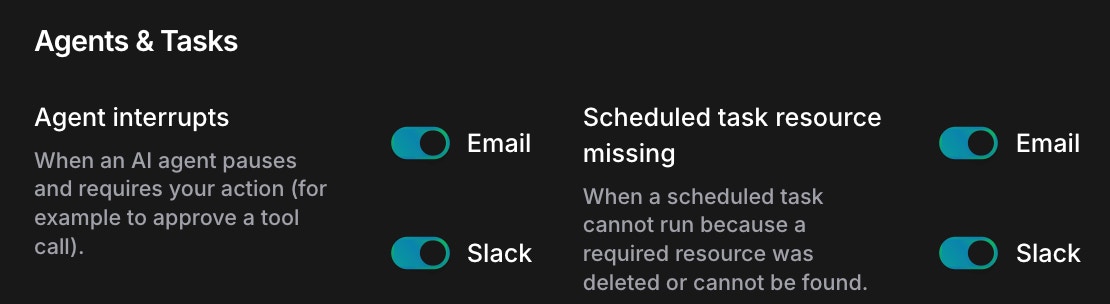 Notifications for AI agent activity and task execution:
* **Agent Interrupts** - When an AI agent pauses and requires your action (e.g., to approve a tool call)
* **Scheduled Task Resource Missing** - When a scheduled task cannot run because a required resource was deleted or unavailable
### [Code Review](/guide/code-review/setup) / Pipeline monitoring
Notifications for AI agent activity and task execution:
* **Agent Interrupts** - When an AI agent pauses and requires your action (e.g., to approve a tool call)
* **Scheduled Task Resource Missing** - When a scheduled task cannot run because a required resource was deleted or unavailable
### [Code Review](/guide/code-review/setup) / Pipeline monitoring
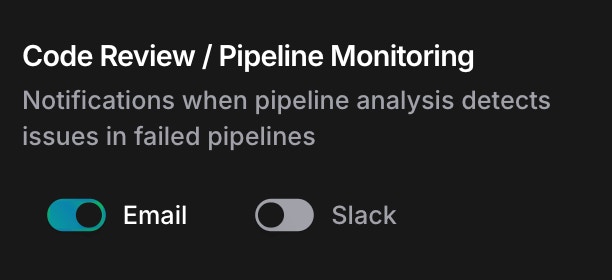 #### Pipeline monitoring
* Pipeline execution status updates
* Pipeline failure notifications with AI-analyzed logs
#### Code review findings
When an AI code review completes on a pull/merge request, CloudThinker sends a notification with:
* **Severity summary** — count of critical, high, medium, and low findings
* **Finding details** — title, severity, file path, and line number for up to 10 findings
* **Resolved tracking** — count of previously identified findings that have been resolved
* **Action link** — direct link to the code review dashboard
Code review findings notifications are sent automatically after each review completes. Configure severity thresholds to control which reviews trigger a notification — for example, set to **High** to only be notified when critical or high-severity findings are detected.
Each notification channel renders findings in its native format:
* **Slack** — [Block Kit message](/guide/slack-integration#code-review-notifications) with severity emoji indicators
* **Microsoft Teams** — [Adaptive Card](/guide/teams-integration#code-review-notifications) with FactSet severity table
* **Email** — HTML table with findings details and dashboard link
### [CloudKeepers](/guide/infrastructure/cloudkeepers) / [Assessment](/guide/infrastructure/assessment)
#### Pipeline monitoring
* Pipeline execution status updates
* Pipeline failure notifications with AI-analyzed logs
#### Code review findings
When an AI code review completes on a pull/merge request, CloudThinker sends a notification with:
* **Severity summary** — count of critical, high, medium, and low findings
* **Finding details** — title, severity, file path, and line number for up to 10 findings
* **Resolved tracking** — count of previously identified findings that have been resolved
* **Action link** — direct link to the code review dashboard
Code review findings notifications are sent automatically after each review completes. Configure severity thresholds to control which reviews trigger a notification — for example, set to **High** to only be notified when critical or high-severity findings are detected.
Each notification channel renders findings in its native format:
* **Slack** — [Block Kit message](/guide/slack-integration#code-review-notifications) with severity emoji indicators
* **Microsoft Teams** — [Adaptive Card](/guide/teams-integration#code-review-notifications) with FactSet severity table
* **Email** — HTML table with findings details and dashboard link
### [CloudKeepers](/guide/infrastructure/cloudkeepers) / [Assessment](/guide/infrastructure/assessment)
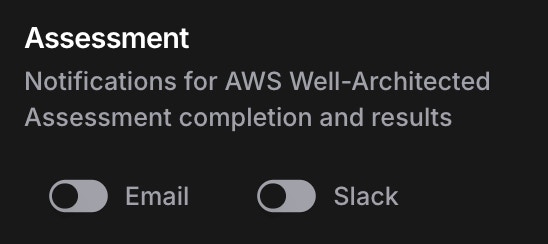 Notifications for cost optimization and cloud assessment updates:
* Cost optimization recommendations from [CloudKeepers](/guide/infrastructure/cloudkeepers)
* AWS [Well-Architected Assessment](/guide/infrastructure/assessment) completion and results
* Cost anomaly detection
### Discussions
Notifications for cost optimization and cloud assessment updates:
* Cost optimization recommendations from [CloudKeepers](/guide/infrastructure/cloudkeepers)
* AWS [Well-Architected Assessment](/guide/infrastructure/assessment) completion and results
* Cost anomaly detection
### Discussions
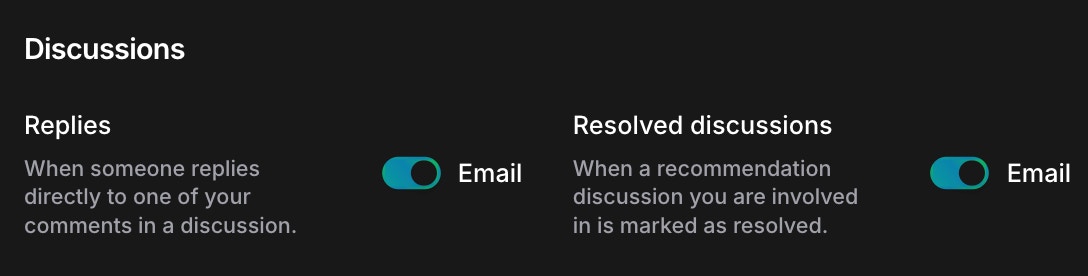 Notifications for team collaboration activities:
* **Replies** - When someone replies directly to one of your comments
* **Resolved Discussions** - When a discussion you're involved in is marked as resolved
***
## Key features
### Email verification
To prevent unauthorized access and data leakage, external email recipients must be verified before receiving notifications:
1. Enter the external email address in the notification settings
2. A verification link is sent to that email address
3. The recipient must click the verification link to confirm
4. Only verified addresses receive workspace notifications
This ensures that sensitive cloud operations data is only distributed to intended recipients.
### Slack channel-based routing
Instead of sending direct messages to individual users, notifications route to Slack channels:
* **Better Context** - All team members can see notifications in the channel
* **Reduced Fatigue** - Single channel per feature instead of individual messages
* **Opt-In Subscriptions** - Team members can choose to join specific notification channels
* **Team Awareness** - Operations visibility across your team
### Multi-workspace support
Configure separate notification preferences for each workspace you belong to:
* Different severity thresholds per workspace
* Role-specific configurations
* Workspace-specific channels
* Tailored alert strategies based on workspace context
***
## Best practices
### Reducing alert fatigue
* **Configure severity filters appropriately** - Set High or Critical for roles that manage many features
* **Use Slack or Teams channels** - Route team notifications to channels instead of direct messages
* **Disable unused features** - Turn off notifications for features your team doesn't actively manage
* **Gradual enablement** - Start with Critical alerts, then gradually add lower severity levels
### Security considerations
* **Always verify external emails** - Ensure only authorized recipients have access to sensitive data
* **Use workspace-specific channels** - Route sensitive operations to dedicated Slack or Teams channels
* **Review recipients regularly** - Periodically audit who receives notifications
* **Restrict channel access** - Limit notification channel membership to relevant team members
* **Monitor notification activity** - Track who receives what notifications for compliance
### Configuration strategy
1. **Start with Critical + High severity** for critical operational alerts
2. **Gradually add Medium severity** as your team becomes familiar with the system
3. **Use different channels for different features** - Keep infrastructure alerts separate from cost alerts
4. **Tailor by role** - Adjust thresholds based on team member responsibilities
5. **Test notification delivery** - Verify emails and Slack messages are reaching intended recipients
***
## Next steps
**Begin Setup**
Configure your first notification preferences in the CloudThinker Settings
**Understand Agents**
Get to know CloudThinker's AI agents and their capabilities
**Setup Slack**
Connect your Slack workspace for richer team collaboration
**Setup Teams**
Connect your Microsoft Teams workspace for Adaptive Card notifications
Notifications for team collaboration activities:
* **Replies** - When someone replies directly to one of your comments
* **Resolved Discussions** - When a discussion you're involved in is marked as resolved
***
## Key features
### Email verification
To prevent unauthorized access and data leakage, external email recipients must be verified before receiving notifications:
1. Enter the external email address in the notification settings
2. A verification link is sent to that email address
3. The recipient must click the verification link to confirm
4. Only verified addresses receive workspace notifications
This ensures that sensitive cloud operations data is only distributed to intended recipients.
### Slack channel-based routing
Instead of sending direct messages to individual users, notifications route to Slack channels:
* **Better Context** - All team members can see notifications in the channel
* **Reduced Fatigue** - Single channel per feature instead of individual messages
* **Opt-In Subscriptions** - Team members can choose to join specific notification channels
* **Team Awareness** - Operations visibility across your team
### Multi-workspace support
Configure separate notification preferences for each workspace you belong to:
* Different severity thresholds per workspace
* Role-specific configurations
* Workspace-specific channels
* Tailored alert strategies based on workspace context
***
## Best practices
### Reducing alert fatigue
* **Configure severity filters appropriately** - Set High or Critical for roles that manage many features
* **Use Slack or Teams channels** - Route team notifications to channels instead of direct messages
* **Disable unused features** - Turn off notifications for features your team doesn't actively manage
* **Gradual enablement** - Start with Critical alerts, then gradually add lower severity levels
### Security considerations
* **Always verify external emails** - Ensure only authorized recipients have access to sensitive data
* **Use workspace-specific channels** - Route sensitive operations to dedicated Slack or Teams channels
* **Review recipients regularly** - Periodically audit who receives notifications
* **Restrict channel access** - Limit notification channel membership to relevant team members
* **Monitor notification activity** - Track who receives what notifications for compliance
### Configuration strategy
1. **Start with Critical + High severity** for critical operational alerts
2. **Gradually add Medium severity** as your team becomes familiar with the system
3. **Use different channels for different features** - Keep infrastructure alerts separate from cost alerts
4. **Tailor by role** - Adjust thresholds based on team member responsibilities
5. **Test notification delivery** - Verify emails and Slack messages are reaching intended recipients
***
## Next steps
**Begin Setup**
Configure your first notification preferences in the CloudThinker Settings
**Understand Agents**
Get to know CloudThinker's AI agents and their capabilities
**Setup Slack**
Connect your Slack workspace for richer team collaboration
**Setup Teams**
Connect your Microsoft Teams workspace for Adaptive Card notifications