> ## Documentation Index
> Fetch the complete documentation index at: https://docs.cloudthinker.io/llms.txt
> Use this file to discover all available pages before exploring further.
# Handle CAPTCHA Logins
> Configure CAPTCHA options for Pentest password logins and check authenticated coverage when a challenge blocks access.
Configure CAPTCHA when a [Pentest](/guide/security/pentest) test account must pass a challenge to sign in. Saving the account does not prove that protected pages are accessible.
## Prerequisites
* A registered Pentest app and permission to edit its test users.
* A dedicated test account with **Password** authentication.
* For test keys, access to the test application's CAPTCHA configuration.
* For automated fallback, an installation where your administrator has enabled CAPTCHA fallback and configured the required solver.
## Configure the login
Open the app's **Settings → Test users**, then **Add test user** or **Add authentication**. Choose **Password** and enter the account details.
Set **Login URL (optional)** to the application's password login page when needed. The login page must stay within your app's target and scope.
Expand **CAPTCHA options (optional)**.
Set **Customer bypass** to **None** unless you have prepared a target-side exception. For a test environment with provider test keys, choose **Target test keys**.
Select **CAPTCHA provider** and enter the public sitekey already installed on the target in **Installed test sitekey**. Keep the matching verifier secret on your application server.
Set **Automated fallback** to **Allow for this identity** or **Disable for this identity**. Allowing fallback does not turn on an installation where fallback is disabled.
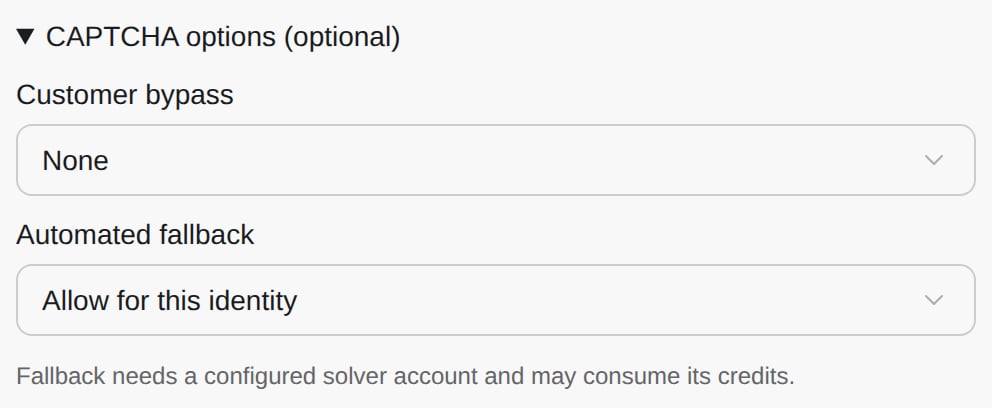
CAPTCHA options for a password identity.
Click **Save login**, then start an on-demand pentest. Review the run's authentication result before treating protected routes as tested.
**Success state:** the run proves signed-in access to protected content and confirms that anonymous access is denied. A saved login or a completed CAPTCHA alone is insufficient.
If CAPTCHA remains unsolved, authenticated testing is blocked. Correct the login setup or attach a verified **Session token** before another run.
## Choose a target-side exception
| Customer bypass | What it requires |
| - | - |
| **None** | No target-side exception; enabled fallback may attempt the login challenge |
| **Bypass header** | Your target already validates a dedicated header and secret to skip CAPTCHA; the password must still sign in. Header policies require protected credential configuration; ask your administrator to arrange it |
| **Target test keys** | Matching test keys in the target's widget and server-side verification, plus the installed public sitekey in CloudThinker |
The form displays **Header name** and **Bypass secret** for Bypass header. If saving this option is rejected, use the protected configuration path with your administrator or choose a verified session.
### Provider test keys
| Provider | Testing guidance |
| - | - |
| **reCAPTCHA v2** | Google's test key pair avoids the challenge and passes verification; see the [reCAPTCHA testing FAQ](https://developers.google.com/recaptcha/docs/faq#id-like-to-run-automated-tests-with-recaptcha.-what-should-i-do) |
| **reCAPTCHA v3** | Use a separate testing key; scores may differ from real traffic. A testing key does not guarantee login acceptance; see the same [Google FAQ](https://developers.google.com/recaptcha/docs/faq) |
| **hCaptcha** | Test sitekeys produce responses that require the matching test secret; see [hCaptcha test keys](https://docs.hcaptcha.com/#integration-testing-test-keys) |
| **Cloudflare Turnstile** | Use dummy sitekeys with matching test secrets; production secrets reject dummy responses. See [Turnstile testing](https://developers.cloudflare.com/turnstile/troubleshooting/testing/) |
Use provider test keys only in test environments. They can remove bot protection; do not replace your production protection for a pentest.
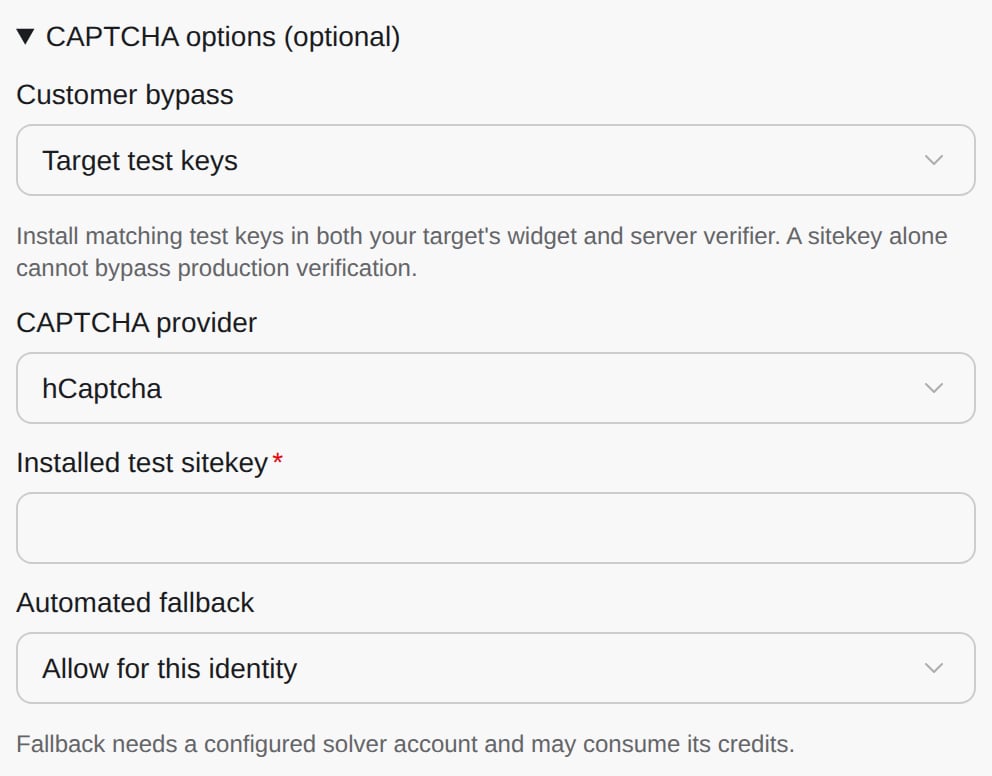
Target test-key configuration; the verifier secret stays on your application server.
## Understand automated fallback
CloudThinker tries a configured customer bypass first. When fallback is enabled, it can attempt supported reCAPTCHA v2, reCAPTCHA v3, hCaptcha, and Turnstile login flows in the same browser session.
Image challenges and provider checks can still reject the attempt. Provider selection does not guarantee that every challenge will pass. Fallback can consume configured solver credits.
These options apply to password login. For other sign-in flows, use an available method described in [Run a Pentest](/guide/security/pentest#attach-a-login).
## Troubleshooting
Check the target's test keys or bypass configuration and the installation's fallback availability. Use a verified session if the challenge cannot be completed.
Ask your administrator to check the installation setting and required solver configuration. **Allow for this identity** cannot override a disabled installation setting.
Confirm that the widget and server use matching test keys for the selected provider. Entering a sitekey in CloudThinker does not change your target's verifier.
Header policies require protected credential configuration. Ask your administrator to arrange the dedicated bypass credential, or attach a verified session instead.
## Next steps
Review scope, access, and intensity before testing
Read proof and coverage limitations before prioritizing fixes
This documentation is built and hosted on [Mintlify](https://mintlify.com), a developer documentation platform.