> ## Documentation Index
> Fetch the complete documentation index at: https://docs.cloudthinker.io/llms.txt
> Use this file to discover all available pages before exploring further.
# Triage Security Findings
> Read each pentest finding's proof, work it on a table or Kanban board, dismiss non-issues, and export a PDF report
Every pentest run files what it proves into the app's **Findings** tab — one living list per app, not one report per run. This page shows where results live, how to read a finding's proof, and how to move it through your workflow.
Cyber is in beta. Find it under **Cyber** in the navigation menu.
## Prerequisites
* A registered app with at least one completed run — see [Run a pentest](/guide/security/pentest).
* Permission to edit Cyber findings. Workspace Viewers can browse, copy, and download findings, but not triage, dismiss, or reopen them.
## Where results live
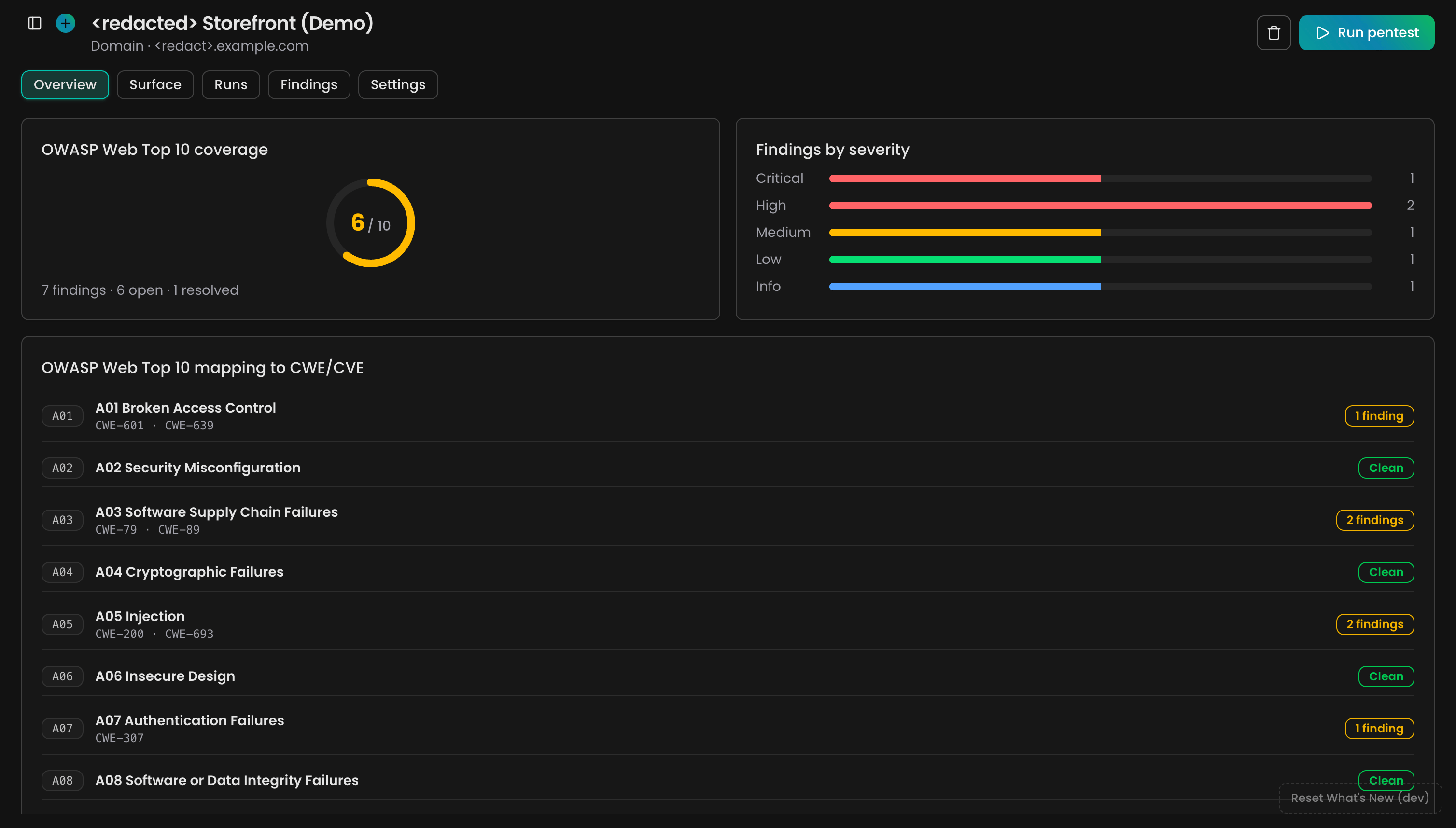
Open an app in **Cyber**. Four tabs hold the results:
| Tab | What it shows |
| ------------ | --------------------------------------------------------------------------------------------------------------- |
| **Overview** | Your OWASP Top 10 coverage and how many findings sit at each severity |
| **Surface** | Everything Oliver found reachable — badged **Documented** if your specs mentioned it, **Shadow** if they didn't |
| **Runs** | Every past run and what it added, fixed, or left open |
| **Findings** | The full working list — the rest of this page |
 ## Read a finding's proof
Open a confirmed finding to see the evidence. **Summary** says what's wrong, **Attack path** shows exactly how Oliver got in, **Safe PoC** (proof of concept) is the request you can replay yourself, and **Remediation** says how to fix it — **Create PR with agent** turns that fix into a pull request, and **Chat with finding** opens a conversation with the finding already loaded.
## Read a finding's proof
Open a confirmed finding to see the evidence. **Summary** says what's wrong, **Attack path** shows exactly how Oliver got in, **Safe PoC** (proof of concept) is the request you can replay yourself, and **Remediation** says how to fix it — **Create PR with agent** turns that fix into a pull request, and **Chat with finding** opens a conversation with the finding already loaded.
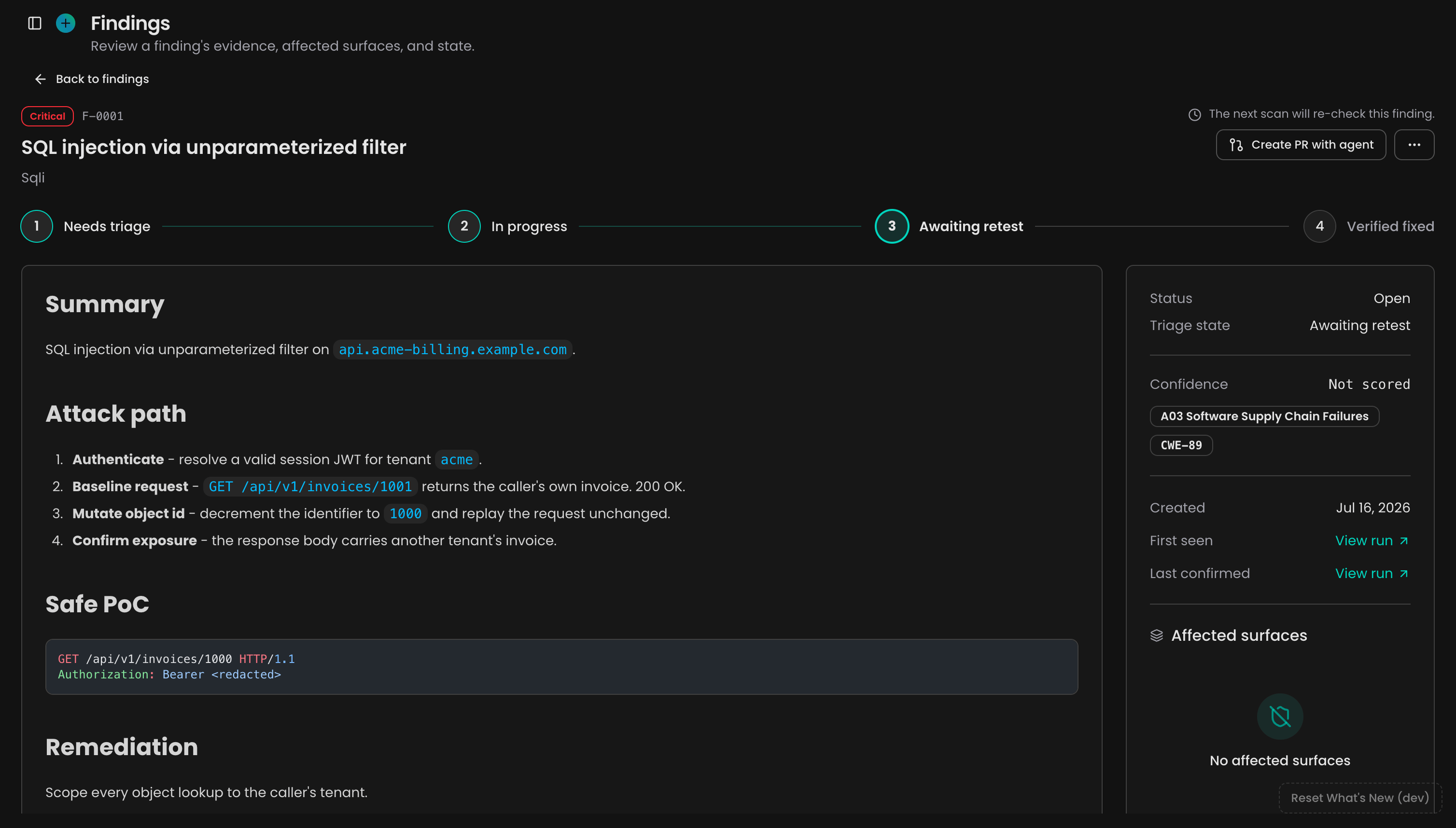 Two kinds of ownership share each finding. Oliver owns the verdict — whether the problem is real, still present, or proven fixed — and settles it with a replayed proof. You own the triage stage: where the finding sits in your team's workflow, from **Needs triage** to **Verified fixed**. That last stage isn't yours to click — the next scan re-tests the finding and confirms the fix for you.
A **Needs verification** lead is not yet a confirmed finding. Click **Flag for retest** so a later scan can prove or reject it.
## Choose a view
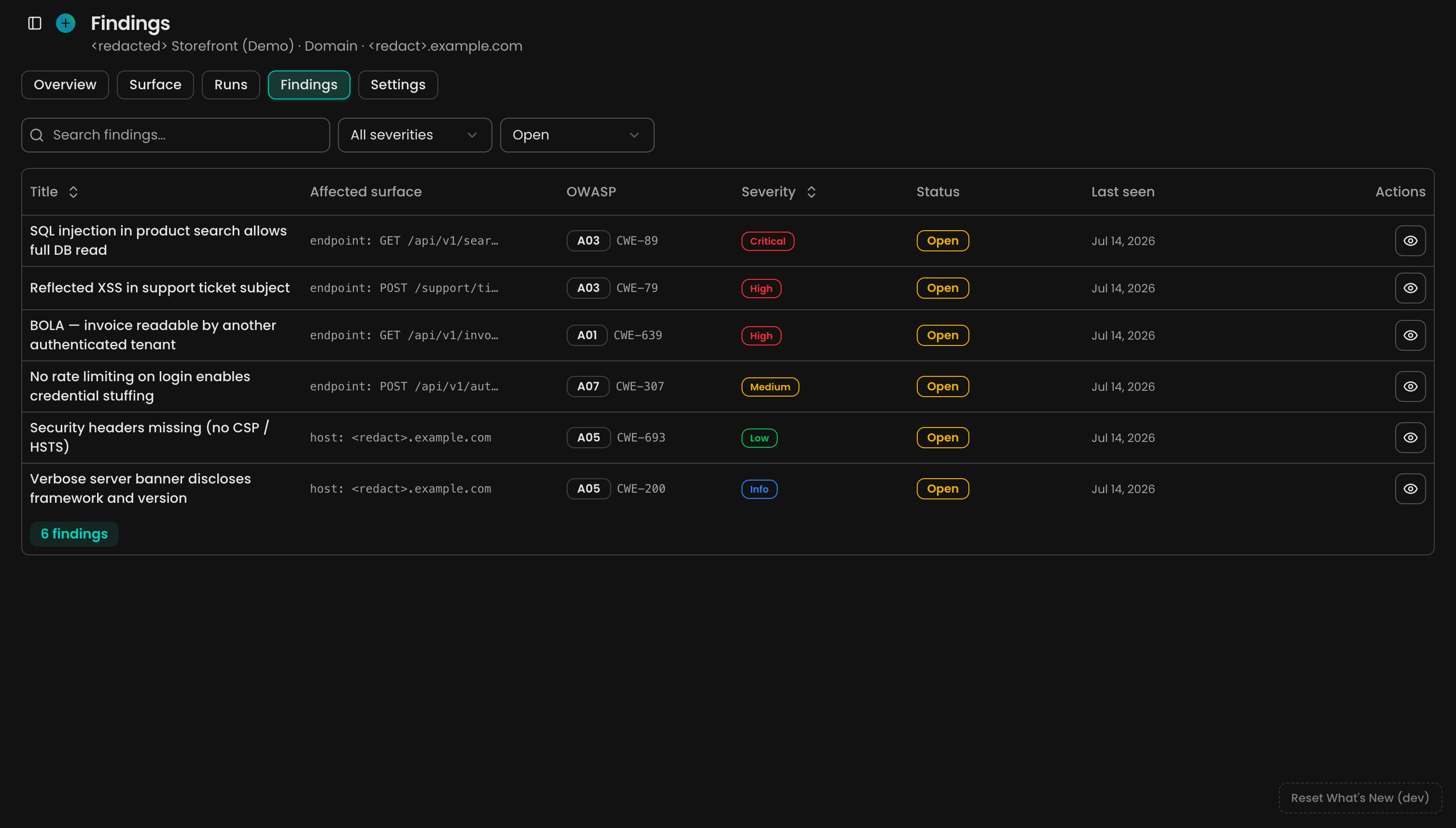
The Findings tab shows the same list two ways — switch with the **Table ⇄ Kanban** toggle. Search, severity, and OWASP category filters carry across the switch. The status filter appears only in table view: on the board, the columns are the statuses.
Two kinds of ownership share each finding. Oliver owns the verdict — whether the problem is real, still present, or proven fixed — and settles it with a replayed proof. You own the triage stage: where the finding sits in your team's workflow, from **Needs triage** to **Verified fixed**. That last stage isn't yours to click — the next scan re-tests the finding and confirms the fix for you.
A **Needs verification** lead is not yet a confirmed finding. Click **Flag for retest** so a later scan can prove or reject it.
## Choose a view
The Findings tab shows the same list two ways — switch with the **Table ⇄ Kanban** toggle. Search, severity, and OWASP category filters carry across the switch. The status filter appears only in table view: on the board, the columns are the statuses.
 ## Work the board
The Kanban board has six columns: **Needs verification**, **Needs triage**, **In progress**, **Awaiting retest**, **Verified fixed**, and **Dismissed**. Drag a card between columns to move it through your workflow — with a few rules, each explained on the board when a drop is refused:
| You drag a card to | What happens |
| --------------------------------------------------------- | -------------------------------------------------------------------------------------------------------------------------------------------- |
| **Needs triage**, **In progress**, or **Awaiting retest** | Sets your triage stage. Dropping a dismissed card or one you marked fixed reopens it first. |
| **Verified fixed** | Marks the finding fixed yourself — the same action as **Mark as fixed** in the finding's **⋯** menu. The next scan still gets the last word. |
| **Needs verification** | Accepts only cards that started there. Only Oliver can park a lead for verification. |
| **Dismissed** | Refuses every card. A dismissal needs a reason, so open the finding to dismiss it. |
One card never moves: a finding whose fix a scan already proved. Only a scan can reopen it.
## Dismiss a finding
Open the finding, click **⋯**, then **Dismiss as false positive**.
Choose one — **False positive** (not a real vulnerability), **Acceptable risk** (real, but you accept it), or **Out of scope** (not yours to fix) — and add an optional note on what you checked.
Click **Dismiss finding**.
**Success state:** the finding moves to the **Dismissed** column, and Oliver stops raising it from the next scan.
A dismissal is never final. Reopen the finding at any time and Oliver starts testing for it again.
## Reopen or mark as fixed
You can undo your own verdicts, never Oliver's:
* **Reopen finding** appears on any finding you dismissed or marked fixed yourself. It returns the finding to the open workflow — dragging the card onto a work column does the same.
* **Mark as fixed** in the **⋯** menu closes a finding you've already remediated without waiting for the next scan.
* A finding Oliver verified as fixed by replaying its proof can only be reopened by a scan that proves it's back.
## Export findings
**Export PDF** above the list turns every finding matching your current filters — not just the visible page — into one PDF report. The button is disabled when nothing matches, and a very large set is refused: narrow the filters and export again. For a single finding, **Copy finding** and **Download PDF** live in its **⋯** menu.
## Troubleshooting
The board explains each refusal where you drop. The common ones: **Dismissed** never accepts a drag because a dismissal needs a reason, **Needs verification** only takes back its own cards, and a scan-proven fix only moves when a scan reopens it.
Disabled means no findings match your current filters — clear or widen them. A failure on a large export means the set exceeds the report cap: filter down to a severity or category and export in slices.
Open it and click **Reopen finding**, or drag its card from **Dismissed** onto any work column. Your earlier triage work is kept, and Oliver includes it in scans again.
Findings Oliver re-proves are reopened by the scan itself. Check the **Runs** tab to see which run reopened it, then open the finding for the fresh attack path.
## Next steps
Launch or schedule the scans that produce and re-verify these findings
See the workspace posture view and how the module fits together
Meet the Security Engineer agent that proves and re-tests each finding
Catch the same vulnerability classes on every pull request, before they ship
## Work the board
The Kanban board has six columns: **Needs verification**, **Needs triage**, **In progress**, **Awaiting retest**, **Verified fixed**, and **Dismissed**. Drag a card between columns to move it through your workflow — with a few rules, each explained on the board when a drop is refused:
| You drag a card to | What happens |
| --------------------------------------------------------- | -------------------------------------------------------------------------------------------------------------------------------------------- |
| **Needs triage**, **In progress**, or **Awaiting retest** | Sets your triage stage. Dropping a dismissed card or one you marked fixed reopens it first. |
| **Verified fixed** | Marks the finding fixed yourself — the same action as **Mark as fixed** in the finding's **⋯** menu. The next scan still gets the last word. |
| **Needs verification** | Accepts only cards that started there. Only Oliver can park a lead for verification. |
| **Dismissed** | Refuses every card. A dismissal needs a reason, so open the finding to dismiss it. |
One card never moves: a finding whose fix a scan already proved. Only a scan can reopen it.
## Dismiss a finding
Open the finding, click **⋯**, then **Dismiss as false positive**.
Choose one — **False positive** (not a real vulnerability), **Acceptable risk** (real, but you accept it), or **Out of scope** (not yours to fix) — and add an optional note on what you checked.
Click **Dismiss finding**.
**Success state:** the finding moves to the **Dismissed** column, and Oliver stops raising it from the next scan.
A dismissal is never final. Reopen the finding at any time and Oliver starts testing for it again.
## Reopen or mark as fixed
You can undo your own verdicts, never Oliver's:
* **Reopen finding** appears on any finding you dismissed or marked fixed yourself. It returns the finding to the open workflow — dragging the card onto a work column does the same.
* **Mark as fixed** in the **⋯** menu closes a finding you've already remediated without waiting for the next scan.
* A finding Oliver verified as fixed by replaying its proof can only be reopened by a scan that proves it's back.
## Export findings
**Export PDF** above the list turns every finding matching your current filters — not just the visible page — into one PDF report. The button is disabled when nothing matches, and a very large set is refused: narrow the filters and export again. For a single finding, **Copy finding** and **Download PDF** live in its **⋯** menu.
## Troubleshooting
The board explains each refusal where you drop. The common ones: **Dismissed** never accepts a drag because a dismissal needs a reason, **Needs verification** only takes back its own cards, and a scan-proven fix only moves when a scan reopens it.
Disabled means no findings match your current filters — clear or widen them. A failure on a large export means the set exceeds the report cap: filter down to a severity or category and export in slices.
Open it and click **Reopen finding**, or drag its card from **Dismissed** onto any work column. Your earlier triage work is kept, and Oliver includes it in scans again.
Findings Oliver re-proves are reopened by the scan itself. Check the **Runs** tab to see which run reopened it, then open the finding for the fresh attack path.
## Next steps
Launch or schedule the scans that produce and re-verify these findings
See the workspace posture view and how the module fits together
Meet the Security Engineer agent that proves and re-tests each finding
Catch the same vulnerability classes on every pull request, before they ship