> ## Documentation Index
> Fetch the complete documentation index at: https://docs.cloudthinker.io/llms.txt
> Use this file to discover all available pages before exploring further.
# Create Cyber Reports
> Export selected confirmed Pentest findings, customize reports, and download or revise a run assessment without rescanning.
Share Pentest evidence from an app's **Reports** page or download an individual run's assessment. Selected-finding reports and run documents have different scopes.
Figures show CloudThinker release 0.23.8 with illustrative demo data.
## Prerequisites
* Permission to view the app and its findings.
* Confirmed findings for a selected report, or a run with an available document.
* Chat access and a reference report for a Custom selected-finding report.
## Choose the report
| Report | What it includes | Does it start a scan? |
| - | - | - |
| Standard selected report | Your selected eligible confirmed findings and their saved evidence, in a branded PDF | No |
| Custom selected report | Selected findings written in your reference report's structure and style, delivered through Chat | No |
| Run document | The assessment and limitations for one run, using the preferences saved at launch | No |
| Report-only revision | A new document version based on an existing run's evidence | No |
## Screenshots and proof
During a pentest, CloudThinker captures screenshots when a finding depends on a rendered page, browser behavior, or a browser's authorization state. At the end of the run, it embeds those saved images with captions alongside the finding's proof in the PDF or DOCX report.
The report states a limitation when required screenshots are missing or unreadable. API findings use captured requests, response statuses, and relevant response bodies as proof; a screenshot is not required for an API-only finding.
Standard selected reports and single-finding PDFs include available saved screenshots. Custom selected reports receive the selected findings' saved screenshots for inclusion. Exporting or revising a report does not capture new screenshots or repeat the pentest.
Live passwords, tokens, cookies, and keys must not appear in report evidence. Reproduction examples use redacted placeholders; replace them with your own test credentials when replaying a finding.
## Export selected findings
Open the app's **Reports** page. Search or filter the list, then select between 1 and 200 eligible **Confirmed** findings.
**Select this page** adds only the loaded page. Selection survives search, severity, and page changes; review the preview for selected rows outside the current filters.
Check the preview and remove anything you do not want to share. Choose **Standard report** and export the selected findings as a PDF.
**Success state:** the PDF includes the selected findings and their available evidence. A failed export keeps your selection for retry.
Viewers can export findings they can view. Selections are drafts for the page: refreshing or navigating away clears them. **Clear selection** clears the entire draft.
Eligibility is checked again at export. If a selected finding is no longer eligible, the export fails rather than silently omitting it. Review the selection and retry.
The Findings page retains single-finding downloads but no longer offers the bulk Export PDF action.
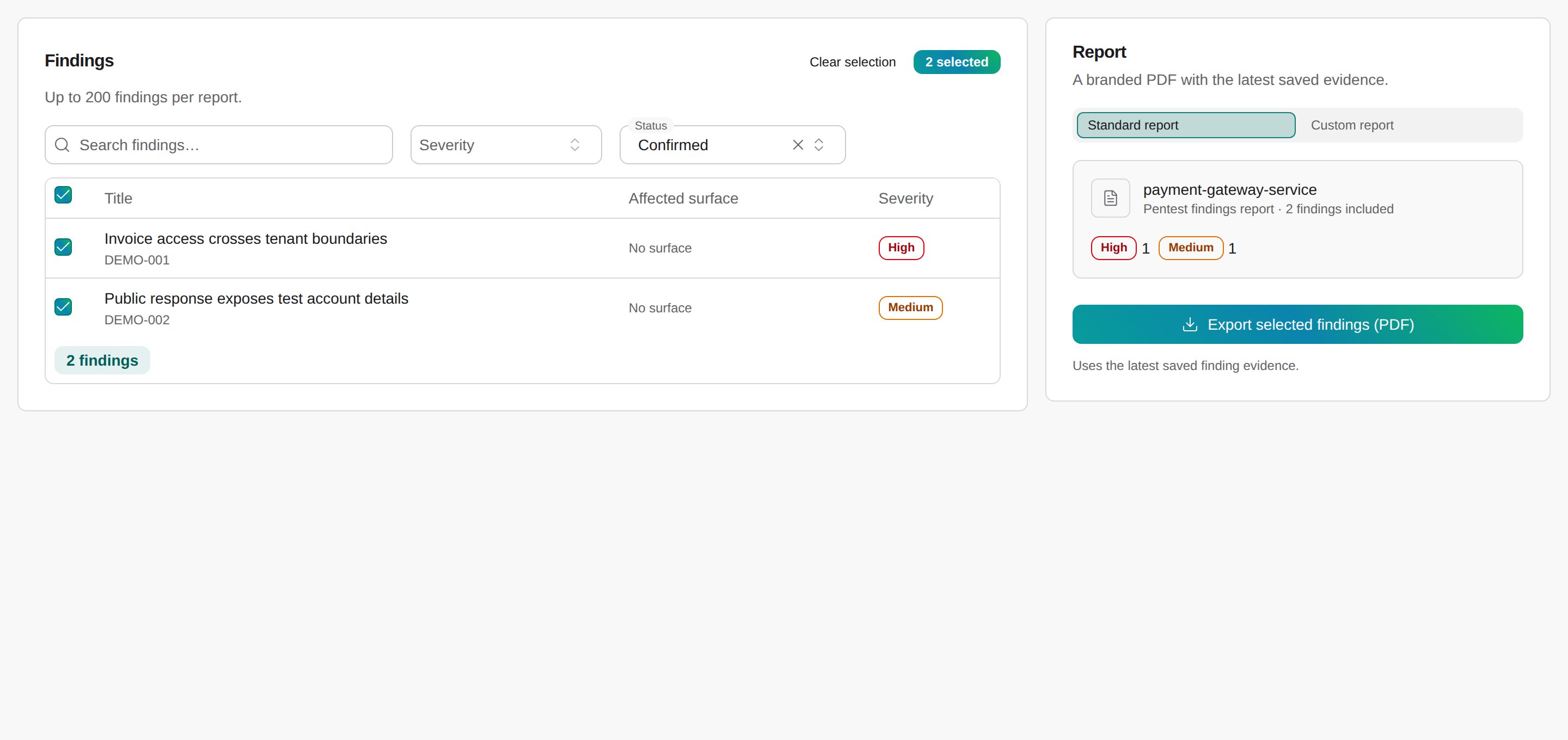
Select confirmed findings and review the Standard report preview.
## Create a custom selected report
Choose **Custom report** with the same selected findings. Supply a PDF or DOCX reference report, up to 5 MB, or use the reference saved in Report preferences.
Click **Generate custom report** to open a normal Chat conversation with the selected findings, available evidence, and reference. CloudThinker follows its structure and style using your actual findings; the reference's example facts are not assessment evidence.
The report is delivered through Chat, where you can refine it. This does not run a new pentest or change any finding. Uploading a different reference here changes this report's reference, rather than the app's future-run preferences.
## Set future-run preferences
Open **Report preferences** from Reports or during setup review. Choose **Standard report** or **Custom report**, optional writing instructions, and the output format: PDF or DOCX.
Custom preferences can include an optional PDF or DOCX reference, up to 5 MB. Preferences and the chosen reference are captured when each run starts. Later preference changes apply to future runs, not an assessment already in progress.
## Download or revise a run document
Open the report for the run you want to share. Preview and download its available PDF or DOCX document. Read coverage, authentication, and evidence limitations before interpreting the conclusion.
Use a report-only revision when you need different wording or structure for the same evidence. It creates a separate document version without launching a pentest or changing findings. A new security verdict requires a new scan.
## Troubleshooting
Check that you selected between 1 and 200 eligible Confirmed findings. Remove findings that changed status, review the preview, and retry.
Add a supported PDF or DOCX reference within the displayed limit. Ask your workspace administrator about Chat access if the option is unavailable.
Refreshing or leaving the page clears the unsaved selection. Filter and select the findings again before exporting.
Run documents use the preferences captured at launch. Request a report-only revision to change presentation, or start another scan for fresh evidence.
## Next steps
Confirm eligibility and inspect the evidence you share
Collect new evidence and verify remediation
This documentation is built and hosted on [Mintlify](https://mintlify.com), a developer documentation platform.