> ## Documentation Index
> Fetch the complete documentation index at: https://docs.cloudthinker.io/llms.txt
> Use this file to discover all available pages before exploring further.

# Operating Multi-AWS Accounts

> Best practices for managing multiple AWS accounts with CloudThinker

Many organizations use multiple AWS accounts to separate environments, teams, or business units. CloudThinker provides flexible options for managing operations across all your AWS accounts efficiently.

## Overview

There are two recommended approaches for managing multiple AWS accounts with CloudThinker:

<CardGroup cols={2}>
  <Card title="Multiple Workspaces" icon="layer-group" href="#multiple-workspaces">
    Create a dedicated workspace for each AWS account. Best for teams that work on separate accounts independently.
  </Card>

  <Card title="Single Workspace with Shortcuts" icon="terminal" href="#single-workspace-with-assumerole">
    Use one workspace with AssumeRole and Shortcuts to switch between accounts. Best for users who frequently work across accounts.
  </Card>
</CardGroup>

***

## Multiple Workspaces

Create a separate CloudThinker [workspace](/guide/workspaces) for each AWS account. This approach provides clear isolation between accounts and is ideal for:

* Teams dedicated to specific AWS accounts
* Strict compliance requirements with audit trails per account
* Different access permissions per account
* Environments that rarely need cross-account operations

### Setup Steps

<Steps>
  <Step title="Create Workspace for Each Account">
    Navigate to **Workspaces** and create a new workspace for each AWS account. Use descriptive names like:

    * `AWS Production`
    * `AWS Development`
    * `AWS Staging`
  </Step>

  <Step title="Configure AWS Connection">
    In each workspace, go to **Connections** and set up the AWS connection using [Role-Based authentication](/guide/connections/aws) (recommended).
  </Step>

  <Step title="Set Up Team Access">
    Assign users to the appropriate workspaces based on their responsibilities and access requirements.
  </Step>

  <Step title="Switch Between Accounts">
    Use the **workspace selector** in the sidebar to switch between AWS accounts as needed.
  </Step>
</Steps>

### Pros and Cons

<CardGroup cols={2}>
  <Card title="Advantages" icon="check" color="#28A745">
    * **Clear isolation** between accounts
    * **Dedicated resources** (agents, knowledge) per account
    * **Simplified access control** per account
    * **Separate audit trails** for compliance
    * **No credential confusion** between accounts
  </Card>

  <Card title="Considerations" icon="circle-info" color="#17A2B8">
    * Requires switching workspaces to change accounts
    * [Knowledge bases](/guide/knowledge) are not shared across workspaces
    * May need duplicate agent configurations
    * More workspaces to manage
  </Card>
</CardGroup>

***

## Single Workspace with AssumeRole

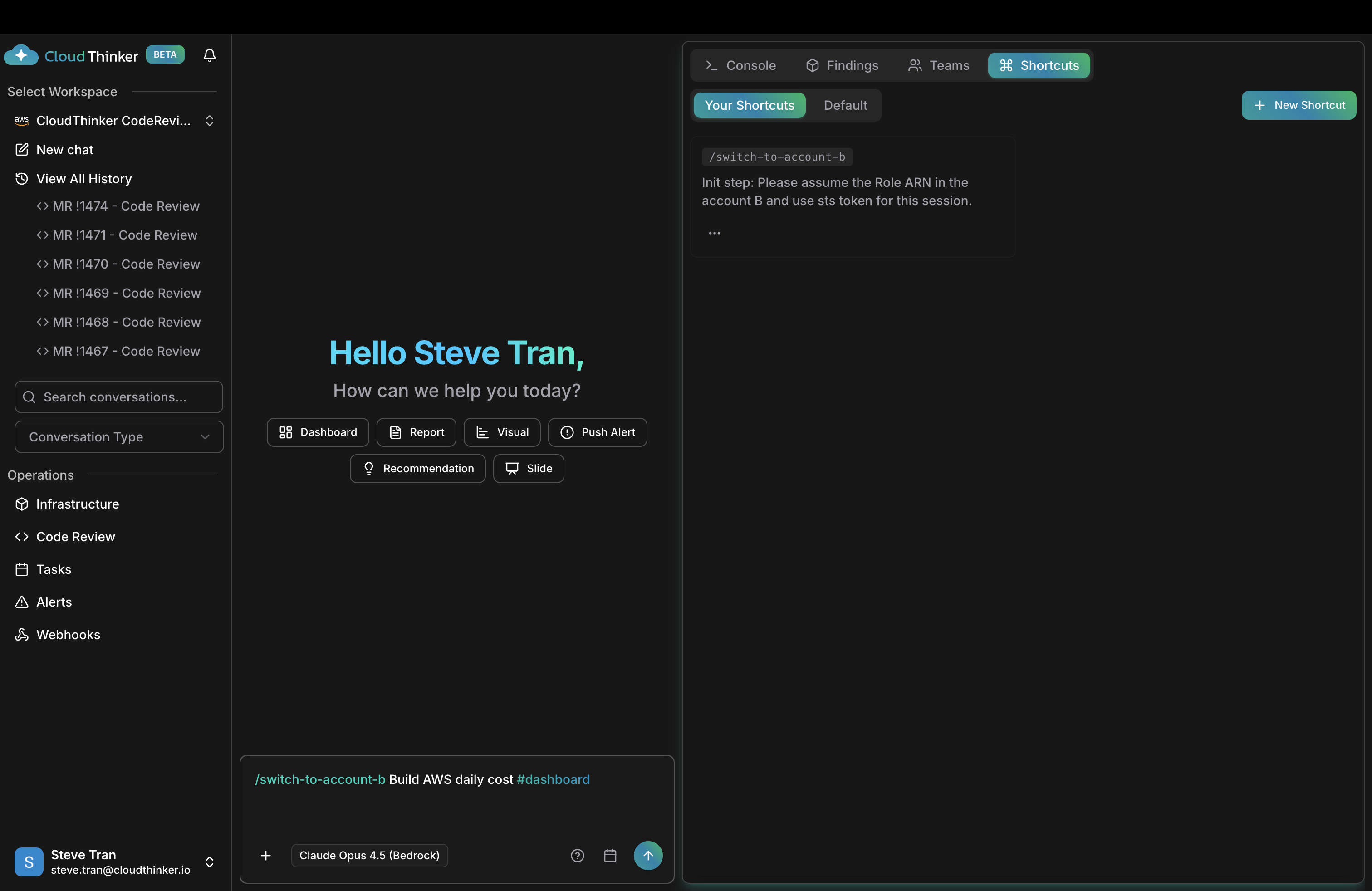
Use a single workspace with IAM AssumeRole and CloudThinker Shortcuts to dynamically switch between AWS accounts. This approach is ideal for:

* Platform teams managing many AWS accounts
* Frequent cross-account operations
* Centralized knowledge and agent configurations
* Quick account switching during operations

<Frame>
  <img src="https://mintcdn.com/cloudthinker/S_fEGzF9eIzSA0qp/images/use-cases/01-shortcut-assume-role.png?fit=max&auto=format&n=S_fEGzF9eIzSA0qp&q=85&s=fbc8e044b7785b71358bcd3e07bad1c1" alt="CloudThinker Shortcuts panel showing account switching shortcut" width="3024" height="1964" data-path="images/use-cases/01-shortcut-assume-role.png" />
</Frame>

### How It Works

1. **Primary Connection**: Your workspace connects to a primary AWS account
2. **Cross-Account Roles**: Each target AWS account has an IAM role that can be assumed
3. **Shortcuts**: Create shortcuts that instruct the agent to assume different roles
4. **Dynamic Switching**: Use shortcuts in your prompts to switch context to different accounts

### Setup Steps

<Steps>
  <Step title="Configure Primary AWS Connection">
    Set up your workspace with a primary AWS connection using [Role-Based authentication](/guide/connections/aws).
  </Step>

  <Step title="Create Cross-Account IAM Roles">
    In each target AWS account, create an IAM role that your primary account can assume:

    **Trust Policy** (in target account):

    ```json theme={null}
    {
      "Version": "2012-10-17",
      "Statement": [
        {
          "Effect": "Allow",
          "Principal": {
            "AWS": "arn:aws:iam::PRIMARY_ACCOUNT_ID:root"
          },
          "Action": "sts:AssumeRole"
        }
      ]
    }
    ```

    Replace `PRIMARY_ACCOUNT_ID` with your primary AWS account ID (the account connected to CloudThinker).

    Attach the `ReadOnlyAccess` policy (or custom read-only policies) to the role.
  </Step>

  <Step title="Create Account Switching Shortcuts">
    Navigate to **Shortcuts** panel (top right) and create shortcuts for each account:

    **Example Shortcut:**

    * **Name**: `/switch-to-account-b`
    * **Init Step**: `Please assume the Role ARN arn:aws:iam::ACCOUNT_B_ID:role/CloudThinkerAccessRole and use the STS token for this session.`
  </Step>

  <Step title="Use Shortcuts in Operations">
    Include the shortcut in your prompts to switch account context:

    ```
    /switch-to-account-b Build AWS daily cost #dashboard
    ```
  </Step>
</Steps>

### Example Shortcuts Configuration

Create shortcuts for each AWS account you need to access:

| Shortcut Name        | Init Step                                                                                                                  |
| -------------------- | -------------------------------------------------------------------------------------------------------------------------- |
| `/switch-to-prod`    | Please assume the Role ARN `arn:aws:iam::111111111111:role/CloudThinkerAccessRole` and use the STS token for this session. |
| `/switch-to-dev`     | Please assume the Role ARN `arn:aws:iam::222222222222:role/CloudThinkerAccessRole` and use the STS token for this session. |
| `/switch-to-staging` | Please assume the Role ARN `arn:aws:iam::333333333333:role/CloudThinkerAccessRole` and use the STS token for this session. |

### Pros and Cons

<CardGroup cols={2}>
  <Card title="Advantages" icon="check" color="#28A745">
    * **Fast account switching** without workspace changes
    * **Shared [knowledge base](/guide/knowledge)** across all accounts
    * **Single agent configuration** for all accounts
    * **Efficient for cross-account operations**
    * **Less workspace management overhead**
  </Card>

  <Card title="Considerations" icon="circle-info" color="#17A2B8">
    * Requires proper IAM role configuration in each account
    * Need to remember to use shortcuts
    * Cross-account IAM setup complexity
    * Shared access controls (all users can access all accounts)
  </Card>
</CardGroup>

***

## Choosing the Right Approach

<Tabs>
  <Tab title="Choose Multiple Workspaces When...">
    * You have **dedicated teams** per AWS account
    * **Compliance requirements** mandate separate audit trails
    * You need **different access permissions** per account
    * Teams **rarely need cross-account operations**
    * You want **complete isolation** between environments
  </Tab>

  <Tab title="Choose Single Workspace When...">
    * A **platform team** manages multiple accounts
    * You **frequently work across accounts**
    * You want **centralized knowledge** and configurations
    * **Quick context switching** is important
    * Users need access to **all accounts** from one place
  </Tab>
</Tabs>

### Hybrid Approach

You can also combine both approaches:

* **Production workspace**: Dedicated workspace for production account with restricted access
* **Development workspace**: Single workspace using shortcuts to switch between dev, staging, and sandbox accounts

This gives you strict isolation for production while maintaining flexibility for non-production environments.

***

## Security Considerations

<Warning>
  Always follow the principle of least privilege when setting up cross-account access. Only grant the minimum permissions necessary for CloudThinker operations.
</Warning>

### Best Practices

<CardGroup cols={2}>
  <Card title="IAM Role Security" icon="shield-check">
    * Apply **read-only policies** to cross-account roles
    * **Limit which accounts** can assume roles
    * Use **specific principal ARNs** instead of root where possible
    * **Regularly audit** cross-account access
  </Card>

  <Card title="Access Management" icon="users-cog">
    * Review who has access to workspaces with multi-account access
    * Use **workspace-level permissions** to control access
    * Monitor operations in **CloudTrail** for all accounts
    * Implement **credential rotation** policies
  </Card>
</CardGroup>

***

## Next Steps

<CardGroup cols={2}>
  <Card title="AWS Credentials Setup" icon="https://mintcdn.com/cloudthinker/aLd-ttc-SCW-aFky/images/icons/aws.svg?fit=max&auto=format&n=aLd-ttc-SCW-aFky&q=85&s=45d526a3e9345214c0345f277da2e829" href="/guide/connections/aws" width="24" height="24" data-path="images/icons/aws.svg">
    Learn how to set up Role-Based authentication for AWS
  </Card>

  <Card title="Workspaces Guide" icon="layer-group" href="/guide/workspaces">
    Detailed guide on creating and managing workspaces
  </Card>
</CardGroup>
