> ## Documentation Index
> Fetch the complete documentation index at: https://docs.cloudthinker.io/llms.txt
> Use this file to discover all available pages before exploring further.

# Workspace Branding

> Apply your company logo, name, and chart color palette to artifact PDF exports and in-app charts

Configure branding once at the workspace level and every future [artifact](/guide/artifacts/overview) export picks it up automatically — your logo in the PDF header, your company name in the footer, your 6-color palette across every chart. Workspaces without branding still produce clean PDFs with CloudThinker defaults.

## Prerequisites

* A **Scale**, **Scale +**, or **Enterprise** plan — see [Pricing & Plans](/guide/billing/pricing).
* **Workspace owner** or **org admin** role. Workspace members see the Branding page in view-only mode: inputs are disabled and the Save button is hidden.
* Your logo file: PNG, JPEG, WebP, or SVG, under 5 MB. A horizontal layout with transparency, at least 400 px wide for raster formats, renders best.

## Set up branding

<Steps>
  <Step title="Open Workspace Settings → Branding">
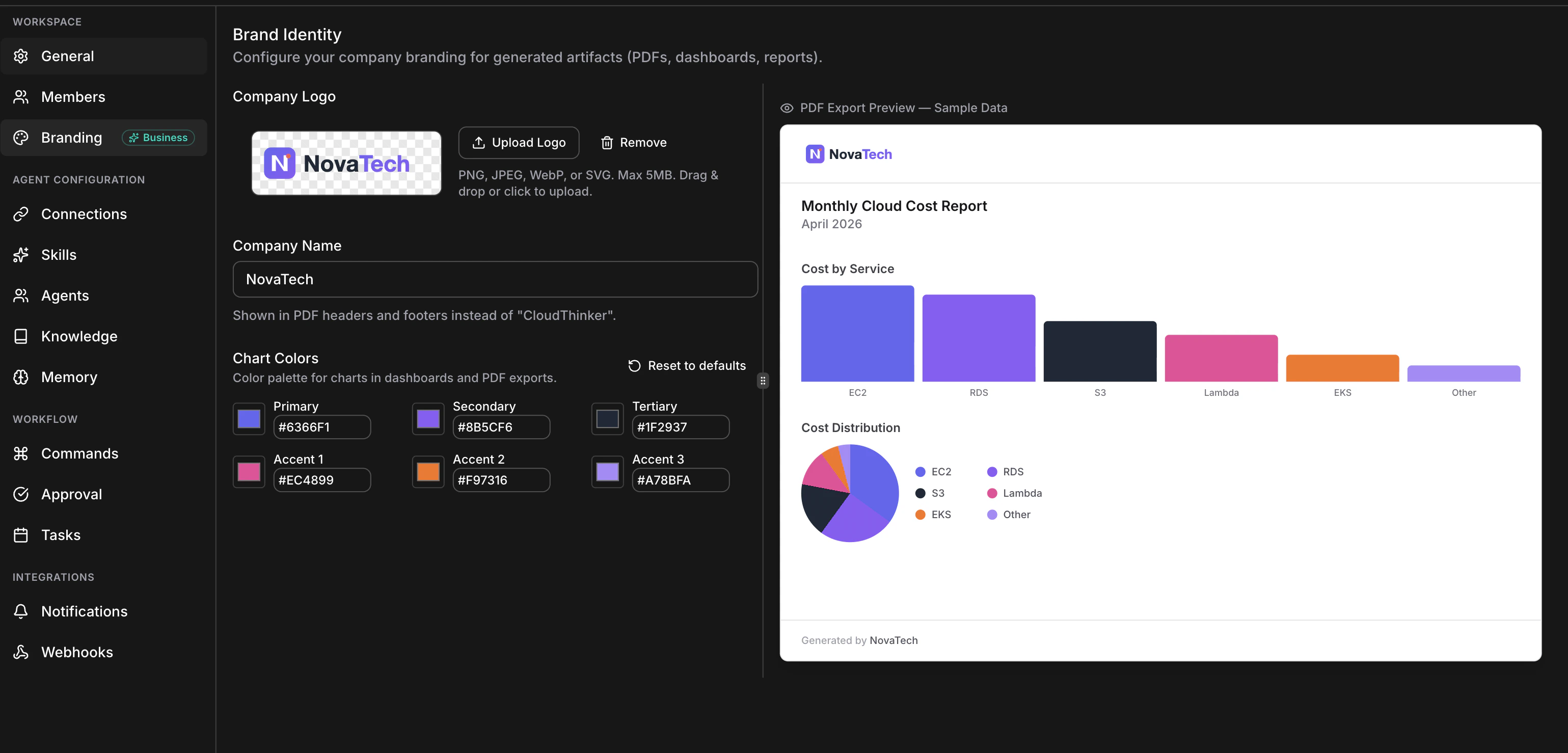
    Click your **workspace name** in the top navigation bar, choose **Workspace Settings**, then select the **Branding** tab (palette icon). The page opens with the editor on the left and a live PDF preview on the right — the preview redraws as you type, so you never need a test export to check your work.

    <Frame>
      <img src="https://mintcdn.com/cloudthinker/-4m9DUjwzDxHfABz/images/workspace-branding/05-branding-page-layout.png?fit=max&auto=format&n=-4m9DUjwzDxHfABz&q=85&s=93e6b6baca8142b02243e40a7d36d940" alt="Full Branding settings page with editor on the left and live PDF preview on the right" width="3078" height="1478" data-path="images/workspace-branding/05-branding-page-layout.png" />
    </Frame>

    <p style={{textAlign: 'center', fontSize: '0.9em', color: '#666', marginTop: '8px'}}>Full Branding page layout — editor and live preview side by side</p>
  </Step>

  <Step title="Upload your logo">
    Drag your file onto the upload zone, or click **Upload Logo** and pick a file. When the upload finishes, your logo appears on a checkerboard background so you can verify transparency, and a **Remove** button appears.

    To replace a logo, upload a new file — the old one is deleted from storage automatically.

    <Note>
      Logo uploads commit immediately — they don't wait for the Save button. **Save Brand Settings** covers only the company name and colors.
    </Note>
  </Step>

  <Step title="Enter your company name">
    Type your name into the **Company Name** input (max 255 characters). It replaces "CloudThinker" in the footer of every PDF page, as *"Generated by \<Your Company Name>"*. Special characters are escaped safely.
  </Step>

  <Step title="Set your chart colors">
    Each of the six slots — Primary, Secondary, Tertiary, Accent 1–3 — has a color swatch that opens your system color picker and a synchronized hex input (`#RRGGBB`). Paste hex codes from your brand guidelines, or eyedrop them from your logo with the OS picker.

    If you only care about one brand color, set **Primary** and leave the other five at defaults — the defaults are designed to harmonize. **Reset to defaults** reverts all six slots (you still need to save).
  </Step>

  <Step title="Save">
    Click **Save Brand Settings**. Only changed fields are sent.

    **Success state:** a green toast reads *"Workspace updated successfully."* On failure, a red toast states the reason and your form values are preserved for retry.
  </Step>

  <Step title="Verify with a real export">
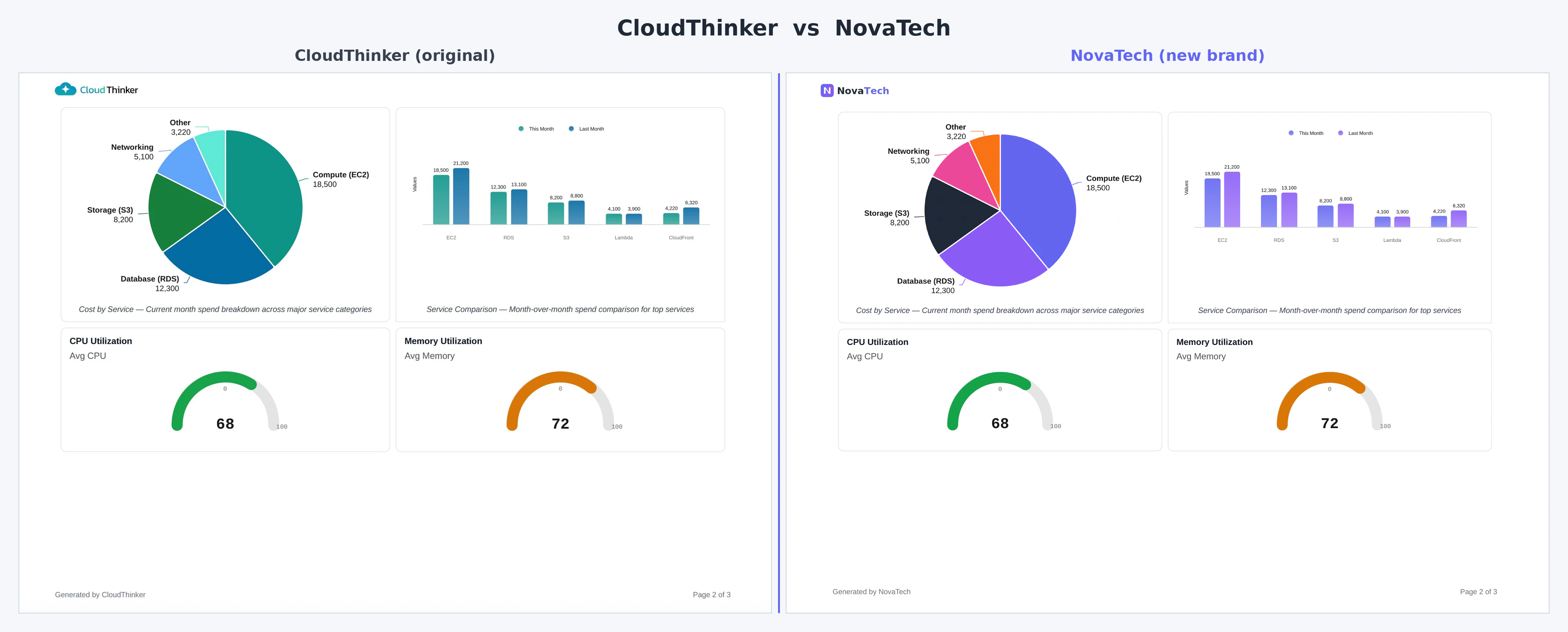
    Open any artifact and click **Download**. The PDF shows your logo top-left in the header on every page (up to 160 px wide), charts in your six colors, and *"Generated by \<Your Company Name>"* in the footer.

    <Frame>
      <img src="https://mintcdn.com/cloudthinker/-4m9DUjwzDxHfABz/images/workspace-branding/01-hero-before-after.png?fit=max&auto=format&n=-4m9DUjwzDxHfABz&q=85&s=bed262bf3c8e7f555d17874dcab7abd1" alt="Side-by-side comparison of a default CloudThinker PDF and a fully branded PDF" width="4071" height="1640" data-path="images/workspace-branding/01-hero-before-after.png" />
    </Frame>

    <p style={{textAlign: 'center', fontSize: '0.9em', color: '#666', marginTop: '8px'}}>Before and after: a default CloudThinker PDF (left) versus a fully branded export with custom logo, company name, and palette (right)</p>
  </Step>
</Steps>

To reset everything later: click **Remove** next to the logo, clear the company name, click **Reset to defaults** under Chart Colors, then save.

## Picking a 6-color palette

Chart libraries cycle through your slots in order — a 4-series bar chart uses Primary through Accent 1; an 8-slice pie chart wraps back to Primary for slices 7 and 8. A few rules of thumb:

* **Start with your primary brand color** in the Primary slot — it becomes the default series color.
* **Vary hue, not just brightness.** Six shades of blue make multi-series charts unreadable.
* **Keep contrast against white.** PDFs render on white; very pale colors disappear on bar and line charts.
* **Mind color-blind viewers.** Avoid placing red and green next to each other.
* **Iterate in the live preview.** Edit a color, check the sample bar and pie charts, adjust.

## Reference: limits and validation

### Logo

| Property                 | Value                                                                                |
| ------------------------ | ------------------------------------------------------------------------------------ |
| Accepted formats         | PNG, JPEG, WebP, SVG                                                                 |
| Max file size            | 5 MB                                                                                 |
| Rendered width in PDF    | Up to 160 px (aspect ratio preserved)                                                |
| Recommended source width | 400 px+ for raster formats; SVG scales at any size                                   |
| SVG handling             | Sanitized: scripts and unsafe attributes stripped before storage                     |
| File validation          | MIME type and magic bytes both checked; mislabeled files rejected                    |
| Storage                  | Workspace-scoped path in secure cloud storage; uploaded via one-time presigned URL   |
| Cache                    | Embedded base64 cached \~10 minutes per workspace; replacing the logo invalidates it |
| Auto-cleanup             | Old logo deleted when you upload a new one                                           |

### Company name

| Property   | Value                                                 |
| ---------- | ----------------------------------------------------- |
| Type       | Plain text, max 255 characters                        |
| Default    | "CloudThinker"                                        |
| Escaping   | HTML-escaped — `&`, `<`, quotes, and accents are safe |
| Appears in | PDF footer only                                       |

### Chart colors

| Property   | Value                                                             |
| ---------- | ----------------------------------------------------------------- |
| Slots      | Exactly 6: Primary, Secondary, Tertiary, Accent 1–3               |
| Format     | `#RRGGBB` hex, case-insensitive                                   |
| Rejected   | 3-digit shorthand (`#fff`), missing `#`, non-hex characters       |
| Applied to | Bar, line, area, step-area, pie, radar, gauge, and scatter charts |
| Cycling    | Charts with more than 6 series wrap back to slot 1                |

Default palette (every new workspace):

| Slot      | Hex       | Color       |
| --------- | --------- | ----------- |
| Primary   | `#0d9488` | teal        |
| Secondary | `#0369a1` | sky blue    |
| Tertiary  | `#15803d` | green       |
| Accent 1  | `#60a5fa` | light blue  |
| Accent 2  | `#5eead4` | light teal  |
| Accent 3  | `#86efac` | light green |

### Where branding applies

| Element         | In-app charts | PDF exports            |
| --------------- | ------------- | ---------------------- |
| 6-color palette | ✓             | ✓                      |
| Logo            | —             | ✓ Header on every page |
| Company name    | —             | ✓ Footer on every page |

### Plans and roles

| Plan                       | View | Edit                 |
| -------------------------- | ---- | -------------------- |
| Free, Team                 | ✓    | — (upgrade required) |
| Scale, Scale +, Enterprise | ✓    | ✓                    |

| Workspace role        | View | Edit |
| --------------------- | ---- | ---- |
| Member                | ✓    | —    |
| Owner                 | ✓    | ✓    |
| Org admin / org owner | ✓    | ✓    |

## FAQ

<AccordionGroup>
  <Accordion title="My new PDF still shows the old logo">
    The embedded logo is cached for up to 10 minutes per workspace, but replacing a logo invalidates the cache, so new exports should pick it up right away. If the old logo persists after a few minutes, refresh the workspace page and export again; if it continues, contact support with your workspace ID.
  </Accordion>

  <Accordion title="My logo looks blurry, or has a white square around it">
    Blurry: your source image is smaller than the 160 px render width and gets upscaled — re-export at 400 px wide or more, or use SVG. White square: your file has no transparency — export with a transparent canvas (PNG with alpha, or SVG). If an SVG renders differently than in your design tool, it likely relied on scripts or animations that sanitization strips; export a static PNG instead.
  </Accordion>

  <Accordion title="PDFs I downloaded earlier still show old branding">
    Expected. Each PDF is generated at export time with the branding active at that moment, and existing artifacts have no cached PDF — re-download any artifact to get a fresh PDF with current branding.
  </Accordion>

  <Accordion title="Can different workspaces in my org have different branding?">
    Yes. Branding is scoped to each workspace, not the organization, so an org with one workspace per customer, environment, or business unit can brand each independently.
  </Accordion>

  <Accordion title="Can I export without branding, for a draft or internal review?">
    Not currently — every export uses the active branding. As a workaround, remove the logo and clear the company name, export, then restore your branding.
  </Accordion>

  <Accordion title="Is my uploaded logo private?">
    Yes. Logos live under a workspace-scoped storage path and are served via short-lived presigned URLs; members of other workspaces cannot access them. Artifacts you share publicly via share links do include your logo and colors.
  </Accordion>
</AccordionGroup>

## Next steps

<CardGroup cols={2}>
  <Card title="Artifacts" icon="file-chart-column" href="/guide/artifacts/overview">
    Generate the dashboards and reports your branding applies to
  </Card>

  <Card title="Manage Workspaces" icon="building" href="/guide/workspaces">
    Create and manage workspaces within your organization
  </Card>

  <Card title="Manage Organization" icon="building-columns" href="/guide/organization">
    Configure organization settings, billing, and enterprise features
  </Card>

  <Card title="Pricing & Plans" icon="credit-card" href="/guide/billing/pricing">
    See which plans include workspace branding
  </Card>
</CardGroup>