> ## Documentation Index
> Fetch the complete documentation index at: https://docs.cloudthinker.io/llms.txt
> Use this file to discover all available pages before exploring further.
# Resources
> アカウント全体のクラウドアセットを検出し、タグでスキャン範囲を絞り込み、コスト・セキュリティ・パフォーマンスの調査結果を一元的なインベントリから対応します。
Resourcesはライブのクロスクラウドインベントリを提供します:ターゲットを絞った検出の実行、サービスとタグによるフィルタリング、リソースごとの最適化アクションのトリガーが可能です。スクリーンショットはAWSを示していますが、ワークフローはサポートされているすべてのクラウドに適用できます。
## 前提条件
* 少なくとも1つのクラウドアカウントが接続済み(AWS・GCP・Azure)。
* オプション:検出スコープの設定に使用するタグ(例:`ENV=dev`・`Environment=production`)。
## リソースの検出
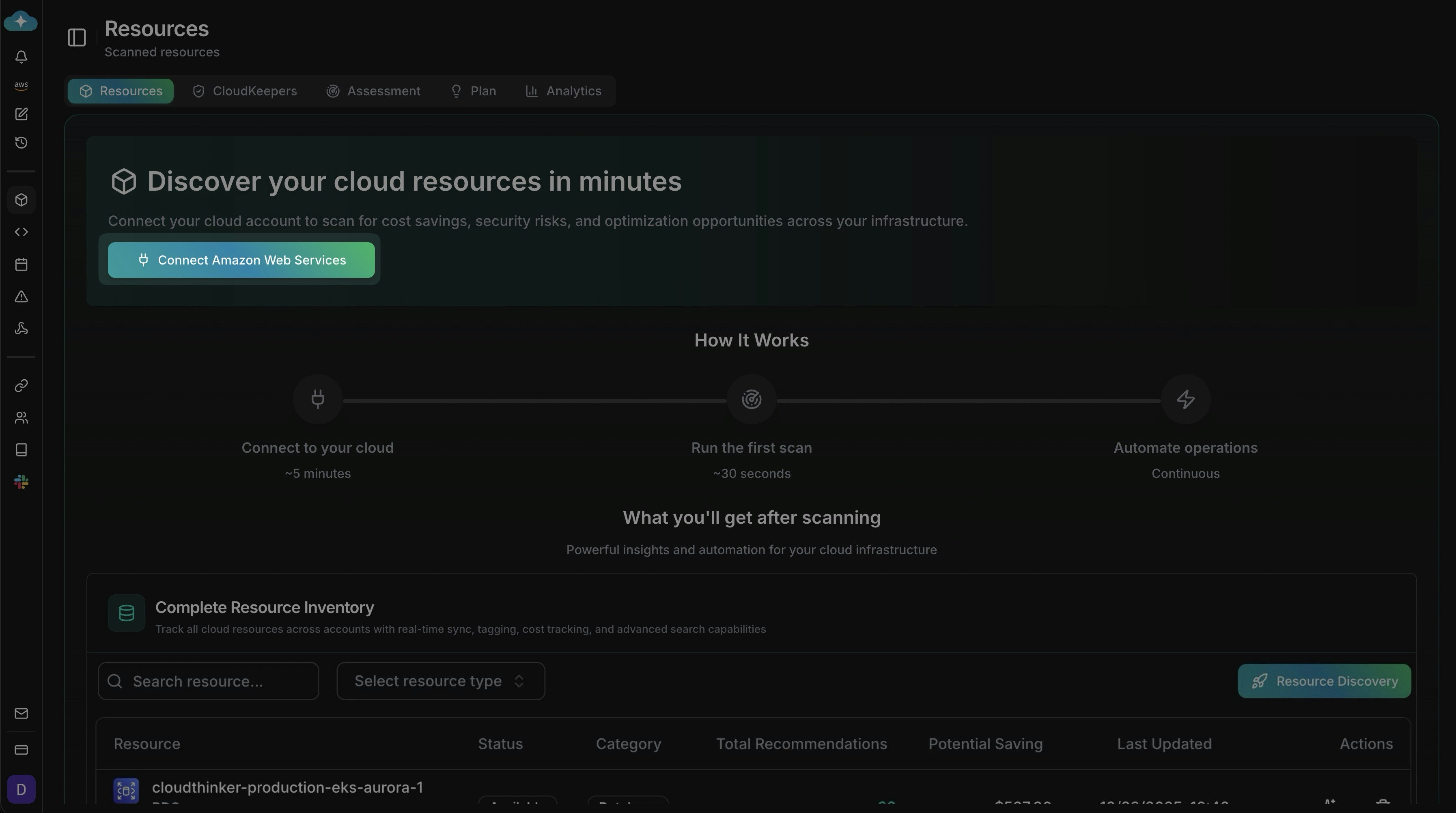
**Infrastructure → Resources** に移動し、クラウド(ここではAWS)の **Connect** をクリックして **Resource Discovery** を開始します。バナーにフロー(接続・初回スキャンの実行(約30秒)・自動化)が表示されます。
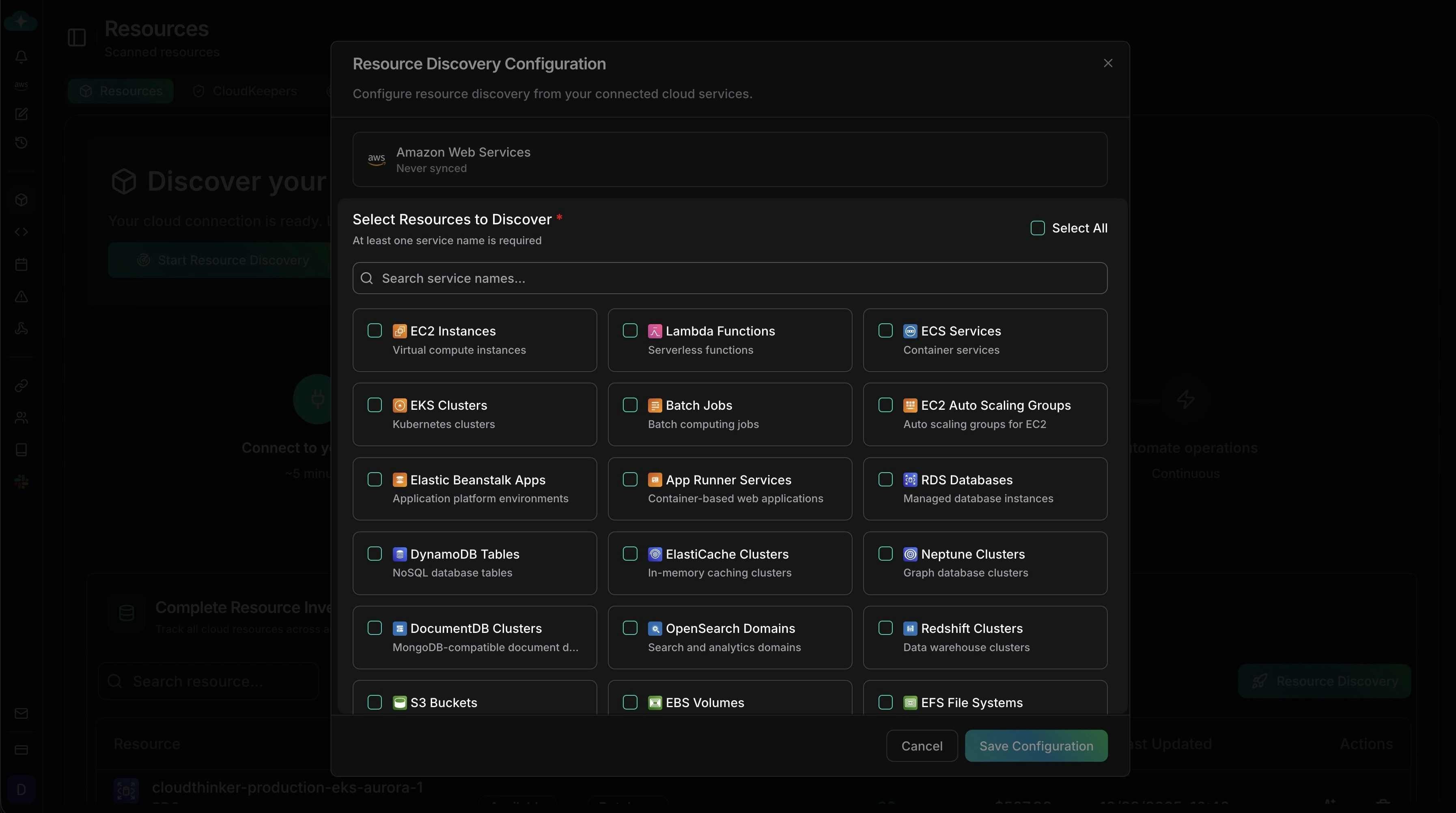
 含めるサービスを選択します(名前はクラウドによって異なります。スクリーンショットはAWS)。**Select All** を使用するか検索で絞り込み、選択内容が検出スコープに合ったら保存します。
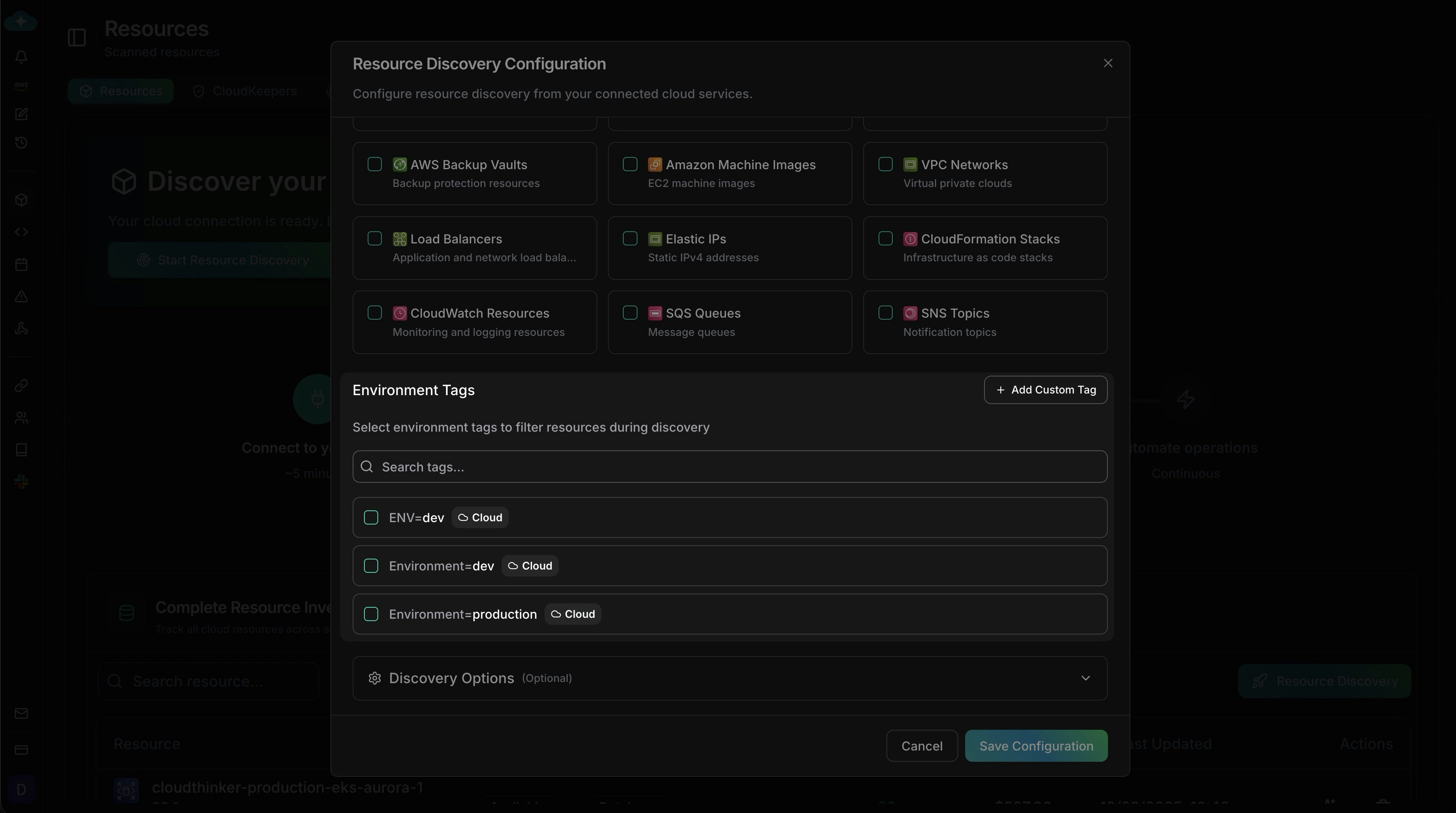
 `ENV=dev` や `Environment=production` などの環境タグを追加するか、**Add Custom Tag** でチーム・プロジェクト・コストセンター用のタグを追加します。
* **タグ未選択** → すべてのリソースがスキャンされます。
* **タグ選択済み** → 選択したタグに一致するリソースのみスキャンされます。
`ENV=dev` や `Environment=production` などの環境タグを追加するか、**Add Custom Tag** でチーム・プロジェクト・コストセンター用のタグを追加します。
* **タグ未選択** → すべてのリソースがスキャンされます。
* **タグ選択済み** → 選択したタグに一致するリソースのみスキャンされます。
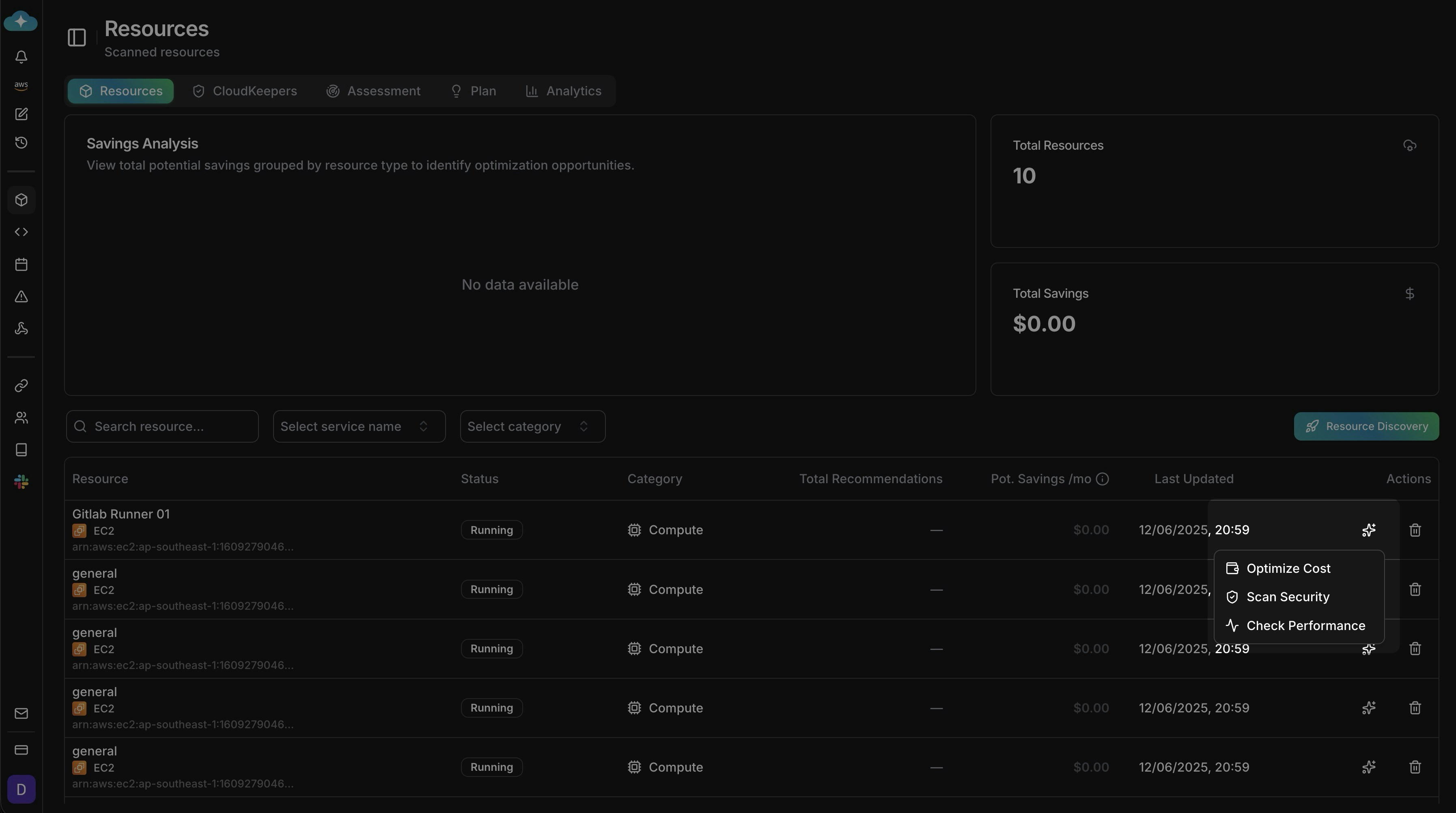
 インベントリには合計・節約可能額・リソースごとのエントリが表示されます。リソース名・サービス・カテゴリ(例:Compute)でフィルタリングします。行の **Actions** にホバーして **Optimize Cost**・**Scan Security**・**Check Performance** を実行します。
 ## 検出スコープが他の機能に与える影響
| 機能 | 検出との関係 |
| ----------------------------------------------------- | ------------------------------------------------------------------------------------- |
| エージェント | クラウドのパーミッションで許可されたすべてのリソースで動作します。検出済みのものだけではありません。検出によりCloudThinker内でのリソース管理が容易になります。 |
| [CloudKeepers](/ja/guide/infrastructure/cloudkeepers) | Keepersはクラウドで許可されたすべてのリソースに対して実行されます。検出スコープによる制限はありません。 |
| [Assessment](/ja/guide/infrastructure/assessment) | 検出済みのリソースのみ評価します—先に検出を実行してください。 |
## ヒント
* まず広いスコープで開始し、重要なリソースを見逃さないようにタグで絞り込みます。
* 検出設定が再現可能なように、各スキャンがカバーするサービスとタグを記録しておきます。
* 各スキャン後は、価値の高いコストとセキュリティの調査結果から対応します。
## 次のステップ
新しいリソースが自動的に評価されるよう継続的な監視をセットアップする
検出済みリソースのWell-Architectedアセスメントを実行する
リソース最適化アクションからの推奨事項を管理・追跡する
検出済みリソースとその依存関係を可視化する
## 検出スコープが他の機能に与える影響
| 機能 | 検出との関係 |
| ----------------------------------------------------- | ------------------------------------------------------------------------------------- |
| エージェント | クラウドのパーミッションで許可されたすべてのリソースで動作します。検出済みのものだけではありません。検出によりCloudThinker内でのリソース管理が容易になります。 |
| [CloudKeepers](/ja/guide/infrastructure/cloudkeepers) | Keepersはクラウドで許可されたすべてのリソースに対して実行されます。検出スコープによる制限はありません。 |
| [Assessment](/ja/guide/infrastructure/assessment) | 検出済みのリソースのみ評価します—先に検出を実行してください。 |
## ヒント
* まず広いスコープで開始し、重要なリソースを見逃さないようにタグで絞り込みます。
* 検出設定が再現可能なように、各スキャンがカバーするサービスとタグを記録しておきます。
* 各スキャン後は、価値の高いコストとセキュリティの調査結果から対応します。
## 次のステップ
新しいリソースが自動的に評価されるよう継続的な監視をセットアップする
検出済みリソースのWell-Architectedアセスメントを実行する
リソース最適化アクションからの推奨事項を管理・追跡する
検出済みリソースとその依存関係を可視化する