> ## Documentation Index
> Fetch the complete documentation index at: https://docs.cloudthinker.io/llms.txt
> Use this file to discover all available pages before exploring further.

# 리소스

> 계정 전반의 클라우드 자산을 검색하고, 태그로 스캔 범위를 지정하고, 하나의 인벤토리에서 비용, 보안, 성능 결과에 조치를 취하세요.

리소스는 실시간 멀티 클라우드 인벤토리를 제공합니다. 대상 검색을 실행하고, 서비스 및 태그로 필터링하고, 리소스별 최적화 작업을 트리거할 수 있습니다. 스크린샷은 AWS를 보여주지만 이 워크플로는 지원되는 모든 클라우드에 적용됩니다.

<iframe width="100%" height="400" src="https://www.youtube.com/embed/mHFUL4_1XaQ" title="CloudThinker Infrastructure Resources Tutorial" style={{ borderRadius: '12px', border: 'none' }} allow="accelerometer; autoplay; clipboard-write; encrypted-media; gyroscope; picture-in-picture" allowFullScreen />

## 사전 요구사항

* 하나 이상의 클라우드 계정 연결 (AWS, GCP, 또는 Azure).
* 선택 사항: 검색 범위를 지정할 태그 (예: `ENV=dev` 또는 `Environment=production`).

## 리소스 검색

<Steps>
  <Step title="검색 시작">
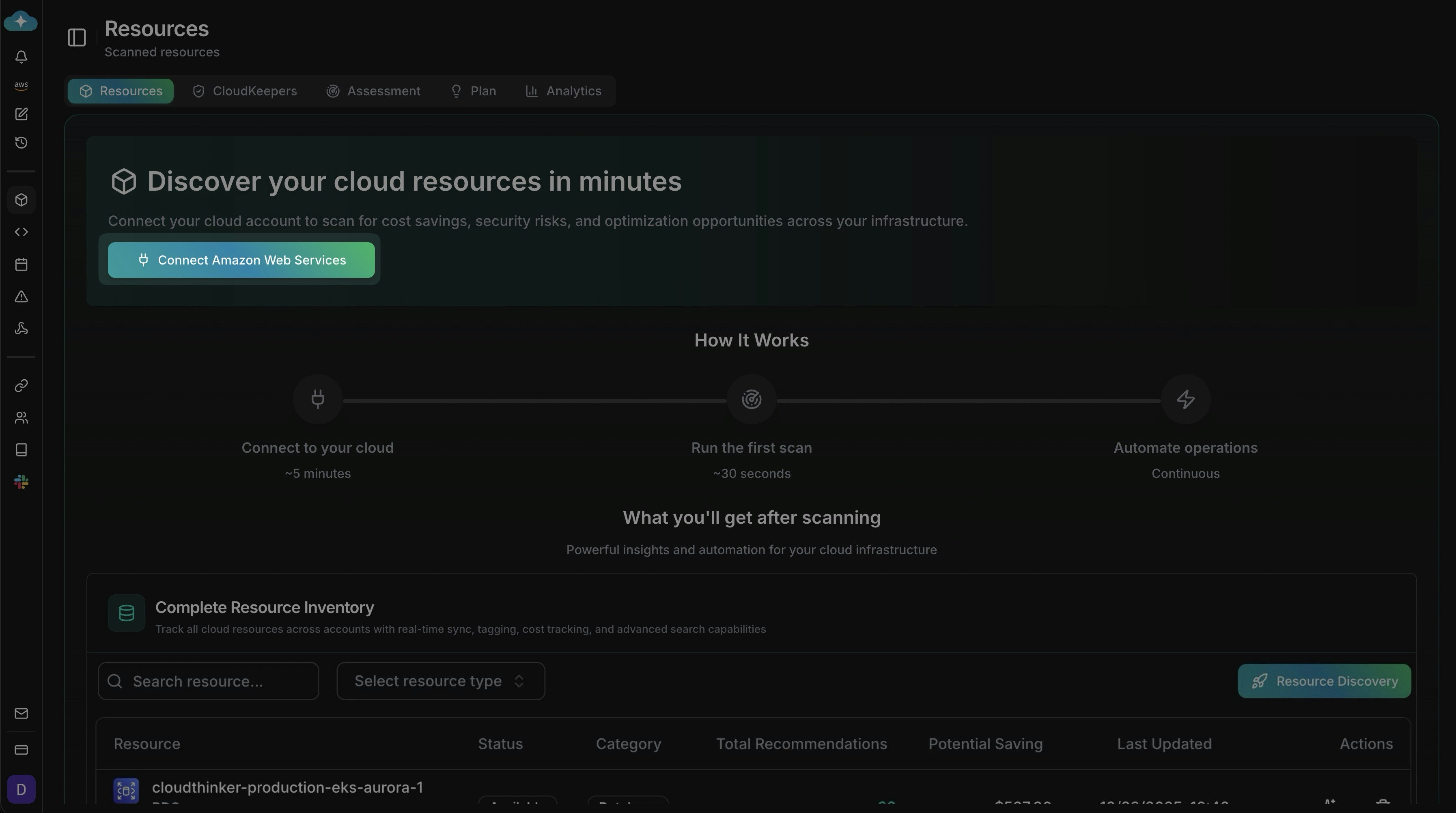
    **인프라 → 리소스**로 이동하여 클라우드(여기서는 AWS)의 **연결**을 클릭하고 **리소스 검색**을 시작합니다. 배너에 흐름이 표시됩니다: 연결, 첫 스캔 실행(\~30초), 자동화.

    <Frame>
      <img src="https://mintcdn.com/cloudthinker/9iwDeaqZV0tEjZUF/images/infrastructure/resources/1-resource-discovery-landing.jpg?fit=max&auto=format&n=9iwDeaqZV0tEjZUF&q=85&s=8df802a8126a6994e16a70e9934553d6" alt="AWS 연결 CTA와 단계별 타임라인이 있는 리소스 랜딩 페이지" width="3588" height="2004" data-path="images/infrastructure/resources/1-resource-discovery-landing.jpg" />
    </Frame>
  </Step>

  <Step title="스캔할 서비스 선택">
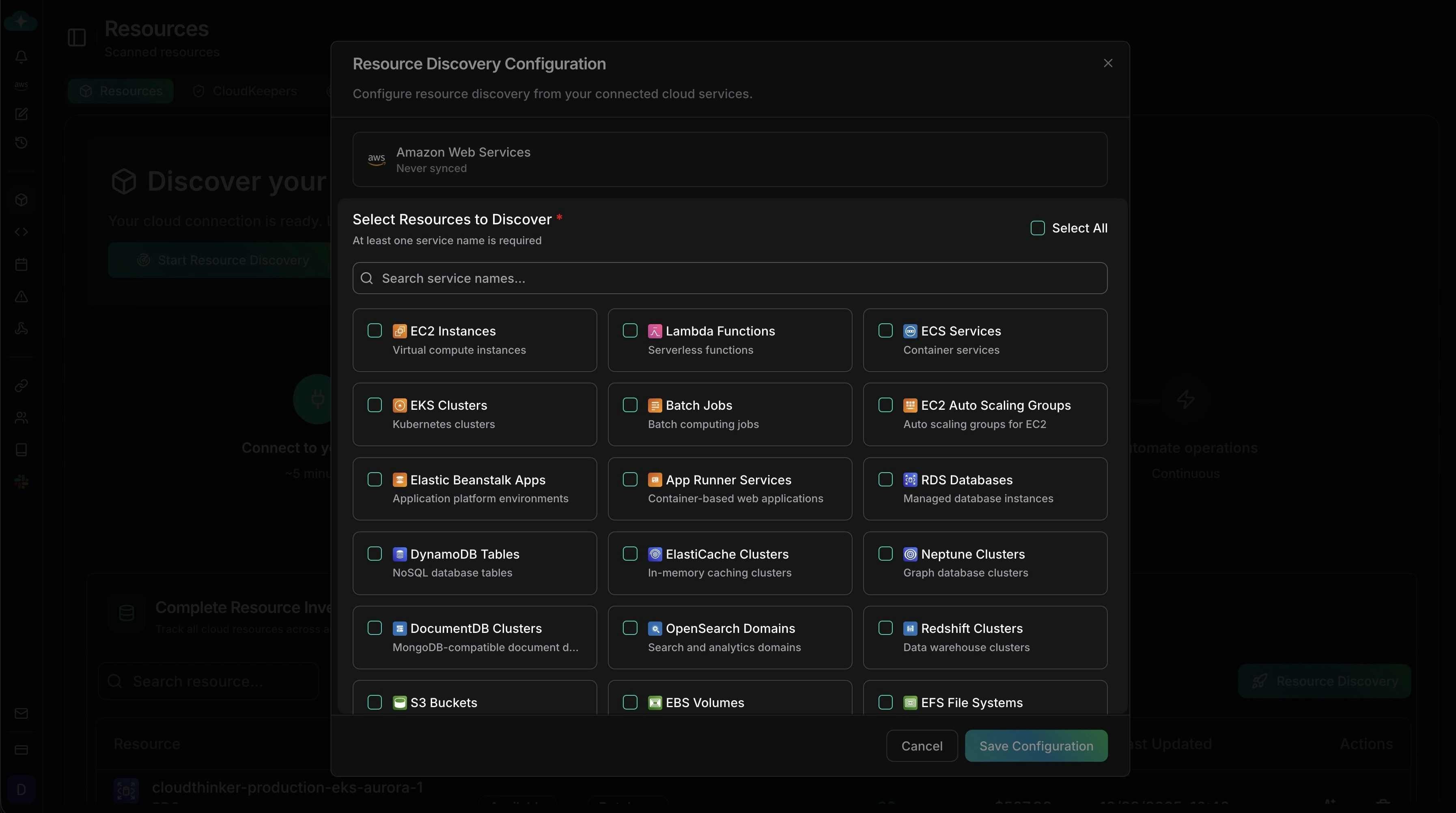
    포함할 서비스를 선택합니다(클라우드마다 이름이 다를 수 있으며, 스크린샷은 AWS 기준). **전체 선택**을 사용하거나 검색으로 범위를 좁힌 후, 선택 항목이 검색 범위와 일치하면 저장합니다.

    <Frame>
      <img src="https://mintcdn.com/cloudthinker/9iwDeaqZV0tEjZUF/images/infrastructure/resources/2-resource-discovery-services.jpg?fit=max&auto=format&n=9iwDeaqZV0tEjZUF&q=85&s=7d741c3e4aba56fea6eab79e3ac681d7" alt="AWS 서비스 타일이 있는 서비스 선택 모달" width="3588" height="2004" data-path="images/infrastructure/resources/2-resource-discovery-services.jpg" />
    </Frame>
  </Step>

  <Step title="태그로 범위 지정">
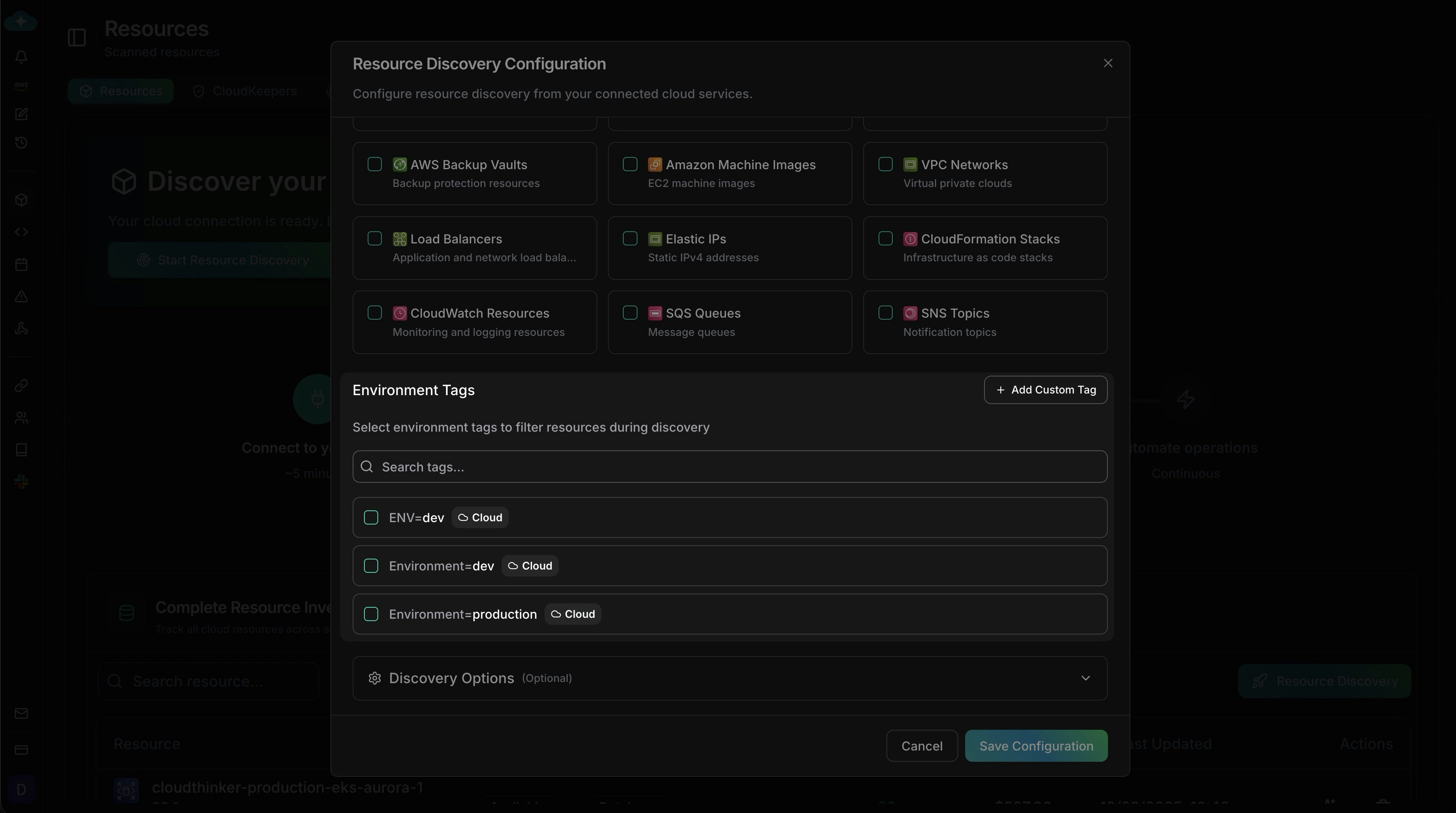
    `ENV=dev` 또는 `Environment=production` 같은 환경 태그를 추가하거나, 팀, 프로젝트, 비용 센터에 **커스텀 태그 추가**를 사용합니다.

    * **태그 미선택** → 모든 리소스가 스캔됩니다.
    * **태그 선택** → 해당 태그와 일치하는 리소스만 스캔됩니다.

    <Frame>
      <img src="https://mintcdn.com/cloudthinker/9iwDeaqZV0tEjZUF/images/infrastructure/resources/3-resource-discovery-tags.jpg?fit=max&auto=format&n=9iwDeaqZV0tEjZUF&q=85&s=db1655feb89cd4d3c258560a034c9d2e" alt="리소스 검색을 위한 환경 태그 필터" width="3588" height="2004" data-path="images/infrastructure/resources/3-resource-discovery-tags.jpg" />
    </Frame>
  </Step>

  <Step title="인벤토리 검토 및 조치">
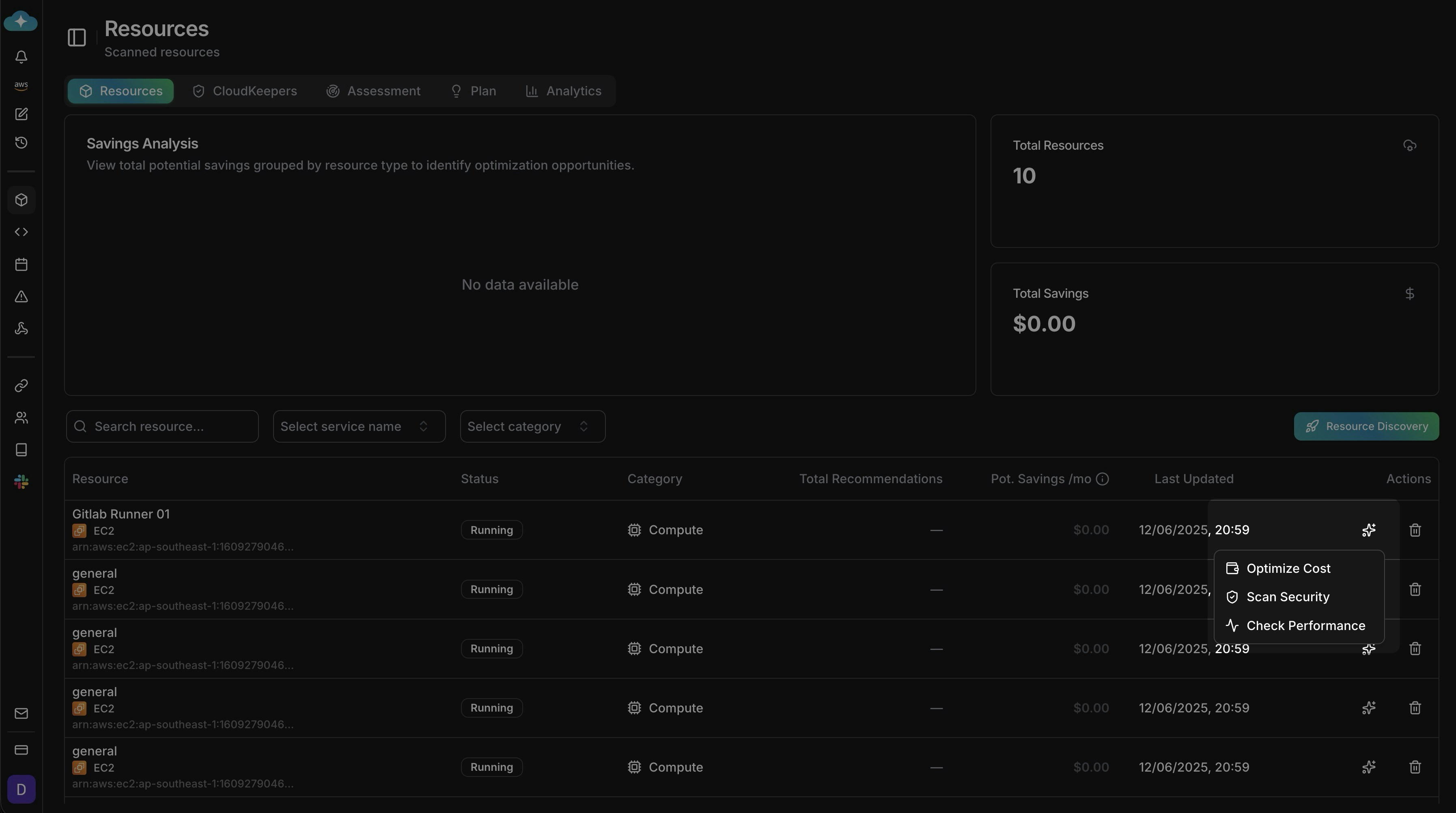
    인벤토리에는 총계, 잠재적 절감액, 리소스별 항목이 표시됩니다. 리소스 이름, 서비스, 또는 카테고리(예: 컴퓨팅)로 필터링합니다. 행의 **작업** 위에 마우스를 올려 **비용 최적화**, **보안 스캔**, 또는 **성능 확인**을 실행합니다.

    <Frame>
      <img src="https://mintcdn.com/cloudthinker/9iwDeaqZV0tEjZUF/images/infrastructure/resources/4-resource-inventory-table.jpg?fit=max&auto=format&n=9iwDeaqZV0tEjZUF&q=85&s=f8e8d58a0ee2664274f827e49bd38945" alt="절감액과 인라인 작업이 있는 리소스 인벤토리" width="3588" height="2004" data-path="images/infrastructure/resources/4-resource-inventory-table.jpg" />
    </Frame>
  </Step>
</Steps>

## 검색 범위가 다른 기능에 미치는 영향

| 기능                                                    | 검색과의 관계                                                                                         |
| ----------------------------------------------------- | ----------------------------------------------------------------------------------------------- |
| 에이전트                                                  | 검색된 리소스에만 국한되지 않고 클라우드 권한이 허용하는 모든 리소스에서 작동합니다. 검색은 CloudThinker 내에서 해당 리소스를 더 쉽게 관리할 수 있게 합니다. |
| [CloudKeepers](/ko/guide/infrastructure/cloudkeepers) | Keepers는 검색 범위에 제한되지 않고 클라우드의 허용된 모든 리소스에 걸쳐 실행됩니다.                                             |
| [평가](/ko/guide/infrastructure/assessment)             | 검색된 리소스만 평가합니다 — 먼저 검색을 실행하세요.                                                                  |

## 팁

* 중요한 리소스를 놓치지 않도록 넓게 시작한 후 태그로 범위를 좁히세요.
* 각 스캔이 어떤 서비스와 태그를 다루는지 기록하여 검색 구성을 재현 가능하게 유지하세요.
* 각 스캔 후 고가치 비용 및 보안 결과를 먼저 처리하세요.

## 다음 단계

<CardGroup cols={2}>
  <Card title="Keepers" icon="radar" href="/ko/guide/infrastructure/cloudkeepers">
    새 리소스가 자동으로 평가되도록 지속적인 모니터링 설정
  </Card>

  <Card title="평가" icon="clipboard-check" href="/ko/guide/infrastructure/assessment">
    검색된 리소스에 대해 Well-Architected 평가 실행
  </Card>

  <Card title="계획" icon="list-check" href="/ko/guide/infrastructure/plan">
    리소스 최적화 작업의 권장 사항 관리 및 추적
  </Card>

  <Card title="토폴로지" icon="diagram-project" href="/ko/guide/infrastructure/topology">
    검색된 리소스와 의존성 시각화
  </Card>
</CardGroup>