

Prerequisites
- A cloud account connected to Optimize. See the Optimize quickstart.
- Any workspace role can read Settings. Choosing a billing source, checking it again, and retrying a refresh need Developer or higher. See Roles.
Open Settings
Settings isn’t in the sidebar. Open it in one of two ways:- On Overview or Cost Health, select Open Settings on the notice that says a capability is not measured.
- Add
/costops/settingsto your CloudThinker address, then pick the account next to the page title.
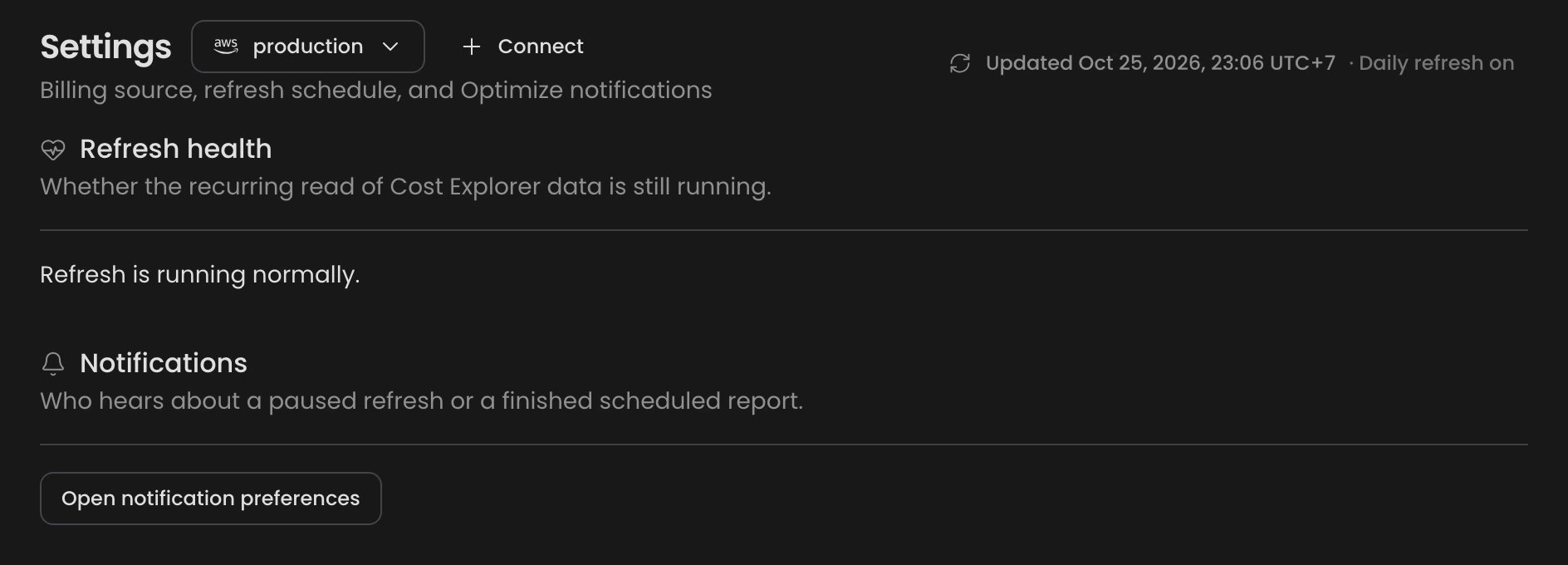
Settings for an AWS account. GCP and Azure accounts also show a Billing source section
Billing source
GCP and Azure accounts show where Optimize reads spend from. AWS accounts don’t show this section, because Optimize always reads AWS Cost Explorer.
When the source is readable, the section says Connected and readable with the table or scope Optimize reads, and when it was last checked. Select Check again after you change permissions or the export.
If the source isn’t ready, the section shows what’s wrong:
GCP billing export is connected or Azure billing scope is connected with no spend means the source works but the provider hasn’t published rows yet. Optimize shows spend once it does.
Refresh health
Refresh health says whether the daily read of billing data still runs. Refresh is running normally means nothing needs your attention. When a refresh fails, the section shows one of three alerts:
Your last good billing data stays readable in every case. To fix it:
1
Grant what's missing
If the alert shows a policy, select Copy policy and add it to the role, service account, or service principal. Select Check connection to review the credentials.
2
Retry
Select Retry refresh. A missing permission also retries on its own at the next daily refresh.Success state: the section reads Refresh is running normally.
Notifications
Select Open notification preferences to choose who hears about a paused refresh or a finished scheduled report. Each person sets their own preferences.Related
Optimize troubleshooting
Every Optimize problem in one place, with cause, check, and fix
Cost Health
See which capabilities a blocked setting leaves unmeasured