

Prerequisites
- A Cloudflare account with API access.
- Your Account ID (found in the Cloudflare dashboard right sidebar).
- An API token with permissions for your selected services.
You can combine permissions for multiple services into a single token. Limit the token to only the zones and permissions CloudThinker needs.
Setup
1
Get your Account ID
Log in to Cloudflare Dashboard → select any domain → copy your Account ID from the right sidebar under the API section.
2
Create an API token
Go to My Profile → API Tokens → Create Token and select Create Custom Token. Add permissions for the services you want to enable (see Required permissions below). Copy the token immediately — Cloudflare will not display it again.
3
Connect in CloudThinker
Navigate to Connections → Cloudflare and enter:
- API Token: the token you created
- Account ID: your Cloudflare account ID
- Enabled Services: select the services you want to use
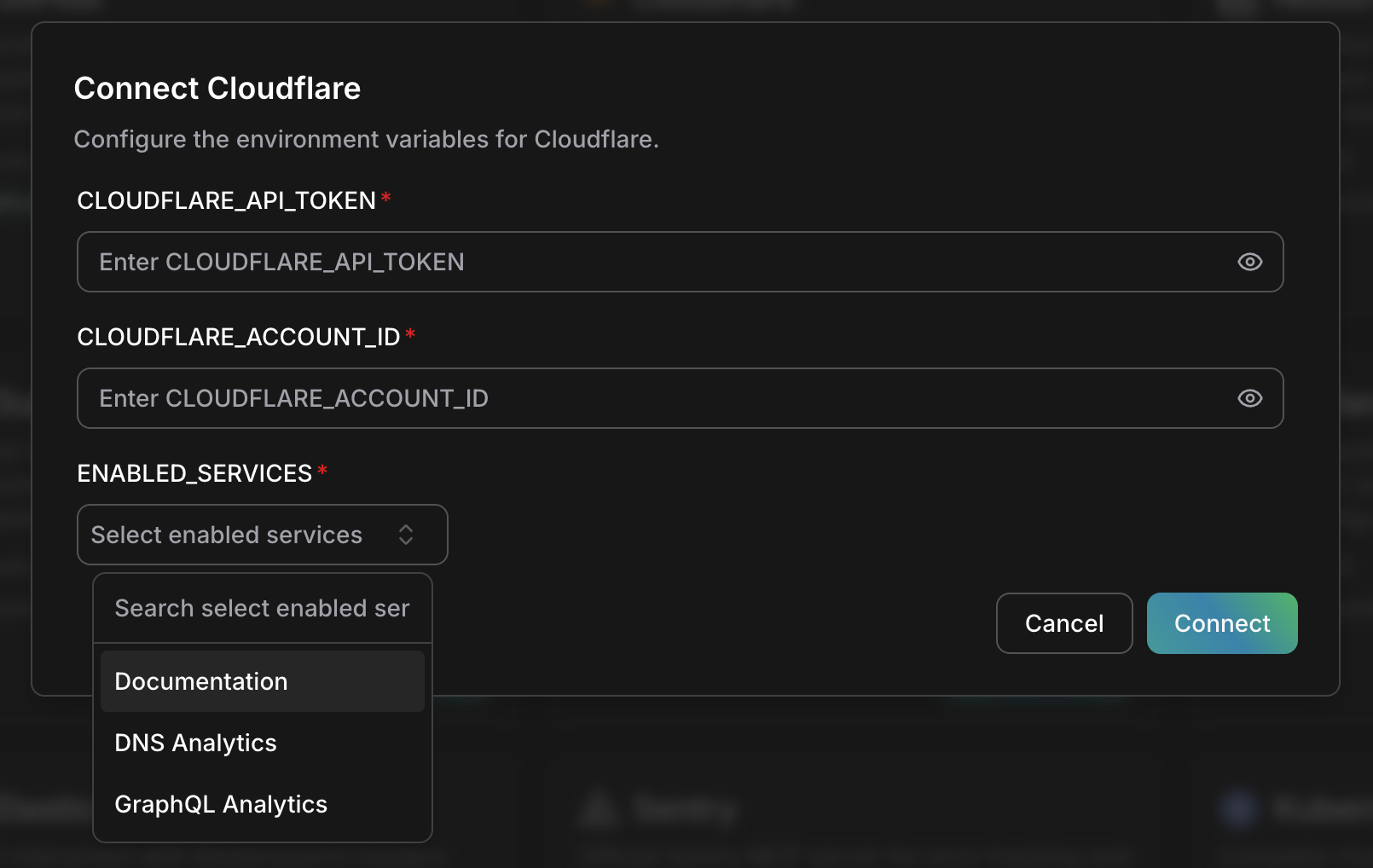
Cloudflare connection dialog with API token, Account ID, and service selection
Create an API token
1
Navigate to API Tokens
Go to Cloudflare Dashboard → My Profile (top right) → API Tokens.
2
Create a custom token
Click Create Token → Create Custom Token (at the bottom).
3
Configure permissions
Add permissions for your selected services:For DNS Analytics:
- Account → Account Settings → Read
- Zone → Zone → Read
- Zone → Analytics → Read
- Zone → DNS → Read
- Account → Account Analytics → Read
- Zone → Zone Analytics → Read
4
Set zone resources
Under Zone Resources, select Include → All zones (or specific zones).
5
Create and copy
Click Continue to summary → Create Token and copy the token value immediately.
Connection details
Required permissions
Documentation
No special permissions required. This service provides access to Cloudflare’s public documentation.DNS Analytics
GraphQL Analytics
Agent capabilities
Once connected, agents can interact with the services you enabled.Verify the connection
Example prompts
Troubleshooting
Authentication failed
Authentication failed
Verify your API token is correct and hasn’t been revoked. Check that the token has the required permissions for your selected services and that the Account ID matches the account the token was created for.
Missing analytics data
Missing analytics data
Verify the token has Analytics read permissions. Analytics data may take up to 24 hours to appear for new zones. Check that the zones have traffic generating data.
DNS Analytics not working
DNS Analytics not working
Ensure all four permissions are granted: Zone, Analytics, DNS, and Account Settings. Verify the token has access to the specific zones you’re querying and that DNS is proxied through Cloudflare (orange cloud enabled).
GraphQL queries failing
GraphQL queries failing
Verify Account Analytics and Zone Analytics permissions are granted. Check the query syntax against Cloudflare’s GraphQL schema and ensure you’re querying within the allowed time range.
Security
- Least privilege — grant only the permissions the agents need for your use case; start read-only and widen later.
- Read-only by default — use read-only credentials unless you want agents to make changes through this connection.
- Rotate credentials — rotate keys and tokens on your normal schedule; CloudThinker picks up the new value when you update the connection.
- Revoke on offboarding — remove the credential at the provider when you delete a connection or a teammate leaves.
- Zone restrictions — limit the API token to specific zones rather than “All zones” when possible to reduce blast radius.
- IP restrictions — add IP allowlist restrictions to the token if your CloudThinker IP range is stable.
Related

MCP Connections
Learn about MCP-based integrations

AWS Connection
Connect your AWS infrastructure