

Why Auto Mode
- One workspace choice. Select Manual or Auto once for the workspace, not separately for each chat.
- Write decisions stay visible. Each catalogued write receives a recorded outcome before it runs.
- Reads keep their path. Catalogued reads skip the Auto Mode classifier.
- Manual remains available. Switch back to Manual when you want Tool Permissions to control each connection tool directly.
Choose Manual or Auto
1
Open a chat
Open any chat in the workspace you want to configure.
2
Open the approval control
In the chat prompt box, open the control beside the model picker. It reads Manual or Auto. This is a different control from Chat Settings, which is the gear icon beside the + button.
3
Select the workspace mode
Under Approval, select Manual or Auto.Success state: the control shows the selected mode, which applies to every conversation in the workspace. The change takes effect immediately, with no confirmation step.
Catalogued reads and Tool Permissions
A catalogued read is a tool CloudThinker knows as read-only. In Auto mode, catalogued reads skip the classifier. In Manual mode, a connection tool configured as Needs approval can pause even when it is a read. Tool Permissions are enforced in Manual mode. Open Approval, select Tool Permissions, then set each connection tool to Always allow, Needs approval, or Never allow. When Auto is selected, Auto Mode decides catalogued connection calls instead; the per-tool setting is not evaluated, and each row shows a read-only Classifier or Allowed badge instead of the editable control. A tool CloudThinker cannot classify is treated as a write, so the classifier decides rather than letting it through. For an MCP connection tool, its Needs approval setting is what marks it a write.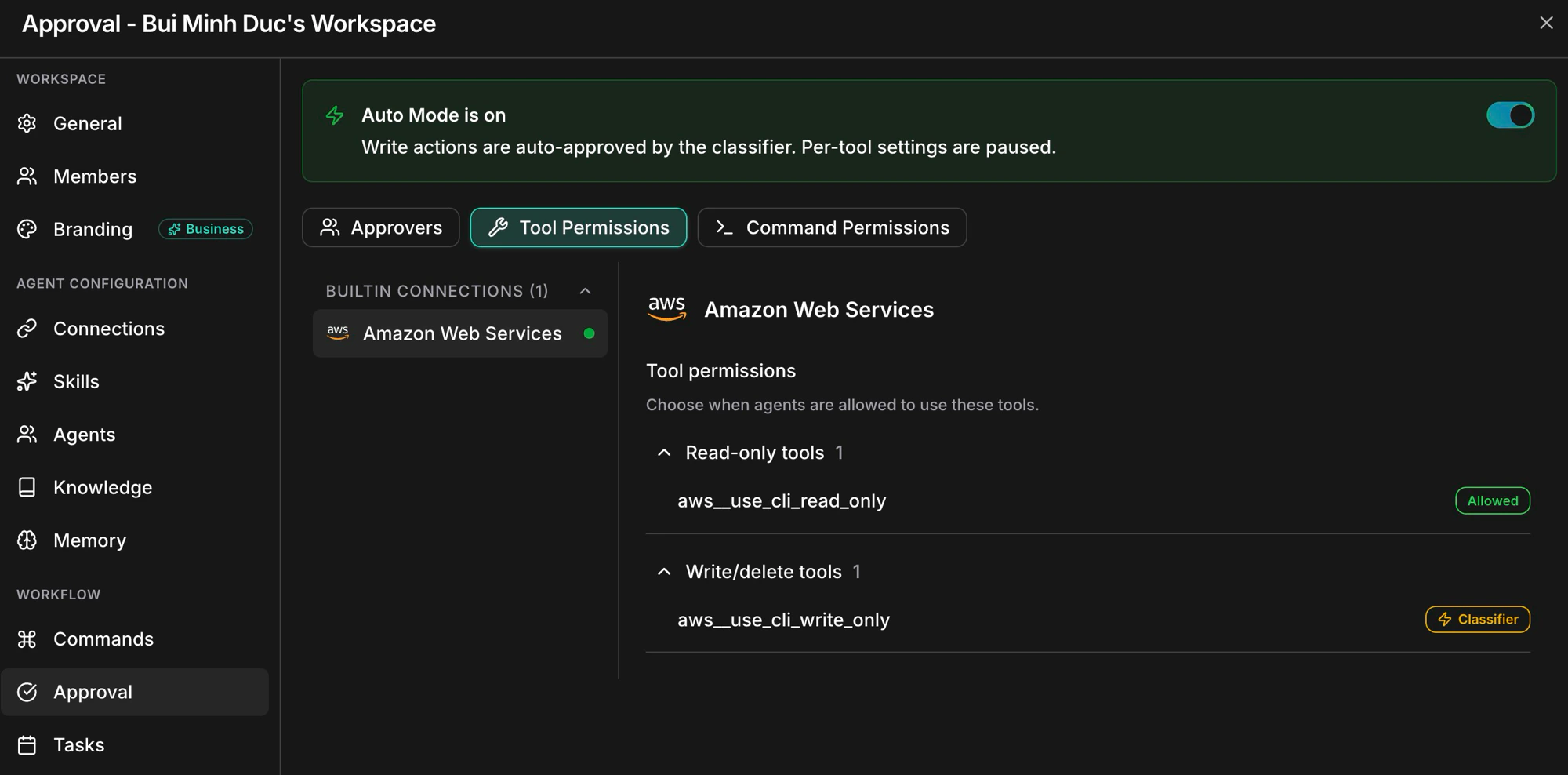
Tool Permissions control each connection tool separately.
Decision outcomes
Each catalogued write receives one of four decisions, and the chat labels the action with the result:
Auto Mode allows external changes that match your requested goal and scope, such as creating and assigning a GitLab issue. You do not need to specify each API call or implementation step. Actions outside that scope, unclear effects, and secret reads still require approval. Authenticating to the intended provider with a connected credential does not count as disclosing a secret. Destructive actions still escalate, and prohibited actions or secret disclosure remain blocked.
An escalation latches new writes to the escalated path for the rest of that turn. A repeated escalation also latches new writes for that turn.
If Auto Mode cannot finish its safety check, the write pauses for your approval so a person still decides; the chat marks it “Auto Mode could not finish its safety check”.
Installation administrators can select the active classifier with
AUTO_MODE_SYSTEM_ONE_ENABLED. The default uses the LLM classifier; enabling it uses System One and requires a qualified evaluation route. If that route is unavailable or its answer is uncertain, the write pauses for your approval. The workspace’s Manual or Auto choice and the four decision outcomes stay the same.
What you see in chat
An allowed catalogued write stays visible in the chat with its Auto Mode result.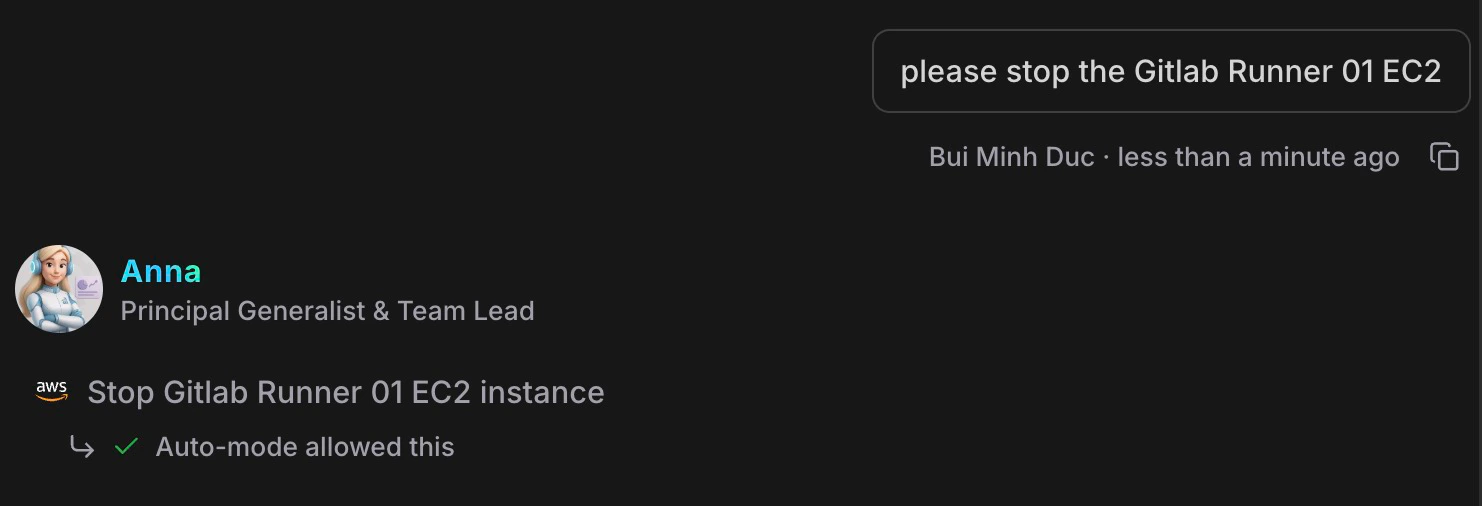
The chat records the Auto Mode result beside the tool action.
Auto Mode in the Agent CLI
The Agent CLI follows the same workspace mode. The terminal header shows· Auto or · Manual, and a cloud write’s result line opens with the decision, such as auto: allowed (trusted command) or manual: needs approval.
There is no per-session override and no flag that bypasses approval from a laptop. Commands that run on the developer’s own machine are not gated by Auto Mode; only cloud commands are.
FAQ
Is Auto Mode per chat or per workspace?
Is Auto Mode per chat or per workspace?
It is workspace-scoped. Select Manual or Auto from the approval control in any chat for that workspace.
Can a read tool pause for approval?
Can a read tool pause for approval?
Yes, in Manual mode. Set that connection tool to Needs approval in Tool Permissions.
How can an escalated action run later?
How can an escalated action run later?
Only the same authenticated user can approve one exact unchanged retry from a later explicit message in the same conversation before the escalation expires.
Can I approve a policy-denied action in chat?
Can I approve a policy-denied action in chat?
No. An action denied by policy never runs and chat cannot override it.
Related
Approval
Configure per-tool permissions and inline approvals
Autonomous Operations
See what runs without a live prompt and how Manual or Auto bounds it
Automations
Run agent instructions on schedules, webhooks, and repository events
Connections
Set up cloud and service connections