Send a test alert to Resolve, watch Pulse group it into a cluster, and open the incident and its root-cause analysis.
In about 10 minutes you create an alert endpoint, send it a test alert with curl, and follow that alert from Pulse to an incident and its root-cause analysis (RCA). You need no monitoring tool for this: a Custom source accepts any JSON you POST to it.
Click Resolve in the sidebar. On a workspace with no source yet, you see Connect your first alert source. Click Skip for now. The wizard behind Connect a source asks you to type field paths, while the Custom source on Integrations captures your test payload so you can click the fields instead.
2
Add a Custom source
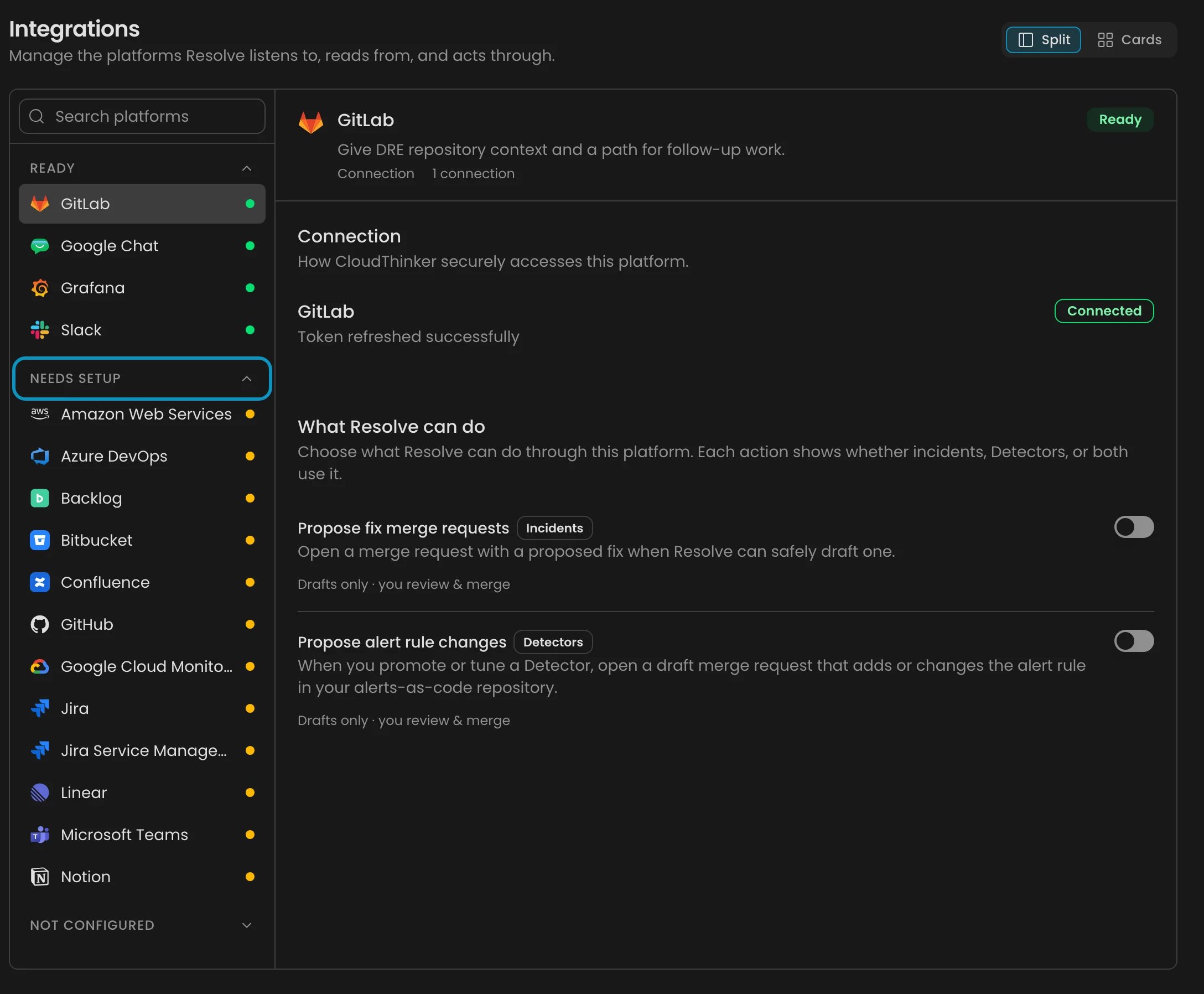
Go to Resolve → Integrations and select Custom source. In its panel, under Signals to Resolve, click Add signal.
Resolve Integrations: platforms grouped by readiness, Needs attention first
3
Name it
Enter a Source name, for example quickstart-test, and click Create endpoint.Success state: the dialog shows a Webhook URL and a Secret Key, then says Waiting for the first payload.
4
Copy the URL and Secret Key
Copy both into a scratch file. The Secret Key is shown only here. If you lose it, see Troubleshooting.
Keep the dialog open and run this from your terminal. Replace the two placeholders with the values you copied.
curl -X POST "<your-webhook-url>" \
  -H "Authorization: Bearer <your-secret-key>" \
  -H "Content-Type: application/json" \
  -d '{
    "title": "Checkout API 5xx rate above 5%",
    "severity": "critical",
    "service": "checkout-api",
    "resource": "checkout-api-prod",
    "description": "Test alert from the Resolve quickstart"
  }'
Success state:curl returns a 2xx status with a JSON body that includes "success": true. The dialog checks for the payload on its own and switches to Payload received. If it doesn’t, click Check again next to the waiting message.severity accepts critical, high, medium, low, or info, in any letter case, so Critical works too. Any other value lands as medium unless you add a severity mapping.
1
Map the fields
When the dialog shows Payload received, click Map the fields. For each target, click the matching field in the captured JSON:
Target
Pick
Incident title (required)
title
Severity
severity
Service
service
Resource
resource
Description
description
Click Save mapping.
2
Send the alert twice more, a minute apart
Run the curl command again, wait at least one minute, and run it a third time. The repeats join the first signal’s cluster instead of creating new work, because they share a title and a service. The payload has no resource_id, so title and service are what group them here. Clusters has the full rule.Each send that survives suppression becomes a signal, including the first one. The payload has no top-level timestamp field, so Pulse uses the time it received each send. An identical send in the same minute as an earlier one is dropped as a duplicate, which is why you wait. Expect two or three signals, depending on whether the first two sends landed in the same minute.
Pulse is Resolve’s detection layer. A signal is an event that survived noise suppression, and a cluster is a group of related signals that Pulse treats as one problem.
1
Open Pulse
Go to Resolve → Pulse.Success state: a cluster titled Checkout API 5xx rate above 5% with at least two signals, in the Active lane. If you see it in Forming with one signal, the repeats were too close together: wait a minute and send again.Already in Routed? On duty is on in a new workspace, so triage picked the cluster up on its own. Skip to Open the investigation.
2
Hand it to triage
Click the cluster, then Escalate → Send to triage. CloudThinker reads the cluster and matches it to an open incident, opens a new one, or decides it needs no incident.Success state: triage runs and settles the cluster. It moves to the Routed lane once triage links it to an open incident. If triage decides the cluster needs no incident, it stays in Active — see the note below.
For a made-up alert, both triage outcomes are normal. A test alert about a service CloudThinker can’t find in your connections may be judged as needing no action, so no incident opens and the cluster doesn’t move to Routed. That isn’t a mistake on your side: log the incident by hand in the next step. To make an incident more likely, replace checkout-api with a real service name from a connected account.
Go to Resolve → Investigation. If triage opened an incident, it’s in the queue, under AI is handling while RCA runs. The row reads Investigating until the result is ready.No incident? Click Log Incident. Enter the alert title in What’s happening?, set Severity to Critical, and save. A logged incident starts its investigation as soon as you save, even while On duty is Paused. See Log an incident for the other fields.
2
Start RCA if it hasn't started
RCA starts on its own when triage opens an incident from Pulse, and a logged incident starts it as soon as you save. If the incident sits in Not started, open it and click Investigate. What starts an investigation has the full rules.
3
Read the result
Open the incident. CloudThinker shows its verdict, confidence, the evidence it read, a timeline, and remediation suggestions.Success state: the incident leaves AI is handling. With a connection that covers the alert, it lands in Needs your decision and the row usually reads Cause found. With no connections, expect one of two results:
It lands in Needs your decision with Investigation complete, and the result says CloudThinker couldn’t verify the cause.
Its status becomes Not Found, because the evidence didn’t support a root cause. A Not Found incident drops out of the queue, so copy the incident’s URL from your browser before you leave the page. See Investigation outcomes.
A result without a verified cause is the honest answer for a made-up alert. Connect the system the alert is about and the same flow produces a real root cause.
The test source keeps accepting alerts until you remove it.
Close the test incident so it doesn’t stay in your queue. Open it from Resolve → Investigation, click the status badge in the incident header, pick False Alarm, and click Change Status.
In Resolve → Pulse, open the test cluster and click Resolve. The button shows once no open incident holds the cluster. Left alone, the cluster closes after 12 hours with no new signal.
Go to Resolve → Integrations → Custom source, open the quickstart-test row’s ⋯ menu, and click Delete.
Check the status curl returned, then click Check again.
Status
Usual cause
401
The Authorization header is missing, or the URL isn’t the current Webhook URL (mistyped, cut short, or replaced by Regenerate credentials). Check the header and paste the full URL again.
403
The Secret Key is wrong, or the header isn’t in the form Bearer <secret-key>. Paste the key again.
422
The body isn’t a JSON object: invalid JSON, an array, or a plain value.
429
Too many requests, or too many failed authentication attempts in a short time. Wait, then retry.
If the dialog says an event arrived but no field could be read from its body, the send was accepted and its fields still couldn’t be mapped. Send the sample payload above again, then click Check again.
I lost the Secret Key
It isn’t shown again. On the Custom source card, open the source row’s ⋯ menu and click Regenerate credentials. That replaces both the Webhook URL and the Secret Key, and the old pair stops working at once, so update the URL and the key in anything that already sends to it.
Nothing shows up in Pulse
Switch to the All lane and widen the time window. Then check the funnel at the top of Resolve → Pulse: if the raw event count went up but no cluster appeared, suppression dropped the event, most often as a duplicate sent in the same minute. Change the title and send again.
Escalate is missing
Escalate only shows on a Forming or Active cluster that isn’t routed yet. If the cluster is already in Routed, triage has it: open the incident from Resolve → Investigation.
{"docsConfig":{"theme":"mint","$schema":"https://mintlify.com/docs.json","name":"CloudThinker","colors":{"primary":"#0c93c0","light":"#2897c1","dark":"#0c93c0"},"logo":{"light":"https://mintcdn.com/cloudthinker/-4m9DUjwzDxHfABz/logo/light.svg?fit=max\u0026auto=format\u0026n=-4m9DUjwzDxHfABz\u0026q=85\u0026s=a56a571509d1cd246f5b0e68db015e5f","dark":"https://mintcdn.com/cloudthinker/-4m9DUjwzDxHfABz/logo/dark.svg?fit=max\u0026auto=format\u0026n=-4m9DUjwzDxHfABz\u0026q=85\u0026s=4252f33496bbaa527e5408338963a31e"},"favicon":"https://mintcdn.com/cloudthinker/PoYnb4baZ54aMMQW/favicon.ico?fit=max\u0026auto=format\u0026n=PoYnb4baZ54aMMQW\u0026q=85\u0026s=6570e99ed2a763d9632c8f933fe9c164","background":{"color":{"light":"#eef0f3","dark":"#000000"}},"navbar":{"links":[{"href":"https://discord.com/invite/sRBWRWtaNR","label":"Community"},{"href":"https://cloudthinker.io/blogs","label":"Blog"},{"href":"https://cloudthinker.io/contact","label":"Contact us"}],"primary":{"type":"button","label":"Open app","href":"https://app.cloudthinker.io"}},"footer":{"socials":{"x":"https://x.com/cloudthinkerio?s=21","linkedin":"https://www.linkedin.com/company/cloud-thinker","github":"https://github.com/cloudthinker-ai","discord":"https://discord.com/invite/sRBWRWtaNR","youtube":"https://www.youtube.com/@cloudthinkerai"}},"seo":{"indexing":"navigable"},"fonts":{"family":"Poppins"},"contextual":{"options":["copy","view","chatgpt","claude"],"display":"header"},"metadata":{"timestamp":false},"styling":{"latex":true},"navigation":{"languages":[{"language":"en","href":""},{"language":"vi","href":""},{"language":"ja","href":""},{"language":"ko","href":""}]}},"deployment":{"deploymentMetadataValue":{"subdomain":"cloudthinker","hasAudioNarration":false,"actualSubdomain":"cloudthinker","customDomains":["docs.cloudthinker.io"],"gitSource":{"type":"github","owner":"nhat-tranvan","repo":"docs","deployBranch":"main","contentDirectory":"","isPrivate":false,"mountPath":"","label":""},"chroma":{"liveDeploymentHistoryId":"6adc97ae50e173ef2b635382","collectionId":"650886af-e070-4acf-932c-2411f5f8761a","schemaVersion":"v3","latestBuiltDeploymentHistoryId":"6adc97ae50e173ef2b635382"},"feedback":{"thumbs":true,"edits":true,"issues":true,"agentFeedback":true},"entitlements":{},"buildId":"6adddcaa087fb564296de741","clientVersion":"0.0.3965","searchFilterCounts":[{"language":"default","tag":"Platform","count":67},{"language":"vi","tag":"Nền tảng","count":64},{"language":"en","tag":"Platform","count":63},{"language":"ja","tag":"プラットフォーム","count":63},{"language":"ko","tag":"플랫폼","count":63},{"language":"default","tag":"Connections","count":52},{"language":"vi","tag":"Kết nối","count":49},{"language":"en","tag":"Connections","count":48},{"language":"ja","tag":"接続","count":48},{"language":"ko","tag":"연결","count":48},{"language":"en","tag":"Products","count":29},{"language":"ja","tag":"プロダクト","count":29},{"language":"ko","tag":"제품","count":29},{"language":"vi","tag":"Sản phẩm","count":29},{"language":"default","tag":"Resources","count":26},{"language":"default","tag":"Products","count":24},{"language":"default","tag":"Learn","count":18},{"language":"default","tag":"Agentic Infrastructure Operations - Engineer Edition","count":18},{"language":"default","tag":"Get started","count":13},{"language":"en","tag":"Get started","count":13},{"language":"en","tag":"Resources","count":13},{"language":"ja","tag":"はじめに","count":13},{"language":"ja","tag":"リソース","count":13},{"language":"ko","tag":"시작하기","count":13},{"language":"ko","tag":"리소스","count":13},{"language":"vi","tag":"Bắt đầu","count":13},{"language":"vi","tag":"Tài nguyên","count":13},{"language":"en","tag":"Learn","count":12},{"language":"en","tag":"Agentic Infrastructure Operations - Leadership Edition","count":12},{"language":"ja","tag":"Observability \u0026 Monitoring","count":12},{"language":"ja","tag":"学ぶ","count":12},{"language":"ja","tag":"Agentic Infrastructure Operations - Leadership Edition","count":12},{"language":"ko","tag":"Observability \u0026 Monitoring","count":12},{"language":"ko","tag":"배우기","count":12},{"language":"ko","tag":"Agentic Infrastructure Operations - Leadership Edition","count":12},{"language":"vi","tag":"Observability \u0026 Monitoring","count":12},{"language":"vi","tag":"Học","count":12},{"language":"vi","tag":"Agentic Infrastructure Operations - Leadership Edition","count":12},{"language":"en","tag":"Monitoring","count":11},{"language":"en","tag":"Resolve","count":11},{"language":"ja","tag":"Resolve","count":11},{"language":"ko","tag":"Resolve","count":11},{"language":"vi","tag":"Resolve","count":11},{"language":"default","tag":"Resolve","count":9},{"language":"vi","tag":"Databases","count":9},{"language":"ja","tag":"Databases","count":8},{"language":"ko","tag":"Databases","count":8},{"language":"en","tag":"Work where you are","count":7},{"language":"default","tag":"Review","count":6},{"language":"default","tag":"Set up","count":6}]},"assistantConfig":{},"hasChatPermissions":false,"hasWebMcpPermissions":false,"toggles":[{"name":"kill-isr","enabled":true,"variant":{"name":"disabled","enabled":false,"feature_enabled":true},"impressionData":false},{"name":"agent-mintlify-slack","enabled":true,"variant":{"name":"disabled","enabled":false,"feature_enabled":true},"impressionData":false},{"name":"editor-v7-file-tree","enabled":true,"variant":{"name":"disabled","enabled":false,"feature_enabled":true},"impressionData":false},{"name":"agent-integrations-settings","enabled":true,"variant":{"name":"disabled","enabled":false,"feature_enabled":true},"impressionData":false},{"name":"automations-pr-grouping","enabled":true,"variant":{"name":"disabled","enabled":false,"feature_enabled":true},"impressionData":false},{"name":"custom-prefix","enabled":true,"variant":{"name":"disabled","enabled":false,"feature_enabled":true},"impressionData":false},{"name":"analytics-v7","enabled":true,"variant":{"name":"disabled","enabled":false,"feature_enabled":true},"impressionData":false},{"name":"user-flows-analytics","enabled":true,"variant":{"name":"disabled","enabled":false,"feature_enabled":true},"impressionData":false},{"name":"no-publish-flow","enabled":true,"variant":{"name":"disabled","enabled":false,"feature_enabled":true},"impressionData":false},{"name":"workos-onboarding","enabled":true,"variant":{"name":"disabled","enabled":false,"feature_enabled":true},"impressionData":false},{"name":"llms-txt-v2","enabled":true,"variant":{"name":"disabled","enabled":false,"feature_enabled":true},"impressionData":false},{"name":"pause-universal-search-reconcile","enabled":true,"variant":{"name":"disabled","enabled":false,"feature_enabled":true},"impressionData":false},{"name":"snapshot-serving-live","enabled":true,"variant":{"name":"disabled","enabled":false,"feature_enabled":true},"impressionData":false},{"name":"stripTemperatureMiddleware","enabled":true,"variant":{"name":"disabled","enabled":false,"feature_enabled":true},"impressionData":false},{"name":"per-site-search-delta","enabled":true,"variant":{"name":"disabled","enabled":false,"feature_enabled":true},"impressionData":false},{"name":"support-platform-pylon-zendesk","enabled":true,"variant":{"name":"disabled","enabled":false,"feature_enabled":true},"impressionData":false},{"name":"snapshot-serving","enabled":true,"variant":{"name":"disabled","enabled":false,"feature_enabled":true},"impressionData":false},{"name":"instant-rollback","enabled":true,"variant":{"name":"disabled","enabled":false,"feature_enabled":true},"impressionData":false},{"name":"granular-notifications-server","enabled":true,"variant":{"name":"disabled","enabled":false,"feature_enabled":true},"impressionData":false},{"name":"granular-notifications","enabled":true,"variant":{"name":"disabled","enabled":false,"feature_enabled":true},"impressionData":false},{"name":"editor-private-page-search","enabled":true,"variant":{"name":"disabled","enabled":false,"feature_enabled":true},"impressionData":false},{"name":"automations-fable","enabled":true,"variant":{"name":"disabled","enabled":false,"feature_enabled":true},"impressionData":false},{"name":"fixed-ai-action-pricing","enabled":true,"variant":{"name":"disabled","enabled":false,"feature_enabled":true},"impressionData":false},{"name":"automation-resolve-merge-conflict","enabled":true,"variant":{"name":"disabled","enabled":false,"feature_enabled":true},"impressionData":false},{"name":"scoped-publishing","enabled":true,"variant":{"name":"disabled","enabled":false,"feature_enabled":true},"impressionData":false},{"name":"mintql","enabled":true,"variant":{"name":"disabled","enabled":false,"feature_enabled":true},"impressionData":false},{"name":"page-level-analytics","enabled":true,"variant":{"name":"disabled","enabled":false,"feature_enabled":true},"impressionData":false},{"name":"editor-version-history-v2","enabled":true,"variant":{"name":"disabled","enabled":false,"feature_enabled":true},"impressionData":false},{"name":"editor-nav-generations","enabled":true,"variant":{"name":"disabled","enabled":false,"feature_enabled":true},"impressionData":false},{"name":"billing-page-v2","enabled":true,"variant":{"name":"disabled","enabled":false,"feature_enabled":true},"impressionData":false},{"name":"workspace-projects","enabled":true,"variant":{"name":"disabled","enabled":false,"feature_enabled":true},"impressionData":false},{"name":"assistant-v5","enabled":true,"variant":{"name":"disabled","enabled":false,"feature_enabled":true},"impressionData":false},{"name":"byok-sep-25","enabled":true,"variant":{"name":"disabled","enabled":false,"feature_enabled":true},"impressionData":false},{"name":"fork-pr-previews","enabled":true,"variant":{"name":"disabled","enabled":false,"feature_enabled":true},"impressionData":false},{"name":"revalidation-jwt","enabled":true,"variant":{"name":"disabled","enabled":false,"feature_enabled":true},"impressionData":false},{"name":"vite-origin","enabled":true,"variant":{"name":"disabled","enabled":false,"feature_enabled":true},"impressionData":false},{"name":"editor-agent-model-picker","enabled":true,"variant":{"name":"disabled","enabled":false,"feature_enabled":true},"impressionData":false},{"name":"billing-updated-9-15","enabled":true,"variant":{"name":"disabled","enabled":false,"feature_enabled":true},"impressionData":false},{"name":"hobby-abuse-scan","enabled":true,"variant":{"name":"disabled","enabled":false,"feature_enabled":true},"impressionData":false},{"name":"dashboard-inbox","enabled":true,"variant":{"name":"disabled","enabled":false,"feature_enabled":true},"impressionData":false}],"isAtlas":false,"googleFontsInlined":true},"customCss":[{"filePath":"style.css","content":".ct-landing a,a.ct-featured{text-decoration:none!important}a.ct-featured{display:block;margin:1.25rem 0 1rem;padding:1.75rem 1.75rem 1.5rem;border:1px solid rgba(12,147,192,.45)!important;border-radius:16px;background:radial-gradient(120% 160% at 0 0,rgba(12,147,192,.14),transparent 55%),#fff;box-shadow:0 12px 32px -16px rgba(12,147,192,.45);transition:border-color .15s ease,transform .15s ease,box-shadow .15s ease}a.ct-featured:hover{border-color:#0c93c0!important;transform:translateY(-1px);box-shadow:0 16px 40px -16px rgba(12,147,192,.6)}.dark a.ct-featured{border-color:rgba(40,151,193,.45)!important;background:radial-gradient(120% 160% at 0 0,rgba(40,151,193,.16),transparent 55%),#05070a;box-shadow:0 12px 32px -16px rgba(40,151,193,.35)}.dark a.ct-featured:hover{border-color:#2897c1!important}.ct-featured-head{display:flex;align-items:center;gap:.75rem;margin-bottom:.875rem}.ct-featured-icon{display:inline-flex;align-items:center;justify-content:center;width:2.25rem;height:2.25rem;border-radius:999px;background:rgba(12,147,192,.12);color:#0a7aa0}.dark .ct-featured-icon{background:rgba(40,151,193,.14);color:#5bb8e0}.ct-eyebrow{font-size:.75rem;font-weight:600;letter-spacing:.14em;text-transform:uppercase;color:#0a7aa0}.dark .ct-eyebrow{color:#5bb8e0}.ct-hero h1,.ct-title{font-weight:600;color:#0b1a2b}.ct-title{font-size:1.375rem;line-height:1.3}.dark .ct-card .ct-card-head span,.dark .ct-card h3,.dark .ct-hero h1,.dark .ct-section>h2,.dark .ct-step h3,.dark .ct-title{color:#f5f5f7}.ct-body{margin:.5rem 0 0!important;font-weight:400!important;font-size:1rem;max-width:46rem;color:#5b6577;line-height:1.6}.dark .ct-body,.dark .ct-hero .ct-promise,.dark .ct-hero p.ct-lead,.dark .ct-section>p.ct-section-lead{color:#a1a1a6}.ct-cta{display:inline-block;margin-top:1rem;font-weight:600;color:#0a7aa0}.dark .ct-cta{color:#5bb8e0}.ct-illustration{margin:1.5rem 0}.ct-illustration img{max-width:720px;margin:0 auto}.ct-iso-scene{margin:1.5rem 0 2rem;border:1px solid rgba(12,147,192,.18);border-radius:16px;background:#fff;overflow:hidden}.dark .ct-iso-scene{border-color:rgba(40,151,193,.22);background:#000}.ct-illustration img,.ct-iso-scene .ct-iso-svg{display:block;width:100%;height:auto}.ct-landing{max-width:1120px;margin:0 auto;padding:3rem 1.5rem 5rem}.ct-landing a{border-bottom-width:0}.ct-kicker{font-size:.8125rem;font-weight:600;letter-spacing:.08em;text-transform:uppercase;color:#0c93c0}.dark .ct-card .ct-tagline,.dark .ct-hero .ct-promise strong,.dark .ct-kicker{color:#2897c1}.ct-hero{text-align:center;padding:1.5rem 0 1rem}.ct-hero h1{margin:.75rem 0 0;font-size:clamp(2.25rem,5vw,3.75rem);line-height:1.05;letter-spacing:-.03em;-webkit-text-fill-color:currentColor;background:0 0}.ct-hero .ct-promise{margin:1rem auto 0;font-size:clamp(1.125rem,2.2vw,1.5rem);color:#5b6577}.ct-hero .ct-promise strong,.ct-section>h2{color:#0c93c0;font-weight:600}.ct-hero p.ct-lead{max-width:44rem;margin:1rem auto 0;font-size:1.0625rem;line-height:1.65;color:#5b6577}.ct-actions{display:flex;flex-wrap:wrap;gap:.75rem;justify-content:center;margin-top:1.75rem}.ct-btn{display:inline-flex;align-items:center;gap:.5rem;padding:.7rem 1.25rem;border-radius:999px;font-weight:600;font-size:.95rem;transition:transform .15s ease,background .15s ease}.ct-btn:hover{transform:translateY(-1px)}.ct-btn-primary{background:#0c93c0;color:#fff!important}.ct-btn-primary:hover{background:#0a7aa0}.ct-btn-ghost{border:1px solid rgba(12,147,192,.35)!important;color:#0b1a2b!important}.dark .ct-btn-ghost{color:#f5f5f7!important;border-color:rgba(40,151,193,.4)!important}.ct-landing .ct-iso-scene{margin-top:2.5rem}.ct-section{margin-top:4.5rem}.ct-section>h2{margin:.4rem 0 0;font-size:1.75rem;letter-spacing:-.02em;color:#0b1a2b;-webkit-text-fill-color:currentColor;background:0 0}.ct-section>p.ct-section-lead{margin:.5rem 0 0;color:#5b6577;max-width:46rem}.ct-steps{display:grid;grid-template-columns:repeat(4,minmax(0,1fr));gap:1rem;margin-top:1.5rem}.ct-step{display:block;padding:1.25rem;border-radius:14px;border:1px solid rgba(12,147,192,.18)!important;background:#fff;transition:border-color .15s ease,transform .15s ease}.dark .ct-step{background:#05070a;border-color:rgba(40,151,193,.22)!important}.ct-step:hover{border-color:#0c93c0!important;transform:translateY(-1px)}.ct-step-num{display:inline-flex;width:1.75rem;height:1.75rem;border-radius:999px;align-items:center;justify-content:center;font-size:.85rem;font-weight:700;color:#fff;background:#0c93c0}.ct-card h3,.ct-step h3{margin:.75rem 0 .25rem;font-size:1.05rem}.ct-card p,.ct-step p{margin:0;font-size:.925rem;line-height:1.55;color:#5b6577}.dark .ct-card p,.dark .ct-landing td,.dark .ct-step p{color:#a1a1a6}.ct-grid{display:grid;gap:1rem;margin-top:1.5rem}.ct-grid-3{grid-template-columns:repeat(3,minmax(0,1fr))}.ct-grid-5{grid-template-columns:repeat(5,minmax(0,1fr))}.ct-card{display:flex;flex-direction:column;padding:1.25rem;border-radius:14px;border:1px solid rgba(12,147,192,.18);background:#fff}.dark .ct-card{background:#05070a;border-color:rgba(40,151,193,.22)}.ct-card .ct-card-head{display:flex;align-items:center;gap:.6rem}.ct-card .ct-card-head span,.ct-card h3,.ct-step h3{font-weight:600;color:#0b1a2b}.ct-card .ct-tagline{margin-top:.75rem;font-size:1.05rem;font-weight:600;line-height:1.35;color:#0c93c0}.ct-card .ct-links{margin-top:auto;padding-top:1rem;display:flex;gap:1rem;font-size:.9rem;font-weight:600}.ct-card .ct-links a{color:#0c93c0!important}.dark .ct-card .ct-links a,.dark .ct-card-head .ct-arrow,.dark .ct-landing td a{color:#2897c1!important}a.ct-card{transition:border-color .15s ease,transform .15s ease}a.ct-card:hover{border-color:#0c93c0!important;transform:translateY(-1px)}.ct-strip{display:flex;flex-wrap:wrap;gap:.6rem;margin-top:1.25rem}.ct-strip a{display:inline-flex;align-items:center;gap:.45rem;padding:.55rem .95rem;border-radius:999px;border:1px solid rgba(12,147,192,.25)!important;font-size:.9rem;font-weight:500;color:#0b1a2b!important}.dark .ct-strip a{color:#f5f5f7!important;border-color:rgba(40,151,193,.3)!important}.ct-strip a:hover{border-color:#0c93c0!important}@media (max-width:900px){.ct-grid-3,.ct-grid-5,.ct-steps{grid-template-columns:repeat(2,minmax(0,1fr))}}@media (max-width:560px){.ct-landing{padding:2rem 1rem 4rem}.ct-grid-3,.ct-grid-5,.ct-steps{grid-template-columns:minmax(0,1fr)}}.ct-landing table{width:100%;margin-top:1.25rem;border-collapse:collapse;font-size:.925rem}.ct-landing th{text-align:left;font-weight:600;padding:.7rem .9rem;border-bottom:1px solid rgba(12,147,192,.3)}.ct-landing td{vertical-align:top;padding:.8rem .9rem;border-bottom:1px solid rgba(12,147,192,.12);color:#5b6577;line-height:1.55}.ct-landing td:first-child{font-weight:600;color:#0b1a2b;width:22%}.dark .ct-landing td:first-child{color:#f5f5f7}.ct-landing td a{color:#0c93c0!important;font-weight:600}.ct-product{padding:1.1rem 1.2rem}.ct-product .ct-tagline{margin-top:.55rem;font-size:1rem}.ct-product p{margin-top:.3rem}.ct-card-head .ct-arrow{margin-left:auto;font-weight:500!important;color:#0c93c0!important;transition:transform .15s ease}a.ct-product:hover .ct-arrow{transform:translateX(3px)}html:not(.dark) .ct-card,html:not(.dark) .ct-iso-scene,html:not(.dark) .ct-step{background:#f6f7f9}html:not(.dark) .ct-iso-scene{border-color:rgba(12,147,192,.12)}html:not(.dark) #content-area,html:not(.dark) .prose,html:not(.dark) body{color:#2b3240}html:not(.dark) .prose :where(h1, h2, h3, h4, strong){color:#1c2230}html:not(.dark) .ct-card .ct-card-head span,html:not(.dark) .ct-card h3,html:not(.dark) .ct-hero h1,html:not(.dark) .ct-section>h2,html:not(.dark) .ct-step h3{color:#1c2230}"}],"page":{"pagePath":"guide/incident/quickstart","slug":"/guide/incident/quickstart","pageMetadata":{"title":"Resolve Quickstart","description":"Send a test alert to Resolve, watch Pulse group it into a cluster, and open the incident and its root-cause analysis.","icon":"rocket","href":"/guide/incident/quickstart"},"description":{"compiledSource":"\"use strict\";\nconst {jsx: _jsx} = arguments[0];\nconst {useMDXComponents: _provideComponents} = arguments[0];\nfunction _createMdxContent(props) {\n const _components = {\n p: \"p\",\n ..._provideComponents(),\n ...props.components\n };\n return _jsx(_components.p, {\n children: \"Send a test alert to Resolve, watch Pulse group it into a cluster, and open the incident and its root-cause analysis.\"\n });\n}\nfunction MDXContent(props = {}) {\n const {wrapper: MDXLayout} = {\n ..._provideComponents(),\n ...props.components\n };\n return MDXLayout ? _jsx(MDXLayout, {\n ...props,\n children: _jsx(_createMdxContent, {\n ...props\n })\n }) : _createMdxContent(props);\n}\nreturn {\n default: MDXContent\n};\n","frontmatter":{},"scope":{}},"pageType":"default","mdx":{"mdxSource":{"compiledSource":"\"use strict\";const{Fragment:_Fragment,jsx:_jsx,jsxs:_jsxs}=arguments[0];const{useMDXComponents:_provideComponents}=arguments[0];function _createMdxContent(props){const _components={a:`a`,code:`code`,li:`li`,ol:`ol`,p:`p`,pre:`pre`,span:`span`,strong:`strong`,tbody:`tbody`,td:`td`,th:`th`,thead:`thead`,tr:`tr`,ul:`ul`,..._provideComponents(),...props.components},{Accordion,AccordionGroup,Card,CardGroup,CodeBlock,Frame,Heading,Note,OptimizedImage,Step,Steps,Table}=_components;if(!Accordion)_missingMdxReference(`Accordion`,true);if(!AccordionGroup)_missingMdxReference(`AccordionGroup`,true);if(!Card)_missingMdxReference(`Card`,true);if(!CardGroup)_missingMdxReference(`CardGroup`,true);if(!CodeBlock)_missingMdxReference(`CodeBlock`,true);if(!Frame)_missingMdxReference(`Frame`,true);if(!Heading)_missingMdxReference(`Heading`,true);if(!Note)_missingMdxReference(`Note`,true);if(!OptimizedImage)_missingMdxReference(`OptimizedImage`,true);if(!Step)_missingMdxReference(`Step`,true);if(!Steps)_missingMdxReference(`Steps`,true);if(!Table)_missingMdxReference(`Table`,true);return _jsxs(_Fragment,{children:[_jsxs(_components.p,{children:[`In about 10 minutes you create an alert endpoint, send it a test alert with `,_jsx(_components.code,{children:`curl`}),`, and follow that alert from Pulse to an incident and its root-cause analysis (RCA). You need no monitoring tool for this: a Custom source accepts any JSON you POST to it.`]}),`\n`,_jsx(Heading,{level:`2`,id:`prerequisites`,children:`Prerequisites`}),`\n`,_jsxs(_components.ul,{children:[`\n`,_jsxs(_components.li,{children:[`The workspace `,_jsx(_components.strong,{children:`Admin`}),` role. Developers and Viewers can see `,_jsx(_components.strong,{children:`Resolve → Integrations`}),` but can’t add a signal. See `,_jsx(_components.a,{href:`/guide/security/roles`,children:`Roles`}),`.`]}),`\n`,_jsxs(_components.li,{children:[`A terminal with `,_jsx(_components.code,{children:`curl`}),`.`]}),`\n`,_jsxs(_components.li,{children:[`Optional, for a meaningful RCA: at least one cloud or observability `,_jsx(_components.a,{href:`/guide/connections/overview`,children:`connection`}),`, so CloudThinker has something to investigate.`]}),`\n`]}),`\n`,_jsx(Heading,{level:`2`,id:`create-an-alert-endpoint`,children:`Create an alert endpoint`}),`\n`,_jsxs(Steps,{children:[_jsx(Step,{title:`Open Resolve`,children:_jsxs(_components.p,{children:[`Click `,_jsx(_components.strong,{children:`Resolve`}),` in the sidebar. On a workspace with no source yet, you see `,_jsx(_components.strong,{children:`Connect your first alert source`}),`. Click `,_jsx(_components.strong,{children:`Skip for now`}),`. The wizard behind `,_jsx(_components.strong,{children:`Connect a source`}),` asks you to type field paths, while the `,_jsx(_components.strong,{children:`Custom source`}),` on Integrations captures your test payload so you can click the fields instead.`]})}),_jsxs(Step,{title:`Add a Custom source`,children:[_jsxs(_components.p,{children:[`Go to `,_jsx(_components.strong,{children:`Resolve → Integrations`}),` and select `,_jsx(_components.strong,{children:`Custom source`}),`. In its panel, under `,_jsx(_components.strong,{children:`Signals to Resolve`}),`, click `,_jsx(_components.strong,{children:`Add signal`}),`.`]}),_jsx(Frame,{caption:`Resolve Integrations: platforms grouped by readiness, Needs attention first`,children:_jsx(OptimizedImage,{src:`https://mintcdn.com/cloudthinker/7N5Axt6gSxkmeWiW/images/v2/resolve-integrations.webp?fit=max\u0026auto=format\u0026n=7N5Axt6gSxkmeWiW\u0026q=85\u0026s=0d3985f064960e0c8b5474323648bfed`,alt:`Resolve Integrations page with platforms grouped by readiness and a search field`,\"data-og-width\":`2176`,width:`2176`,\"data-og-height\":`1796`,height:`1796`,\"data-path\":`images/v2/resolve-integrations.webp`,\"data-optimize\":`true`,\"data-opv\":`3`,srcset:`https://mintcdn.com/cloudthinker/7N5Axt6gSxkmeWiW/images/v2/resolve-integrations.webp?w=280\u0026fit=max\u0026auto=format\u0026n=7N5Axt6gSxkmeWiW\u0026q=85\u0026s=46509fa3688a3ad60a32207fcf3219f3 280w, https://mintcdn.com/cloudthinker/7N5Axt6gSxkmeWiW/images/v2/resolve-integrations.webp?w=560\u0026fit=max\u0026auto=format\u0026n=7N5Axt6gSxkmeWiW\u0026q=85\u0026s=545ea76b28f76d58a27ad78fb0317a5c 560w, https://mintcdn.com/cloudthinker/7N5Axt6gSxkmeWiW/images/v2/resolve-integrations.webp?w=840\u0026fit=max\u0026auto=format\u0026n=7N5Axt6gSxkmeWiW\u0026q=85\u0026s=dd1b491a4f068f962207030da72dc9b7 840w, https://mintcdn.com/cloudthinker/7N5Axt6gSxkmeWiW/images/v2/resolve-integrations.webp?w=1100\u0026fit=max\u0026auto=format\u0026n=7N5Axt6gSxkmeWiW\u0026q=85\u0026s=6ad494f1bbe2fe16b9fa0ec3ad5657a7 1100w, https://mintcdn.com/cloudthinker/7N5Axt6gSxkmeWiW/images/v2/resolve-integrations.webp?w=1650\u0026fit=max\u0026auto=format\u0026n=7N5Axt6gSxkmeWiW\u0026q=85\u0026s=1e17d64ce66f430a3555a5a83f94a745 1650w, https://mintcdn.com/cloudthinker/7N5Axt6gSxkmeWiW/images/v2/resolve-integrations.webp?w=2500\u0026fit=max\u0026auto=format\u0026n=7N5Axt6gSxkmeWiW\u0026q=85\u0026s=6db3b2ffcf5796035a1bdd29a4d65f9f 2500w`})})]}),_jsxs(Step,{title:`Name it`,children:[_jsxs(_components.p,{children:[`Enter a `,_jsx(_components.strong,{children:`Source name`}),`, for example `,_jsx(_components.code,{children:`quickstart-test`}),`, and click `,_jsx(_components.strong,{children:`Create endpoint`}),`.`]}),_jsxs(_components.p,{children:[_jsx(_components.strong,{children:`Success state:`}),` the dialog shows a `,_jsx(_components.strong,{children:`Webhook URL`}),` and a `,_jsx(_components.strong,{children:`Secret Key`}),`, then says `,_jsx(_components.strong,{children:`Waiting for the first payload`}),`.`]})]}),_jsx(Step,{title:`Copy the URL and Secret Key`,children:_jsxs(_components.p,{children:[`Copy both into a scratch file. The `,_jsx(_components.strong,{children:`Secret Key`}),` is shown only here. If you lose it, see `,_jsx(_components.a,{href:`#troubleshooting`,children:`Troubleshooting`}),`.`]})})]}),`\n`,_jsx(Heading,{level:`2`,id:`send-a-test-alert`,children:`Send a test alert`}),`\n`,_jsx(_components.p,{children:`Keep the dialog open and run this from your terminal. Replace the two placeholders with the values you copied.`}),`\n`,_jsx(CodeBlock,{filename:``,numberOfLines:`10`,language:`shellscript`,children:_jsx(_components.pre,{className:`shiki shiki-themes github-light-default dark-plus`,style:{backgroundColor:`#ffffff`,\"--shiki-dark-bg\":`#0B0C0E`,color:`#1f2328`,\"--shiki-dark\":`#D4D4D4`},language:`shellscript`,children:_jsxs(_components.code,{language:`shellscript`,numberOfLines:`10`,children:[_jsxs(_components.span,{className:`line`,children:[_jsx(_components.span,{style:{color:`#953800`,\"--shiki-dark\":`#DCDCAA`},children:`curl`}),_jsx(_components.span,{style:{color:`#0550AE`,\"--shiki-dark\":`#569CD6`},children:` -X`}),_jsx(_components.span,{style:{color:`#0A3069`,\"--shiki-dark\":`#CE9178`},children:` POST`}),_jsx(_components.span,{style:{color:`#0A3069`,\"--shiki-dark\":`#CE9178`},children:` \"\u003cyour-webhook-url>\"`}),_jsx(_components.span,{style:{color:`#CF222E`,\"--shiki-dark\":`#D7BA7D`},children:` \\\\`})]}),`\n`,_jsxs(_components.span,{className:`line`,children:[_jsx(_components.span,{style:{color:`#0550AE`,\"--shiki-dark\":`#569CD6`},children:` -H`}),_jsx(_components.span,{style:{color:`#0A3069`,\"--shiki-dark\":`#CE9178`},children:` \"Authorization: Bearer \u003cyour-secret-key>\"`}),_jsx(_components.span,{style:{color:`#CF222E`,\"--shiki-dark\":`#D7BA7D`},children:` \\\\`})]}),`\n`,_jsxs(_components.span,{className:`line`,children:[_jsx(_components.span,{style:{color:`#0550AE`,\"--shiki-dark\":`#569CD6`},children:` -H`}),_jsx(_components.span,{style:{color:`#0A3069`,\"--shiki-dark\":`#CE9178`},children:` \"Content-Type: application/json\"`}),_jsx(_components.span,{style:{color:`#CF222E`,\"--shiki-dark\":`#D7BA7D`},children:` \\\\`})]}),`\n`,_jsxs(_components.span,{className:`line`,children:[_jsx(_components.span,{style:{color:`#0550AE`,\"--shiki-dark\":`#569CD6`},children:` -d`}),_jsx(_components.span,{style:{color:`#0A3069`,\"--shiki-dark\":`#CE9178`},children:` '{`})]}),`\n`,_jsx(_components.span,{className:`line`,children:_jsx(_components.span,{style:{color:`#0A3069`,\"--shiki-dark\":`#CE9178`},children:` \"title\": \"Checkout API 5xx rate above 5%\",`})}),`\n`,_jsx(_components.span,{className:`line`,children:_jsx(_components.span,{style:{color:`#0A3069`,\"--shiki-dark\":`#CE9178`},children:` \"severity\": \"critical\",`})}),`\n`,_jsx(_components.span,{className:`line`,children:_jsx(_components.span,{style:{color:`#0A3069`,\"--shiki-dark\":`#CE9178`},children:` \"service\": \"checkout-api\",`})}),`\n`,_jsx(_components.span,{className:`line`,children:_jsx(_components.span,{style:{color:`#0A3069`,\"--shiki-dark\":`#CE9178`},children:` \"resource\": \"checkout-api-prod\",`})}),`\n`,_jsx(_components.span,{className:`line`,children:_jsx(_components.span,{style:{color:`#0A3069`,\"--shiki-dark\":`#CE9178`},children:` \"description\": \"Test alert from the Resolve quickstart\"`})}),`\n`,_jsx(_components.span,{className:`line`,children:_jsx(_components.span,{style:{color:`#0A3069`,\"--shiki-dark\":`#CE9178`},children:` }'`})}),`\n`]})})}),`\n`,_jsxs(_components.p,{children:[_jsx(_components.strong,{children:`Success state:`}),` `,_jsx(_components.code,{children:`curl`}),` returns a `,_jsx(_components.code,{children:`2xx`}),` status with a JSON body that includes `,_jsx(_components.code,{children:`\"success\": true`}),`. The dialog checks for the payload on its own and switches to `,_jsx(_components.strong,{children:`Payload received`}),`. If it doesn’t, click `,_jsx(_components.strong,{children:`Check again`}),` next to the waiting message.`]}),`\n`,_jsxs(_components.p,{children:[_jsx(_components.code,{children:`severity`}),` accepts `,_jsx(_components.code,{children:`critical`}),`, `,_jsx(_components.code,{children:`high`}),`, `,_jsx(_components.code,{children:`medium`}),`, `,_jsx(_components.code,{children:`low`}),`, or `,_jsx(_components.code,{children:`info`}),`, in any letter case, so `,_jsx(_components.code,{children:`Critical`}),` works too. Any other value lands as `,_jsx(_components.code,{children:`medium`}),` unless you add a `,_jsx(_components.a,{href:`/guide/incident/webhook-integrations/custom-source`,children:`severity mapping`}),`.`]}),`\n`,_jsxs(Steps,{children:[_jsxs(Step,{title:`Map the fields`,children:[_jsxs(_components.p,{children:[`When the dialog shows `,_jsx(_components.strong,{children:`Payload received`}),`, click `,_jsx(_components.strong,{children:`Map the fields`}),`. For each target, click the matching field in the captured JSON:`]}),_jsxs(Table,{children:[_jsx(_components.thead,{children:_jsxs(_components.tr,{children:[_jsx(_components.th,{children:`Target`}),_jsx(_components.th,{children:`Pick`})]})}),_jsxs(_components.tbody,{children:[_jsxs(_components.tr,{children:[_jsxs(_components.td,{children:[_jsx(_components.strong,{children:`Incident title`}),` (required)`]}),_jsx(_components.td,{children:_jsx(_components.code,{children:`title`})})]}),_jsxs(_components.tr,{children:[_jsx(_components.td,{children:_jsx(_components.strong,{children:`Severity`})}),_jsx(_components.td,{children:_jsx(_components.code,{children:`severity`})})]}),_jsxs(_components.tr,{children:[_jsx(_components.td,{children:_jsx(_components.strong,{children:`Service`})}),_jsx(_components.td,{children:_jsx(_components.code,{children:`service`})})]}),_jsxs(_components.tr,{children:[_jsx(_components.td,{children:_jsx(_components.strong,{children:`Resource`})}),_jsx(_components.td,{children:_jsx(_components.code,{children:`resource`})})]}),_jsxs(_components.tr,{children:[_jsx(_components.td,{children:_jsx(_components.strong,{children:`Description`})}),_jsx(_components.td,{children:_jsx(_components.code,{children:`description`})})]})]})]}),_jsxs(_components.p,{children:[`Click `,_jsx(_components.strong,{children:`Save mapping`}),`.`]})]}),_jsxs(Step,{title:`Send the alert twice more, a minute apart`,children:[_jsxs(_components.p,{children:[`Run the `,_jsx(_components.code,{children:`curl`}),` command again, wait at least one minute, and run it a third time. The repeats join the first signal’s cluster instead of creating new work, because they share a title and a service. The payload has no `,_jsx(_components.code,{children:`resource_id`}),`, so title and service are what group them here. `,_jsx(_components.a,{href:`/guide/pulse/clusters#how-signals-join-a-cluster`,children:`Clusters`}),` has the full rule.`]}),_jsxs(_components.p,{children:[`Each send that survives suppression becomes a signal, including the first one. The payload has no top-level `,_jsx(_components.code,{children:`timestamp`}),` field, so Pulse uses the time it received each send. An identical send in the same minute as an earlier one is dropped as a duplicate, which is why you wait. Expect two or three signals, depending on whether the first two sends landed in the same minute.`]})]})]}),`\n`,_jsx(Heading,{level:`2`,id:`watch-pulse-cluster-it`,children:`Watch Pulse cluster it`}),`\n`,_jsxs(_components.p,{children:[`Pulse is Resolve’s detection layer. A `,_jsx(_components.strong,{children:`signal`}),` is an event that survived noise suppression, and a `,_jsx(_components.strong,{children:`cluster`}),` is a group of related signals that Pulse treats as one problem.`]}),`\n`,_jsxs(Steps,{children:[_jsxs(Step,{title:`Open Pulse`,children:[_jsxs(_components.p,{children:[`Go to `,_jsx(_components.strong,{children:`Resolve → Pulse`}),`.`]}),_jsxs(_components.p,{children:[_jsx(_components.strong,{children:`Success state:`}),` a cluster titled `,_jsx(_components.code,{children:`Checkout API 5xx rate above 5%`}),` with at least two signals, in the `,_jsx(_components.strong,{children:`Active`}),` lane. If you see it in `,_jsx(_components.strong,{children:`Forming`}),` with one signal, the repeats were too close together: wait a minute and send again.`]}),_jsxs(_components.p,{children:[`Already in `,_jsx(_components.strong,{children:`Routed`}),`? `,_jsx(_components.strong,{children:`On duty`}),` is on in a new workspace, so triage picked the cluster up on its own. Skip to `,_jsx(_components.a,{href:`#open-the-investigation-and-root-cause`,children:`Open the investigation`}),`.`]})]}),_jsxs(Step,{title:`Hand it to triage`,children:[_jsxs(_components.p,{children:[`Click the cluster, then `,_jsx(_components.strong,{children:`Escalate`}),` → `,_jsx(_components.strong,{children:`Send to triage`}),`. CloudThinker reads the cluster and matches it to an open incident, opens a new one, or decides it needs no incident.`]}),_jsxs(_components.p,{children:[_jsx(_components.strong,{children:`Success state:`}),` triage runs and settles the cluster. It moves to the `,_jsx(_components.strong,{children:`Routed`}),` lane once triage links it to an open incident. If triage decides the cluster needs no incident, it stays in `,_jsx(_components.strong,{children:`Active`}),` — see the note below.`]})]})]}),`\n`,_jsx(Note,{children:_jsxs(_components.p,{children:[`For a made-up alert, both triage outcomes are normal. A test alert about a service CloudThinker can’t find in your connections may be judged as needing no action, so no incident opens and the cluster doesn’t move to `,_jsx(_components.strong,{children:`Routed`}),`. That isn’t a mistake on your side: log the incident by hand in the next step. To make an incident more likely, replace `,_jsx(_components.code,{children:`checkout-api`}),` with a real service name from a connected account.`]})}),`\n`,_jsx(Heading,{level:`2`,id:`open-the-investigation-and-root-cause`,children:`Open the investigation and root cause`}),`\n`,_jsxs(Steps,{children:[_jsxs(Step,{title:`Find the incident`,children:[_jsxs(_components.p,{children:[`Go to `,_jsx(_components.strong,{children:`Resolve → Investigation`}),`. If triage opened an incident, it’s in the queue, under `,_jsx(_components.strong,{children:`AI is handling`}),` while RCA runs. The row reads `,_jsx(_components.strong,{children:`Investigating`}),` until the result is ready.`]}),_jsxs(_components.p,{children:[`No incident? Click `,_jsx(_components.strong,{children:`Log Incident`}),`. Enter the alert title in `,_jsx(_components.strong,{children:`What’s happening?`}),`, set `,_jsx(_components.strong,{children:`Severity`}),` to `,_jsx(_components.strong,{children:`Critical`}),`, and save. A logged incident starts its investigation as soon as you save, even while `,_jsx(_components.strong,{children:`On duty`}),` is `,_jsx(_components.strong,{children:`Paused`}),`. See `,_jsx(_components.a,{href:`/guide/incident/manual-logging`,children:`Log an incident`}),` for the other fields.`]})]}),_jsx(Step,{title:`Start RCA if it hasn't started`,children:_jsxs(_components.p,{children:[`RCA starts on its own when triage opens an incident from Pulse, and a logged incident starts it as soon as you save. If the incident sits in `,_jsx(_components.strong,{children:`Not started`}),`, open it and click `,_jsx(_components.strong,{children:`Investigate`}),`. `,_jsx(_components.a,{href:`/guide/incident/settings#what-starts-an-investigation`,children:`What starts an investigation`}),` has the full rules.`]})}),_jsxs(Step,{title:`Read the result`,children:[_jsx(_components.p,{children:`Open the incident. CloudThinker shows its verdict, confidence, the evidence it read, a timeline, and remediation suggestions.`}),_jsxs(_components.p,{children:[_jsx(_components.strong,{children:`Success state:`}),` the incident leaves `,_jsx(_components.strong,{children:`AI is handling`}),`. With a connection that covers the alert, it lands in `,_jsx(_components.strong,{children:`Needs your decision`}),` and the row usually reads `,_jsx(_components.strong,{children:`Cause found`}),`. With no connections, expect one of two results:`]}),_jsxs(_components.ul,{children:[`\n`,_jsxs(_components.li,{children:[`It lands in `,_jsx(_components.strong,{children:`Needs your decision`}),` with `,_jsx(_components.strong,{children:`Investigation complete`}),`, and the result says CloudThinker couldn’t verify the cause.`]}),`\n`,_jsxs(_components.li,{children:[`Its status becomes `,_jsx(_components.strong,{children:`Not Found`}),`, because the evidence didn’t support a root cause. A `,_jsx(_components.strong,{children:`Not Found`}),` incident drops out of the queue, so copy the incident’s URL from your browser before you leave the page. See `,_jsx(_components.a,{href:`/guide/incident/root-cause-analysis#investigation-outcomes`,children:`Investigation outcomes`}),`.`]}),`\n`]})]})]}),`\n`,_jsx(_components.p,{children:`A result without a verified cause is the honest answer for a made-up alert. Connect the system the alert is about and the same flow produces a real root cause.`}),`\n`,_jsx(Heading,{level:`2`,id:`clean-up`,children:`Clean up`}),`\n`,_jsx(_components.p,{children:`The test source keeps accepting alerts until you remove it.`}),`\n`,_jsxs(_components.ol,{children:[`\n`,_jsxs(_components.li,{children:[`Close the test incident so it doesn’t stay in your queue. Open it from `,_jsx(_components.strong,{children:`Resolve → Investigation`}),`, click the status badge in the incident header, pick `,_jsx(_components.strong,{children:`False Alarm`}),`, and click `,_jsx(_components.strong,{children:`Change Status`}),`.`]}),`\n`,_jsxs(_components.li,{children:[`In `,_jsx(_components.strong,{children:`Resolve → Pulse`}),`, open the test cluster and click `,_jsx(_components.strong,{children:`Resolve`}),`. The button shows once no open incident holds the cluster. Left alone, the cluster closes after 12 hours with no new signal.`]}),`\n`,_jsxs(_components.li,{children:[`Go to `,_jsx(_components.strong,{children:`Resolve → Integrations`}),` → `,_jsx(_components.strong,{children:`Custom source`}),`, open the `,_jsx(_components.code,{children:`quickstart-test`}),` row’s `,_jsx(_components.strong,{children:`⋯`}),` menu, and click `,_jsx(_components.strong,{children:`Delete`}),`.`]}),`\n`]}),`\n`,_jsx(Heading,{level:`2`,id:`troubleshooting`,children:`Troubleshooting`}),`\n`,_jsxs(AccordionGroup,{children:[_jsxs(Accordion,{title:`The dialog keeps waiting for the first payload`,id:`the-dialog-keeps-waiting-for-the-first-payload`,children:[_jsxs(_components.p,{children:[`Check the status `,_jsx(_components.code,{children:`curl`}),` returned, then click `,_jsx(_components.strong,{children:`Check again`}),`.`]}),_jsxs(Table,{children:[_jsx(_components.thead,{children:_jsxs(_components.tr,{children:[_jsx(_components.th,{children:`Status`}),_jsx(_components.th,{children:`Usual cause`})]})}),_jsxs(_components.tbody,{children:[_jsxs(_components.tr,{children:[_jsx(_components.td,{\"data-numeric\":`true`,children:_jsx(_components.code,{children:`401`})}),_jsxs(_components.td,{children:[`The `,_jsx(_components.code,{children:`Authorization`}),` header is missing, or the URL isn’t the current `,_jsx(_components.strong,{children:`Webhook URL`}),` (mistyped, cut short, or replaced by `,_jsx(_components.strong,{children:`Regenerate credentials`}),`). Check the header and paste the full URL again.`]})]}),_jsxs(_components.tr,{children:[_jsx(_components.td,{\"data-numeric\":`true`,children:_jsx(_components.code,{children:`403`})}),_jsxs(_components.td,{children:[`The `,_jsx(_components.strong,{children:`Secret Key`}),` is wrong, or the header isn’t in the form `,_jsx(_components.code,{children:`Bearer \u003csecret-key>`}),`. Paste the key again.`]})]}),_jsxs(_components.tr,{children:[_jsx(_components.td,{\"data-numeric\":`true`,children:_jsx(_components.code,{children:`422`})}),_jsx(_components.td,{children:`The body isn’t a JSON object: invalid JSON, an array, or a plain value.`})]}),_jsxs(_components.tr,{children:[_jsx(_components.td,{\"data-numeric\":`true`,children:_jsx(_components.code,{children:`429`})}),_jsx(_components.td,{children:`Too many requests, or too many failed authentication attempts in a short time. Wait, then retry.`})]})]})]}),_jsxs(_components.p,{children:[`If the dialog says an event arrived but no field could be read from its body, the send was accepted and its fields still couldn’t be mapped. Send the sample payload above again, then click `,_jsx(_components.strong,{children:`Check again`}),`.`]})]}),_jsx(Accordion,{title:`I lost the Secret Key`,id:`i-lost-the-secret-key`,children:_jsxs(_components.p,{children:[`It isn’t shown again. On the `,_jsx(_components.strong,{children:`Custom source`}),` card, open the source row’s `,_jsx(_components.strong,{children:`⋯`}),` menu and click `,_jsx(_components.strong,{children:`Regenerate credentials`}),`. That replaces both the `,_jsx(_components.strong,{children:`Webhook URL`}),` and the `,_jsx(_components.strong,{children:`Secret Key`}),`, and the old pair stops working at once, so update the URL and the key in anything that already sends to it.`]})}),_jsx(Accordion,{title:`Nothing shows up in Pulse`,id:`nothing-shows-up-in-pulse`,children:_jsxs(_components.p,{children:[`Switch to the `,_jsx(_components.strong,{children:`All`}),` lane and widen the time window. Then check the funnel at the top of `,_jsx(_components.strong,{children:`Resolve → Pulse`}),`: if the raw event count went up but no cluster appeared, suppression dropped the event, most often as a duplicate sent in the same minute. Change the `,_jsx(_components.code,{children:`title`}),` and send again.`]})}),_jsx(Accordion,{title:`Escalate is missing`,id:`escalate-is-missing`,children:_jsxs(_components.p,{children:[`Escalate only shows on a `,_jsx(_components.strong,{children:`Forming`}),` or `,_jsx(_components.strong,{children:`Active`}),` cluster that isn’t routed yet. If the cluster is already in `,_jsx(_components.strong,{children:`Routed`}),`, triage has it: open the incident from `,_jsx(_components.strong,{children:`Resolve → Investigation`}),`.`]})})]}),`\n`,_jsx(Heading,{level:`2`,id:`next-steps`,children:`Next steps`}),`\n`,_jsxs(_components.p,{children:[_jsx(_components.strong,{children:`Your own tools:`}),` `,_jsx(_components.a,{href:`/guide/incident/connect-alert-sources`,children:`Connect alert sources`}),` matches the tool that already sends your alerts to a webhook, a polling source, or a chat channel.`]}),`\n`,_jsxs(_components.p,{children:[_jsx(_components.strong,{children:`Walkthrough:`}),` see this same path on a real production incident in `,_jsx(_components.a,{href:`/guide/use-cases/resolve-checkout-incident`,children:`Investigate a checkout incident end to end`}),`.`]}),`\n`,_jsxs(CardGroup,{cols:2,children:[_jsx(Card,{title:`Connect a real source`,icon:`plug`,href:`/guide/incident/integrations`,children:_jsx(_components.p,{children:`Point Datadog, Grafana, PagerDuty, or CloudWatch alerts at Resolve, and watch the Slack channels where people report incidents.`})}),_jsx(Card,{title:`Read an investigation`,icon:`magnifying-glass`,href:`/guide/incident/root-cause-analysis`,children:_jsx(_components.p,{children:`What the verdict, confidence, and remediation queue mean.`})}),_jsx(Card,{title:`Set up On-call`,icon:`users`,href:`/guide/incident/oncall`,children:_jsx(_components.p,{children:`Bring responders into an Incident Room when an incident needs people.`})}),_jsx(Card,{title:`Custom source reference`,icon:`code`,href:`/guide/incident/webhook-integrations/custom-source`,children:_jsx(_components.p,{children:`Field paths, authentication, and changing the mapping later.`})})]})]})}function MDXContent(props={}){const{wrapper:MDXLayout}={..._provideComponents(),...props.components};return MDXLayout?_jsx(MDXLayout,{...props,children:_jsx(_createMdxContent,{...props})}):_createMdxContent(props)}return{default:MDXContent};function _missingMdxReference(id,component){throw new Error(`Expected `+(component?`component`:`object`)+\" `\"+id+\"` to be defined: you likely forgot to import, pass, or provide it.\")}","frontmatter":{},"scope":{"config":{},"pageMetadata":{"title":"Resolve Quickstart","description":"Send a test alert to Resolve, watch Pulse group it into a cluster, and open the incident and its root-cause analysis.","icon":"rocket","href":"/guide/incident/quickstart"}}},"mdxSourceWithNoJs":null},"mdxExtracts":{"tableOfContents":[{"title":"Prerequisites","slug":"prerequisites","depth":2,"children":[]},{"title":"Create an alert endpoint","slug":"create-an-alert-endpoint","depth":2,"children":[]},{"title":"Send a test alert","slug":"send-a-test-alert","depth":2,"children":[]},{"title":"Watch Pulse cluster it","slug":"watch-pulse-cluster-it","depth":2,"children":[]},{"title":"Open the investigation and root cause","slug":"open-the-investigation-and-root-cause","depth":2,"children":[]},{"title":"Clean up","slug":"clean-up","depth":2,"children":[]},{"title":"Troubleshooting","slug":"troubleshooting","depth":2,"children":[]},{"title":"Next steps","slug":"next-steps","depth":2,"children":[]}],"codeExamples":{}},"jsLinks":[],"subdomain":"cloudthinker","siteName":"CloudThinker","title":"Resolve Quickstart - CloudThinker","navMaps":{"firstHrefInVersion":{},"firstHrefInLanguage":{"en":{"href":"/guide/incident/quickstart","matchLevel":0},"vi":{"href":"/guide/incident/quickstart","matchLevel":0},"ja":{"href":"/guide/incident/quickstart","matchLevel":0},"ko":{"href":"/guide/incident/quickstart","matchLevel":0}}},"lastModified":"2026-10-25T10:41:43.832Z","originalFileLocation":"guide/incident/quickstart.mdx","locale":"en"},"headHtml":"\u003cscript data-mint-head>(function(){var d=document.documentElement,p=null;if(!p){try{p=localStorage.getItem(\"isDarkMode\")}catch(e){}if(p==='true')p='dark';else if(p==='false')p='light';if(p!=='light'\u0026\u0026p!=='dark'\u0026\u0026p!=='system')p=\"system\"}var r=p==='system'?(matchMedia(\"(prefers-color-scheme: dark)\").matches?'dark':'light'):p;d.classList.remove(r==='dark'?'light':'dark');d.classList.add(r);d.setAttribute(\"data-theme-preference\",p)})();\u003c/script>\u003cmeta data-mint-head name=\"description\" content=\"Send a test alert to Resolve, watch Pulse group it into a cluster, and open the incident and its root-cause analysis.\">\u003cmeta data-mint-head name=\"application-name\" content=\"CloudThinker\">\u003cmeta data-mint-head name=\"generator\" content=\"Mintlify\">\u003clink data-mint-head rel=\"icon\" type=\"image/png\" sizes=\"192x192\" href=\"/mintlify-assets/_mintlify/favicons/cloudthinker/2UjfrgdSjUW0wAzv/_generated/favicon/android-chrome-192x192.png\" media=\"(prefers-color-scheme: light)\">\u003clink data-mint-head rel=\"apple-touch-icon\" type=\"image/png\" sizes=\"180x180\" href=\"/mintlify-assets/_mintlify/favicons/cloudthinker/2UjfrgdSjUW0wAzv/_generated/favicon/apple-touch-icon.png\">\u003clink data-mint-head rel=\"icon\" type=\"image/png\" sizes=\"16x16\" href=\"/mintlify-assets/_mintlify/favicons/cloudthinker/2UjfrgdSjUW0wAzv/_generated/favicon/favicon-16x16.png\" media=\"(prefers-color-scheme: light)\">\u003clink data-mint-head rel=\"icon\" type=\"image/png\" sizes=\"32x32\" href=\"/mintlify-assets/_mintlify/favicons/cloudthinker/2UjfrgdSjUW0wAzv/_generated/favicon/favicon-32x32.png\" media=\"(prefers-color-scheme: light)\">\u003clink data-mint-head rel=\"shortcut icon\" type=\"image/x-icon\" href=\"/mintlify-assets/_mintlify/favicons/cloudthinker/2UjfrgdSjUW0wAzv/_generated/favicon/favicon.ico\" media=\"(prefers-color-scheme: light)\">\u003clink data-mint-head rel=\"icon\" type=\"image/png\" sizes=\"192x192\" href=\"/mintlify-assets/_mintlify/favicons/cloudthinker/2UjfrgdSjUW0wAzv/_generated/favicon-dark/android-chrome-192x192.png\" media=\"(prefers-color-scheme: dark)\">\u003clink data-mint-head rel=\"icon\" type=\"image/png\" sizes=\"16x16\" href=\"/mintlify-assets/_mintlify/favicons/cloudthinker/2UjfrgdSjUW0wAzv/_generated/favicon-dark/favicon-16x16.png\" media=\"(prefers-color-scheme: dark)\">\u003clink data-mint-head rel=\"icon\" type=\"image/png\" sizes=\"32x32\" href=\"/mintlify-assets/_mintlify/favicons/cloudthinker/2UjfrgdSjUW0wAzv/_generated/favicon-dark/favicon-32x32.png\" media=\"(prefers-color-scheme: dark)\">\u003clink data-mint-head rel=\"shortcut icon\" type=\"image/x-icon\" href=\"/mintlify-assets/_mintlify/favicons/cloudthinker/2UjfrgdSjUW0wAzv/_generated/favicon-dark/favicon.ico\" media=\"(prefers-color-scheme: dark)\">\u003cmeta data-mint-head property=\"og:title\" content=\"Resolve Quickstart - CloudThinker\">\u003cmeta data-mint-head property=\"og:description\" content=\"Send a test alert to Resolve, watch Pulse group it into a cluster, and open the incident and its root-cause analysis.\">\u003cmeta data-mint-head property=\"og:site_name\" content=\"CloudThinker\">\u003cmeta data-mint-head property=\"og:url\" content=\"https://docs.cloudthinker.io/guide/incident/quickstart\">\u003cmeta data-mint-head property=\"og:type\" content=\"website\">\u003cmeta data-mint-head property=\"og:image\" content=\"https://cloudthinker.mintlify.app/_mintlify/api/og/v2?division=Get+started\u0026amp;title=Resolve+Quickstart\u0026amp;description=Send+a+test+alert+to+Resolve%2C+watch+Pulse+group+it+into+a+cluster%2C+and+open+the+incident+and+its+root-cause+analysis.\u0026amp;theme=a662466b4ca99701c5f8fbf0\u0026amp;signature=54eee3f3072b2dcee3e123ece9fa45aa99de2b7817a4d38023202b4599aa993e\">\u003cmeta data-mint-head property=\"og:image:width\" content=\"1200\">\u003cmeta data-mint-head property=\"og:image:height\" content=\"630\">\u003cmeta data-mint-head name=\"twitter:card\" content=\"summary_large_image\">\u003cmeta data-mint-head name=\"twitter:title\" content=\"Resolve Quickstart - CloudThinker\">\u003cmeta data-mint-head name=\"twitter:description\" content=\"Send a test alert to Resolve, watch Pulse group it into a cluster, and open the incident and its root-cause analysis.\">\u003cmeta data-mint-head name=\"twitter:image\" content=\"https://cloudthinker.mintlify.app/_mintlify/api/og/v2?division=Get+started\u0026amp;title=Resolve+Quickstart\u0026amp;description=Send+a+test+alert+to+Resolve%2C+watch+Pulse+group+it+into+a+cluster%2C+and+open+the+incident+and+its+root-cause+analysis.\u0026amp;theme=a662466b4ca99701c5f8fbf0\u0026amp;signature=54eee3f3072b2dcee3e123ece9fa45aa99de2b7817a4d38023202b4599aa993e\">\u003cmeta data-mint-head name=\"twitter:image:width\" content=\"1200\">\u003cmeta data-mint-head name=\"twitter:image:height\" content=\"630\">\u003cmeta data-mint-head name=\"msapplication-config\" content=\"/mintlify-assets/_mintlify/favicons/cloudthinker/2UjfrgdSjUW0wAzv/_generated/favicon/browserconfig.xml\">\u003cmeta data-mint-head name=\"apple-mobile-web-app-title\" content=\"CloudThinker\">\u003cmeta data-mint-head name=\"msapplication-TileColor\" content=\"#0c93c0\">\u003clink data-mint-head rel=\"canonical\" href=\"https://docs.cloudthinker.io/guide/incident/quickstart\">\u003clink data-mint-head rel=\"alternate\" type=\"application/xml\" href=\"/sitemap.xml\">\u003clink data-mint-head rel=\"alternate\" type=\"text/markdown\" href=\"/guide/incident/quickstart.md\">\u003cscript data-mint-head type=\"application/ld+json\">{\"@context\":\"https://schema.org\",\"@graph\":[{\"@type\":\"Organization\",\"@id\":\"https://docs.cloudthinker.io/#organization\",\"name\":\"CloudThinker\",\"url\":\"https://docs.cloudthinker.io\",\"logo\":{\"@type\":\"ImageObject\",\"url\":\"https://mintcdn.com/cloudthinker/-4m9DUjwzDxHfABz/logo/light.svg?fit=max\u0026auto=format\u0026n=-4m9DUjwzDxHfABz\u0026q=85\u0026s=a56a571509d1cd246f5b0e68db015e5f\"}},{\"@type\":\"WebSite\",\"@id\":\"https://docs.cloudthinker.io#website\",\"name\":\"CloudThinker\",\"url\":\"https://docs.cloudthinker.io\",\"publisher\":{\"@id\":\"https://docs.cloudthinker.io/#organization\"}},{\"@type\":\"WebPage\",\"@id\":\"https://docs.cloudthinker.io/guide/incident/quickstart#webpage\",\"url\":\"https://docs.cloudthinker.io/guide/incident/quickstart\",\"name\":\"Resolve Quickstart\",\"description\":\"Send a test alert to Resolve, watch Pulse group it into a cluster, and open the incident and its root-cause analysis.\",\"dateModified\":\"2026-10-25T10:41:43.832Z\",\"isPartOf\":{\"@id\":\"https://docs.cloudthinker.io#website\"},\"breadcrumb\":{\"@id\":\"https://docs.cloudthinker.io/guide/incident/quickstart#breadcrumb\"}},{\"@type\":\"BreadcrumbList\",\"@id\":\"https://docs.cloudthinker.io/guide/incident/quickstart#breadcrumb\",\"itemListElement\":[{\"@type\":\"ListItem\",\"position\":1,\"name\":\"Get started\",\"item\":\"https://docs.cloudthinker.io/guide/incident/overview\"},{\"@type\":\"ListItem\",\"position\":2,\"name\":\"Resolve Quickstart\",\"item\":\"https://docs.cloudthinker.io/guide/incident/quickstart\"}]},{\"@type\":[\"Article\",\"TechArticle\"],\"@id\":\"https://docs.cloudthinker.io/guide/incident/quickstart#article\",\"headline\":\"Resolve Quickstart\",\"name\":\"Resolve Quickstart\",\"description\":\"Send a test alert to Resolve, watch Pulse group it into a cluster, and open the incident and its root-cause analysis.\",\"url\":\"https://docs.cloudthinker.io/guide/incident/quickstart\",\"mainEntityOfPage\":{\"@id\":\"https://docs.cloudthinker.io/guide/incident/quickstart#webpage\"},\"dateModified\":\"2026-10-25T10:41:43.832Z\",\"publisher\":{\"@id\":\"https://docs.cloudthinker.io/#organization\"},\"isPartOf\":{\"@id\":\"https://docs.cloudthinker.io#website\"}}]}\u003c/script>\u003cscript data-mint-head type=\"application/ld+json\">{\"@context\":\"https://schema.org\",\"@type\":\"WebSite\",\"name\":\"CloudThinker\",\"creator\":{\"@type\":\"Organization\",\"name\":\"Mintlify\",\"url\":\"https://mintlify.com\"}}\u003c/script>","siteName":"CloudThinker","nav":{"global":null,"languages":[{"language":"en","tabs":[{"tab":"Get started","pages":[{"title":"Get started","href":""}]},{"tab":"Products","anchors":[{"anchor":"Resolve","icon":"triangle-exclamation","groups":[{"group":"Get started","pages":[{"title":"Resolve","description":"See how Resolve turns raw alerts into investigated incidents, approved fixes, and lessons, and find the page for each job.","icon":"triangle-exclamation","href":"/guide/incident/overview"},{"title":"Resolve Quickstart","icon":"rocket","href":"/guide/incident/quickstart"}]},{"group":"Set up","pages":[{"title":"Connect Alert Sources","description":"Find the right path for getting your alerts into Resolve, whether your tool has a preset, needs a custom source, or is polled for you.","icon":"tower-broadcast","href":"/guide/incident/connect-alert-sources"},{"title":"Resolve Integrations","icon":"arrows-rotate","href":"/guide/incident/integrations"},{"title":"Connect Pulse Sources","icon":"plug","href":"/guide/pulse/setup"},{"title":"Webhook Signals","icon":"webhook","href":"/guide/incident/webhook-integrations/overview"},{"title":"Connect CloudWatch Alarms","icon":"aws","href":"/guide/incident/webhook-integrations/cloudwatch"},{"title":"Add a Custom Signal Source","icon":"plug","href":"/guide/incident/webhook-integrations/custom-source"},{"title":"Resolve Settings","icon":"sliders","href":"/guide/incident/settings"}]},{"group":"Work incidents","pages":[{"title":"Pulse Overview","icon":"wave-pulse","href":"/guide/pulse/overview"},{"title":"Signal Clusters","icon":"layer-group","href":"/guide/pulse/clusters"},{"title":"Investigation and RCA","icon":"magnifying-glass","href":"/guide/incident/root-cause-analysis"},{"title":"On-call and the Incident Room","icon":"users","href":"/guide/incident/oncall"},{"title":"Runbooks","icon":"book-open","tag":"Legacy","href":"/guide/incident/runbooks"},{"title":"Log an Incident Manually","icon":"pen-to-square","href":"/guide/incident/manual-logging"}]},{"group":"Learn and improve","pages":[{"title":"Detectors","icon":"radar","href":"/guide/incident/detectors"},{"title":"Resolve Insights","icon":"chart-mixed","href":"/guide/incident/insights"},{"title":"Pulse Analytics","icon":"chart-line","href":"/guide/pulse/analytics"},{"title":"Incident Memory","icon":"brain","href":"/guide/incident/incident-memory"}]},{"group":"Help","pages":[{"title":"Resolve Troubleshooting","icon":"wrench","href":"/guide/incident/troubleshooting"}]}]},{"anchor":"Review","icon":"code-pull-request","pages":[{"title":"Review","href":"/guide/code-review/overview"}]},{"anchor":"Cyber","icon":"shield-halved","pages":[{"title":"Cyber","href":"/guide/security/cyber-overview"}]},{"anchor":"Optimize","icon":"chart-line","pages":[{"title":"Optimize","href":"/guide/cost-optimization/overview"}]},{"anchor":"Automation","icon":"clock","pages":[{"title":"Automation","href":"/guide/automation/quickstart"}]}]},{"tab":"Platform","pages":[{"title":"Platform","href":"/guide/connections/overview"}]},{"tab":"Enterprise","pages":[{"title":"Enterprise","href":"/guide/security/overview"}]},{"tab":"Developers","pages":[{"title":"Developers","href":"/guide/api/overview"}]},{"tab":"Resources","pages":[{"title":"Resources","href":"/learn/aio/introduction"}]},{"tab":"Changelog","pages":[{"title":"Changelog","href":"/changelog"}]},{"tab":"Pricing","href":"https://cloudthinker.io/pricing"}]},{"language":"vi","tabs":[{"tab":"Bắt đầu","pages":[{"title":"Bắt đầu","href":""}]},{"tab":"Sản phẩm","anchors":[{"anchor":"Resolve","icon":"triangle-exclamation","groups":[{"group":"Bắt đầu","pages":[{"title":"Resolve","description":"Tìm hiểu cách CloudThinker biến tín hiệu đám mây thô thành sự cố đã được điều tra và khắc phục thông qua các giai đoạn Pulse và Incident.","icon":"triangle-exclamation","href":"/vi/guide/incident/overview"},{"title":"Resolve Quickstart","icon":"rocket","href":"/guide/incident/quickstart"}]},{"group":"Thiết lập","pages":[{"title":"Connect Alert Sources","description":"Find the right path for getting your alerts into Resolve, whether your tool has a preset, needs a custom source, or is polled for you.","icon":"tower-broadcast","href":"/guide/incident/connect-alert-sources"},{"title":"Resolve Integrations","icon":"arrows-rotate","href":"/guide/incident/integrations"},{"title":"Cài đặt Pulse","icon":"gear","href":"/vi/guide/pulse/setup"},{"title":"Tích hợp Webhook Incident","icon":"webhook","href":"/vi/guide/incident/webhook-integrations/overview"},{"title":"AWS CloudWatch","icon":"https://mintlify.s3.us-west-1.amazonaws.com/cloudthinker/images/icons/integrations/aws-cloudwatch.svg","href":"/vi/guide/incident/webhook-integrations/cloudwatch"},{"title":"Add a Custom Signal Source","icon":"plug","href":"/guide/incident/webhook-integrations/custom-source"},{"title":"Resolve Settings","icon":"sliders","href":"/guide/incident/settings"}]},{"group":"Xử lý sự cố","pages":[{"title":"Cách Pulse hoạt động","icon":"wave-pulse","href":"/vi/guide/pulse/overview"},{"title":"Clusters \u0026 Triệt tiêu tín hiệu","icon":"layer-group","href":"/vi/guide/pulse/clusters"},{"title":"Phân tích Nguyên nhân Gốc rễ","icon":"magnifying-glass","href":"/vi/guide/incident/root-cause-analysis"},{"title":"On-call and the Incident Room","icon":"users","href":"/guide/incident/oncall"},{"title":"Runbooks","icon":"book-open","href":"/vi/guide/incident/runbooks"},{"title":"Ghi nhật ký Incident Thủ công","icon":"pen-to-square","href":"/vi/guide/incident/manual-logging"}]},{"group":"Học và cải thiện","pages":[{"title":"Detectors","icon":"radar","href":"/guide/incident/detectors"},{"title":"Resolve Insights","icon":"chart-mixed","href":"/guide/incident/insights"},{"title":"Phân tích Pulse","icon":"chart-bar","href":"/vi/guide/pulse/analytics"},{"title":"Incident Memory","icon":"brain","href":"/vi/guide/incident/incident-memory"}]},{"group":"Trợ giúp","pages":[{"title":"Resolve Troubleshooting","icon":"wrench","href":"/guide/incident/troubleshooting"}]}]},{"anchor":"Review","icon":"code-pull-request","pages":[{"title":"Review","href":"/vi/guide/code-review/overview"}]},{"anchor":"Cyber","icon":"shield-halved","pages":[{"title":"Cyber","href":"/guide/security/cyber-overview"}]},{"anchor":"Optimize","icon":"chart-line","pages":[{"title":"Optimize","href":"/vi/guide/cost-optimization/overview"}]},{"anchor":"Automation","icon":"clock","pages":[{"title":"Automation","href":"/guide/automation/quickstart"}]}]},{"tab":"Nền tảng","pages":[{"title":"Nền tảng","href":"/vi/guide/connections/overview"}]},{"tab":"Doanh nghiệp","pages":[{"title":"Doanh nghiệp","href":"/vi/guide/security/overview"}]},{"tab":"Nhà phát triển","pages":[{"title":"Nhà phát triển","href":"/vi/guide/api/overview"}]},{"tab":"Tài nguyên","pages":[{"title":"Tài nguyên","href":"/vi/learn/aio/introduction"}]},{"tab":"Nhật ký thay đổi","pages":[{"title":"Nhật ký thay đổi","href":"/changelog"}]},{"tab":"Bảng giá","href":"https://cloudthinker.io/pricing"}]},{"language":"ja","tabs":[{"tab":"はじめに","pages":[{"title":"はじめに","href":""}]},{"tab":"プロダクト","anchors":[{"anchor":"Resolve","icon":"triangle-exclamation","groups":[{"group":"はじめに","pages":[{"title":"Resolve","description":"CloudThinker が Pulse とインシデントの各ステージを通じて生のクラウドシグナルを調査・修復済みインシデントに変換する仕組みを学ぶ。","icon":"triangle-exclamation","href":"/ja/guide/incident/overview"},{"title":"Resolve Quickstart","icon":"rocket","href":"/guide/incident/quickstart"}]},{"group":"セットアップ","pages":[{"title":"Connect Alert Sources","description":"Find the right path for getting your alerts into Resolve, whether your tool has a preset, needs a custom source, or is polled for you.","icon":"tower-broadcast","href":"/guide/incident/connect-alert-sources"},{"title":"Resolve Integrations","icon":"arrows-rotate","href":"/guide/incident/integrations"},{"title":"Pulse セットアップ","icon":"gear","href":"/ja/guide/pulse/setup"},{"title":"インシデント Webhook インテグレーション","icon":"webhook","href":"/ja/guide/incident/webhook-integrations/overview"},{"title":"AWS CloudWatch","icon":"https://mintlify.s3.us-west-1.amazonaws.com/cloudthinker/images/icons/integrations/aws-cloudwatch.svg","href":"/ja/guide/incident/webhook-integrations/cloudwatch"},{"title":"Add a Custom Signal Source","icon":"plug","href":"/guide/incident/webhook-integrations/custom-source"},{"title":"Resolve Settings","icon":"sliders","href":"/guide/incident/settings"}]},{"group":"インシデント対応","pages":[{"title":"Pulse の仕組み","icon":"wave-pulse","href":"/ja/guide/pulse/overview"},{"title":"クラスターとサプレッション","icon":"layer-group","href":"/ja/guide/pulse/clusters"},{"title":"根本原因分析","icon":"magnifying-glass","href":"/ja/guide/incident/root-cause-analysis"},{"title":"On-call and the Incident Room","icon":"users","href":"/guide/incident/oncall"},{"title":"Runbooks","icon":"book-open","href":"/ja/guide/incident/runbooks"},{"title":"インシデントの手動登録","icon":"pen-to-square","href":"/ja/guide/incident/manual-logging"}]},{"group":"学習と改善","pages":[{"title":"Detectors","icon":"radar","href":"/guide/incident/detectors"},{"title":"Resolve Insights","icon":"chart-mixed","href":"/guide/incident/insights"},{"title":"Pulse アナリティクス","icon":"chart-bar","href":"/ja/guide/pulse/analytics"},{"title":"Incident Memory","icon":"brain","href":"/ja/guide/incident/incident-memory"}]},{"group":"ヘルプ","pages":[{"title":"Resolve Troubleshooting","icon":"wrench","href":"/guide/incident/troubleshooting"}]}]},{"anchor":"Review","icon":"code-pull-request","pages":[{"title":"Review","href":"/ja/guide/code-review/overview"}]},{"anchor":"Cyber","icon":"shield-halved","pages":[{"title":"Cyber","href":"/guide/security/cyber-overview"}]},{"anchor":"Optimize","icon":"chart-line","pages":[{"title":"Optimize","href":"/ja/guide/cost-optimization/overview"}]},{"anchor":"Automation","icon":"clock","pages":[{"title":"Automation","href":"/guide/automation/quickstart"}]}]},{"tab":"プラットフォーム","pages":[{"title":"プラットフォーム","href":"/ja/guide/connections/overview"}]},{"tab":"エンタープライズ","pages":[{"title":"エンタープライズ","href":"/ja/guide/security/overview"}]},{"tab":"開発者","pages":[{"title":"開発者","href":"/ja/guide/api/overview"}]},{"tab":"リソース","pages":[{"title":"リソース","href":"/ja/learn/aio/introduction"}]},{"tab":"変更履歴","pages":[{"title":"変更履歴","href":"/changelog"}]},{"tab":"料金","href":"https://cloudthinker.io/pricing"}]},{"language":"ko","tabs":[{"tab":"시작하기","pages":[{"title":"시작하기","href":""}]},{"tab":"제품","anchors":[{"anchor":"Resolve","icon":"triangle-exclamation","groups":[{"group":"시작하기","pages":[{"title":"Resolve","description":"CloudThinker가 Pulse와 Incident 단계를 통해 원시 클라우드 신호를 조사, 수정된 인시던트로 전환하는 방법을 알아봅니다.","icon":"triangle-exclamation","href":"/ko/guide/incident/overview"},{"title":"Resolve Quickstart","icon":"rocket","href":"/guide/incident/quickstart"}]},{"group":"설정","pages":[{"title":"Connect Alert Sources","description":"Find the right path for getting your alerts into Resolve, whether your tool has a preset, needs a custom source, or is polled for you.","icon":"tower-broadcast","href":"/guide/incident/connect-alert-sources"},{"title":"Resolve Integrations","icon":"arrows-rotate","href":"/guide/incident/integrations"},{"title":"Pulse 설정","icon":"gear","href":"/ko/guide/pulse/setup"},{"title":"인시던트 웹훅 통합","icon":"webhook","href":"/ko/guide/incident/webhook-integrations/overview"},{"title":"AWS CloudWatch","icon":"https://mintlify.s3.us-west-1.amazonaws.com/cloudthinker/images/icons/integrations/aws-cloudwatch.svg","href":"/ko/guide/incident/webhook-integrations/cloudwatch"},{"title":"Add a Custom Signal Source","icon":"plug","href":"/guide/incident/webhook-integrations/custom-source"},{"title":"Resolve Settings","icon":"sliders","href":"/guide/incident/settings"}]},{"group":"인시던트 처리","pages":[{"title":"Pulse 동작 방식","icon":"wave-pulse","href":"/ko/guide/pulse/overview"},{"title":"클러스터 \u0026 억제(Suppression)","icon":"layer-group","href":"/ko/guide/pulse/clusters"},{"title":"근본 원인 분석(Root Cause Analysis)","icon":"magnifying-glass","href":"/ko/guide/incident/root-cause-analysis"},{"title":"On-call and the Incident Room","icon":"users","href":"/guide/incident/oncall"},{"title":"런북","icon":"book-open","href":"/ko/guide/incident/runbooks"},{"title":"수동 인시던트 로깅","icon":"pen-to-square","href":"/ko/guide/incident/manual-logging"}]},{"group":"학습 및 개선","pages":[{"title":"Detectors","icon":"radar","href":"/guide/incident/detectors"},{"title":"Resolve Insights","icon":"chart-mixed","href":"/guide/incident/insights"},{"title":"Pulse 분석","icon":"chart-bar","href":"/ko/guide/pulse/analytics"},{"title":"인시던트 메모리","icon":"brain","href":"/ko/guide/incident/incident-memory"}]},{"group":"도움말","pages":[{"title":"Resolve Troubleshooting","icon":"wrench","href":"/guide/incident/troubleshooting"}]}]},{"anchor":"Review","icon":"code-pull-request","pages":[{"title":"Review","href":"/ko/guide/code-review/overview"}]},{"anchor":"Cyber","icon":"shield-halved","pages":[{"title":"Cyber","href":"/guide/security/cyber-overview"}]},{"anchor":"Optimize","icon":"chart-line","pages":[{"title":"Optimize","href":"/ko/guide/cost-optimization/overview"}]},{"anchor":"Automation","icon":"clock","pages":[{"title":"Automation","href":"/guide/automation/quickstart"}]}]},{"tab":"플랫폼","pages":[{"title":"플랫폼","href":"/ko/guide/connections/overview"}]},{"tab":"엔터프라이즈","pages":[{"title":"엔터프라이즈","href":"/ko/guide/security/overview"}]},{"tab":"개발자","pages":[{"title":"개발자","href":"/ko/guide/api/overview"}]},{"tab":"리소스","pages":[{"title":"리소스","href":"/ko/learn/aio/introduction"}]},{"tab":"변경 로그","pages":[{"title":"변경 로그","href":"/changelog"}]},{"tab":"요금","href":"https://cloudthinker.io/pricing"}]}]},"title":"Resolve Quickstart - CloudThinker","buildId":"dpl_849ArpqvBiCczQiT1Y1stNGpbqHT","deploymentId":"dpl_849ArpqvBiCczQiT1Y1stNGpbqHT","dynamics":["07c022d89b","a74be98ba7"],"chunks":["Frame-Cz91mEGH.js","DynamicMarkdown-a8hUKrw6.js","zoom-image-lightbox-CaUwvYH3.js","lightbox-handle-r17bVUz3.js"]}