Documentation Index

Fetch the complete documentation index at: https://docs.cloudthinker.io/llms.txt

Use this file to discover all available pages before exploring further.

The Pulse analytics tab gives you a full picture of how your signal pipeline is performing — how much noise is being cut, how long clusters take to resolve, and which sources are the most (or least) actionable. Access it from the View trends button in the Pulse header.

Key Metrics

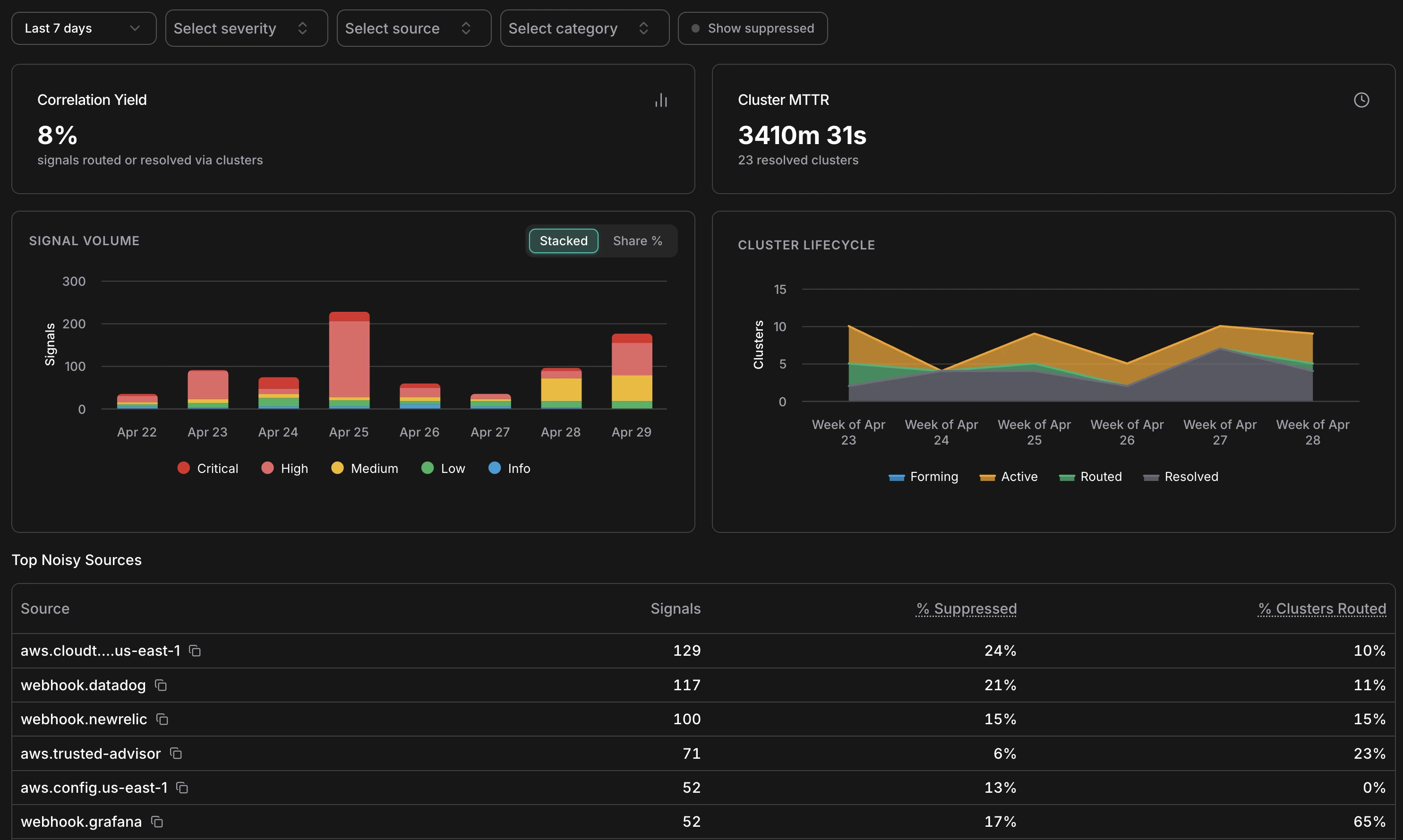
Correlation Yield

The percentage of signals that were routed to an Incident or resolved via a cluster. A low yield (e.g. 8%) means most signals are being correctly filtered as non-actionable — that’s expected and healthy in a well-tuned setup.

Cluster MTTR

Mean time to resolve across all resolved clusters in the selected period. Tracks how quickly your team (and AI agents) close out correlated events once they surface.

Signal Volume

Analytics page showing Correlation Yield at 8%, Cluster MTTR at 3410m, signal volume stacked bar chart by day, cluster lifecycle area chart by week, and top noisy sources table

Analytics overview — KPIs, signal volume by severity, cluster lifecycle, and top noisy sources

The Signal Volume chart shows daily signal counts broken down by severity — Critical, High, Medium, Low, Info. Use the Stacked / Share % toggle to switch between absolute counts and proportional view. Spikes in this chart often correspond to infrastructure events (a deployment, a cost anomaly window, a security finding) rather than genuine problems — cross-reference with the Cluster Lifecycle chart to see how many of those spikes actually produced actionable clusters.

Cluster Lifecycle

The Cluster Lifecycle chart shows how clusters distributed across statuses (Forming, Active, Routed, Resolved) over time. A healthy pattern shows most clusters moving from Active → Resolved without needing escalation to Routed. If Routed clusters are accumulating without corresponding Resolved entries, it may indicate incidents are being created but not closed — worth checking the Incidents list for stale open incidents.

Suppression by Reason

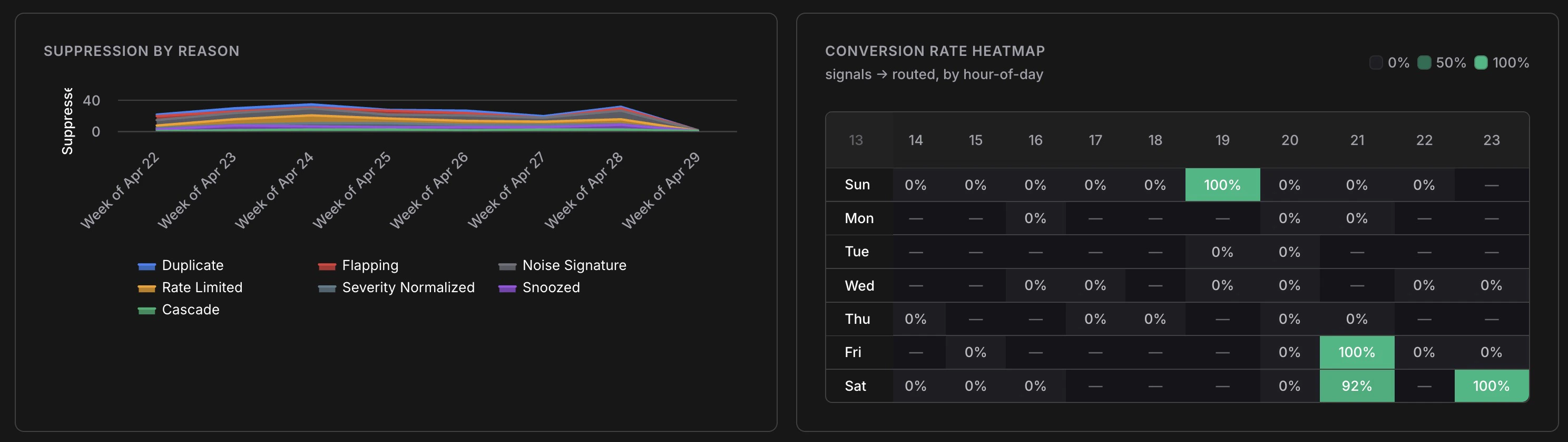
Suppression by reason line chart showing weekly trends for Duplicate, Flapping, Noise Signature, Rate Limited, Severity Normalized, Snoozed, and Cascade, plus a conversion rate heatmap by day and hour

Suppression breakdown over time and signal-to-incident conversion rate by hour of day

The Suppression by Reason chart breaks down which of the seven suppression layers are firing and at what volume. Key things to look for:
  • Duplicate dominating — normal; means your sources are emitting redundant events as expected
  • Rate Limited spiking — a source may be misconfigured or experiencing an alert storm
  • Flapping increasing — a resource is oscillating; worth investigating the root cause
  • Snoozed growing — your team is managing noise manually; consider whether a permanent noise signature rule would help

Conversion Rate Heatmap

The heatmap shows signal-to-Incident conversion rate broken down by hour of day and day of week. Green cells (100%) mean every signal in that window became an Incident; empty cells mean no signals arrived. Use this to understand when your most actionable signals arrive — useful for on-call scheduling and for identifying patterns (e.g. cost anomalies that reliably surface on weekend mornings after batch jobs run).

Top Noisy Sources

The Top Noisy Sources table ranks sources by signal volume with three columns:
ColumnWhat It Tells You
SignalsTotal signals from this source in the selected period
% SuppressedHow much of that source’s output was filtered as noise
% Clusters RoutedWhat fraction of its clusters escalated to an Incident
A source with high signal volume, low suppression, and low routing (e.g. aws.config.us-east-1 at 0% routed) is generating many signals that don’t result in action — a candidate for tuning or snoozing specific patterns. A source with high routing (e.g. webhook.grafana at 65% routed) is highly actionable and worth investing in.

Filters

All charts respond to the filter bar at the top of the analytics page:
  • Date range — same presets as the main feed (1h to 30d, or custom)
  • Severity — focus on Critical/High only to measure the most urgent signal patterns
  • Source — isolate a single source to audit its noise profile
  • Category — examine cost vs. security vs. compute signals separately
  • Show suppressed — include suppressed signals in volume counts