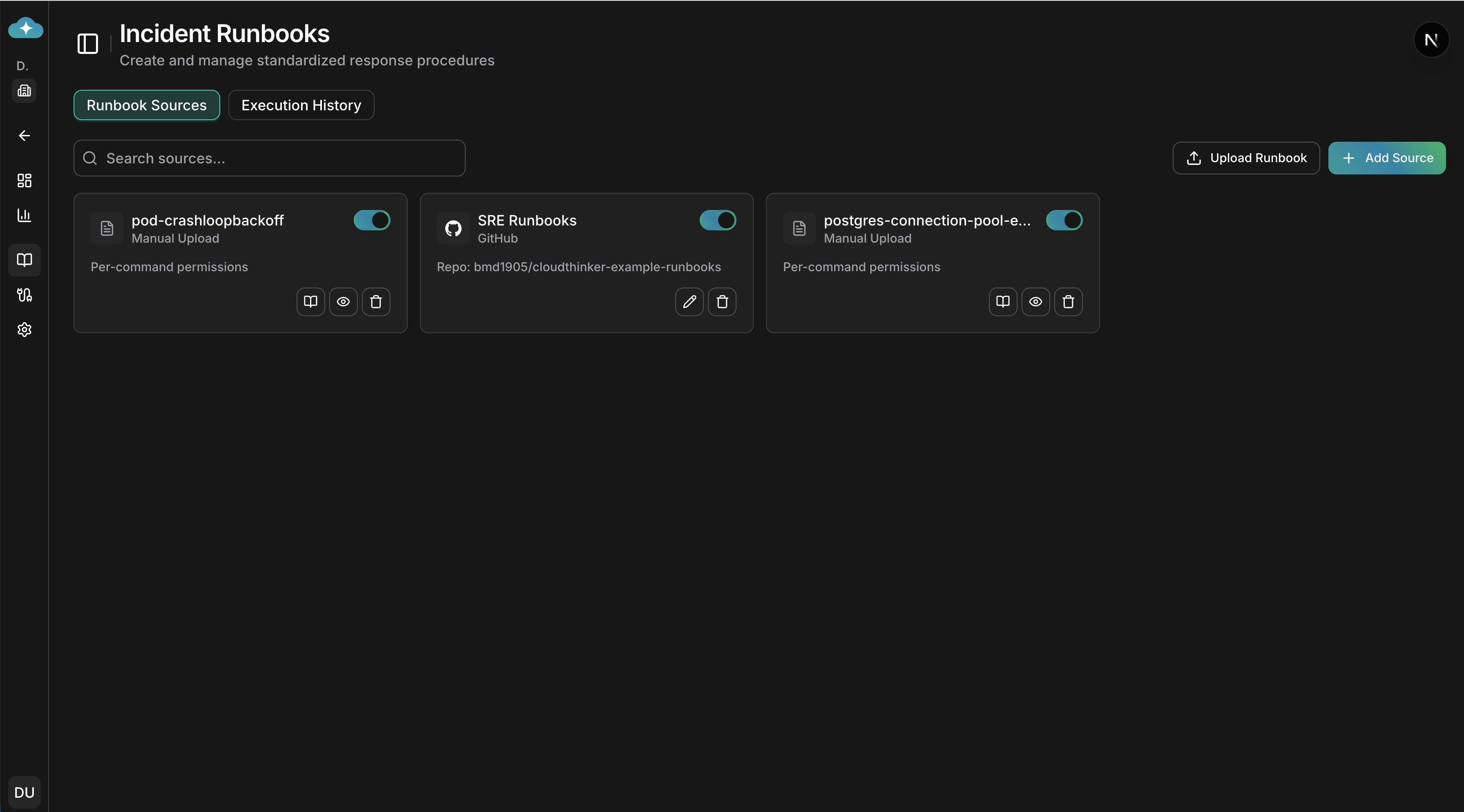
Runbook Sources dashboard with manual uploads and connected repositories
How Runbooks Work
Connect Your Sources
Link your existing runbook repositories—Confluence, GitHub, GitLab—or upload markdown files directly.
Agent Searches During RCA
When an incident triggers Root Cause Analysis, the AI agent searches your connected sources for relevant runbooks based on the incident context and affected services.
Policy Evaluation
Before executing any commands, the system evaluates your workspace approval policies. Depending on the policy, commands are either auto-executed, queued for approval, or blocked.
Connecting Runbook Sources
Navigate to Incidents > Runbooks to manage your sources. CloudThinker supports four source types, each suited to different workflows.
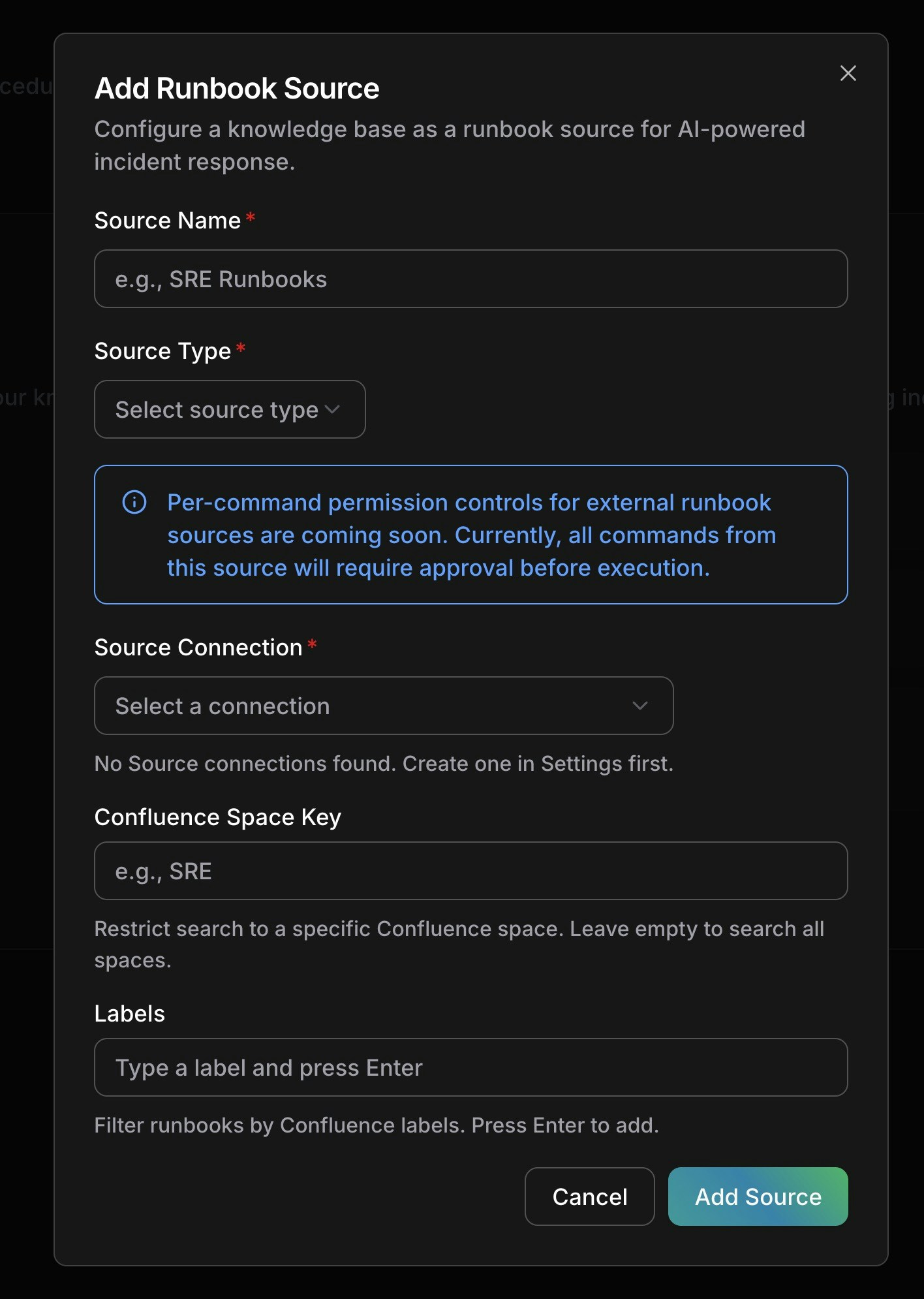
Adding a new runbook source with Confluence configuration
Confluence
Connect your Confluence knowledge base to let agents search wiki pages for operational procedures. Setup:- Click Add Source on the Runbooks page
- Enter a name (e.g., “SRE Runbooks”)
- Select Confluence as source type
- Choose your Atlassian connection (set up in Connections > Atlassian)
- Optionally restrict search to a specific Space Key (e.g.,
SRE) - Add Labels to filter pages (e.g.,
runbook,incident-response) - Click Add Source
GitHub
Point agents at a GitHub repository containing your runbook markdown files. Setup:- Click Add Source
- Select GitHub as source type
- Choose your GitHub connection (set up in Connections)
- Select the repository containing your runbooks
- Set the branch (defaults to
main) - Optionally set a path prefix to restrict search (e.g.,
docs/runbooks/) - Configure file patterns to match (defaults to
*.md) - Click Add Source
GitLab
Same workflow as GitHub, using your GitLab connection instead. Setup:- Click Add Source
- Select GitLab as source type
- Choose your GitLab connection
- Select the repository, branch, path prefix, and file patterns
- Click Add Source
Manual Upload
Upload markdown runbook files directly when your procedures aren’t stored in an external system. Setup:- Click Upload Runbook on the Runbooks page
- Drag and drop
.mdfiles (up to 20 files, 5 MB each) - Edit filenames if needed before confirming
- Click Confirm Upload
kubectl apply, aws mutations, helm install) from code blocks in your markdown. These extracted commands become the basis for per-command permissions.
Per-Command Permissions
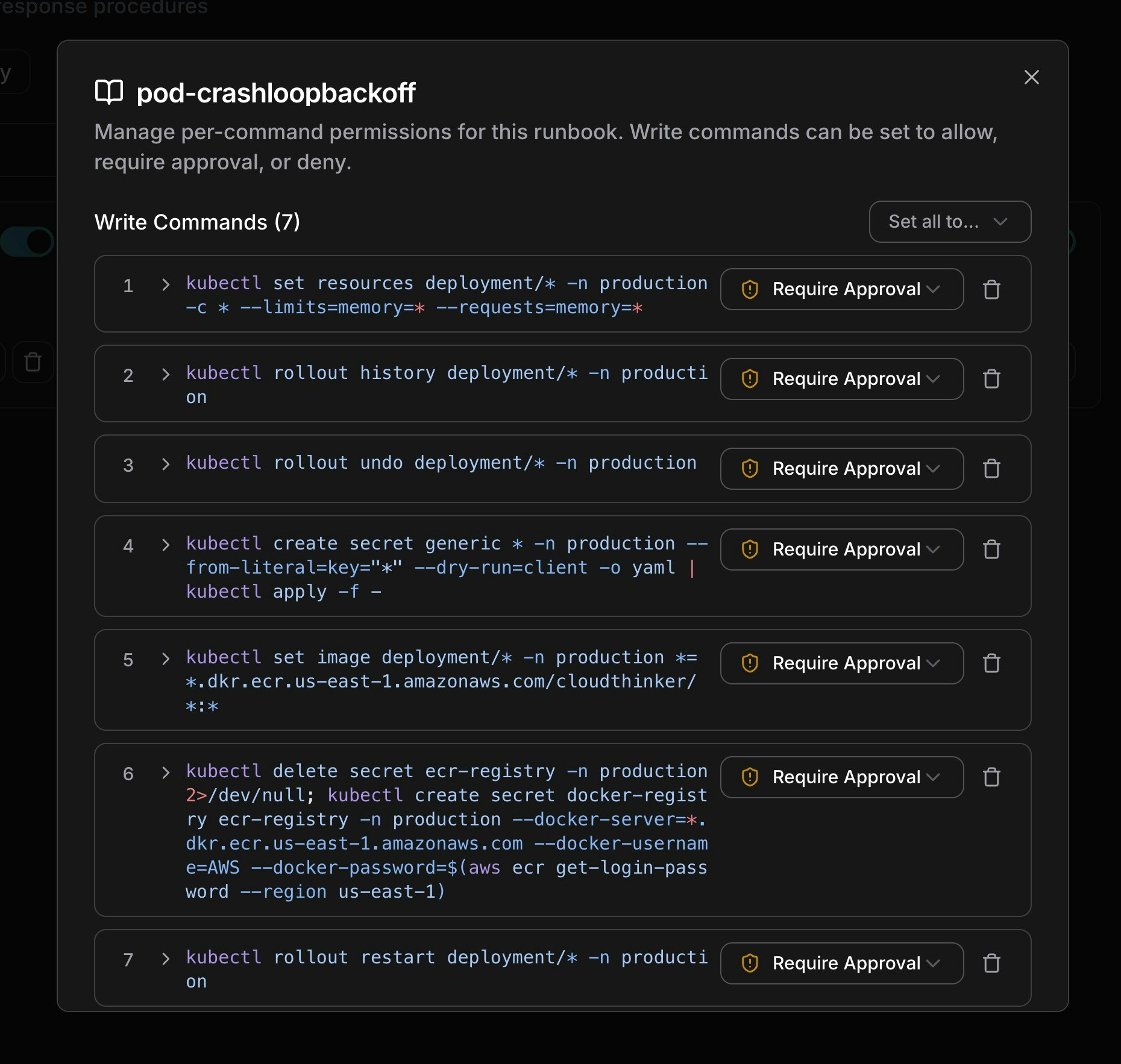
Manual runbooks unlock a unique safety feature: per-command permission controls. When you upload a markdown file, CloudThinker’s AI reads through the code blocks and extracts every write/mutating command—giving you granular control over what the agent can execute autonomously.
Per-command permission controls for a pod-crashloopbackoff runbook
How It Works
- Automatic extraction: After upload, the system parses all code blocks and identifies shell commands that modify infrastructure (e.g.,
kubectl set resources,kubectl rollout restart,kubectl delete) - Read-only commands are skipped: Commands like
kubectl get,kubectl describe, andkubectl logsare not extracted—agents can always run read-only commands - Each command gets a permission: Every extracted write command starts with Require Approval by default
Permission Levels
| Permission | Behavior |
|---|---|
| Allow | Agent executes the command immediately without human approval |
| Require Approval | Agent requests approval before execution. You’re notified via email, Slack, and in-app |
| Deny | Agent cannot execute this command |
Managing Commands
From the runbook detail dialog:- Set all permissions at once: Use the “Set all to…” dropdown to bulk-change all commands to Allow, Require Approval, or Deny
- Change individual permissions: Click the dropdown next to any command to adjust its permission level
- Add a command: Type a new command pattern and press Enter to add it to the list
- Remove a command: Click the delete icon to remove a command from the policy
- View full command: Click the expand arrow to see multi-line or long commands in full
Per-command permissions are currently available for manually uploaded runbooks. For external sources (Confluence, GitHub, GitLab), all commands require approval by default. Per-command controls for external sources are coming soon.
Approval Workflow
When an agent finds a relevant runbook during RCA and the policy requires approval, the following flow occurs:Approval Flow
- Agent discovers runbook: During investigation, the agent searches your sources and identifies a matching procedure
- Policy evaluation: The system checks your workspace approval policies against the runbook and its commands
- Notification sent: If approval is required, you receive notifications on all configured channels:
- Email: Runbook title, source link, and policy reason
- Slack: Interactive notification with incident context
- In-app: Badge on the incident showing pending approvals
- You approve or reject: Click Approve to let the agent proceed, or Reject to block execution
- Agent continues: On approval, the agent executes the runbook commands. On rejection, the agent continues the investigation without executing
Approval States
| Status | Meaning |
|---|---|
| Pending | Waiting for human approval—agent is paused on this step |
| Approved | Human approved—commands are executing or completed |
| Rejected | Human rejected—agent skipped this runbook and continued investigating |
Execution States
After approval, each execution tracks its outcome:| Status | Meaning |
|---|---|
| Not Started | Approved but commands haven’t run yet |
| Completed | All commands executed successfully |
| Failed | One or more commands failed during execution |
| Skipped | Execution was skipped (e.g., approval expired or was superseded) |
Viewing Execution History
Switch to the Execution History tab on the Runbooks page to see all runbook executions across incidents. You can:- Search by runbook title
- See policy decisions, approval status, and execution outcomes
- Track which runbooks were used for which incidents
Best Practices
Source Organization:- Name sources descriptively (e.g., “K8s Emergency Runbooks”, “Database Failover Procedures”)
- Use path prefixes and file patterns to keep searches focused and fast
- For Confluence, use labels to categorize runbooks by domain (e.g.,
kubernetes,database,networking)
- Start with Require Approval for all commands (the default) until you build confidence
- Gradually move well-tested, low-risk commands to Allow (e.g., scaling operations, log collection)
- Keep destructive commands (delete, drop, force) on Require Approval permanently
- Use Deny for commands that should never be automated (e.g., production database drops)
- Write runbooks in markdown with clear code blocks using shell language hints (
```bash) - Use one command per line for best extraction results
- Include context about when each procedure should be used—agents use this to match runbooks to incidents
- Keep runbooks focused: one procedure per file works better than a single document covering everything