

Before you start
- A CloudThinker workspace. Resolve has no separate switch: open it from the sidebar.
- The workspace Admin role. Connecting Slack, Microsoft Teams, or Google Chat also needs the organization Owner or Admin role. Organization roles are separate from workspace roles, and an organization Owner or Admin is a workspace Admin everywhere. See How organization and workspace roles combine.
- Admin access to the platform you’re adding (for example Datadog, Slack, or Jira).
Open a platform
1
Open Triggers & Outcomes
In the sidebar, open Resolve → Triggers & Outcomes (under Configuration).
2
Pick a tab
Choose All, Triggers, or Outcomes above the list. Each tab shows a count.
3
Find the platform
Type its name in Search platforms, then select it.
Slack, Microsoft Teams, Jira Service Management, and ServiceNow appear in both tabs.
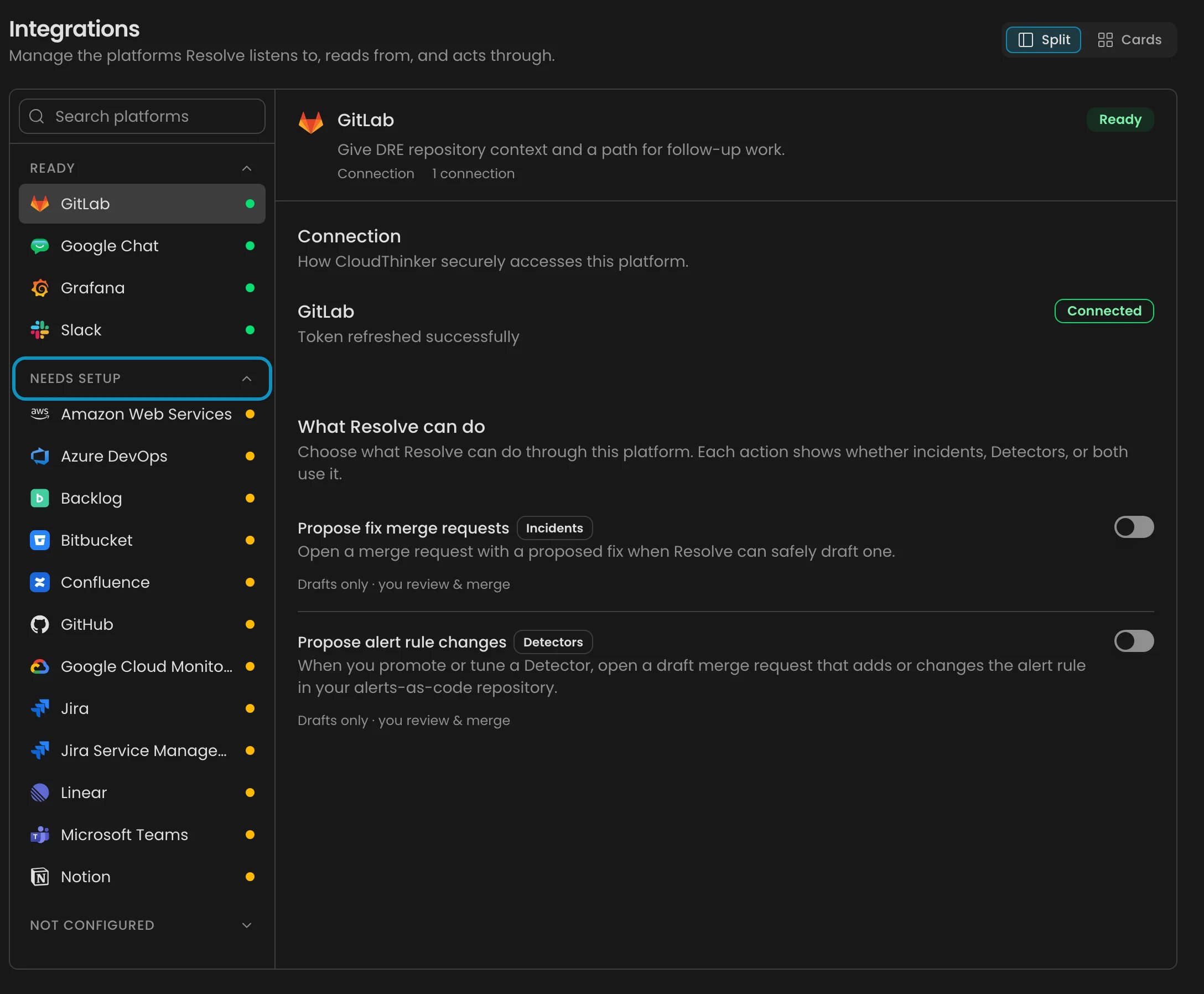
Resolve Triggers & Outcomes: platforms grouped by readiness, Needs attention first
Connect an account
1
Click Connect
In the Connection section, click Connect. Some platforms, such as Slack and Microsoft Teams, open the provider’s sign-in straight away. Others open a dialog for credentials.
2
Finish the provider flow
Approve access in the provider, or paste the credentials the dialog asks for. Each platform’s page under Connections lists the access it needs.
Triggers
A Resolve trigger is a tool that sends Resolve alerts. It isn’t an Automation trigger. On the Triggers tab, Signals to Resolve brings alerts into Pulse, which drops noise and groups related alerts. To find which signal path your tool takes, see Connect alert sources.Add a signal
On a monitoring platform, under Signals to Resolve, click Add signal (or Add another signal). For most tools this opens the Create Webhook dialog with the field mapping filled in. Follow Webhook signals from there. Success state: the source’s row shows Active, and your test alert appears on Resolve → Pulse. A successful HTTP response alone only proves delivery.
To edit a webhook or rotate its secret, open the Manage menu (⋯) on its row and choose Edit or Regenerate credentials.
For AWS polling and Slack or Teams channels, see Pulse setup. For a system with no platform in the list, use Custom source.
Outcomes
On the Outcomes tab, What Resolve can do lists what Resolve carries out to the platform. Only an enabled outcome that’s missing its target (like a Jira project key) marks the platform as needing setup.
A war room is a dedicated Slack channel for one severe incident. The broadcast channel you set for Post incident updates keeps working alongside it.
Where to find each target:
1
Turn on the outcome
In What Resolve can do, find the row and switch it on.
2
Fill in the target
Enter the channel, project key, space, or page ID the row asks for. Outcomes marked Nothing extra have no target.
Read readiness
Three kinds of badge appear on this page:
Each platform carries one badge that sums up its whole setup, not only the login. For example, if you turn on Create follow-up tickets for Jira but haven’t connected a Jira account, Jira shows Needs connection. The list groups platforms under Needs attention, Ready, Needs setup, and Not configured (collapsed by default). The Needs setup group collects three badges: Needs connection, Needs setup, and Partially ready.
Troubleshooting
Platform stays on Needs setup after connecting
Platform stays on Needs setup after connecting
Cause: monitoring platforms need at least one signal, and enabled outcomes need a target. Fix: add a signal, or fill in or switch off the outcome marked Needs setup.
Signal is Active but nothing appears in Pulse
Signal is Active but nothing appears in Pulse
Cause: the alert was suppressed as noise, or the field mapping doesn’t match the payload. Fix: check Resolve troubleshooting and the mapping in Webhook signals.
No platforms found
No platforms found
Clear the text in Search platforms. If the list fails to load, click Try again.
Next steps
Set up webhook signals
Map a monitoring tool’s alerts into Pulse.
Verify Pulse sources
Confirm a webhook, polling source, or chat channel delivers.
Choose who gets paged
Decide who Resolve brings in when an incident qualifies.
Adjust Resolve settings
Control when CloudThinker investigates on its own.