Build a custom agent in about 10 minutes once AWS is connected: add a runbook skill, create the agent, connect it, set approvals, test it.
A custom agent is a named agent you create in your workspace, next to the built-in assistant CloudThinker, with its own instructions and connections, and you talk to it by its @mention. Once AWS is connected, in about 10 minutes you’ll build one, @ec2-triage, that investigates high CPU on your EC2 instances by following your team’s runbook and asks you before it changes anything.
What you’ll need
The workspace Admin role for step 1 as written (the + button in Skills). Developers can do every other step. If you’re a Developer, create the same skill by typing /create-skill in chat and giving it the name, description, and instructions below. See custom skills.
An AWS connection that shows Connected. If you don’t have one yet, set it up first: the 10 minutes don’t include it. Its role needs to describe instances and read CloudWatch metrics; the ReadOnlyAccess policy the setup script attaches covers both (see required permissions). Any other connection works too: swap the names in the examples.
A free custom agent slot on your plan (Free includes 1). See Customize. On Free, pick Light as the agent’s Model Tier in step 2: Free runs Light only. Chatting with a custom agent in web chat counts as direct chat, so the test in step 5 works on Free.
1
Add your runbook as a skill
A skill is a set of instructions agents follow when the task matches. Open More → Workspace settings → Skills, click the + button next to Search skills (or New Skill if the list is empty), and pick Write skill instructions. Fill in:
Skill name:ec2-high-cpu-runbook
Description:Steps to investigate an EC2 instance with high CPU
Instructions:
# EC2 high CPU runbookUse this when someone reports a slow EC2 instance or high CPU.1. Check CPUUtilization for the last hour. Above 90% for 15 minutes or more counts as sustained.2. If the instance is a burstable type (t2, t3, t4g), check its credit specification. In standard mode, check CPUCreditBalance: a balance near zero means the instance is throttled.3. Check NetworkIn and DiskReadOps for a traffic spike that started at the same time.4. Recommend one fix, in this order of preference: wait out a short spike, move a burstable instance in standard mode to unlimited mode, then resize. Recommend only; don't apply it. Unlimited mode and resizing both change cost.5. Never reboot an instance tagged env=prod without a person approving it.
Skills steer what an agent does; they don’t block anything. Rule 5 is guidance only. What actually stops a write is the Manual mode you set in step 4, plus any Approval Rules.Click Create. New skills start enabled and available in Chat, which is where you test in step 5.Skills apply to every agent in the workspace, not only the @ec2-triage agent you create next, so CloudThinker also follows this runbook when a chat asks about high CPU. See Customize.Success state:ec2-high-cpu-runbook appears in the skills list with its switch on and Chat checked under Available in.
2
Create the agent
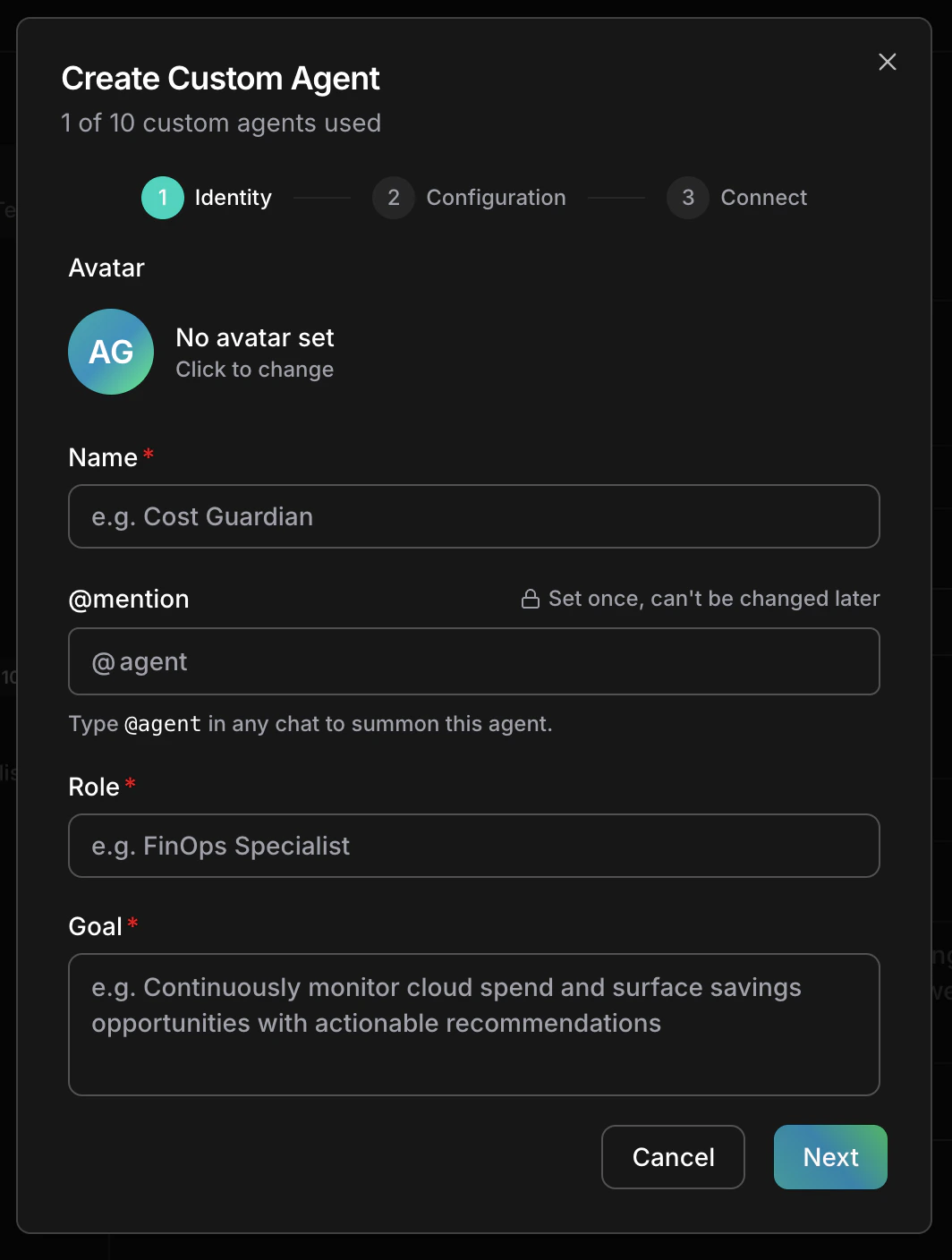
Open More → Workspace settings → Agents, click Create agent, and pick Build with form. On the Identity step, fill in all four fields (each is required):
Field
Value
Limit
Name
EC2 Triage
255 characters
@mention
ec2-triage (set once, can’t be changed later)
63 characters
Role
AWS Compute Specialist
255 characters
Goal
Find why an EC2 instance is slow and recommend the safest fix
2,048 characters
Role and Goal go at the top of the agent’s prompt, ahead of the Instructions you add next, so the agent reads them on every request. Keep them short and specific.
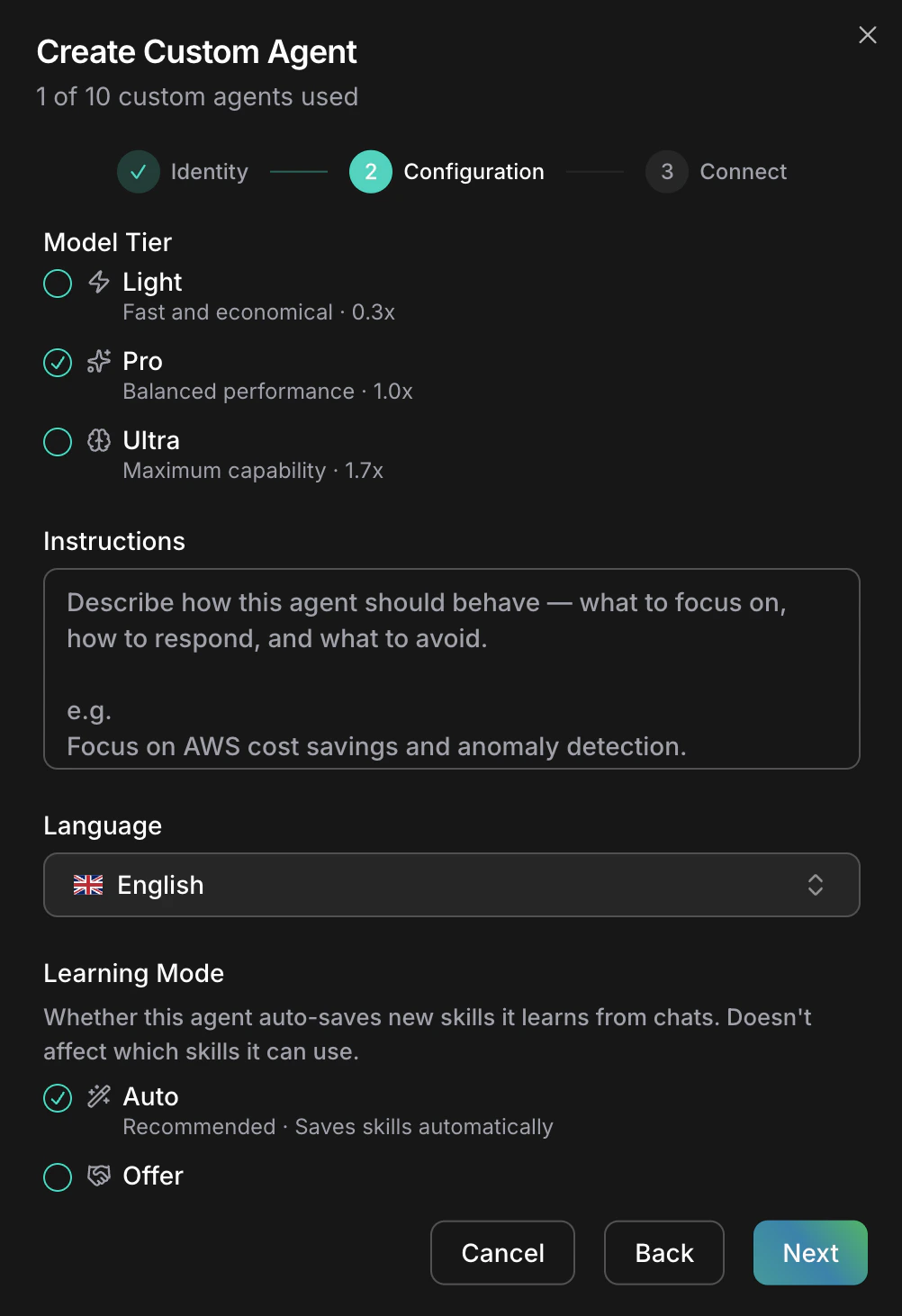
Click Next. The dialog moves to the Configuration step. There, keep Model Tier on Pro (on Free, pick Light), leave Language on Match the user (the agent replies in the language of your message), set Learning Mode to Offer, and paste these Instructions:
You investigate EC2 performance problems in our AWS account.Always start read-only: describe the instance, then check CloudWatch metrics for the last hour.Report findings as a short table: metric, value, what it means.Never stop, reboot, or resize an instance without saying why first.Use the ec2-high-cpu-runbook skill for high CPU or slow instance questions.
Naming the skill in the instructions helps the agent pick it. It doesn’t stop other agents from using the skill.Offer asks you in chat before saving a repeated workflow as a skill. The default, Auto, saves without asking. If the agent offers to save a workflow as a skill during the test, reply no. See Learning Mode. Click Next.Success state: the dialog moves to the Connect step.
3
Give it a connection
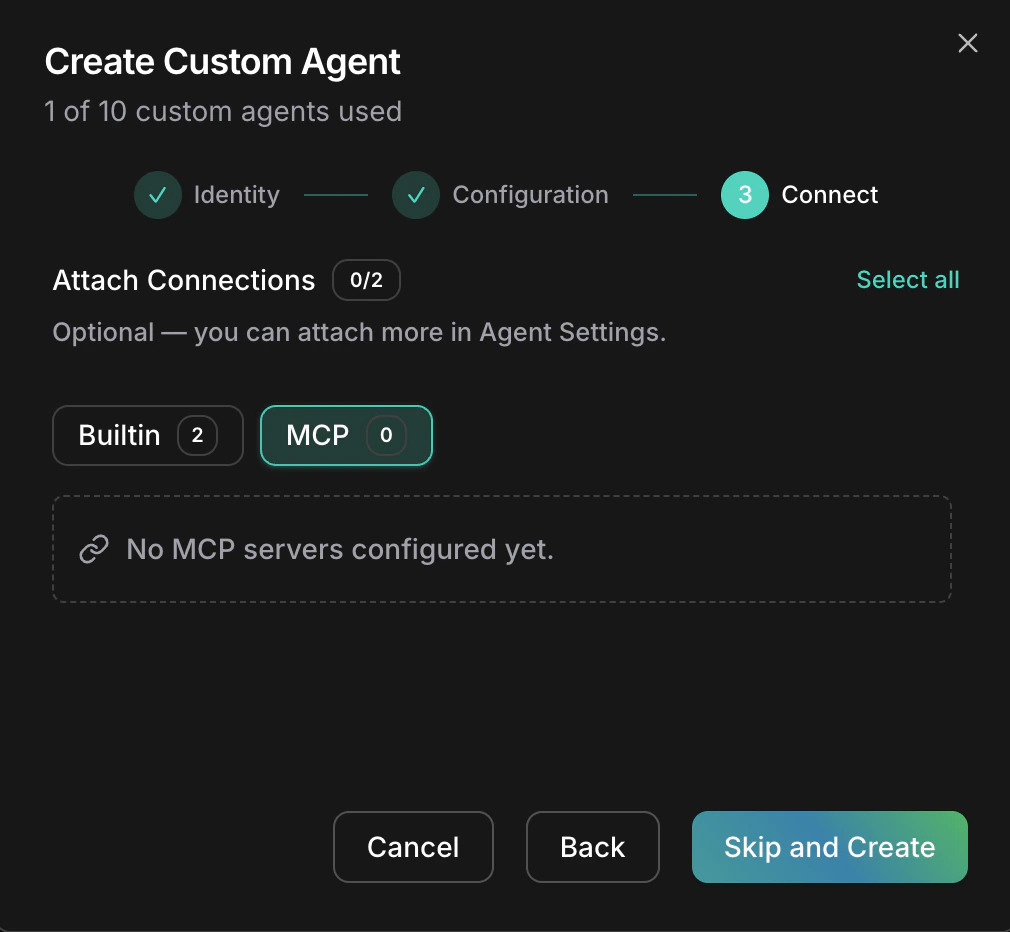
On the Connect step, open the Builtin tab and click Add next to your AWS connection. Builtin lists connections that show Connected in More → Workspace settings → Connections; MCP lists the MCP servers you’ve added. Click Create Agent.
An agent reaches only the connections you attach, so attach only what its job needs. You can add more later on the agent’s Connections tab.Success state:EC2 Triage appears under Custom in More → Workspace settings → Agents, showing 1 connection.
Agents: each custom agent has a name, @mention, role, goal and model tier
4
Make it ask before any change
Approvals decide whether a write (any call that changes something) runs, waits for a person, or is refused. Reads always run. For this test, make every write wait for you.
New workspaces default to Auto, where AI judgment can let a safe write run without asking. An Allow Rule can do the same once CloudThinker turns on Rule enforcement for your workspace, which is off by default. Switch this chat to Manual before testing.
Start a new chat. The approval control sits on the right of the chat prompt box, next to the model picker, and shows the chat’s current mode, Manual or Auto. A new chat starts on the workspace mode. Open the control, or type / and pick Approval, and select Manual.Success state: the approval control shows Manual. This applies to this chat only; your workspace mode doesn’t change. Developers can do this step too.New chats start on the workspace mode again. Automations use their own mode: by default Rules decide first, AI judges the rest, and a write that still needs a person is refused instead of waiting. Rules decide only once CloudThinker turns on Rule enforcement for your workspace; until then they record the verdict they would give and the Approval mode alone decides. See Rules in preview. See Approvals. To make prod changes always wait for a person, add an Ask firstRule.
5
Test the agent
In the same chat, mention the agent. Send one of these prompts.If you have an instance ID, replace the example one:
@ec2-triage Instance i-0abc1234def567890 feels slow. Investigate it.
If you don’t:
@ec2-triage List my running EC2 instances, pick the one with the highest CPU, and investigate it.
The agent describes the instance, reads its CloudWatch metrics, and answers with a metric table and one recommended fix, in the order your runbook sets. A good answer has this shape (your values will differ):
Metric
Value
What it means
CPUUtilization
Above 90% for the last 40 minutes
Sustained high CPU
CPUCreditBalance
Near zero
The burstable instance is throttled
Followed by one recommendation, such as moving the instance to unlimited mode, with the reason and no change applied.If the agent wants to change the instance, the chat shows an approval card with Approve and Decline. Click Decline if you only wanted the diagnosis. With ReadOnlyAccess, the agent can’t change anything even if you approve: the card shows approvals work, but the write itself fails in AWS.If CPU turns out to be normal, expect a table that shows it and a recommendation to wait or look elsewhere. That still counts as success.On Pro, the run draws from bonus, then premium, credits: the free daily credits cover Light chat only. On Free with a Light agent, it draws daily credits. See usage.Success state: the agent’s reply shows a collapsed activity summary line that includes “read 1 skill”. Click it to expand the steps and find the Load Skill step. The answer follows your runbook steps without you restating them, and nothing changed in AWS without your approval.
If this was only a trial, delete the agent in More → Workspace settings → Agents (it frees the slot right away; Free includes one) and the skill in More → Workspace settings → Skills. Until you delete the skill, every agent, including CloudThinker, follows it for high-CPU questions.
Your workspace reached its custom agent limit. Hover the button: the tooltip says Custom agent limit reached. with an Upgrade plan link. Delete an unused agent in More → Workspace settings → Agents, or see plans.
The @mention is rejected
It must start with a lowercase letter and use only lowercase letters, numbers, dots, underscores, and hyphens, up to 63 characters. It also can’t match a name already in use or reserved by CloudThinker.
The @mention doesn't autocomplete
Check that EC2 Triage appears under Custom in More → Workspace settings → Agents. If you created it in another tab, refresh the chat page, then type @ again.
A change ran without an approval card
Check that the chat’s approval control shows Manual. In Manual mode every write asks a person, even one an Allow Rule covers, so a missing card usually means the chat was on Auto. An Allow Rule only decides once CloudThinker turns on Rule enforcement for your workspace; Manual is the control that holds every write today. Reads (describe, list, metrics) never show a card. See Approvals.
The agent says it can't reach AWS
Open the agent in More → Workspace settings → Agents, go to the Connections tab, and check that your AWS connection is attached. Then check the connection itself shows Connected on the Connections page.
The answer ignores the runbook
Open More → Workspace settings → Skills and check that the skill’s switch is on and Chat is checked. Then make the request match the skill’s description, for example by saying “high CPU”. Agents apply a skill only when it fits the task.
I don't see the + button or New Skill
The + button and New Skill need the workspace Admin role. As a Developer, type /create-skill in chat to create the runbook skill instead, or ask a workspace admin to add it.
{"docsConfig":{"theme":"mint","$schema":"https://mintlify.com/docs.json","name":"CloudThinker","colors":{"primary":"#0c93c0","light":"#2897c1","dark":"#0c93c0"},"logo":{"light":"https://mintcdn.com/cloudthinker/-4m9DUjwzDxHfABz/logo/light.svg?fit=max\u0026auto=format\u0026n=-4m9DUjwzDxHfABz\u0026q=85\u0026s=a56a571509d1cd246f5b0e68db015e5f","dark":"https://mintcdn.com/cloudthinker/-4m9DUjwzDxHfABz/logo/dark.svg?fit=max\u0026auto=format\u0026n=-4m9DUjwzDxHfABz\u0026q=85\u0026s=4252f33496bbaa527e5408338963a31e"},"favicon":"https://mintcdn.com/cloudthinker/PoYnb4baZ54aMMQW/favicon.ico?fit=max\u0026auto=format\u0026n=PoYnb4baZ54aMMQW\u0026q=85\u0026s=6570e99ed2a763d9632c8f933fe9c164","background":{"color":{"light":"#eef0f3","dark":"#000000"}},"navbar":{"links":[{"href":"https://discord.com/invite/sRBWRWtaNR","label":"Community"},{"href":"https://cloudthinker.io/blogs","label":"Blog"},{"href":"https://cloudthinker.io/contact","label":"Contact us"}],"primary":{"type":"button","label":"Open app","href":"https://app.cloudthinker.io"}},"footer":{"socials":{"x":"https://x.com/cloudthinkerio?s=21","linkedin":"https://www.linkedin.com/company/cloud-thinker","github":"https://github.com/cloudthinker-ai","discord":"https://discord.com/invite/sRBWRWtaNR","youtube":"https://www.youtube.com/@cloudthinkerai"}},"seo":{"indexing":"navigable"},"fonts":{"family":"Poppins"},"contextual":{"options":["copy","view","chatgpt","claude"],"display":"header"},"metadata":{"timestamp":false},"styling":{"latex":true},"navigation":{"languages":[{"language":"en","href":""},{"language":"vi","href":""},{"language":"ja","href":""},{"language":"ko","href":""}]}},"deployment":{"deploymentMetadataValue":{"subdomain":"cloudthinker","hasAudioNarration":false,"actualSubdomain":"cloudthinker","customDomains":["docs.cloudthinker.io"],"gitSource":{"type":"github","owner":"nhat-tranvan","repo":"docs","deployBranch":"main","contentDirectory":"","isPrivate":false,"mountPath":"","label":""},"chroma":{"liveDeploymentHistoryId":"6adc97ae50e173ef2b635382","collectionId":"650886af-e070-4acf-932c-2411f5f8761a","schemaVersion":"v3","latestBuiltDeploymentHistoryId":"6adc97ae50e173ef2b635382"},"feedback":{"thumbs":true,"edits":true,"issues":true,"agentFeedback":true},"entitlements":{},"buildId":"6adddcaa087fb564296de741","clientVersion":"0.0.3965","searchFilterCounts":[{"language":"default","tag":"Platform","count":67},{"language":"vi","tag":"Nền tảng","count":64},{"language":"en","tag":"Platform","count":63},{"language":"ja","tag":"プラットフォーム","count":63},{"language":"ko","tag":"플랫폼","count":63},{"language":"default","tag":"Connections","count":52},{"language":"vi","tag":"Kết nối","count":49},{"language":"en","tag":"Connections","count":48},{"language":"ja","tag":"接続","count":48},{"language":"ko","tag":"연결","count":48},{"language":"en","tag":"Products","count":29},{"language":"ja","tag":"プロダクト","count":29},{"language":"ko","tag":"제품","count":29},{"language":"vi","tag":"Sản phẩm","count":29},{"language":"default","tag":"Resources","count":26},{"language":"default","tag":"Products","count":24},{"language":"default","tag":"Learn","count":18},{"language":"default","tag":"Agentic Infrastructure Operations - Engineer Edition","count":18},{"language":"default","tag":"Get started","count":13},{"language":"en","tag":"Get started","count":13},{"language":"en","tag":"Resources","count":13},{"language":"ja","tag":"はじめに","count":13},{"language":"ja","tag":"リソース","count":13},{"language":"ko","tag":"시작하기","count":13},{"language":"ko","tag":"리소스","count":13},{"language":"vi","tag":"Bắt đầu","count":13},{"language":"vi","tag":"Tài nguyên","count":13},{"language":"en","tag":"Learn","count":12},{"language":"en","tag":"Agentic Infrastructure Operations - Leadership Edition","count":12},{"language":"ja","tag":"Observability \u0026 Monitoring","count":12},{"language":"ja","tag":"学ぶ","count":12},{"language":"ja","tag":"Agentic Infrastructure Operations - Leadership Edition","count":12},{"language":"ko","tag":"Observability \u0026 Monitoring","count":12},{"language":"ko","tag":"배우기","count":12},{"language":"ko","tag":"Agentic Infrastructure Operations - Leadership Edition","count":12},{"language":"vi","tag":"Observability \u0026 Monitoring","count":12},{"language":"vi","tag":"Học","count":12},{"language":"vi","tag":"Agentic Infrastructure Operations - Leadership Edition","count":12},{"language":"en","tag":"Monitoring","count":11},{"language":"en","tag":"Resolve","count":11},{"language":"ja","tag":"Resolve","count":11},{"language":"ko","tag":"Resolve","count":11},{"language":"vi","tag":"Resolve","count":11},{"language":"default","tag":"Resolve","count":9},{"language":"vi","tag":"Databases","count":9},{"language":"ja","tag":"Databases","count":8},{"language":"ko","tag":"Databases","count":8},{"language":"en","tag":"Work where you are","count":7},{"language":"default","tag":"Review","count":6},{"language":"default","tag":"Set up","count":6}]},"assistantConfig":{},"hasChatPermissions":false,"hasWebMcpPermissions":false,"toggles":[{"name":"kill-isr","enabled":true,"variant":{"name":"disabled","enabled":false,"feature_enabled":true},"impressionData":false},{"name":"agent-mintlify-slack","enabled":true,"variant":{"name":"disabled","enabled":false,"feature_enabled":true},"impressionData":false},{"name":"editor-v7-file-tree","enabled":true,"variant":{"name":"disabled","enabled":false,"feature_enabled":true},"impressionData":false},{"name":"agent-integrations-settings","enabled":true,"variant":{"name":"disabled","enabled":false,"feature_enabled":true},"impressionData":false},{"name":"automations-pr-grouping","enabled":true,"variant":{"name":"disabled","enabled":false,"feature_enabled":true},"impressionData":false},{"name":"custom-prefix","enabled":true,"variant":{"name":"disabled","enabled":false,"feature_enabled":true},"impressionData":false},{"name":"analytics-v7","enabled":true,"variant":{"name":"disabled","enabled":false,"feature_enabled":true},"impressionData":false},{"name":"user-flows-analytics","enabled":true,"variant":{"name":"disabled","enabled":false,"feature_enabled":true},"impressionData":false},{"name":"no-publish-flow","enabled":true,"variant":{"name":"disabled","enabled":false,"feature_enabled":true},"impressionData":false},{"name":"workos-onboarding","enabled":true,"variant":{"name":"disabled","enabled":false,"feature_enabled":true},"impressionData":false},{"name":"llms-txt-v2","enabled":true,"variant":{"name":"disabled","enabled":false,"feature_enabled":true},"impressionData":false},{"name":"pause-universal-search-reconcile","enabled":true,"variant":{"name":"disabled","enabled":false,"feature_enabled":true},"impressionData":false},{"name":"snapshot-serving-live","enabled":true,"variant":{"name":"disabled","enabled":false,"feature_enabled":true},"impressionData":false},{"name":"stripTemperatureMiddleware","enabled":true,"variant":{"name":"disabled","enabled":false,"feature_enabled":true},"impressionData":false},{"name":"per-site-search-delta","enabled":true,"variant":{"name":"disabled","enabled":false,"feature_enabled":true},"impressionData":false},{"name":"support-platform-pylon-zendesk","enabled":true,"variant":{"name":"disabled","enabled":false,"feature_enabled":true},"impressionData":false},{"name":"snapshot-serving","enabled":true,"variant":{"name":"disabled","enabled":false,"feature_enabled":true},"impressionData":false},{"name":"instant-rollback","enabled":true,"variant":{"name":"disabled","enabled":false,"feature_enabled":true},"impressionData":false},{"name":"granular-notifications-server","enabled":true,"variant":{"name":"disabled","enabled":false,"feature_enabled":true},"impressionData":false},{"name":"granular-notifications","enabled":true,"variant":{"name":"disabled","enabled":false,"feature_enabled":true},"impressionData":false},{"name":"editor-private-page-search","enabled":true,"variant":{"name":"disabled","enabled":false,"feature_enabled":true},"impressionData":false},{"name":"automations-fable","enabled":true,"variant":{"name":"disabled","enabled":false,"feature_enabled":true},"impressionData":false},{"name":"fixed-ai-action-pricing","enabled":true,"variant":{"name":"disabled","enabled":false,"feature_enabled":true},"impressionData":false},{"name":"automation-resolve-merge-conflict","enabled":true,"variant":{"name":"disabled","enabled":false,"feature_enabled":true},"impressionData":false},{"name":"scoped-publishing","enabled":true,"variant":{"name":"disabled","enabled":false,"feature_enabled":true},"impressionData":false},{"name":"mintql","enabled":true,"variant":{"name":"disabled","enabled":false,"feature_enabled":true},"impressionData":false},{"name":"page-level-analytics","enabled":true,"variant":{"name":"disabled","enabled":false,"feature_enabled":true},"impressionData":false},{"name":"editor-version-history-v2","enabled":true,"variant":{"name":"disabled","enabled":false,"feature_enabled":true},"impressionData":false},{"name":"editor-nav-generations","enabled":true,"variant":{"name":"disabled","enabled":false,"feature_enabled":true},"impressionData":false},{"name":"billing-page-v2","enabled":true,"variant":{"name":"disabled","enabled":false,"feature_enabled":true},"impressionData":false},{"name":"workspace-projects","enabled":true,"variant":{"name":"disabled","enabled":false,"feature_enabled":true},"impressionData":false},{"name":"assistant-v5","enabled":true,"variant":{"name":"disabled","enabled":false,"feature_enabled":true},"impressionData":false},{"name":"byok-sep-25","enabled":true,"variant":{"name":"disabled","enabled":false,"feature_enabled":true},"impressionData":false},{"name":"fork-pr-previews","enabled":true,"variant":{"name":"disabled","enabled":false,"feature_enabled":true},"impressionData":false},{"name":"revalidation-jwt","enabled":true,"variant":{"name":"disabled","enabled":false,"feature_enabled":true},"impressionData":false},{"name":"vite-origin","enabled":true,"variant":{"name":"disabled","enabled":false,"feature_enabled":true},"impressionData":false},{"name":"editor-agent-model-picker","enabled":true,"variant":{"name":"disabled","enabled":false,"feature_enabled":true},"impressionData":false},{"name":"billing-updated-9-15","enabled":true,"variant":{"name":"disabled","enabled":false,"feature_enabled":true},"impressionData":false},{"name":"hobby-abuse-scan","enabled":true,"variant":{"name":"disabled","enabled":false,"feature_enabled":true},"impressionData":false},{"name":"dashboard-inbox","enabled":true,"variant":{"name":"disabled","enabled":false,"feature_enabled":true},"impressionData":false}],"isAtlas":false,"googleFontsInlined":true},"customCss":[{"filePath":"style.css","content":".ct-landing a,a.ct-featured{text-decoration:none!important}a.ct-featured{display:block;margin:1.25rem 0 1rem;padding:1.75rem 1.75rem 1.5rem;border:1px solid rgba(12,147,192,.45)!important;border-radius:16px;background:radial-gradient(120% 160% at 0 0,rgba(12,147,192,.14),transparent 55%),#fff;box-shadow:0 12px 32px -16px rgba(12,147,192,.45);transition:border-color .15s ease,transform .15s ease,box-shadow .15s ease}a.ct-featured:hover{border-color:#0c93c0!important;transform:translateY(-1px);box-shadow:0 16px 40px -16px rgba(12,147,192,.6)}.dark a.ct-featured{border-color:rgba(40,151,193,.45)!important;background:radial-gradient(120% 160% at 0 0,rgba(40,151,193,.16),transparent 55%),#05070a;box-shadow:0 12px 32px -16px rgba(40,151,193,.35)}.dark a.ct-featured:hover{border-color:#2897c1!important}.ct-featured-head{display:flex;align-items:center;gap:.75rem;margin-bottom:.875rem}.ct-featured-icon{display:inline-flex;align-items:center;justify-content:center;width:2.25rem;height:2.25rem;border-radius:999px;background:rgba(12,147,192,.12);color:#0a7aa0}.dark .ct-featured-icon{background:rgba(40,151,193,.14);color:#5bb8e0}.ct-eyebrow{font-size:.75rem;font-weight:600;letter-spacing:.14em;text-transform:uppercase;color:#0a7aa0}.dark .ct-eyebrow{color:#5bb8e0}.ct-hero h1,.ct-title{font-weight:600;color:#0b1a2b}.ct-title{font-size:1.375rem;line-height:1.3}.dark .ct-card .ct-card-head span,.dark .ct-card h3,.dark .ct-hero h1,.dark .ct-section>h2,.dark .ct-step h3,.dark .ct-title{color:#f5f5f7}.ct-body{margin:.5rem 0 0!important;font-weight:400!important;font-size:1rem;max-width:46rem;color:#5b6577;line-height:1.6}.dark .ct-body,.dark .ct-hero .ct-promise,.dark .ct-hero p.ct-lead,.dark .ct-section>p.ct-section-lead{color:#a1a1a6}.ct-cta{display:inline-block;margin-top:1rem;font-weight:600;color:#0a7aa0}.dark .ct-cta{color:#5bb8e0}.ct-illustration{margin:1.5rem 0}.ct-illustration img{max-width:720px;margin:0 auto}.ct-iso-scene{margin:1.5rem 0 2rem;border:1px solid rgba(12,147,192,.18);border-radius:16px;background:#fff;overflow:hidden}.dark .ct-iso-scene{border-color:rgba(40,151,193,.22);background:#000}.ct-illustration img,.ct-iso-scene .ct-iso-svg{display:block;width:100%;height:auto}.ct-landing{max-width:1120px;margin:0 auto;padding:3rem 1.5rem 5rem}.ct-landing a{border-bottom-width:0}.ct-kicker{font-size:.8125rem;font-weight:600;letter-spacing:.08em;text-transform:uppercase;color:#0c93c0}.dark .ct-card .ct-tagline,.dark .ct-hero .ct-promise strong,.dark .ct-kicker{color:#2897c1}.ct-hero{text-align:center;padding:1.5rem 0 1rem}.ct-hero h1{margin:.75rem 0 0;font-size:clamp(2.25rem,5vw,3.75rem);line-height:1.05;letter-spacing:-.03em;-webkit-text-fill-color:currentColor;background:0 0}.ct-hero .ct-promise{margin:1rem auto 0;font-size:clamp(1.125rem,2.2vw,1.5rem);color:#5b6577}.ct-hero .ct-promise strong,.ct-section>h2{color:#0c93c0;font-weight:600}.ct-hero p.ct-lead{max-width:44rem;margin:1rem auto 0;font-size:1.0625rem;line-height:1.65;color:#5b6577}.ct-actions{display:flex;flex-wrap:wrap;gap:.75rem;justify-content:center;margin-top:1.75rem}.ct-btn{display:inline-flex;align-items:center;gap:.5rem;padding:.7rem 1.25rem;border-radius:999px;font-weight:600;font-size:.95rem;transition:transform .15s ease,background .15s ease}.ct-btn:hover{transform:translateY(-1px)}.ct-btn-primary{background:#0c93c0;color:#fff!important}.ct-btn-primary:hover{background:#0a7aa0}.ct-btn-ghost{border:1px solid rgba(12,147,192,.35)!important;color:#0b1a2b!important}.dark .ct-btn-ghost{color:#f5f5f7!important;border-color:rgba(40,151,193,.4)!important}.ct-landing .ct-iso-scene{margin-top:2.5rem}.ct-section{margin-top:4.5rem}.ct-section>h2{margin:.4rem 0 0;font-size:1.75rem;letter-spacing:-.02em;color:#0b1a2b;-webkit-text-fill-color:currentColor;background:0 0}.ct-section>p.ct-section-lead{margin:.5rem 0 0;color:#5b6577;max-width:46rem}.ct-steps{display:grid;grid-template-columns:repeat(4,minmax(0,1fr));gap:1rem;margin-top:1.5rem}.ct-step{display:block;padding:1.25rem;border-radius:14px;border:1px solid rgba(12,147,192,.18)!important;background:#fff;transition:border-color .15s ease,transform .15s ease}.dark .ct-step{background:#05070a;border-color:rgba(40,151,193,.22)!important}.ct-step:hover{border-color:#0c93c0!important;transform:translateY(-1px)}.ct-step-num{display:inline-flex;width:1.75rem;height:1.75rem;border-radius:999px;align-items:center;justify-content:center;font-size:.85rem;font-weight:700;color:#fff;background:#0c93c0}.ct-card h3,.ct-step h3{margin:.75rem 0 .25rem;font-size:1.05rem}.ct-card p,.ct-step p{margin:0;font-size:.925rem;line-height:1.55;color:#5b6577}.dark .ct-card p,.dark .ct-landing td,.dark .ct-step p{color:#a1a1a6}.ct-grid{display:grid;gap:1rem;margin-top:1.5rem}.ct-grid-3{grid-template-columns:repeat(3,minmax(0,1fr))}.ct-grid-5{grid-template-columns:repeat(5,minmax(0,1fr))}.ct-card{display:flex;flex-direction:column;padding:1.25rem;border-radius:14px;border:1px solid rgba(12,147,192,.18);background:#fff}.dark .ct-card{background:#05070a;border-color:rgba(40,151,193,.22)}.ct-card .ct-card-head{display:flex;align-items:center;gap:.6rem}.ct-card .ct-card-head span,.ct-card h3,.ct-step h3{font-weight:600;color:#0b1a2b}.ct-card .ct-tagline{margin-top:.75rem;font-size:1.05rem;font-weight:600;line-height:1.35;color:#0c93c0}.ct-card .ct-links{margin-top:auto;padding-top:1rem;display:flex;gap:1rem;font-size:.9rem;font-weight:600}.ct-card .ct-links a{color:#0c93c0!important}.dark .ct-card .ct-links a,.dark .ct-card-head .ct-arrow,.dark .ct-landing td a{color:#2897c1!important}a.ct-card{transition:border-color .15s ease,transform .15s ease}a.ct-card:hover{border-color:#0c93c0!important;transform:translateY(-1px)}.ct-strip{display:flex;flex-wrap:wrap;gap:.6rem;margin-top:1.25rem}.ct-strip a{display:inline-flex;align-items:center;gap:.45rem;padding:.55rem .95rem;border-radius:999px;border:1px solid rgba(12,147,192,.25)!important;font-size:.9rem;font-weight:500;color:#0b1a2b!important}.dark .ct-strip a{color:#f5f5f7!important;border-color:rgba(40,151,193,.3)!important}.ct-strip a:hover{border-color:#0c93c0!important}@media (max-width:900px){.ct-grid-3,.ct-grid-5,.ct-steps{grid-template-columns:repeat(2,minmax(0,1fr))}}@media (max-width:560px){.ct-landing{padding:2rem 1rem 4rem}.ct-grid-3,.ct-grid-5,.ct-steps{grid-template-columns:minmax(0,1fr)}}.ct-landing table{width:100%;margin-top:1.25rem;border-collapse:collapse;font-size:.925rem}.ct-landing th{text-align:left;font-weight:600;padding:.7rem .9rem;border-bottom:1px solid rgba(12,147,192,.3)}.ct-landing td{vertical-align:top;padding:.8rem .9rem;border-bottom:1px solid rgba(12,147,192,.12);color:#5b6577;line-height:1.55}.ct-landing td:first-child{font-weight:600;color:#0b1a2b;width:22%}.dark .ct-landing td:first-child{color:#f5f5f7}.ct-landing td a{color:#0c93c0!important;font-weight:600}.ct-product{padding:1.1rem 1.2rem}.ct-product .ct-tagline{margin-top:.55rem;font-size:1rem}.ct-product p{margin-top:.3rem}.ct-card-head .ct-arrow{margin-left:auto;font-weight:500!important;color:#0c93c0!important;transition:transform .15s ease}a.ct-product:hover .ct-arrow{transform:translateX(3px)}html:not(.dark) .ct-card,html:not(.dark) .ct-iso-scene,html:not(.dark) .ct-step{background:#f6f7f9}html:not(.dark) .ct-iso-scene{border-color:rgba(12,147,192,.12)}html:not(.dark) #content-area,html:not(.dark) .prose,html:not(.dark) body{color:#2b3240}html:not(.dark) .prose :where(h1, h2, h3, h4, strong){color:#1c2230}html:not(.dark) .ct-card .ct-card-head span,html:not(.dark) .ct-card h3,html:not(.dark) .ct-hero h1,html:not(.dark) .ct-section>h2,html:not(.dark) .ct-step h3{color:#1c2230}"}],"page":{"pagePath":"guide/agents/quickstart","slug":"/guide/agents/quickstart","pageMetadata":{"title":"Custom Agent Quickstart","description":"Build a custom agent in about 10 minutes once AWS is connected: add a runbook skill, create the agent, connect it, set approvals, test it.","icon":"rocket","href":"/guide/agents/quickstart"},"description":{"compiledSource":"\"use strict\";\nconst {jsx: _jsx} = arguments[0];\nconst {useMDXComponents: _provideComponents} = arguments[0];\nfunction _createMdxContent(props) {\n const _components = {\n p: \"p\",\n ..._provideComponents(),\n ...props.components\n };\n return _jsx(_components.p, {\n children: \"Build a custom agent in about 10 minutes once AWS is connected: add a runbook skill, create the agent, connect it, set approvals, test it.\"\n });\n}\nfunction MDXContent(props = {}) {\n const {wrapper: MDXLayout} = {\n ..._provideComponents(),\n ...props.components\n };\n return MDXLayout ? _jsx(MDXLayout, {\n ...props,\n children: _jsx(_createMdxContent, {\n ...props\n })\n }) : _createMdxContent(props);\n}\nreturn {\n default: MDXContent\n};\n","frontmatter":{},"scope":{}},"pageType":"default","mdx":{"mdxSource":{"compiledSource":"\"use strict\";const{Fragment:_Fragment,jsx:_jsx,jsxs:_jsxs}=arguments[0];const{useMDXComponents:_provideComponents}=arguments[0];function _createMdxContent(props){const _components={a:`a`,code:`code`,li:`li`,p:`p`,pre:`pre`,span:`span`,strong:`strong`,tbody:`tbody`,td:`td`,th:`th`,thead:`thead`,tr:`tr`,ul:`ul`,..._provideComponents(),...props.components},{Accordion,AccordionGroup,Card,CardGroup,CodeBlock,Frame,Heading,Info,OptimizedImage,Step,Steps,Table,Warning}=_components;if(!Accordion)_missingMdxReference(`Accordion`,true);if(!AccordionGroup)_missingMdxReference(`AccordionGroup`,true);if(!Card)_missingMdxReference(`Card`,true);if(!CardGroup)_missingMdxReference(`CardGroup`,true);if(!CodeBlock)_missingMdxReference(`CodeBlock`,true);if(!Frame)_missingMdxReference(`Frame`,true);if(!Heading)_missingMdxReference(`Heading`,true);if(!Info)_missingMdxReference(`Info`,true);if(!OptimizedImage)_missingMdxReference(`OptimizedImage`,true);if(!Step)_missingMdxReference(`Step`,true);if(!Steps)_missingMdxReference(`Steps`,true);if(!Table)_missingMdxReference(`Table`,true);if(!Warning)_missingMdxReference(`Warning`,true);return _jsxs(_Fragment,{children:[_jsxs(_components.p,{children:[`A custom agent is a named agent you create in your workspace, next to the built-in assistant `,_jsx(_components.a,{href:`/guide/agents/overview`,children:`CloudThinker`}),`, with its own instructions and connections, and you talk to it by its `,_jsx(_components.code,{children:`@mention`}),`. Once AWS is connected, in about 10 minutes you’ll build one, `,_jsx(_components.code,{children:`@ec2-triage`}),`, that investigates high CPU on your EC2 instances by following your team’s runbook and asks you before it changes anything.`]}),`\n`,_jsxs(Info,{children:[_jsx(_components.p,{children:_jsx(_components.strong,{children:`What you’ll need`})}),_jsxs(_components.ul,{children:[`\n`,_jsxs(_components.li,{children:[`The workspace `,_jsx(_components.strong,{children:`Admin`}),` role for step 1 as written (the `,_jsx(_components.strong,{children:`+`}),` button in Skills). Developers can do every other step. If you’re a Developer, create the same skill by typing `,_jsx(_components.code,{children:`/create-skill`}),` in chat and giving it the name, description, and instructions below. See `,_jsx(_components.a,{href:`/guide/skills/custom-skills#create-a-skill`,children:`custom skills`}),`.`]}),`\n`,_jsxs(_components.li,{children:[`An `,_jsx(_components.a,{href:`/guide/connections/aws`,children:`AWS connection`}),` that shows `,_jsx(_components.strong,{children:`Connected`}),`. If you don’t have one yet, set it up first: the 10 minutes don’t include it. Its role needs to describe instances and read CloudWatch metrics; the `,_jsx(_components.code,{children:`ReadOnlyAccess`}),` policy the setup script attaches covers both (see `,_jsx(_components.a,{href:`/guide/connections/aws#required-permissions`,children:`required permissions`}),`). Any other connection works too: swap the names in the examples.`]}),`\n`,_jsxs(_components.li,{children:[`A free custom agent slot on your plan (Free includes 1). See `,_jsx(_components.a,{href:`/guide/agents/customize#custom-agents-at-a-glance`,children:`Customize`}),`. On Free, pick `,_jsx(_components.strong,{children:`Light`}),` as the agent’s `,_jsx(_components.strong,{children:`Model Tier`}),` in step 2: Free runs Light only. Chatting with a custom agent in web chat counts as direct chat, so the test in step 5 works on Free.`]}),`\n`]})]}),`\n`,_jsxs(Steps,{children:[_jsxs(Step,{title:`Add your runbook as a skill`,children:[_jsxs(_components.p,{children:[`A skill is a set of instructions agents follow when the task matches. Open `,_jsx(_components.strong,{children:`More → Workspace settings → Skills`}),`, click the `,_jsx(_components.strong,{children:`+`}),` button next to `,_jsx(_components.strong,{children:`Search skills`}),` (or `,_jsx(_components.strong,{children:`New Skill`}),` if the list is empty), and pick `,_jsx(_components.strong,{children:`Write skill instructions`}),`. Fill in:`]}),_jsxs(_components.ul,{children:[`\n`,_jsxs(_components.li,{children:[_jsx(_components.strong,{children:`Skill name:`}),` `,_jsx(_components.code,{children:`ec2-high-cpu-runbook`})]}),`\n`,_jsxs(_components.li,{children:[_jsx(_components.strong,{children:`Description:`}),` `,_jsx(_components.code,{children:`Steps to investigate an EC2 instance with high CPU`})]}),`\n`,_jsx(_components.li,{children:_jsx(_components.strong,{children:`Instructions:`})}),`\n`]}),_jsx(CodeBlock,{filename:``,numberOfLines:`9`,language:`markdown`,children:_jsx(_components.pre,{className:`shiki shiki-themes github-light-default dark-plus`,style:{backgroundColor:`#ffffff`,\"--shiki-dark-bg\":`#0B0C0E`,color:`#1f2328`,\"--shiki-dark\":`#D4D4D4`},language:`markdown`,children:_jsxs(_components.code,{language:`markdown`,numberOfLines:`9`,children:[_jsx(_components.span,{className:`line`,children:_jsx(_components.span,{style:{color:`#0550AE`,\"--shiki-light-font-weight\":`bold`,\"--shiki-dark\":`#569CD6`,\"--shiki-dark-font-weight\":`bold`},children:`# EC2 high CPU runbook`})}),`\n`,_jsx(_components.span,{className:`line`}),`\n`,_jsx(_components.span,{className:`line`,children:_jsx(_components.span,{style:{color:`#1F2328`,\"--shiki-dark\":`#D4D4D4`},children:`Use this when someone reports a slow EC2 instance or high CPU.`})}),`\n`,_jsx(_components.span,{className:`line`}),`\n`,_jsxs(_components.span,{className:`line`,children:[_jsx(_components.span,{style:{color:`#953800`,\"--shiki-dark\":`#6796E6`},children:`1.`}),_jsx(_components.span,{style:{color:`#1F2328`,\"--shiki-dark\":`#D4D4D4`},children:` Check CPUUtilization for the last hour. Above 90% for 15 minutes or more counts as sustained.`})]}),`\n`,_jsxs(_components.span,{className:`line`,children:[_jsx(_components.span,{style:{color:`#953800`,\"--shiki-dark\":`#6796E6`},children:`2.`}),_jsx(_components.span,{style:{color:`#1F2328`,\"--shiki-dark\":`#D4D4D4`},children:` If the instance is a burstable type (t2, t3, t4g), check its credit specification. In standard mode, check CPUCreditBalance: a balance near zero means the instance is throttled.`})]}),`\n`,_jsxs(_components.span,{className:`line`,children:[_jsx(_components.span,{style:{color:`#953800`,\"--shiki-dark\":`#6796E6`},children:`3.`}),_jsx(_components.span,{style:{color:`#1F2328`,\"--shiki-dark\":`#D4D4D4`},children:` Check NetworkIn and DiskReadOps for a traffic spike that started at the same time.`})]}),`\n`,_jsxs(_components.span,{className:`line`,children:[_jsx(_components.span,{style:{color:`#953800`,\"--shiki-dark\":`#6796E6`},children:`4.`}),_jsx(_components.span,{style:{color:`#1F2328`,\"--shiki-dark\":`#D4D4D4`},children:` Recommend one fix, in this order of preference: wait out a short spike, move a burstable instance in standard mode to unlimited mode, then resize. Recommend only; don't apply it. Unlimited mode and resizing both change cost.`})]}),`\n`,_jsxs(_components.span,{className:`line`,children:[_jsx(_components.span,{style:{color:`#953800`,\"--shiki-dark\":`#6796E6`},children:`5.`}),_jsx(_components.span,{style:{color:`#1F2328`,\"--shiki-dark\":`#D4D4D4`},children:` Never reboot an instance tagged env=prod without a person approving it.`})]}),`\n`]})})}),_jsxs(_components.p,{children:[`Skills steer what an agent does; they don’t block anything. Rule 5 is guidance only. What actually stops a write is the `,_jsx(_components.strong,{children:`Manual`}),` mode you set in step 4, plus any Approval `,_jsx(_components.a,{href:`/guide/approvals/rules`,children:`Rules`}),`.`]}),_jsxs(_components.p,{children:[`Click `,_jsx(_components.strong,{children:`Create`}),`. New skills start enabled and available in `,_jsx(_components.strong,{children:`Chat`}),`, which is where you test in step 5.`]}),_jsxs(_components.p,{children:[`Skills apply to every agent in the workspace, not only the `,_jsx(_components.code,{children:`@ec2-triage`}),` agent you create next, so CloudThinker also follows this runbook when a chat asks about high CPU. See `,_jsx(_components.a,{href:`/guide/agents/customize#how-it-works`,children:`Customize`}),`.`]}),_jsxs(_components.p,{children:[_jsx(_components.strong,{children:`Success state:`}),` `,_jsx(_components.code,{children:`ec2-high-cpu-runbook`}),` appears in the skills list with its switch on and `,_jsx(_components.strong,{children:`Chat`}),` checked under `,_jsx(_components.strong,{children:`Available in`}),`.`]})]}),_jsxs(Step,{title:`Create the agent`,children:[_jsxs(_components.p,{children:[`Open `,_jsx(_components.strong,{children:`More → Workspace settings → Agents`}),`, click `,_jsx(_components.strong,{children:`Create agent`}),`, and pick `,_jsx(_components.strong,{children:`Build with form`}),`. On the `,_jsx(_components.strong,{children:`Identity`}),` step, fill in all four fields (each is required):`]}),_jsxs(Table,{children:[_jsx(_components.thead,{children:_jsxs(_components.tr,{children:[_jsx(_components.th,{children:`Field`}),_jsx(_components.th,{children:`Value`}),_jsx(_components.th,{children:`Limit`})]})}),_jsxs(_components.tbody,{children:[_jsxs(_components.tr,{children:[_jsx(_components.td,{children:_jsx(_components.strong,{children:`Name`})}),_jsx(_components.td,{children:_jsx(_components.code,{children:`EC2 Triage`})}),_jsx(_components.td,{children:`255 characters`})]}),_jsxs(_components.tr,{children:[_jsx(_components.td,{children:_jsx(_components.strong,{children:`@mention`})}),_jsxs(_components.td,{children:[_jsx(_components.code,{children:`ec2-triage`}),` (set once, can’t be changed later)`]}),_jsx(_components.td,{children:`63 characters`})]}),_jsxs(_components.tr,{children:[_jsx(_components.td,{children:_jsx(_components.strong,{children:`Role`})}),_jsx(_components.td,{children:_jsx(_components.code,{children:`AWS Compute Specialist`})}),_jsx(_components.td,{children:`255 characters`})]}),_jsxs(_components.tr,{children:[_jsx(_components.td,{children:_jsx(_components.strong,{children:`Goal`})}),_jsx(_components.td,{children:_jsx(_components.code,{children:`Find why an EC2 instance is slow and recommend the safest fix`})}),_jsx(_components.td,{children:`2,048 characters`})]})]})]}),_jsxs(_components.p,{children:[_jsx(_components.strong,{children:`Role`}),` and `,_jsx(_components.strong,{children:`Goal`}),` go at the top of the agent’s prompt, ahead of the `,_jsx(_components.strong,{children:`Instructions`}),` you add next, so the agent reads them on every request. Keep them short and specific.`]}),_jsx(Frame,{children:_jsx(OptimizedImage,{src:`https://mintcdn.com/cloudthinker/aLd-ttc-SCW-aFky/images/agents/create-custom-agent-dialog-1.png?fit=max\u0026auto=format\u0026n=aLd-ttc-SCW-aFky\u0026q=85\u0026s=4ebff25696c53485fb958b013d81461e`,alt:`Create Custom Agent dialog, Identity step, with Avatar, Name, @mention, Role, and Goal fields`,style:{maxWidth:`400px`},\"data-og-width\":`1064`,width:`1064`,\"data-og-height\":`1408`,height:`1408`,\"data-path\":`images/agents/create-custom-agent-dialog-1.png`,\"data-optimize\":`true`,\"data-opv\":`3`,srcset:`https://mintcdn.com/cloudthinker/aLd-ttc-SCW-aFky/images/agents/create-custom-agent-dialog-1.png?w=280\u0026fit=max\u0026auto=format\u0026n=aLd-ttc-SCW-aFky\u0026q=85\u0026s=c8ad16bd19c2d6ea6cd5a111130ec78e 280w, https://mintcdn.com/cloudthinker/aLd-ttc-SCW-aFky/images/agents/create-custom-agent-dialog-1.png?w=560\u0026fit=max\u0026auto=format\u0026n=aLd-ttc-SCW-aFky\u0026q=85\u0026s=a98319104cd50ddc6316fca5fa96cc9a 560w, https://mintcdn.com/cloudthinker/aLd-ttc-SCW-aFky/images/agents/create-custom-agent-dialog-1.png?w=840\u0026fit=max\u0026auto=format\u0026n=aLd-ttc-SCW-aFky\u0026q=85\u0026s=a64694cd60e84fb0775a0c02e7c11d3c 840w, https://mintcdn.com/cloudthinker/aLd-ttc-SCW-aFky/images/agents/create-custom-agent-dialog-1.png?w=1100\u0026fit=max\u0026auto=format\u0026n=aLd-ttc-SCW-aFky\u0026q=85\u0026s=8c568ea8012b900c7297da99d5801679 1100w, https://mintcdn.com/cloudthinker/aLd-ttc-SCW-aFky/images/agents/create-custom-agent-dialog-1.png?w=1650\u0026fit=max\u0026auto=format\u0026n=aLd-ttc-SCW-aFky\u0026q=85\u0026s=1d333033ad5ff7b3a3fec0d15f6a50c5 1650w, https://mintcdn.com/cloudthinker/aLd-ttc-SCW-aFky/images/agents/create-custom-agent-dialog-1.png?w=2500\u0026fit=max\u0026auto=format\u0026n=aLd-ttc-SCW-aFky\u0026q=85\u0026s=53c5eaa61f8e46fd4b12f6d206257e2c 2500w`})}),_jsxs(_components.p,{children:[`Click `,_jsx(_components.strong,{children:`Next`}),`. The dialog moves to the `,_jsx(_components.strong,{children:`Configuration`}),` step. There, keep `,_jsx(_components.strong,{children:`Model Tier`}),` on `,_jsx(_components.strong,{children:`Pro`}),` (on Free, pick `,_jsx(_components.strong,{children:`Light`}),`), leave `,_jsx(_components.strong,{children:`Language`}),` on `,_jsx(_components.strong,{children:`Match the user`}),` (the agent replies in the language of your message), set `,_jsx(_components.strong,{children:`Learning Mode`}),` to `,_jsx(_components.strong,{children:`Offer`}),`, and paste these `,_jsx(_components.strong,{children:`Instructions`}),`:`]}),_jsx(Frame,{children:_jsx(OptimizedImage,{src:`https://mintcdn.com/cloudthinker/aLd-ttc-SCW-aFky/images/agents/create-custom-agent-dialog-2.png?fit=max\u0026auto=format\u0026n=aLd-ttc-SCW-aFky\u0026q=85\u0026s=552c149b155a128882a008db96f0ae99`,alt:`Create Custom Agent dialog, Configuration step, with Model Tier, Instructions, Language, and Learning Mode`,style:{maxWidth:`400px`},\"data-og-width\":`1002`,width:`1002`,\"data-og-height\":`1462`,height:`1462`,\"data-path\":`images/agents/create-custom-agent-dialog-2.png`,\"data-optimize\":`true`,\"data-opv\":`3`,srcset:`https://mintcdn.com/cloudthinker/aLd-ttc-SCW-aFky/images/agents/create-custom-agent-dialog-2.png?w=280\u0026fit=max\u0026auto=format\u0026n=aLd-ttc-SCW-aFky\u0026q=85\u0026s=feee64444a3970c822ef6d9fb68945e6 280w, https://mintcdn.com/cloudthinker/aLd-ttc-SCW-aFky/images/agents/create-custom-agent-dialog-2.png?w=560\u0026fit=max\u0026auto=format\u0026n=aLd-ttc-SCW-aFky\u0026q=85\u0026s=53afc113fcfe0cc80764270720b32ba1 560w, https://mintcdn.com/cloudthinker/aLd-ttc-SCW-aFky/images/agents/create-custom-agent-dialog-2.png?w=840\u0026fit=max\u0026auto=format\u0026n=aLd-ttc-SCW-aFky\u0026q=85\u0026s=edaff9c9588a4f342eb5366325a0145b 840w, https://mintcdn.com/cloudthinker/aLd-ttc-SCW-aFky/images/agents/create-custom-agent-dialog-2.png?w=1100\u0026fit=max\u0026auto=format\u0026n=aLd-ttc-SCW-aFky\u0026q=85\u0026s=3f52f9fe346e439641d8bdb8a1771827 1100w, https://mintcdn.com/cloudthinker/aLd-ttc-SCW-aFky/images/agents/create-custom-agent-dialog-2.png?w=1650\u0026fit=max\u0026auto=format\u0026n=aLd-ttc-SCW-aFky\u0026q=85\u0026s=3c967964d115b4d06a4e453f2ed58bef 1650w, https://mintcdn.com/cloudthinker/aLd-ttc-SCW-aFky/images/agents/create-custom-agent-dialog-2.png?w=2500\u0026fit=max\u0026auto=format\u0026n=aLd-ttc-SCW-aFky\u0026q=85\u0026s=cd98f761966299c41327b1857b78b833 2500w`})}),_jsx(CodeBlock,{filename:``,numberOfLines:`6`,language:`text`,children:_jsx(_components.pre,{className:`shiki shiki-themes github-light-default dark-plus`,style:{backgroundColor:`#ffffff`,\"--shiki-dark-bg\":`#0B0C0E`,color:`#1f2328`,\"--shiki-dark\":`#D4D4D4`},language:`text`,children:_jsxs(_components.code,{language:`text`,numberOfLines:`6`,children:[_jsx(_components.span,{className:`line`,children:_jsx(_components.span,{children:`You investigate EC2 performance problems in our AWS account.`})}),`\n`,_jsx(_components.span,{className:`line`,children:_jsx(_components.span,{children:`Always start read-only: describe the instance, then check CloudWatch metrics for the last hour.`})}),`\n`,_jsx(_components.span,{className:`line`,children:_jsx(_components.span,{children:`Report findings as a short table: metric, value, what it means.`})}),`\n`,_jsx(_components.span,{className:`line`,children:_jsx(_components.span,{children:`Never stop, reboot, or resize an instance without saying why first.`})}),`\n`,_jsx(_components.span,{className:`line`,children:_jsx(_components.span,{children:`Use the ec2-high-cpu-runbook skill for high CPU or slow instance questions.`})}),`\n`,_jsx(_components.span,{className:`line`,children:_jsx(_components.span,{})})]})})}),_jsx(_components.p,{children:`Naming the skill in the instructions helps the agent pick it. It doesn’t stop other agents from using the skill.`}),_jsxs(_components.p,{children:[_jsx(_components.strong,{children:`Offer`}),` asks you in chat before saving a repeated workflow as a skill. The default, `,_jsx(_components.strong,{children:`Auto`}),`, saves without asking. If the agent offers to save a workflow as a skill during the test, reply no. See `,_jsx(_components.a,{href:`/guide/agents/customize#learning-mode`,children:`Learning Mode`}),`. Click `,_jsx(_components.strong,{children:`Next`}),`.`]}),_jsxs(_components.p,{children:[_jsx(_components.strong,{children:`Success state:`}),` the dialog moves to the `,_jsx(_components.strong,{children:`Connect`}),` step.`]})]}),_jsxs(Step,{title:`Give it a connection`,children:[_jsxs(_components.p,{children:[`On the `,_jsx(_components.strong,{children:`Connect`}),` step, open the `,_jsx(_components.strong,{children:`Builtin`}),` tab and click `,_jsx(_components.strong,{children:`Add`}),` next to your AWS connection. `,_jsx(_components.strong,{children:`Builtin`}),` lists connections that show `,_jsx(_components.strong,{children:`Connected`}),` in `,_jsx(_components.strong,{children:`More → Workspace settings → Connections`}),`; `,_jsx(_components.strong,{children:`MCP`}),` lists the `,_jsx(_components.a,{href:`/guide/connections/mcp`,children:`MCP servers`}),` you’ve added. Click `,_jsx(_components.strong,{children:`Create Agent`}),`.`]}),_jsx(Frame,{children:_jsx(OptimizedImage,{src:`https://mintcdn.com/cloudthinker/aLd-ttc-SCW-aFky/images/agents/create-custom-agent-dialog-3.png?fit=max\u0026auto=format\u0026n=aLd-ttc-SCW-aFky\u0026q=85\u0026s=826b24cfbf405f20e6aebe0dab61fe1a`,alt:`Create Custom Agent dialog, Connect step, with Builtin and MCP tabs and a list of connections to attach`,style:{maxWidth:`500px`},\"data-og-width\":`1010`,width:`1010`,\"data-og-height\":`932`,height:`932`,\"data-path\":`images/agents/create-custom-agent-dialog-3.png`,\"data-optimize\":`true`,\"data-opv\":`3`,srcset:`https://mintcdn.com/cloudthinker/aLd-ttc-SCW-aFky/images/agents/create-custom-agent-dialog-3.png?w=280\u0026fit=max\u0026auto=format\u0026n=aLd-ttc-SCW-aFky\u0026q=85\u0026s=87259f236942e20040a8accf94aa76a9 280w, https://mintcdn.com/cloudthinker/aLd-ttc-SCW-aFky/images/agents/create-custom-agent-dialog-3.png?w=560\u0026fit=max\u0026auto=format\u0026n=aLd-ttc-SCW-aFky\u0026q=85\u0026s=704b4af8da0f988e58e1434d2aec9e41 560w, https://mintcdn.com/cloudthinker/aLd-ttc-SCW-aFky/images/agents/create-custom-agent-dialog-3.png?w=840\u0026fit=max\u0026auto=format\u0026n=aLd-ttc-SCW-aFky\u0026q=85\u0026s=075b3bc49d2dc67a079de8e3d57e777d 840w, https://mintcdn.com/cloudthinker/aLd-ttc-SCW-aFky/images/agents/create-custom-agent-dialog-3.png?w=1100\u0026fit=max\u0026auto=format\u0026n=aLd-ttc-SCW-aFky\u0026q=85\u0026s=9c5a1414bd652cff75c12823f8631db5 1100w, https://mintcdn.com/cloudthinker/aLd-ttc-SCW-aFky/images/agents/create-custom-agent-dialog-3.png?w=1650\u0026fit=max\u0026auto=format\u0026n=aLd-ttc-SCW-aFky\u0026q=85\u0026s=277422598258858c128a2017290698a2 1650w, https://mintcdn.com/cloudthinker/aLd-ttc-SCW-aFky/images/agents/create-custom-agent-dialog-3.png?w=2500\u0026fit=max\u0026auto=format\u0026n=aLd-ttc-SCW-aFky\u0026q=85\u0026s=e6af94845614a213440ce42a984e9713 2500w`})}),_jsxs(_components.p,{children:[`An agent reaches only the connections you attach, so attach only what its job needs. You can add more later on the agent’s `,_jsx(_components.strong,{children:`Connections`}),` tab.`]}),_jsxs(_components.p,{children:[_jsx(_components.strong,{children:`Success state:`}),` `,_jsx(_components.code,{children:`EC2 Triage`}),` appears under `,_jsx(_components.strong,{children:`Custom`}),` in `,_jsx(_components.strong,{children:`More → Workspace settings → Agents`}),`, showing 1 connection.`]}),_jsx(Frame,{caption:`Agents: each custom agent has a name, @mention, role, goal and model tier`,children:_jsx(OptimizedImage,{src:`https://mintcdn.com/cloudthinker/7N5Axt6gSxkmeWiW/images/v2/agents-custom.webp?fit=max\u0026auto=format\u0026n=7N5Axt6gSxkmeWiW\u0026q=85\u0026s=070961fefebc70a2021c4a53cd3369bb`,alt:`Settings, Agents page listing custom agents with name, @mention, role, goal, and model tier`,\"data-og-width\":`2176`,width:`2176`,\"data-og-height\":`1800`,height:`1800`,\"data-path\":`images/v2/agents-custom.webp`,\"data-optimize\":`true`,\"data-opv\":`3`,srcset:`https://mintcdn.com/cloudthinker/7N5Axt6gSxkmeWiW/images/v2/agents-custom.webp?w=280\u0026fit=max\u0026auto=format\u0026n=7N5Axt6gSxkmeWiW\u0026q=85\u0026s=dd2ba5285f494235b4fc8b8ccece50da 280w, https://mintcdn.com/cloudthinker/7N5Axt6gSxkmeWiW/images/v2/agents-custom.webp?w=560\u0026fit=max\u0026auto=format\u0026n=7N5Axt6gSxkmeWiW\u0026q=85\u0026s=58ee863281b14277f3c94cf5f465a1b2 560w, https://mintcdn.com/cloudthinker/7N5Axt6gSxkmeWiW/images/v2/agents-custom.webp?w=840\u0026fit=max\u0026auto=format\u0026n=7N5Axt6gSxkmeWiW\u0026q=85\u0026s=944b57070fd29d4c1366cfbfe1b04a45 840w, https://mintcdn.com/cloudthinker/7N5Axt6gSxkmeWiW/images/v2/agents-custom.webp?w=1100\u0026fit=max\u0026auto=format\u0026n=7N5Axt6gSxkmeWiW\u0026q=85\u0026s=fb74baa9ead80b557b4c5922cfa7cded 1100w, https://mintcdn.com/cloudthinker/7N5Axt6gSxkmeWiW/images/v2/agents-custom.webp?w=1650\u0026fit=max\u0026auto=format\u0026n=7N5Axt6gSxkmeWiW\u0026q=85\u0026s=73b26adbe7bc3d79182173d66c8aa268 1650w, https://mintcdn.com/cloudthinker/7N5Axt6gSxkmeWiW/images/v2/agents-custom.webp?w=2500\u0026fit=max\u0026auto=format\u0026n=7N5Axt6gSxkmeWiW\u0026q=85\u0026s=1e5452ccfd92fcb377204d14d6e0391b 2500w`})})]}),_jsxs(Step,{title:`Make it ask before any change`,children:[_jsx(_components.p,{children:`Approvals decide whether a write (any call that changes something) runs, waits for a person, or is refused. Reads always run. For this test, make every write wait for you.`}),_jsx(Warning,{children:_jsxs(_components.p,{children:[`New workspaces default to `,_jsx(_components.strong,{children:`Auto`}),`, where AI judgment can let a safe write run without asking. An Allow Rule can do the same once CloudThinker turns on Rule enforcement for your workspace, which is off by default. Switch this chat to `,_jsx(_components.strong,{children:`Manual`}),` before testing.`]})}),_jsxs(_components.p,{children:[`Start a new chat. The approval control sits on the right of the chat prompt box, next to the model picker, and shows the chat’s current mode, `,_jsx(_components.strong,{children:`Manual`}),` or `,_jsx(_components.strong,{children:`Auto`}),`. A new chat starts on the workspace mode. Open the control, or type `,_jsx(_components.code,{children:`/`}),` and pick `,_jsx(_components.strong,{children:`Approval`}),`, and select `,_jsx(_components.strong,{children:`Manual`}),`.`]}),_jsxs(_components.p,{children:[_jsx(_components.strong,{children:`Success state:`}),` the approval control shows `,_jsx(_components.strong,{children:`Manual`}),`. This applies to this chat only; your workspace mode doesn’t change. Developers can do this step too.`]}),_jsxs(_components.p,{children:[`New chats start on the workspace mode again. Automations use their own mode: by default Rules decide first, AI judges the rest, and a write that still needs a person is refused instead of waiting. Rules decide only once CloudThinker turns on Rule enforcement for your workspace; until then they record the verdict they would give and the Approval mode alone decides. See `,_jsx(_components.a,{href:`/guide/approvals/rules#troubleshooting`,children:`Rules in preview`}),`. See `,_jsx(_components.a,{href:`/guide/approvals/overview#what-you-get-out-of-the-box`,children:`Approvals`}),`. To make prod changes always wait for a person, add an `,_jsx(_components.strong,{children:`Ask first`}),` `,_jsx(_components.a,{href:`/guide/approvals/rules`,children:`Rule`}),`.`]})]}),_jsxs(Step,{title:`Test the agent`,children:[_jsx(_components.p,{children:`In the same chat, mention the agent. Send one of these prompts.`}),_jsx(_components.p,{children:`If you have an instance ID, replace the example one:`}),_jsx(CodeBlock,{filename:``,numberOfLines:`2`,language:`text`,children:_jsx(_components.pre,{className:`shiki shiki-themes github-light-default dark-plus`,style:{backgroundColor:`#ffffff`,\"--shiki-dark-bg\":`#0B0C0E`,color:`#1f2328`,\"--shiki-dark\":`#D4D4D4`},language:`text`,children:_jsxs(_components.code,{language:`text`,numberOfLines:`2`,children:[_jsx(_components.span,{className:`line`,children:_jsx(_components.span,{children:`@ec2-triage Instance i-0abc1234def567890 feels slow. Investigate it.`})}),`\n`,_jsx(_components.span,{className:`line`,children:_jsx(_components.span,{})})]})})}),_jsx(_components.p,{children:`If you don’t:`}),_jsx(CodeBlock,{filename:``,numberOfLines:`2`,language:`text`,children:_jsx(_components.pre,{className:`shiki shiki-themes github-light-default dark-plus`,style:{backgroundColor:`#ffffff`,\"--shiki-dark-bg\":`#0B0C0E`,color:`#1f2328`,\"--shiki-dark\":`#D4D4D4`},language:`text`,children:_jsxs(_components.code,{language:`text`,numberOfLines:`2`,children:[_jsx(_components.span,{className:`line`,children:_jsx(_components.span,{children:`@ec2-triage List my running EC2 instances, pick the one with the highest CPU, and investigate it.`})}),`\n`,_jsx(_components.span,{className:`line`,children:_jsx(_components.span,{})})]})})}),_jsx(_components.p,{children:`The agent describes the instance, reads its CloudWatch metrics, and answers with a metric table and one recommended fix, in the order your runbook sets. A good answer has this shape (your values will differ):`}),_jsxs(Table,{children:[_jsx(_components.thead,{children:_jsxs(_components.tr,{children:[_jsx(_components.th,{children:`Metric`}),_jsx(_components.th,{children:`Value`}),_jsx(_components.th,{children:`What it means`})]})}),_jsxs(_components.tbody,{children:[_jsxs(_components.tr,{children:[_jsx(_components.td,{children:`CPUUtilization`}),_jsx(_components.td,{children:`Above 90% for the last 40 minutes`}),_jsx(_components.td,{children:`Sustained high CPU`})]}),_jsxs(_components.tr,{children:[_jsx(_components.td,{children:`CPUCreditBalance`}),_jsx(_components.td,{children:`Near zero`}),_jsx(_components.td,{children:`The burstable instance is throttled`})]})]})]}),_jsx(_components.p,{children:`Followed by one recommendation, such as moving the instance to unlimited mode, with the reason and no change applied.`}),_jsxs(_components.p,{children:[`If the agent wants to change the instance, the chat shows an approval card with `,_jsx(_components.strong,{children:`Approve`}),` and `,_jsx(_components.strong,{children:`Decline`}),`. Click `,_jsx(_components.strong,{children:`Decline`}),` if you only wanted the diagnosis. With `,_jsx(_components.code,{children:`ReadOnlyAccess`}),`, the agent can’t change anything even if you approve: the card shows approvals work, but the write itself fails in AWS.`]}),_jsx(_components.p,{children:`If CPU turns out to be normal, expect a table that shows it and a recommendation to wait or look elsewhere. That still counts as success.`}),_jsxs(_components.p,{children:[`On Pro, the run draws from bonus, then premium, credits: the free daily credits cover Light chat only. On Free with a Light agent, it draws daily credits. See `,_jsx(_components.a,{href:`/guide/billing/usage#what-makes-a-run-cost-more`,children:`usage`}),`.`]}),_jsxs(_components.p,{children:[_jsx(_components.strong,{children:`Success state:`}),` the agent’s reply shows a collapsed activity summary line that includes “read 1 skill”. Click it to expand the steps and find the `,_jsx(_components.strong,{children:`Load Skill`}),` step. The answer follows your runbook steps without you restating them, and nothing changed in AWS without your approval.`]})]})]}),`\n`,_jsx(Heading,{level:`2`,id:`clean-up`,children:`Clean up`}),`\n`,_jsxs(_components.p,{children:[`If this was only a trial, delete the agent in `,_jsx(_components.strong,{children:`More → Workspace settings → Agents`}),` (it frees the slot right away; Free includes one) and the skill in `,_jsx(_components.strong,{children:`More → Workspace settings → Skills`}),`. Until you delete the skill, every agent, including CloudThinker, follows it for high-CPU questions.`]}),`\n`,_jsx(Heading,{level:`2`,id:`troubleshooting`,children:`Troubleshooting`}),`\n`,_jsxs(AccordionGroup,{children:[_jsx(Accordion,{title:`Create agent is greyed out`,id:`create-agent-is-greyed-out`,children:_jsxs(_components.p,{children:[`Your workspace reached its custom agent limit. Hover the button: the tooltip says `,_jsx(_components.strong,{children:`Custom agent limit reached.`}),` with an `,_jsx(_components.strong,{children:`Upgrade plan`}),` link. Delete an unused agent in `,_jsx(_components.strong,{children:`More → Workspace settings → Agents`}),`, or see `,_jsx(_components.a,{href:`/guide/billing/pricing`,children:`plans`}),`.`]})}),_jsx(Accordion,{title:`The @mention is rejected`,id:`the-mention-is-rejected`,children:_jsx(_components.p,{children:`It must start with a lowercase letter and use only lowercase letters, numbers, dots, underscores, and hyphens, up to 63 characters. It also can’t match a name already in use or reserved by CloudThinker.`})}),_jsx(Accordion,{title:`The @mention doesn't autocomplete`,id:`the-mention-doesnt-autocomplete`,children:_jsxs(_components.p,{children:[`Check that `,_jsx(_components.code,{children:`EC2 Triage`}),` appears under `,_jsx(_components.strong,{children:`Custom`}),` in `,_jsx(_components.strong,{children:`More → Workspace settings → Agents`}),`. If you created it in another tab, refresh the chat page, then type `,_jsx(_components.code,{children:`@`}),` again.`]})}),_jsx(Accordion,{title:`A change ran without an approval card`,id:`a-change-ran-without-an-approval-card`,children:_jsxs(_components.p,{children:[`Check that the chat’s approval control shows `,_jsx(_components.strong,{children:`Manual`}),`. In Manual mode every write asks a person, even one an Allow Rule covers, so a missing card usually means the chat was on `,_jsx(_components.strong,{children:`Auto`}),`. An Allow Rule only decides once CloudThinker turns on `,_jsx(_components.a,{href:`/guide/approvals/rules#troubleshooting`,children:`Rule enforcement`}),` for your workspace; `,_jsx(_components.strong,{children:`Manual`}),` is the control that holds every write today. Reads (describe, list, metrics) never show a card. See `,_jsx(_components.a,{href:`/guide/approvals/overview`,children:`Approvals`}),`.`]})}),_jsx(Accordion,{title:`The agent says it can't reach AWS`,id:`the-agent-says-it-cant-reach-aws`,children:_jsxs(_components.p,{children:[`Open the agent in `,_jsx(_components.strong,{children:`More → Workspace settings → Agents`}),`, go to the `,_jsx(_components.strong,{children:`Connections`}),` tab, and check that your AWS connection is attached. Then check the connection itself shows `,_jsx(_components.strong,{children:`Connected`}),` on the `,_jsx(_components.a,{href:`/guide/connections/overview`,children:`Connections`}),` page.`]})}),_jsx(Accordion,{title:`The answer ignores the runbook`,id:`the-answer-ignores-the-runbook`,children:_jsxs(_components.p,{children:[`Open `,_jsx(_components.strong,{children:`More → Workspace settings → Skills`}),` and check that the skill’s switch is on and `,_jsx(_components.strong,{children:`Chat`}),` is checked. Then make the request match the skill’s description, for example by saying “high CPU”. Agents apply a skill only when it fits the task.`]})}),_jsx(Accordion,{title:`I don't see the + button or New Skill`,id:`i-dont-see-the-button-or-new-skill`,children:_jsxs(_components.p,{children:[`The `,_jsx(_components.strong,{children:`+`}),` button and `,_jsx(_components.strong,{children:`New Skill`}),` need the workspace `,_jsx(_components.strong,{children:`Admin`}),` role. As a Developer, type `,_jsx(_components.code,{children:`/create-skill`}),` in chat to create the runbook skill instead, or ask a workspace admin to add it.`]})})]}),`\n`,_jsx(Heading,{level:`2`,id:`next-steps`,children:`Next steps`}),`\n`,_jsxs(CardGroup,{cols:2,children:[_jsx(Card,{title:`Custom skills`,icon:`wand-magic-sparkles`,href:`/guide/skills/custom-skills`,children:_jsx(_components.p,{children:`Attach skills to Review and Incident, edit them with AI, or upload a package`})}),_jsx(Card,{title:`Approval Rules`,icon:`list-check`,href:`/guide/approvals/rules`,children:_jsx(_components.p,{children:`Name each write agents may run alone and each one that waits for a person`})}),_jsx(Card,{title:`Automations`,icon:`calendar-check`,href:`/guide/automation/automations`,children:_jsx(_components.p,{children:`Run your agent on a schedule, a webhook, or a repository event`})}),_jsx(Card,{title:`Customize`,icon:`sliders`,href:`/guide/agents/customize`,children:_jsx(_components.p,{children:`See every setting you can change and where it lives`})})]})]})}function MDXContent(props={}){const{wrapper:MDXLayout}={..._provideComponents(),...props.components};return MDXLayout?_jsx(MDXLayout,{...props,children:_jsx(_createMdxContent,{...props})}):_createMdxContent(props)}return{default:MDXContent};function _missingMdxReference(id,component){throw new Error(`Expected `+(component?`component`:`object`)+\" `\"+id+\"` to be defined: you likely forgot to import, pass, or provide it.\")}","frontmatter":{},"scope":{"config":{},"pageMetadata":{"title":"Custom Agent Quickstart","description":"Build a custom agent in about 10 minutes once AWS is connected: add a runbook skill, create the agent, connect it, set approvals, test it.","icon":"rocket","href":"/guide/agents/quickstart"}}},"mdxSourceWithNoJs":null},"mdxExtracts":{"tableOfContents":[{"title":"Clean up","slug":"clean-up","depth":2,"children":[]},{"title":"Troubleshooting","slug":"troubleshooting","depth":2,"children":[]},{"title":"Next steps","slug":"next-steps","depth":2,"children":[]}],"codeExamples":{}},"jsLinks":[],"subdomain":"cloudthinker","siteName":"CloudThinker","title":"Custom Agent Quickstart - CloudThinker","navMaps":{"firstHrefInVersion":{},"firstHrefInLanguage":{"en":{"href":"/guide/agents/quickstart","matchLevel":0},"vi":{"href":"/guide/agents/quickstart","matchLevel":0},"ja":{"href":"/guide/agents/quickstart","matchLevel":0},"ko":{"href":"/guide/agents/quickstart","matchLevel":0}}},"lastModified":"2026-10-25T10:41:51.419Z","originalFileLocation":"guide/agents/quickstart.mdx","locale":"en"},"headHtml":"\u003cscript data-mint-head>(function(){var d=document.documentElement,p=null;if(!p){try{p=localStorage.getItem(\"isDarkMode\")}catch(e){}if(p==='true')p='dark';else if(p==='false')p='light';if(p!=='light'\u0026\u0026p!=='dark'\u0026\u0026p!=='system')p=\"system\"}var r=p==='system'?(matchMedia(\"(prefers-color-scheme: dark)\").matches?'dark':'light'):p;d.classList.remove(r==='dark'?'light':'dark');d.classList.add(r);d.setAttribute(\"data-theme-preference\",p)})();\u003c/script>\u003cmeta data-mint-head name=\"description\" content=\"Build a custom agent in about 10 minutes once AWS is connected: add a runbook skill, create the agent, connect it, set approvals, test it.\">\u003cmeta data-mint-head name=\"application-name\" content=\"CloudThinker\">\u003cmeta data-mint-head name=\"generator\" content=\"Mintlify\">\u003clink data-mint-head rel=\"icon\" type=\"image/png\" sizes=\"192x192\" href=\"/mintlify-assets/_mintlify/favicons/cloudthinker/2UjfrgdSjUW0wAzv/_generated/favicon/android-chrome-192x192.png\" media=\"(prefers-color-scheme: light)\">\u003clink data-mint-head rel=\"apple-touch-icon\" type=\"image/png\" sizes=\"180x180\" href=\"/mintlify-assets/_mintlify/favicons/cloudthinker/2UjfrgdSjUW0wAzv/_generated/favicon/apple-touch-icon.png\">\u003clink data-mint-head rel=\"icon\" type=\"image/png\" sizes=\"16x16\" href=\"/mintlify-assets/_mintlify/favicons/cloudthinker/2UjfrgdSjUW0wAzv/_generated/favicon/favicon-16x16.png\" media=\"(prefers-color-scheme: light)\">\u003clink data-mint-head rel=\"icon\" type=\"image/png\" sizes=\"32x32\" href=\"/mintlify-assets/_mintlify/favicons/cloudthinker/2UjfrgdSjUW0wAzv/_generated/favicon/favicon-32x32.png\" media=\"(prefers-color-scheme: light)\">\u003clink data-mint-head rel=\"shortcut icon\" type=\"image/x-icon\" href=\"/mintlify-assets/_mintlify/favicons/cloudthinker/2UjfrgdSjUW0wAzv/_generated/favicon/favicon.ico\" media=\"(prefers-color-scheme: light)\">\u003clink data-mint-head rel=\"icon\" type=\"image/png\" sizes=\"192x192\" href=\"/mintlify-assets/_mintlify/favicons/cloudthinker/2UjfrgdSjUW0wAzv/_generated/favicon-dark/android-chrome-192x192.png\" media=\"(prefers-color-scheme: dark)\">\u003clink data-mint-head rel=\"icon\" type=\"image/png\" sizes=\"16x16\" href=\"/mintlify-assets/_mintlify/favicons/cloudthinker/2UjfrgdSjUW0wAzv/_generated/favicon-dark/favicon-16x16.png\" media=\"(prefers-color-scheme: dark)\">\u003clink data-mint-head rel=\"icon\" type=\"image/png\" sizes=\"32x32\" href=\"/mintlify-assets/_mintlify/favicons/cloudthinker/2UjfrgdSjUW0wAzv/_generated/favicon-dark/favicon-32x32.png\" media=\"(prefers-color-scheme: dark)\">\u003clink data-mint-head rel=\"shortcut icon\" type=\"image/x-icon\" href=\"/mintlify-assets/_mintlify/favicons/cloudthinker/2UjfrgdSjUW0wAzv/_generated/favicon-dark/favicon.ico\" media=\"(prefers-color-scheme: dark)\">\u003cmeta data-mint-head property=\"og:title\" content=\"Custom Agent Quickstart - CloudThinker\">\u003cmeta data-mint-head property=\"og:description\" content=\"Build a custom agent in about 10 minutes once AWS is connected: add a runbook skill, create the agent, connect it, set approvals, test it.\">\u003cmeta data-mint-head property=\"og:site_name\" content=\"CloudThinker\">\u003cmeta data-mint-head property=\"og:url\" content=\"https://docs.cloudthinker.io/guide/agents/quickstart\">\u003cmeta data-mint-head property=\"og:type\" content=\"website\">\u003cmeta data-mint-head property=\"og:image\" content=\"https://cloudthinker.mintlify.app/_mintlify/api/og/v2?division=Customize\u0026amp;title=Custom+Agent+Quickstart\u0026amp;description=Build+a+custom+agent+in+about+10+minutes+once+AWS+is+connected%3A+add+a+runbook+skill%2C+create+the+agent%2C+connect+it%2C+set+approvals%2C+test+it.\u0026amp;theme=a662466b4ca99701c5f8fbf0\u0026amp;signature=f1e34db4fba3285dcbf8434aff1f81ef82a2e912638f3f0cb2254c018afbac99\">\u003cmeta data-mint-head property=\"og:image:width\" content=\"1200\">\u003cmeta data-mint-head property=\"og:image:height\" content=\"630\">\u003cmeta data-mint-head name=\"twitter:card\" content=\"summary_large_image\">\u003cmeta data-mint-head name=\"twitter:title\" content=\"Custom Agent Quickstart - CloudThinker\">\u003cmeta data-mint-head name=\"twitter:description\" content=\"Build a custom agent in about 10 minutes once AWS is connected: add a runbook skill, create the agent, connect it, set approvals, test it.\">\u003cmeta data-mint-head name=\"twitter:image\" content=\"https://cloudthinker.mintlify.app/_mintlify/api/og/v2?division=Customize\u0026amp;title=Custom+Agent+Quickstart\u0026amp;description=Build+a+custom+agent+in+about+10+minutes+once+AWS+is+connected%3A+add+a+runbook+skill%2C+create+the+agent%2C+connect+it%2C+set+approvals%2C+test+it.\u0026amp;theme=a662466b4ca99701c5f8fbf0\u0026amp;signature=f1e34db4fba3285dcbf8434aff1f81ef82a2e912638f3f0cb2254c018afbac99\">\u003cmeta data-mint-head name=\"twitter:image:width\" content=\"1200\">\u003cmeta data-mint-head name=\"twitter:image:height\" content=\"630\">\u003cmeta data-mint-head name=\"msapplication-config\" content=\"/mintlify-assets/_mintlify/favicons/cloudthinker/2UjfrgdSjUW0wAzv/_generated/favicon/browserconfig.xml\">\u003cmeta data-mint-head name=\"apple-mobile-web-app-title\" content=\"CloudThinker\">\u003cmeta data-mint-head name=\"msapplication-TileColor\" content=\"#0c93c0\">\u003clink data-mint-head rel=\"canonical\" href=\"https://docs.cloudthinker.io/guide/agents/quickstart\">\u003clink data-mint-head rel=\"alternate\" type=\"application/xml\" href=\"/sitemap.xml\">\u003clink data-mint-head rel=\"alternate\" type=\"text/markdown\" href=\"/guide/agents/quickstart.md\">\u003cscript data-mint-head type=\"application/ld+json\">{\"@context\":\"https://schema.org\",\"@graph\":[{\"@type\":\"Organization\",\"@id\":\"https://docs.cloudthinker.io/#organization\",\"name\":\"CloudThinker\",\"url\":\"https://docs.cloudthinker.io\",\"logo\":{\"@type\":\"ImageObject\",\"url\":\"https://mintcdn.com/cloudthinker/-4m9DUjwzDxHfABz/logo/light.svg?fit=max\u0026auto=format\u0026n=-4m9DUjwzDxHfABz\u0026q=85\u0026s=a56a571509d1cd246f5b0e68db015e5f\"}},{\"@type\":\"WebSite\",\"@id\":\"https://docs.cloudthinker.io#website\",\"name\":\"CloudThinker\",\"url\":\"https://docs.cloudthinker.io\",\"publisher\":{\"@id\":\"https://docs.cloudthinker.io/#organization\"}},{\"@type\":\"WebPage\",\"@id\":\"https://docs.cloudthinker.io/guide/agents/quickstart#webpage\",\"url\":\"https://docs.cloudthinker.io/guide/agents/quickstart\",\"name\":\"Custom Agent Quickstart\",\"description\":\"Build a custom agent in about 10 minutes once AWS is connected: add a runbook skill, create the agent, connect it, set approvals, test it.\",\"dateModified\":\"2026-10-25T10:41:51.419Z\",\"isPartOf\":{\"@id\":\"https://docs.cloudthinker.io#website\"},\"breadcrumb\":{\"@id\":\"https://docs.cloudthinker.io/guide/agents/quickstart#breadcrumb\"}},{\"@type\":\"BreadcrumbList\",\"@id\":\"https://docs.cloudthinker.io/guide/agents/quickstart#breadcrumb\",\"itemListElement\":[{\"@type\":\"ListItem\",\"position\":1,\"name\":\"Customize\",\"item\":\"https://docs.cloudthinker.io/guide/teach-cloudthinker\"},{\"@type\":\"ListItem\",\"position\":2,\"name\":\"Custom Agent Quickstart\",\"item\":\"https://docs.cloudthinker.io/guide/agents/quickstart\"}]},{\"@type\":[\"Article\",\"TechArticle\"],\"@id\":\"https://docs.cloudthinker.io/guide/agents/quickstart#article\",\"headline\":\"Custom Agent Quickstart\",\"name\":\"Custom Agent Quickstart\",\"description\":\"Build a custom agent in about 10 minutes once AWS is connected: add a runbook skill, create the agent, connect it, set approvals, test it.\",\"url\":\"https://docs.cloudthinker.io/guide/agents/quickstart\",\"mainEntityOfPage\":{\"@id\":\"https://docs.cloudthinker.io/guide/agents/quickstart#webpage\"},\"dateModified\":\"2026-10-25T10:41:51.419Z\",\"publisher\":{\"@id\":\"https://docs.cloudthinker.io/#organization\"},\"isPartOf\":{\"@id\":\"https://docs.cloudthinker.io#website\"}}]}\u003c/script>\u003cscript data-mint-head type=\"application/ld+json\">{\"@context\":\"https://schema.org\",\"@type\":\"WebSite\",\"name\":\"CloudThinker\",\"creator\":{\"@type\":\"Organization\",\"name\":\"Mintlify\",\"url\":\"https://mintlify.com\"}}\u003c/script>","siteName":"CloudThinker","nav":{"global":null,"languages":[{"language":"en","tabs":[{"tab":"Get started","pages":[{"title":"Get started","href":""}]},{"tab":"Products","pages":[{"title":"Products","href":"/guide/incident/overview"}]},{"tab":"Platform","groups":[{"group":"Connections","pages":[{"title":"Connections","icon":"plug","href":"/guide/connections/overview"},{"group":"Cloud","pages":[{"title":"Amazon Web Services","icon":"https://mintlify.s3.us-west-1.amazonaws.com/cloudthinker/images/icons/aws.svg","href":"/guide/connections/aws"},{"title":"Microsoft Azure","icon":"https://mintlify.s3.us-west-1.amazonaws.com/cloudthinker/images/icons/azure.svg","href":"/guide/connections/azure"},{"title":"Cloudflare","icon":"https://mintlify.s3.us-west-1.amazonaws.com/cloudthinker/images/icons/cloudflare.svg","href":"/guide/connections/cloudflare"},{"title":"DigitalOcean","icon":"https://mintlify.s3.us-west-1.amazonaws.com/cloudthinker/images/icons/digitalocean.svg","href":"/guide/connections/digitalocean"},{"title":"FPT Cloud","icon":"https://mintlify.s3.us-west-1.amazonaws.com/cloudthinker/images/icons/fptcloud.svg","href":"/guide/connections/fptcloud"},{"title":"Google Cloud Platform","icon":"https://mintlify.s3.us-west-1.amazonaws.com/cloudthinker/images/icons/gcp.svg","href":"/guide/connections/gcp"},{"title":"GreenNode","icon":"https://mintlify.s3.us-west-1.amazonaws.com/cloudthinker/images/icons/greennode.svg","href":"/guide/connections/greennode"},{"title":"OpenStack","icon":"https://mintlify.s3.us-west-1.amazonaws.com/cloudthinker/images/icons/openstack.svg","href":"/guide/connections/openstack"},{"title":"VMware vCenter","icon":"server","href":"/guide/connections/vmware"}]},{"group":"Infrastructure","pages":[{"title":"AWX","icon":"https://mintlify.s3.us-west-1.amazonaws.com/cloudthinker/images/icons/awx.svg","href":"/guide/connections/awx"},{"title":"Pulumi","icon":"https://mintlify.s3.us-west-1.amazonaws.com/cloudthinker/images/icons/pulumi.svg","href":"/guide/connections/pulumi"},{"title":"SSH","icon":"https://mintlify.s3.us-west-1.amazonaws.com/cloudthinker/images/icons/ssh.svg","href":"/guide/connections/ssh"},{"title":"HCP Terraform","icon":"https://mintlify.s3.us-west-1.amazonaws.com/cloudthinker/images/icons/terraform.svg","href":"/guide/connections/terraform"}]},{"group":"Containers","pages":[{"title":"ArgoCD","icon":"https://mintlify.s3.us-west-1.amazonaws.com/cloudthinker/images/icons/argocd.svg","href":"/guide/connections/argocd"},{"title":"Docker Hub","icon":"https://mintlify.s3.us-west-1.amazonaws.com/cloudthinker/images/icons/dockerhub.svg","href":"/guide/connections/dockerhub"},{"title":"Kubernetes","icon":"https://mintlify.s3.us-west-1.amazonaws.com/cloudthinker/images/icons/kubernetes.svg","href":"/guide/connections/kubernetes"},{"title":"Rancher","icon":"https://mintlify.s3.us-west-1.amazonaws.com/cloudthinker/images/icons/rancher.svg","href":"/guide/connections/rancher"}]},{"group":"App Platforms","pages":[{"title":"Firebase","icon":"https://mintlify.s3.us-west-1.amazonaws.com/cloudthinker/images/icons/firebase.svg","href":"/guide/connections/firebase"},{"title":"Fly.io","icon":"https://mintlify.s3.us-west-1.amazonaws.com/cloudthinker/images/icons/flyio.svg","href":"/guide/connections/flyio"},{"title":"Heroku","icon":"https://mintlify.s3.us-west-1.amazonaws.com/cloudthinker/images/icons/heroku.svg","href":"/guide/connections/heroku"},{"title":"Netlify","icon":"https://mintlify.s3.us-west-1.amazonaws.com/cloudthinker/images/icons/netlify.svg","href":"/guide/connections/netlify"},{"title":"Render","icon":"server","href":"/guide/connections/render"},{"title":"Supabase","icon":"bolt","href":"/guide/connections/supabase"},{"title":"Vercel","icon":"https://mintlify.s3.us-west-1.amazonaws.com/cloudthinker/images/icons/vercel.svg","href":"/guide/connections/vercel"}]},{"group":"Databases","pages":[{"title":"Apache Cassandra","icon":"https://mintlify.s3.us-west-1.amazonaws.com/cloudthinker/images/icons/cassandra.svg","href":"/guide/connections/cassandra"},{"title":"ClickHouse","icon":"https://mintlify.s3.us-west-1.amazonaws.com/cloudthinker/images/icons/clickhouse.svg","href":"/guide/connections/clickhouse"},{"title":"CockroachDB","icon":"https://mintlify.s3.us-west-1.amazonaws.com/cloudthinker/images/icons/cockroachdb.svg","href":"/guide/connections/cockroachdb"},{"title":"Databricks","icon":"layer-group","href":"/guide/connections/databricks"},{"title":"InfluxDB","icon":"https://mintlify.s3.us-west-1.amazonaws.com/cloudthinker/images/icons/influxdb.svg","href":"/guide/connections/influxdb"},{"title":"MongoDB","icon":"https://mintlify.s3.us-west-1.amazonaws.com/cloudthinker/images/icons/mongodb.svg","href":"/guide/connections/mongodb"},{"title":"Microsoft SQL Server","icon":"https://mintlify.s3.us-west-1.amazonaws.com/cloudthinker/images/icons/mssql.svg","href":"/guide/connections/mssql"},{"title":"MySQL","icon":"https://mintlify.s3.us-west-1.amazonaws.com/cloudthinker/images/icons/mysql.svg","href":"/guide/connections/mysql"},{"title":"Neon","icon":"https://mintlify.s3.us-west-1.amazonaws.com/cloudthinker/images/icons/neon.svg","href":"/guide/connections/neon"},{"title":"PostgreSQL","icon":"https://mintlify.s3.us-west-1.amazonaws.com/cloudthinker/images/icons/postgresql.svg","href":"/guide/connections/postgresql"},{"title":"Redis","icon":"https://mintlify.s3.us-west-1.amazonaws.com/cloudthinker/images/icons/redis.svg","href":"/guide/connections/redis"},{"title":"Snowflake","icon":"https://mintlify.s3.us-west-1.amazonaws.com/cloudthinker/images/icons/snowflake.svg","href":"/guide/connections/snowflake"}]},{"group":"AI \u0026 Vectors","pages":[{"title":"Braintrust","icon":"https://mintlify.s3.us-west-1.amazonaws.com/cloudthinker/images/icons/braintrust.svg","href":"/guide/connections/braintrust"},{"title":"Langfuse","icon":"https://mintlify.s3.us-west-1.amazonaws.com/cloudthinker/images/icons/langfuse.svg","href":"/guide/connections/langfuse"},{"title":"LangSmith","icon":"https://mintlify.s3.us-west-1.amazonaws.com/cloudthinker/images/icons/langsmith.svg","href":"/guide/connections/langsmith"},{"title":"Pinecone","icon":"https://mintlify.s3.us-west-1.amazonaws.com/cloudthinker/images/icons/pinecone.svg","href":"/guide/connections/pinecone"}]},{"group":"Monitoring","pages":[{"title":"AppDynamics","icon":"https://mintlify.s3.us-west-1.amazonaws.com/cloudthinker/images/icons/appdynamics.svg","href":"/guide/connections/appdynamics"},{"title":"Coralogix","icon":"https://mintlify.s3.us-west-1.amazonaws.com/cloudthinker/images/icons/coralogix.svg","href":"/guide/connections/coralogix"},{"title":"Datadog","icon":"https://mintlify.s3.us-west-1.amazonaws.com/cloudthinker/images/icons/datadog.svg","href":"/guide/connections/datadog"},{"title":"Dynatrace","icon":"https://mintlify.s3.us-west-1.amazonaws.com/cloudthinker/images/icons/dynatrace.svg","href":"/guide/connections/dynatrace"},{"title":"Grafana","icon":"https://mintlify.s3.us-west-1.amazonaws.com/cloudthinker/images/icons/grafana.svg","href":"/guide/connections/grafana"},{"title":"Honeycomb","icon":"https://mintlify.s3.us-west-1.amazonaws.com/cloudthinker/images/icons/honeycomb.svg","href":"/guide/connections/honeycomb"},{"title":"New Relic","icon":"https://mintlify.s3.us-west-1.amazonaws.com/cloudthinker/images/icons/newrelic.svg","href":"/guide/connections/newrelic"},{"title":"Prometheus","icon":"https://mintlify.s3.us-west-1.amazonaws.com/cloudthinker/images/icons/prometheus.svg","href":"/guide/connections/prometheus"},{"title":"Rollbar","icon":"https://mintlify.s3.us-west-1.amazonaws.com/cloudthinker/images/icons/rollbar.svg","href":"/guide/connections/rollbar"},{"title":"Sentry","icon":"bug","href":"/guide/connections/sentry"},{"title":"SigNoz","icon":"https://mintlify.s3.us-west-1.amazonaws.com/cloudthinker/images/icons/signoz.svg","href":"/guide/connections/signoz"},{"title":"Splunk Observability","icon":"https://mintlify.s3.us-west-1.amazonaws.com/cloudthinker/images/icons/splunkobservability.svg","href":"/guide/connections/splunkobservability"},{"title":"UptimeRobot","icon":"https://mintlify.s3.us-west-1.amazonaws.com/cloudthinker/images/icons/uptimerobot.svg","href":"/guide/connections/uptimerobot"},{"title":"Zabbix","icon":"https://mintlify.s3.us-west-1.amazonaws.com/cloudthinker/images/icons/zabbix.svg","href":"/guide/connections/zabbix"}]},{"group":"Logs \u0026 Search","pages":[{"title":"Elasticsearch","icon":"https://mintlify.s3.us-west-1.amazonaws.com/cloudthinker/images/icons/elasticsearch.svg","href":"/guide/connections/elasticsearch"},{"title":"Graylog","icon":"https://mintlify.s3.us-west-1.amazonaws.com/cloudthinker/images/icons/graylog.svg","href":"/guide/connections/graylog"},{"title":"OpenSearch","icon":"magnifying-glass-chart","href":"/guide/connections/opensearch"},{"title":"Splunk Platform","icon":"https://mintlify.s3.us-west-1.amazonaws.com/cloudthinker/images/icons/splunkplatform.svg","href":"/guide/connections/splunkplatform"},{"title":"Sumo Logic","icon":"https://mintlify.s3.us-west-1.amazonaws.com/cloudthinker/images/icons/sumologic.svg","href":"/guide/connections/sumologic"},{"title":"Wazuh","icon":"https://mintlify.s3.us-west-1.amazonaws.com/cloudthinker/images/icons/wazuh.svg","href":"/guide/connections/wazuh"}]},{"group":"Incidents","pages":[{"title":"Better Stack","icon":"https://mintlify.s3.us-west-1.amazonaws.com/cloudthinker/images/icons/betterstack.svg","href":"/guide/connections/betterstack"},{"title":"FireHydrant","icon":"https://mintlify.s3.us-west-1.amazonaws.com/cloudthinker/images/icons/firehydrant.svg","href":"/guide/connections/firehydrant"},{"title":"Jira Service Management","icon":"https://mintlify.s3.us-west-1.amazonaws.com/cloudthinker/images/icons/jsm.svg","href":"/guide/connections/jsm"},{"title":"PagerDuty","icon":"https://mintlify.s3.us-west-1.amazonaws.com/cloudthinker/images/icons/pagerduty.svg","href":"/guide/connections/pagerduty"},{"title":"Rootly","icon":"https://mintlify.s3.us-west-1.amazonaws.com/cloudthinker/images/icons/rootly.svg","href":"/guide/connections/rootly"},{"title":"ServiceNow","icon":"https://mintlify.s3.us-west-1.amazonaws.com/cloudthinker/images/icons/servicenow.svg","href":"/guide/connections/servicenow"}]},{"group":"Code \u0026 CI/CD","pages":[{"title":"AWS CodeCommit","icon":"https://mintlify.s3.us-west-1.amazonaws.com/cloudthinker/images/icons/aws-codecommit.svg","href":"/guide/connections/aws-codecommit"},{"title":"Azure DevOps","icon":"microsoft","href":"/guide/connections/azure-devops"},{"title":"Bitbucket","icon":"bitbucket","href":"/guide/connections/bitbucket"},{"title":"Buildkite","icon":"https://mintlify.s3.us-west-1.amazonaws.com/cloudthinker/images/icons/buildkite.svg","href":"/guide/connections/buildkite"},{"title":"CircleCI","icon":"https://mintlify.s3.us-west-1.amazonaws.com/cloudthinker/images/icons/circleci.svg","href":"/guide/connections/circleci"},{"title":"GitHub","icon":"https://mintlify.s3.us-west-1.amazonaws.com/cloudthinker/images/icons/github.svg","href":"/guide/connections/github"},{"title":"GitLab","icon":"gitlab","href":"/guide/connections/gitlab"},{"title":"Harness","icon":"https://mintlify.s3.us-west-1.amazonaws.com/cloudthinker/images/icons/harness.svg","href":"/guide/connections/harness"},{"title":"Jenkins","icon":"https://mintlify.s3.us-west-1.amazonaws.com/cloudthinker/images/icons/jenkins.svg","href":"/guide/connections/jenkins"}]},{"group":"Security","pages":[{"title":"FortiGate","icon":"https://mintlify.s3.us-west-1.amazonaws.com/cloudthinker/images/icons/fortigate.svg","href":"/guide/connections/fortigate"},{"title":"GitGuardian","icon":"https://mintlify.s3.us-west-1.amazonaws.com/cloudthinker/images/icons/gitguardian.svg","href":"/guide/connections/gitguardian"},{"title":"Keycloak","icon":"https://mintlify.s3.us-west-1.amazonaws.com/cloudthinker/images/icons/keycloak.svg","href":"/guide/connections/keycloak"},{"title":"Okta","icon":"https://mintlify.s3.us-west-1.amazonaws.com/cloudthinker/images/icons/okta.svg","href":"/guide/connections/okta"},{"title":"Prowler","icon":"shield-check","href":"/guide/connections/prowler"},{"title":"Semgrep","icon":"https://mintlify.s3.us-west-1.amazonaws.com/cloudthinker/images/icons/semgrep.svg","href":"/guide/connections/semgrep"},{"title":"SonarQube","icon":"https://mintlify.s3.us-west-1.amazonaws.com/cloudthinker/images/icons/sonarqube.svg","href":"/guide/connections/sonarqube"},{"title":"HashiCorp Vault","icon":"https://mintlify.s3.us-west-1.amazonaws.com/cloudthinker/images/icons/vault.svg","href":"/guide/connections/vault"}]},{"group":"Compliance","pages":[{"title":"Drata","icon":"clipboard-check","href":"/guide/connections/drata"}]},{"group":"Productivity","pages":[{"title":"Asana","icon":"https://mintlify.s3.us-west-1.amazonaws.com/cloudthinker/images/icons/asana.svg","href":"/guide/connections/asana"},{"title":"Atlassian","icon":"https://mintlify.s3.us-west-1.amazonaws.com/cloudthinker/images/icons/atlassian.svg","href":"/guide/connections/atlassian"},{"title":"Backlog","icon":"https://mintlify.s3.us-west-1.amazonaws.com/cloudthinker/images/icons/backlog.svg","href":"/guide/connections/backlog"},{"title":"Backstage","icon":"https://mintlify.s3.us-west-1.amazonaws.com/cloudthinker/images/icons/backstage.svg","href":"/guide/connections/backstage"},{"title":"ClickUp","icon":"https://mintlify.s3.us-west-1.amazonaws.com/cloudthinker/images/icons/clickup.svg","href":"/guide/connections/clickup"},{"title":"Linear","icon":"list-check","href":"/guide/connections/linear"},{"title":"monday.com","icon":"https://mintlify.s3.us-west-1.amazonaws.com/cloudthinker/images/icons/monday.svg","href":"/guide/connections/monday"},{"title":"Notion","icon":"book-open","href":"/guide/connections/notion"}]},{"group":"Analytics","pages":[{"title":"Microsoft Clarity","icon":"https://mintlify.s3.us-west-1.amazonaws.com/cloudthinker/images/icons/clarity.svg","href":"/guide/connections/clarity"},{"title":"HubSpot","icon":"https://mintlify.s3.us-west-1.amazonaws.com/cloudthinker/images/icons/hubspot.svg","href":"/guide/connections/hubspot"},{"title":"PostHog","icon":"https://mintlify.s3.us-west-1.amazonaws.com/cloudthinker/images/icons/posthog.svg","href":"/guide/connections/posthog"}]},{"group":"Messaging","pages":[{"title":"Flespi","icon":"https://mintlify.s3.us-west-1.amazonaws.com/cloudthinker/images/icons/flespi.svg","href":"/guide/connections/flespi"},{"title":"Apache Kafka","icon":"https://mintlify.s3.us-west-1.amazonaws.com/cloudthinker/images/icons/kafka.svg","href":"/guide/connections/kafka"},{"title":"RabbitMQ","icon":"https://mintlify.s3.us-west-1.amazonaws.com/cloudthinker/images/icons/rabbitmq.svg","href":"/guide/connections/rabbitmq"}]},{"group":"Custom MCP","pages":[{"title":"MCP","icon":"https://mintlify.s3.us-west-1.amazonaws.com/cloudthinker/images/icons/mcp.svg","href":"/guide/connections/mcp"}]}]},{"group":"Customize","pages":[{"title":"Teach CloudThinker","description":"Choose between workspace memory, knowledge bases, skills, Learnings, and runbook sources when you want agents to work your team's way","icon":"graduation-cap","href":"/guide/teach-cloudthinker"},{"title":"Custom Agent Quickstart","icon":"rocket","href":"/guide/agents/quickstart"},{"title":"Custom Skills","description":"Create a workspace skill, choose where agents can use it, and confirm it changes their output in Chat, Review, Incident, or Assessment.","icon":"wand-magic-sparkles","href":"/guide/skills/custom-skills"},{"title":"Skill Format","icon":"file-code","href":"/guide/skills/skill-format"}]},{"group":"Approvals","pages":[{"title":"Approvals","icon":"shield-check","href":"/guide/approvals/overview"},{"title":"Approval Rules","icon":"list-check","href":"/guide/approvals/rules"},{"title":"Approval Mode","icon":"bolt","href":"/guide/approvals/approval-mode"},{"title":"Approvers and Activity","icon":"users","href":"/guide/approvals/approvers"}]},{"group":"Workspace settings","pages":[{"title":"Workspace Settings","icon":"gear","href":"/guide/workspace-settings"},{"title":"Workspace Members","icon":"users","href":"/guide/workspace-users"},{"title":"Workspace Branding","icon":"palette","href":"/guide/workspace-branding"},{"title":"Skills","icon":"sparkles","href":"/guide/skills/overview"},{"title":"Workspace Memory","icon":"brain-circuit","href":"/guide/memory"},{"title":"Dreaming","icon":"moon","href":"/guide/memory-dreaming"},{"title":"Customize","icon":"wand-magic-sparkles","href":"/guide/agents/customize"},{"title":"Knowledge Base","icon":"book","href":"/guide/knowledge"},{"title":"Credentials","icon":"vault","href":"/guide/credentials"},{"title":"Notifications","icon":"bell","href":"/guide/notifications"}]},{"group":"Admin Settings","pages":[{"title":"Admin Settings","icon":"building","href":"/guide/admin-settings"},{"title":"Organizations","icon":"building-columns","href":"/guide/organization"},{"title":"Workspaces","icon":"building","href":"/guide/workspaces"},{"title":"Manage Your Subscription","icon":"file-invoice-dollar","href":"/guide/billing/subscription"},{"title":"Pricing","icon":"credit-card","href":"/guide/billing/pricing"},{"title":"Credit Limits","icon":"sliders","href":"/guide/billing/credit-limits"},{"title":"Usage and Credits","icon":"coins","href":"/guide/billing/usage"},{"title":"Capabilities","icon":"toggle-on","href":"/guide/capabilities"},{"title":"Workers","sidebarTitle":"Workers","icon":"server","tag":"Beta","href":"/guide/workers"}]},{"group":"Run anywhere","pages":[{"title":"Deployment Options","sidebarTitle":"Deployment","icon":"server","href":"/guide/deployment/overview"}]},{"group":"Artifacts and sharing","pages":[{"title":"Artifacts","icon":"chart-mixed","href":"/guide/artifacts/overview"},{"title":"Sharing","icon":"share-nodes","href":"/guide/sharing"}]}]},{"tab":"Enterprise","pages":[{"title":"Enterprise","href":"/guide/security/overview"}]},{"tab":"Developers","pages":[{"title":"Developers","href":"/guide/api/overview"}]},{"tab":"Resources","pages":[{"title":"Resources","href":"/learn/aio/introduction"}]},{"tab":"Changelog","pages":[{"title":"Changelog","href":"/changelog"}]},{"tab":"Pricing","href":"https://cloudthinker.io/pricing"}]},{"language":"vi","tabs":[{"tab":"Bắt đầu","pages":[{"title":"Bắt đầu","href":""}]},{"tab":"Sản phẩm","pages":[{"title":"Sản phẩm","href":"/vi/guide/incident/overview"}]},{"tab":"Nền tảng","groups":[{"group":"Kết nối","pages":[{"title":"Connections","href":"/vi/guide/connections/overview"},{"group":"Cloud Platforms","pages":[{"title":"AWS","icon":"https://mintlify.s3.us-west-1.amazonaws.com/cloudthinker/images/icons/aws.svg","href":"/vi/guide/connections/aws"},{"title":"Google Cloud","icon":"https://mintlify.s3.us-west-1.amazonaws.com/cloudthinker/images/icons/gcp.svg","href":"/vi/guide/connections/gcp"},{"title":"Azure","icon":"https://mintlify.s3.us-west-1.amazonaws.com/cloudthinker/images/icons/azure.svg","href":"/vi/guide/connections/azure"},{"title":"Firebase","icon":"https://mintlify.s3.us-west-1.amazonaws.com/cloudthinker/images/icons/firebase.svg","href":"/vi/guide/connections/firebase"},{"title":"Cloudflare","icon":"https://mintlify.s3.us-west-1.amazonaws.com/cloudthinker/images/icons/cloudflare.svg","href":"/guide/connections/cloudflare"},{"title":"Vercel","icon":"https://mintlify.s3.us-west-1.amazonaws.com/cloudthinker/images/icons/vercel.svg","href":"/vi/guide/connections/vercel"},{"title":"Netlify","icon":"https://mintlify.s3.us-west-1.amazonaws.com/cloudthinker/images/icons/netlify.svg","href":"/guide/connections/netlify"},{"title":"Heroku","icon":"https://mintlify.s3.us-west-1.amazonaws.com/cloudthinker/images/icons/heroku.svg","href":"/guide/connections/heroku"},{"title":"Render","icon":"server","href":"/guide/connections/render"},{"title":"DigitalOcean","icon":"https://mintlify.s3.us-west-1.amazonaws.com/cloudthinker/images/icons/digitalocean.svg","href":"/guide/connections/digitalocean"},{"title":"Fly.io","icon":"https://mintlify.s3.us-west-1.amazonaws.com/cloudthinker/images/icons/flyio.svg","href":"/guide/connections/flyio"},{"title":"GreenNode","icon":"https://mintlify.s3.us-west-1.amazonaws.com/cloudthinker/images/icons/greennode.svg","href":"/guide/connections/greennode"},{"title":"FPT Cloud","icon":"https://mintlify.s3.us-west-1.amazonaws.com/cloudthinker/images/icons/fptcloud.svg","href":"/guide/connections/fptcloud"},{"title":"OpenStack","icon":"https://mintlify.s3.us-west-1.amazonaws.com/cloudthinker/images/icons/openstack.svg","href":"/guide/connections/openstack"},{"title":"VMware vCenter","icon":"server","href":"/guide/connections/vmware"}]},{"group":"Infrastructure \u0026 Access","pages":[{"title":"Kubernetes","icon":"https://mintlify.s3.us-west-1.amazonaws.com/cloudthinker/images/icons/kubernetes.svg","href":"/vi/guide/connections/kubernetes"},{"title":"Rancher","icon":"https://mintlify.s3.us-west-1.amazonaws.com/cloudthinker/images/icons/rancher.svg","href":"/guide/connections/rancher"},{"title":"Pulumi","icon":"https://mintlify.s3.us-west-1.amazonaws.com/cloudthinker/images/icons/pulumi.svg","href":"/vi/guide/connections/pulumi"},{"title":"HCP Terraform","icon":"https://mintlify.s3.us-west-1.amazonaws.com/cloudthinker/images/icons/terraform.svg","href":"/guide/connections/terraform"},{"title":"SSH","icon":"https://mintlify.s3.us-west-1.amazonaws.com/cloudthinker/images/icons/ssh.svg","href":"/vi/guide/connections/ssh"},{"title":"HashiCorp Vault","icon":"https://mintlify.s3.us-west-1.amazonaws.com/cloudthinker/images/icons/vault.svg","href":"/vi/guide/connections/vault"},{"title":"Keycloak","icon":"https://mintlify.s3.us-west-1.amazonaws.com/cloudthinker/images/icons/keycloak.svg","href":"/vi/guide/connections/keycloak"},{"title":"Backstage","icon":"https://mintlify.s3.us-west-1.amazonaws.com/cloudthinker/images/icons/backstage.svg","href":"/guide/connections/backstage"},{"title":"Okta","icon":"https://mintlify.s3.us-west-1.amazonaws.com/cloudthinker/images/icons/okta.svg","href":"/guide/connections/okta"}]},{"group":"Databases","pages":[{"title":"PostgreSQL","icon":"https://mintlify.s3.us-west-1.amazonaws.com/cloudthinker/images/icons/postgresql.svg","href":"/vi/guide/connections/postgresql"},{"title":"CockroachDB","icon":"https://mintlify.s3.us-west-1.amazonaws.com/cloudthinker/images/icons/cockroachdb.svg","href":"/guide/connections/cockroachdb"},{"title":"MySQL","icon":"https://mintlify.s3.us-west-1.amazonaws.com/cloudthinker/images/icons/mysql.svg","href":"/vi/guide/connections/mysql"},{"title":"MongoDB","icon":"https://mintlify.s3.us-west-1.amazonaws.com/cloudthinker/images/icons/mongodb.svg","href":"/vi/guide/connections/mongodb"},{"title":"Redis","icon":"https://mintlify.s3.us-west-1.amazonaws.com/cloudthinker/images/icons/redis.svg","href":"/vi/guide/connections/redis"},{"title":"ClickHouse","icon":"https://mintlify.s3.us-west-1.amazonaws.com/cloudthinker/images/icons/clickhouse.svg","href":"/vi/guide/connections/clickhouse"},{"title":"Apache Cassandra","icon":"https://mintlify.s3.us-west-1.amazonaws.com/cloudthinker/images/icons/cassandra.svg","href":"/vi/guide/connections/cassandra"},{"title":"Snowflake","icon":"https://mintlify.s3.us-west-1.amazonaws.com/cloudthinker/images/icons/snowflake.svg","href":"/vi/guide/connections/snowflake"},{"title":"Databricks","icon":"layer-group","href":"/guide/connections/databricks"},{"title":"Neon","icon":"https://mintlify.s3.us-west-1.amazonaws.com/cloudthinker/images/icons/neon.svg","href":"/vi/guide/connections/neon"},{"title":"Supabase","icon":"bolt","href":"/guide/connections/supabase"},{"title":"Elasticsearch","icon":"https://mintlify.s3.us-west-1.amazonaws.com/cloudthinker/images/icons/elasticsearch.svg","href":"/vi/guide/connections/elasticsearch"},{"title":"OpenSearch","icon":"magnifying-glass-chart","href":"/guide/connections/opensearch"},{"title":"InfluxDB","icon":"https://mintlify.s3.us-west-1.amazonaws.com/cloudthinker/images/icons/influxdb.svg","href":"/guide/connections/influxdb"},{"title":"Microsoft SQL Server","icon":"https://mintlify.s3.us-west-1.amazonaws.com/cloudthinker/images/icons/mssql.svg","href":"/guide/connections/mssql"},{"title":"Pinecone","icon":"https://mintlify.s3.us-west-1.amazonaws.com/cloudthinker/images/icons/pinecone.svg","href":"/guide/connections/pinecone"}]},{"group":"Messaging \u0026 Streaming","pages":[{"title":"Kafka","icon":"https://mintlify.s3.us-west-1.amazonaws.com/cloudthinker/images/icons/kafka.svg","href":"/vi/guide/connections/kafka"},{"title":"RabbitMQ","icon":"https://mintlify.s3.us-west-1.amazonaws.com/cloudthinker/images/icons/rabbitmq.svg","href":"/vi/guide/connections/rabbitmq"},{"title":"Flespi","icon":"https://mintlify.s3.us-west-1.amazonaws.com/cloudthinker/images/icons/flespi.svg","href":"/vi/guide/connections/flespi"}]},{"group":"Observability \u0026 Monitoring","pages":[{"title":"Grafana","icon":"https://mintlify.s3.us-west-1.amazonaws.com/cloudthinker/images/icons/grafana.svg","href":"/vi/guide/connections/grafana"},{"title":"Prometheus","icon":"https://mintlify.s3.us-west-1.amazonaws.com/cloudthinker/images/icons/prometheus.svg","href":"/vi/guide/connections/prometheus"},{"title":"Datadog","icon":"https://mintlify.s3.us-west-1.amazonaws.com/cloudthinker/images/icons/datadog.svg","href":"/vi/guide/connections/datadog"},{"title":"New Relic","icon":"https://mintlify.s3.us-west-1.amazonaws.com/cloudthinker/images/icons/newrelic.svg","href":"/vi/guide/connections/newrelic"},{"title":"Dynatrace","icon":"https://mintlify.s3.us-west-1.amazonaws.com/cloudthinker/images/icons/dynatrace.svg","href":"/vi/guide/connections/dynatrace"},{"title":"AppDynamics","icon":"https://mintlify.s3.us-west-1.amazonaws.com/cloudthinker/images/icons/appdynamics.svg","href":"/vi/guide/connections/appdynamics"},{"title":"Coralogix","icon":"https://mintlify.s3.us-west-1.amazonaws.com/cloudthinker/images/icons/coralogix.svg","href":"/vi/guide/connections/coralogix"},{"title":"SigNoz","icon":"https://mintlify.s3.us-west-1.amazonaws.com/cloudthinker/images/icons/signoz.svg","href":"/vi/guide/connections/signoz"},{"title":"Honeycomb","icon":"https://mintlify.s3.us-west-1.amazonaws.com/cloudthinker/images/icons/honeycomb.svg","href":"/vi/guide/connections/honeycomb"},{"title":"Splunk Observability","icon":"https://mintlify.s3.us-west-1.amazonaws.com/cloudthinker/images/icons/splunkobservability.svg","href":"/guide/connections/splunkobservability"},{"title":"Sumo Logic","icon":"https://mintlify.s3.us-west-1.amazonaws.com/cloudthinker/images/icons/sumologic.svg","href":"/guide/connections/sumologic"},{"title":"Graylog","icon":"https://mintlify.s3.us-west-1.amazonaws.com/cloudthinker/images/icons/graylog.svg","href":"/guide/connections/graylog"},{"title":"Zabbix","icon":"https://mintlify.s3.us-west-1.amazonaws.com/cloudthinker/images/icons/zabbix.svg","href":"/vi/guide/connections/zabbix"},{"title":"Better Stack","icon":"https://mintlify.s3.us-west-1.amazonaws.com/cloudthinker/images/icons/betterstack.svg","href":"/guide/connections/betterstack"},{"title":"Rollbar","icon":"https://mintlify.s3.us-west-1.amazonaws.com/cloudthinker/images/icons/rollbar.svg","href":"/vi/guide/connections/rollbar"},{"title":"Sentry","icon":"bug","href":"/guide/connections/sentry"},{"title":"Langfuse","icon":"https://mintlify.s3.us-west-1.amazonaws.com/cloudthinker/images/icons/langfuse.svg","href":"/vi/guide/connections/langfuse"},{"title":"PostHog","icon":"https://mintlify.s3.us-west-1.amazonaws.com/cloudthinker/images/icons/posthog.svg","href":"/guide/connections/posthog"},{"title":"Splunk Platform","icon":"https://mintlify.s3.us-west-1.amazonaws.com/cloudthinker/images/icons/splunkplatform.svg","href":"/guide/connections/splunkplatform"},{"title":"Braintrust","icon":"https://mintlify.s3.us-west-1.amazonaws.com/cloudthinker/images/icons/braintrust.svg","href":"/guide/connections/braintrust"},{"title":"LangSmith","icon":"https://mintlify.s3.us-west-1.amazonaws.com/cloudthinker/images/icons/langsmith.svg","href":"/guide/connections/langsmith"},{"title":"UptimeRobot","icon":"https://mintlify.s3.us-west-1.amazonaws.com/cloudthinker/images/icons/uptimerobot.svg","href":"/guide/connections/uptimerobot"},{"title":"Microsoft Clarity","icon":"https://mintlify.s3.us-west-1.amazonaws.com/cloudthinker/images/icons/clarity.svg","href":"/guide/connections/clarity"}]},{"group":"CI/CD \u0026 Code Quality","pages":[{"title":"GitHub","icon":"https://mintlify.s3.us-west-1.amazonaws.com/cloudthinker/images/icons/github.svg","href":"/guide/connections/github"},{"title":"GitLab","icon":"gitlab","href":"/guide/connections/gitlab"},{"title":"Bitbucket","icon":"bitbucket","href":"/guide/connections/bitbucket"},{"title":"Azure DevOps","icon":"microsoft","href":"/guide/connections/azure-devops"},{"title":"Jenkins","icon":"https://mintlify.s3.us-west-1.amazonaws.com/cloudthinker/images/icons/jenkins.svg","href":"/vi/guide/connections/jenkins"},{"title":"CircleCI","icon":"https://mintlify.s3.us-west-1.amazonaws.com/cloudthinker/images/icons/circleci.svg","href":"/vi/guide/connections/circleci"},{"title":"Buildkite","icon":"https://mintlify.s3.us-west-1.amazonaws.com/cloudthinker/images/icons/buildkite.svg","href":"/vi/guide/connections/buildkite"},{"title":"Docker Hub","icon":"https://mintlify.s3.us-west-1.amazonaws.com/cloudthinker/images/icons/dockerhub.svg","href":"/guide/connections/dockerhub"},{"title":"ArgoCD","icon":"https://mintlify.s3.us-west-1.amazonaws.com/cloudthinker/images/icons/argocd.svg","href":"/vi/guide/connections/argocd"},{"title":"AWX","icon":"https://mintlify.s3.us-west-1.amazonaws.com/cloudthinker/images/icons/awx.svg","href":"/vi/guide/connections/awx"},{"title":"SonarQube","icon":"https://mintlify.s3.us-west-1.amazonaws.com/cloudthinker/images/icons/sonarqube.svg","href":"/vi/guide/connections/sonarqube"},{"title":"GitGuardian","icon":"https://mintlify.s3.us-west-1.amazonaws.com/cloudthinker/images/icons/gitguardian.svg","href":"/vi/guide/connections/gitguardian"},{"title":"Harness","icon":"https://mintlify.s3.us-west-1.amazonaws.com/cloudthinker/images/icons/harness.svg","href":"/guide/connections/harness"},{"title":"AWS CodeCommit","icon":"https://mintlify.s3.us-west-1.amazonaws.com/cloudthinker/images/icons/aws-codecommit.svg","href":"/guide/connections/aws-codecommit"},{"title":"Semgrep","icon":"https://mintlify.s3.us-west-1.amazonaws.com/cloudthinker/images/icons/semgrep.svg","href":"/guide/connections/semgrep"}]},{"group":"Incident \u0026 Ticketing","pages":[{"title":"PagerDuty","icon":"https://mintlify.s3.us-west-1.amazonaws.com/cloudthinker/images/icons/pagerduty.svg","href":"/vi/guide/connections/pagerduty"},{"title":"Rootly","icon":"https://mintlify.s3.us-west-1.amazonaws.com/cloudthinker/images/icons/rootly.svg","href":"/guide/connections/rootly"},{"title":"ServiceNow","icon":"https://mintlify.s3.us-west-1.amazonaws.com/cloudthinker/images/icons/servicenow.svg","href":"/vi/guide/connections/servicenow"},{"title":"Atlassian","icon":"https://mintlify.s3.us-west-1.amazonaws.com/cloudthinker/images/icons/atlassian.svg","href":"/vi/guide/connections/atlassian"},{"title":"Jira Service Management","icon":"https://mintlify.s3.us-west-1.amazonaws.com/cloudthinker/images/icons/jsm.svg","href":"/guide/connections/jsm"},{"title":"Backlog","icon":"https://mintlify.s3.us-west-1.amazonaws.com/cloudthinker/images/icons/backlog.svg","href":"/vi/guide/connections/backlog"},{"title":"monday.com","icon":"https://mintlify.s3.us-west-1.amazonaws.com/cloudthinker/images/icons/monday.svg","href":"/vi/guide/connections/monday"},{"title":"Linear","icon":"list-check","href":"/guide/connections/linear"},{"title":"Notion","icon":"book-open","href":"/guide/connections/notion"},{"title":"ClickUp","icon":"https://mintlify.s3.us-west-1.amazonaws.com/cloudthinker/images/icons/clickup.svg","href":"/vi/guide/connections/clickup"},{"title":"Asana","icon":"https://mintlify.s3.us-west-1.amazonaws.com/cloudthinker/images/icons/asana.svg","href":"/guide/connections/asana"},{"title":"HubSpot","icon":"https://mintlify.s3.us-west-1.amazonaws.com/cloudthinker/images/icons/hubspot.svg","href":"/guide/connections/hubspot"},{"title":"FireHydrant","icon":"https://mintlify.s3.us-west-1.amazonaws.com/cloudthinker/images/icons/firehydrant.svg","href":"/guide/connections/firehydrant"}]},{"group":"Security \u0026 Compliance","pages":[{"title":"FortiGate","icon":"https://mintlify.s3.us-west-1.amazonaws.com/cloudthinker/images/icons/fortigate.svg","href":"/guide/connections/fortigate"},{"title":"Prowler","icon":"shield-check","href":"/guide/connections/prowler"},{"title":"Wazuh","icon":"https://mintlify.s3.us-west-1.amazonaws.com/cloudthinker/images/icons/wazuh.svg","href":"/guide/connections/wazuh"},{"title":"Drata","icon":"clipboard-check","href":"/guide/connections/drata"}]},{"group":"Custom MCP","pages":[{"title":"MCP","icon":"https://mintlify.s3.us-west-1.amazonaws.com/cloudthinker/images/icons/mcp.svg","href":"/vi/guide/connections/mcp"}]}]},{"group":"Customize","pages":[{"title":"Teach CloudThinker","description":"Choose between workspace memory, knowledge bases, skills, Learnings, and runbook sources when you want agents to work your team's way","icon":"graduation-cap","href":"/guide/teach-cloudthinker"},{"title":"Custom Agent Quickstart","icon":"rocket","href":"/guide/agents/quickstart"},{"title":"Custom Skills","description":"Tạo, bật và gán workspace skill để mã hóa kiến thức của nhóm cho agent áp dụng trong mọi tác vụ","icon":"wand-magic-sparkles","href":"/vi/guide/skills/custom-skills"},{"title":"Skill Format","icon":"file-code","href":"/vi/guide/skills/skill-format"}]},{"group":"Approvals","pages":[{"title":"Approvals","icon":"shield-check","href":"/guide/approvals/overview"},{"title":"Approval Rules","icon":"list-check","href":"/guide/approvals/rules"},{"title":"Approval Mode","icon":"bolt","href":"/guide/approvals/approval-mode"},{"title":"Approvers and Activity","icon":"users","href":"/guide/approvals/approvers"}]},{"group":"Cài đặt workspace","pages":[{"title":"Workspace Settings","icon":"gear","href":"/guide/workspace-settings"},{"title":"Workspace Members","icon":"users","href":"/vi/guide/workspace-users"},{"title":"Workspace Branding","icon":"palette","href":"/vi/guide/workspace-branding"},{"title":"Skills","icon":"sparkles","href":"/vi/guide/skills/overview"},{"title":"Workspace Memory","icon":"brain-circuit","href":"/guide/memory"},{"title":"Dreaming","icon":"moon","href":"/guide/memory-dreaming"},{"title":"Tùy chỉnh Agent","icon":"wand-magic-sparkles","href":"/vi/guide/agents/customize"},{"title":"Knowledge Base","icon":"book","href":"/vi/guide/knowledge"},{"title":"Credentials","icon":"vault","href":"/guide/credentials"},{"title":"Trung Tâm Thông Báo","icon":"bell","href":"/vi/guide/notifications"}]},{"group":"Admin Settings","pages":[{"title":"Admin Settings","icon":"building","href":"/guide/admin-settings"},{"title":"Organizations","icon":"building-columns","href":"/vi/guide/organization"},{"title":"Workspaces","icon":"building","href":"/vi/guide/workspaces"},{"title":"Đăng ký","icon":"gear","href":"/vi/guide/billing/subscription"},{"title":"Bảng giá","icon":"credit-card","href":"/vi/guide/billing/pricing"},{"title":"Credit Limits","icon":"sliders","href":"/guide/billing/credit-limits"},{"title":"Sử dụng","icon":"coins","href":"/vi/guide/billing/usage"},{"title":"Capabilities","icon":"toggle-on","href":"/guide/capabilities"},{"title":"Workers","sidebarTitle":"Workers","icon":"server","tag":"Beta","href":"/guide/workers"}]},{"group":"Triển khai","pages":[{"title":"Triển khai","icon":"server","href":"/vi/guide/deployment/overview"}]},{"group":"Artifacts và chia sẻ","pages":[{"title":"Artifacts","icon":"chart-mixed","href":"/vi/guide/artifacts/overview"},{"title":"Sharing","icon":"share-nodes","href":"/guide/sharing"}]}]},{"tab":"Doanh nghiệp","pages":[{"title":"Doanh nghiệp","href":"/vi/guide/security/overview"}]},{"tab":"Nhà phát triển","pages":[{"title":"Nhà phát triển","href":"/vi/guide/api/overview"}]},{"tab":"Tài nguyên","pages":[{"title":"Tài nguyên","href":"/vi/learn/aio/introduction"}]},{"tab":"Nhật ký thay đổi","pages":[{"title":"Nhật ký thay đổi","href":"/changelog"}]},{"tab":"Bảng giá","href":"https://cloudthinker.io/pricing"}]},{"language":"ja","tabs":[{"tab":"はじめに","pages":[{"title":"はじめに","href":""}]},{"tab":"プロダクト","pages":[{"title":"プロダクト","href":"/ja/guide/incident/overview"}]},{"tab":"プラットフォーム","groups":[{"group":"接続","pages":[{"title":"接続","href":"/ja/guide/connections/overview"},{"group":"Cloud Platforms","pages":[{"title":"AWS","icon":"https://mintlify.s3.us-west-1.amazonaws.com/cloudthinker/images/icons/aws.svg","href":"/ja/guide/connections/aws"},{"title":"Google Cloud","icon":"https://mintlify.s3.us-west-1.amazonaws.com/cloudthinker/images/icons/gcp.svg","href":"/ja/guide/connections/gcp"},{"title":"Azure","icon":"https://mintlify.s3.us-west-1.amazonaws.com/cloudthinker/images/icons/azure.svg","href":"/ja/guide/connections/azure"},{"title":"Firebase","icon":"https://mintlify.s3.us-west-1.amazonaws.com/cloudthinker/images/icons/firebase.svg","href":"/ja/guide/connections/firebase"},{"title":"Cloudflare","icon":"https://mintlify.s3.us-west-1.amazonaws.com/cloudthinker/images/icons/cloudflare.svg","href":"/guide/connections/cloudflare"},{"title":"Vercel","icon":"https://mintlify.s3.us-west-1.amazonaws.com/cloudthinker/images/icons/vercel.svg","href":"/ja/guide/connections/vercel"},{"title":"Netlify","icon":"https://mintlify.s3.us-west-1.amazonaws.com/cloudthinker/images/icons/netlify.svg","href":"/guide/connections/netlify"},{"title":"Heroku","icon":"https://mintlify.s3.us-west-1.amazonaws.com/cloudthinker/images/icons/heroku.svg","href":"/guide/connections/heroku"},{"title":"Render","icon":"server","href":"/guide/connections/render"},{"title":"DigitalOcean","icon":"https://mintlify.s3.us-west-1.amazonaws.com/cloudthinker/images/icons/digitalocean.svg","href":"/guide/connections/digitalocean"},{"title":"Fly.io","icon":"https://mintlify.s3.us-west-1.amazonaws.com/cloudthinker/images/icons/flyio.svg","href":"/guide/connections/flyio"},{"title":"GreenNode","icon":"https://mintlify.s3.us-west-1.amazonaws.com/cloudthinker/images/icons/greennode.svg","href":"/guide/connections/greennode"},{"title":"FPT Cloud","icon":"https://mintlify.s3.us-west-1.amazonaws.com/cloudthinker/images/icons/fptcloud.svg","href":"/guide/connections/fptcloud"},{"title":"OpenStack","icon":"https://mintlify.s3.us-west-1.amazonaws.com/cloudthinker/images/icons/openstack.svg","href":"/guide/connections/openstack"},{"title":"VMware vCenter","icon":"server","href":"/guide/connections/vmware"}]},{"group":"Infrastructure \u0026 Access","pages":[{"title":"Kubernetes","icon":"https://mintlify.s3.us-west-1.amazonaws.com/cloudthinker/images/icons/kubernetes.svg","href":"/ja/guide/connections/kubernetes"},{"title":"Rancher","icon":"https://mintlify.s3.us-west-1.amazonaws.com/cloudthinker/images/icons/rancher.svg","href":"/guide/connections/rancher"},{"title":"Pulumi","icon":"https://mintlify.s3.us-west-1.amazonaws.com/cloudthinker/images/icons/pulumi.svg","href":"/ja/guide/connections/pulumi"},{"title":"HCP Terraform","icon":"https://mintlify.s3.us-west-1.amazonaws.com/cloudthinker/images/icons/terraform.svg","href":"/guide/connections/terraform"},{"title":"SSH","icon":"https://mintlify.s3.us-west-1.amazonaws.com/cloudthinker/images/icons/ssh.svg","href":"/ja/guide/connections/ssh"},{"title":"HashiCorp Vault","icon":"https://mintlify.s3.us-west-1.amazonaws.com/cloudthinker/images/icons/vault.svg","href":"/ja/guide/connections/vault"},{"title":"Keycloak","icon":"https://mintlify.s3.us-west-1.amazonaws.com/cloudthinker/images/icons/keycloak.svg","href":"/ja/guide/connections/keycloak"},{"title":"Backstage","icon":"https://mintlify.s3.us-west-1.amazonaws.com/cloudthinker/images/icons/backstage.svg","href":"/guide/connections/backstage"},{"title":"Okta","icon":"https://mintlify.s3.us-west-1.amazonaws.com/cloudthinker/images/icons/okta.svg","href":"/guide/connections/okta"}]},{"group":"Databases","pages":[{"title":"PostgreSQL","icon":"https://mintlify.s3.us-west-1.amazonaws.com/cloudthinker/images/icons/postgresql.svg","href":"/ja/guide/connections/postgresql"},{"title":"CockroachDB","icon":"https://mintlify.s3.us-west-1.amazonaws.com/cloudthinker/images/icons/cockroachdb.svg","href":"/guide/connections/cockroachdb"},{"title":"MySQL","icon":"https://mintlify.s3.us-west-1.amazonaws.com/cloudthinker/images/icons/mysql.svg","href":"/ja/guide/connections/mysql"},{"title":"MongoDB","icon":"https://mintlify.s3.us-west-1.amazonaws.com/cloudthinker/images/icons/mongodb.svg","href":"/ja/guide/connections/mongodb"},{"title":"Redis","icon":"https://mintlify.s3.us-west-1.amazonaws.com/cloudthinker/images/icons/redis.svg","href":"/ja/guide/connections/redis"},{"title":"ClickHouse","icon":"https://mintlify.s3.us-west-1.amazonaws.com/cloudthinker/images/icons/clickhouse.svg","href":"/ja/guide/connections/clickhouse"},{"title":"Apache Cassandra","icon":"https://mintlify.s3.us-west-1.amazonaws.com/cloudthinker/images/icons/cassandra.svg","href":"/guide/connections/cassandra"},{"title":"Snowflake","icon":"https://mintlify.s3.us-west-1.amazonaws.com/cloudthinker/images/icons/snowflake.svg","href":"/ja/guide/connections/snowflake"},{"title":"Databricks","icon":"layer-group","href":"/guide/connections/databricks"},{"title":"Neon","icon":"https://mintlify.s3.us-west-1.amazonaws.com/cloudthinker/images/icons/neon.svg","href":"/ja/guide/connections/neon"},{"title":"Supabase","icon":"bolt","href":"/guide/connections/supabase"},{"title":"Elasticsearch","icon":"https://mintlify.s3.us-west-1.amazonaws.com/cloudthinker/images/icons/elasticsearch.svg","href":"/ja/guide/connections/elasticsearch"},{"title":"OpenSearch","icon":"magnifying-glass-chart","href":"/guide/connections/opensearch"},{"title":"InfluxDB","icon":"https://mintlify.s3.us-west-1.amazonaws.com/cloudthinker/images/icons/influxdb.svg","href":"/guide/connections/influxdb"},{"title":"Microsoft SQL Server","icon":"https://mintlify.s3.us-west-1.amazonaws.com/cloudthinker/images/icons/mssql.svg","href":"/guide/connections/mssql"},{"title":"Pinecone","icon":"https://mintlify.s3.us-west-1.amazonaws.com/cloudthinker/images/icons/pinecone.svg","href":"/guide/connections/pinecone"}]},{"group":"Messaging \u0026 Streaming","pages":[{"title":"Kafka","icon":"https://mintlify.s3.us-west-1.amazonaws.com/cloudthinker/images/icons/kafka.svg","href":"/ja/guide/connections/kafka"},{"title":"RabbitMQ","icon":"https://mintlify.s3.us-west-1.amazonaws.com/cloudthinker/images/icons/rabbitmq.svg","href":"/ja/guide/connections/rabbitmq"},{"title":"Flespi","icon":"https://mintlify.s3.us-west-1.amazonaws.com/cloudthinker/images/icons/flespi.svg","href":"/ja/guide/connections/flespi"}]},{"group":"Observability \u0026 Monitoring","pages":[{"title":"Grafana","icon":"https://mintlify.s3.us-west-1.amazonaws.com/cloudthinker/images/icons/grafana.svg","href":"/ja/guide/connections/grafana"},{"title":"Prometheus","icon":"https://mintlify.s3.us-west-1.amazonaws.com/cloudthinker/images/icons/prometheus.svg","href":"/ja/guide/connections/prometheus"},{"title":"Datadog","icon":"https://mintlify.s3.us-west-1.amazonaws.com/cloudthinker/images/icons/datadog.svg","href":"/ja/guide/connections/datadog"},{"title":"New Relic","icon":"https://mintlify.s3.us-west-1.amazonaws.com/cloudthinker/images/icons/newrelic.svg","href":"/ja/guide/connections/newrelic"},{"title":"Dynatrace","icon":"https://mintlify.s3.us-west-1.amazonaws.com/cloudthinker/images/icons/dynatrace.svg","href":"/ja/guide/connections/dynatrace"},{"title":"AppDynamics","icon":"https://mintlify.s3.us-west-1.amazonaws.com/cloudthinker/images/icons/appdynamics.svg","href":"/ja/guide/connections/appdynamics"},{"title":"Coralogix","icon":"https://mintlify.s3.us-west-1.amazonaws.com/cloudthinker/images/icons/coralogix.svg","href":"/ja/guide/connections/coralogix"},{"title":"SigNoz","icon":"https://mintlify.s3.us-west-1.amazonaws.com/cloudthinker/images/icons/signoz.svg","href":"/ja/guide/connections/signoz"},{"title":"Honeycomb","icon":"https://mintlify.s3.us-west-1.amazonaws.com/cloudthinker/images/icons/honeycomb.svg","href":"/ja/guide/connections/honeycomb"},{"title":"Splunk Observability","icon":"https://mintlify.s3.us-west-1.amazonaws.com/cloudthinker/images/icons/splunkobservability.svg","href":"/guide/connections/splunkobservability"},{"title":"Sumo Logic","icon":"https://mintlify.s3.us-west-1.amazonaws.com/cloudthinker/images/icons/sumologic.svg","href":"/guide/connections/sumologic"},{"title":"Graylog","icon":"https://mintlify.s3.us-west-1.amazonaws.com/cloudthinker/images/icons/graylog.svg","href":"/guide/connections/graylog"},{"title":"Zabbix","icon":"https://mintlify.s3.us-west-1.amazonaws.com/cloudthinker/images/icons/zabbix.svg","href":"/ja/guide/connections/zabbix"},{"title":"Better Stack","icon":"https://mintlify.s3.us-west-1.amazonaws.com/cloudthinker/images/icons/betterstack.svg","href":"/guide/connections/betterstack"},{"title":"Rollbar","icon":"https://mintlify.s3.us-west-1.amazonaws.com/cloudthinker/images/icons/rollbar.svg","href":"/ja/guide/connections/rollbar"},{"title":"Sentry","icon":"bug","href":"/guide/connections/sentry"},{"title":"Langfuse","icon":"https://mintlify.s3.us-west-1.amazonaws.com/cloudthinker/images/icons/langfuse.svg","href":"/ja/guide/connections/langfuse"},{"title":"PostHog","icon":"https://mintlify.s3.us-west-1.amazonaws.com/cloudthinker/images/icons/posthog.svg","href":"/guide/connections/posthog"},{"title":"Splunk Platform","icon":"https://mintlify.s3.us-west-1.amazonaws.com/cloudthinker/images/icons/splunkplatform.svg","href":"/guide/connections/splunkplatform"},{"title":"Braintrust","icon":"https://mintlify.s3.us-west-1.amazonaws.com/cloudthinker/images/icons/braintrust.svg","href":"/guide/connections/braintrust"},{"title":"LangSmith","icon":"https://mintlify.s3.us-west-1.amazonaws.com/cloudthinker/images/icons/langsmith.svg","href":"/guide/connections/langsmith"},{"title":"UptimeRobot","icon":"https://mintlify.s3.us-west-1.amazonaws.com/cloudthinker/images/icons/uptimerobot.svg","href":"/guide/connections/uptimerobot"},{"title":"Microsoft Clarity","icon":"https://mintlify.s3.us-west-1.amazonaws.com/cloudthinker/images/icons/clarity.svg","href":"/guide/connections/clarity"}]},{"group":"CI/CD \u0026 Code Quality","pages":[{"title":"GitHub","icon":"https://mintlify.s3.us-west-1.amazonaws.com/cloudthinker/images/icons/github.svg","href":"/guide/connections/github"},{"title":"GitLab","icon":"gitlab","href":"/guide/connections/gitlab"},{"title":"Bitbucket","icon":"bitbucket","href":"/guide/connections/bitbucket"},{"title":"Azure DevOps","icon":"microsoft","href":"/guide/connections/azure-devops"},{"title":"Jenkins","icon":"https://mintlify.s3.us-west-1.amazonaws.com/cloudthinker/images/icons/jenkins.svg","href":"/ja/guide/connections/jenkins"},{"title":"CircleCI","icon":"https://mintlify.s3.us-west-1.amazonaws.com/cloudthinker/images/icons/circleci.svg","href":"/ja/guide/connections/circleci"},{"title":"Buildkite","icon":"https://mintlify.s3.us-west-1.amazonaws.com/cloudthinker/images/icons/buildkite.svg","href":"/ja/guide/connections/buildkite"},{"title":"Docker Hub","icon":"https://mintlify.s3.us-west-1.amazonaws.com/cloudthinker/images/icons/dockerhub.svg","href":"/guide/connections/dockerhub"},{"title":"ArgoCD","icon":"https://mintlify.s3.us-west-1.amazonaws.com/cloudthinker/images/icons/argocd.svg","href":"/ja/guide/connections/argocd"},{"title":"AWX","icon":"https://mintlify.s3.us-west-1.amazonaws.com/cloudthinker/images/icons/awx.svg","href":"/ja/guide/connections/awx"},{"title":"SonarQube","icon":"https://mintlify.s3.us-west-1.amazonaws.com/cloudthinker/images/icons/sonarqube.svg","href":"/ja/guide/connections/sonarqube"},{"title":"GitGuardian","icon":"https://mintlify.s3.us-west-1.amazonaws.com/cloudthinker/images/icons/gitguardian.svg","href":"/ja/guide/connections/gitguardian"},{"title":"Harness","icon":"https://mintlify.s3.us-west-1.amazonaws.com/cloudthinker/images/icons/harness.svg","href":"/guide/connections/harness"},{"title":"AWS CodeCommit","icon":"https://mintlify.s3.us-west-1.amazonaws.com/cloudthinker/images/icons/aws-codecommit.svg","href":"/guide/connections/aws-codecommit"},{"title":"Semgrep","icon":"https://mintlify.s3.us-west-1.amazonaws.com/cloudthinker/images/icons/semgrep.svg","href":"/guide/connections/semgrep"}]},{"group":"Incident \u0026 Ticketing","pages":[{"title":"PagerDuty","icon":"https://mintlify.s3.us-west-1.amazonaws.com/cloudthinker/images/icons/pagerduty.svg","href":"/ja/guide/connections/pagerduty"},{"title":"Rootly","icon":"https://mintlify.s3.us-west-1.amazonaws.com/cloudthinker/images/icons/rootly.svg","href":"/guide/connections/rootly"},{"title":"ServiceNow","icon":"https://mintlify.s3.us-west-1.amazonaws.com/cloudthinker/images/icons/servicenow.svg","href":"/ja/guide/connections/servicenow"},{"title":"Atlassian","icon":"https://mintlify.s3.us-west-1.amazonaws.com/cloudthinker/images/icons/atlassian.svg","href":"/ja/guide/connections/atlassian"},{"title":"Jira Service Management","icon":"https://mintlify.s3.us-west-1.amazonaws.com/cloudthinker/images/icons/jsm.svg","href":"/guide/connections/jsm"},{"title":"Backlog","icon":"https://mintlify.s3.us-west-1.amazonaws.com/cloudthinker/images/icons/backlog.svg","href":"/ja/guide/connections/backlog"},{"title":"monday.com","icon":"https://mintlify.s3.us-west-1.amazonaws.com/cloudthinker/images/icons/monday.svg","href":"/ja/guide/connections/monday"},{"title":"Linear","icon":"list-check","href":"/guide/connections/linear"},{"title":"Notion","icon":"book-open","href":"/guide/connections/notion"},{"title":"ClickUp","icon":"https://mintlify.s3.us-west-1.amazonaws.com/cloudthinker/images/icons/clickup.svg","href":"/ja/guide/connections/clickup"},{"title":"Asana","icon":"https://mintlify.s3.us-west-1.amazonaws.com/cloudthinker/images/icons/asana.svg","href":"/guide/connections/asana"},{"title":"HubSpot","icon":"https://mintlify.s3.us-west-1.amazonaws.com/cloudthinker/images/icons/hubspot.svg","href":"/guide/connections/hubspot"},{"title":"FireHydrant","icon":"https://mintlify.s3.us-west-1.amazonaws.com/cloudthinker/images/icons/firehydrant.svg","href":"/guide/connections/firehydrant"}]},{"group":"Security \u0026 Compliance","pages":[{"title":"FortiGate","icon":"https://mintlify.s3.us-west-1.amazonaws.com/cloudthinker/images/icons/fortigate.svg","href":"/guide/connections/fortigate"},{"title":"Prowler","icon":"shield-check","href":"/guide/connections/prowler"},{"title":"Wazuh","icon":"https://mintlify.s3.us-west-1.amazonaws.com/cloudthinker/images/icons/wazuh.svg","href":"/guide/connections/wazuh"},{"title":"Drata","icon":"clipboard-check","href":"/guide/connections/drata"}]},{"group":"Custom MCP","pages":[{"title":"MCP","icon":"https://mintlify.s3.us-west-1.amazonaws.com/cloudthinker/images/icons/mcp.svg","href":"/ja/guide/connections/mcp"}]}]},{"group":"Customize","pages":[{"title":"Teach CloudThinker","description":"Choose between workspace memory, knowledge bases, skills, Learnings, and runbook sources when you want agents to work your team's way","icon":"graduation-cap","href":"/guide/teach-cloudthinker"},{"title":"Custom Agent Quickstart","icon":"rocket","href":"/guide/agents/quickstart"},{"title":"Custom Skills","description":"チームの知識をエンコードしてエージェントがすべてのタスクで適用できるワークスペーススキルを作成・有効化・割り当てる","icon":"wand-magic-sparkles","href":"/ja/guide/skills/custom-skills"},{"title":"Skill Format","icon":"file-code","href":"/ja/guide/skills/skill-format"}]},{"group":"Approvals","pages":[{"title":"Approvals","icon":"shield-check","href":"/guide/approvals/overview"},{"title":"Approval Rules","icon":"list-check","href":"/guide/approvals/rules"},{"title":"Approval Mode","icon":"bolt","href":"/guide/approvals/approval-mode"},{"title":"Approvers and Activity","icon":"users","href":"/guide/approvals/approvers"}]},{"group":"ワークスペース設定","pages":[{"title":"Workspace Settings","icon":"gear","href":"/guide/workspace-settings"},{"title":"Workspace Members","icon":"users","href":"/ja/guide/workspace-users"},{"title":"Workspace Branding","icon":"palette","href":"/ja/guide/workspace-branding"},{"title":"Skills","icon":"sparkles","href":"/ja/guide/skills/overview"},{"title":"Workspace Memory","icon":"brain-circuit","href":"/guide/memory"},{"title":"Dreaming","icon":"moon","href":"/guide/memory-dreaming"},{"title":"エージェントのカスタマイズ","icon":"wand-magic-sparkles","href":"/ja/guide/agents/customize"},{"title":"ナレッジベース","icon":"book","href":"/ja/guide/knowledge"},{"title":"Credentials","icon":"vault","href":"/guide/credentials"},{"title":"Notifications Center","icon":"bell","href":"/ja/guide/notifications"}]},{"group":"Admin Settings","pages":[{"title":"Admin Settings","icon":"building","href":"/guide/admin-settings"},{"title":"Organizations","icon":"building-columns","href":"/ja/guide/organization"},{"title":"Workspaces","icon":"building","href":"/ja/guide/workspaces"},{"title":"サブスクリプション","icon":"gear","href":"/ja/guide/billing/subscription"},{"title":"料金プラン","icon":"credit-card","href":"/ja/guide/billing/pricing"},{"title":"Credit Limits","icon":"sliders","href":"/guide/billing/credit-limits"},{"title":"使用状況","icon":"coins","href":"/ja/guide/billing/usage"},{"title":"Capabilities","icon":"toggle-on","href":"/guide/capabilities"},{"title":"Workers","sidebarTitle":"Workers","icon":"server","tag":"Beta","href":"/guide/workers"}]},{"group":"デプロイメント","pages":[{"title":"デプロイメント","icon":"server","href":"/ja/guide/deployment/overview"}]},{"group":"アーティファクトと共有","pages":[{"title":"Artifacts","icon":"chart-mixed","href":"/ja/guide/artifacts/overview"},{"title":"Sharing","icon":"share-nodes","href":"/guide/sharing"}]}]},{"tab":"エンタープライズ","pages":[{"title":"エンタープライズ","href":"/ja/guide/security/overview"}]},{"tab":"開発者","pages":[{"title":"開発者","href":"/ja/guide/api/overview"}]},{"tab":"リソース","pages":[{"title":"リソース","href":"/ja/learn/aio/introduction"}]},{"tab":"変更履歴","pages":[{"title":"変更履歴","href":"/changelog"}]},{"tab":"料金","href":"https://cloudthinker.io/pricing"}]},{"language":"ko","tabs":[{"tab":"시작하기","pages":[{"title":"시작하기","href":""}]},{"tab":"제품","pages":[{"title":"제품","href":"/ko/guide/incident/overview"}]},{"tab":"플랫폼","groups":[{"group":"연결","pages":[{"title":"Connections","href":"/ko/guide/connections/overview"},{"group":"Cloud Platforms","pages":[{"title":"AWS","icon":"https://mintlify.s3.us-west-1.amazonaws.com/cloudthinker/images/icons/aws.svg","href":"/ko/guide/connections/aws"},{"title":"Google Cloud","icon":"https://mintlify.s3.us-west-1.amazonaws.com/cloudthinker/images/icons/gcp.svg","href":"/ko/guide/connections/gcp"},{"title":"Azure","icon":"https://mintlify.s3.us-west-1.amazonaws.com/cloudthinker/images/icons/azure.svg","href":"/ko/guide/connections/azure"},{"title":"Firebase","icon":"https://mintlify.s3.us-west-1.amazonaws.com/cloudthinker/images/icons/firebase.svg","href":"/ko/guide/connections/firebase"},{"title":"Cloudflare","icon":"https://mintlify.s3.us-west-1.amazonaws.com/cloudthinker/images/icons/cloudflare.svg","href":"/guide/connections/cloudflare"},{"title":"Vercel","icon":"https://mintlify.s3.us-west-1.amazonaws.com/cloudthinker/images/icons/vercel.svg","href":"/ko/guide/connections/vercel"},{"title":"Netlify","icon":"https://mintlify.s3.us-west-1.amazonaws.com/cloudthinker/images/icons/netlify.svg","href":"/guide/connections/netlify"},{"title":"Heroku","icon":"https://mintlify.s3.us-west-1.amazonaws.com/cloudthinker/images/icons/heroku.svg","href":"/guide/connections/heroku"},{"title":"Render","icon":"server","href":"/guide/connections/render"},{"title":"DigitalOcean","icon":"https://mintlify.s3.us-west-1.amazonaws.com/cloudthinker/images/icons/digitalocean.svg","href":"/guide/connections/digitalocean"},{"title":"Fly.io","icon":"https://mintlify.s3.us-west-1.amazonaws.com/cloudthinker/images/icons/flyio.svg","href":"/guide/connections/flyio"},{"title":"GreenNode","icon":"https://mintlify.s3.us-west-1.amazonaws.com/cloudthinker/images/icons/greennode.svg","href":"/guide/connections/greennode"},{"title":"FPT Cloud","icon":"https://mintlify.s3.us-west-1.amazonaws.com/cloudthinker/images/icons/fptcloud.svg","href":"/guide/connections/fptcloud"},{"title":"OpenStack","icon":"https://mintlify.s3.us-west-1.amazonaws.com/cloudthinker/images/icons/openstack.svg","href":"/guide/connections/openstack"},{"title":"VMware vCenter","icon":"server","href":"/guide/connections/vmware"}]},{"group":"Infrastructure \u0026 Access","pages":[{"title":"Kubernetes","icon":"https://mintlify.s3.us-west-1.amazonaws.com/cloudthinker/images/icons/kubernetes.svg","href":"/ko/guide/connections/kubernetes"},{"title":"Rancher","icon":"https://mintlify.s3.us-west-1.amazonaws.com/cloudthinker/images/icons/rancher.svg","href":"/guide/connections/rancher"},{"title":"Pulumi","icon":"https://mintlify.s3.us-west-1.amazonaws.com/cloudthinker/images/icons/pulumi.svg","href":"/ko/guide/connections/pulumi"},{"title":"HCP Terraform","icon":"https://mintlify.s3.us-west-1.amazonaws.com/cloudthinker/images/icons/terraform.svg","href":"/guide/connections/terraform"},{"title":"SSH","icon":"https://mintlify.s3.us-west-1.amazonaws.com/cloudthinker/images/icons/ssh.svg","href":"/ko/guide/connections/ssh"},{"title":"HashiCorp Vault","icon":"https://mintlify.s3.us-west-1.amazonaws.com/cloudthinker/images/icons/vault.svg","href":"/ko/guide/connections/vault"},{"title":"Keycloak","icon":"https://mintlify.s3.us-west-1.amazonaws.com/cloudthinker/images/icons/keycloak.svg","href":"/ko/guide/connections/keycloak"},{"title":"Backstage","icon":"https://mintlify.s3.us-west-1.amazonaws.com/cloudthinker/images/icons/backstage.svg","href":"/guide/connections/backstage"},{"title":"Okta","icon":"https://mintlify.s3.us-west-1.amazonaws.com/cloudthinker/images/icons/okta.svg","href":"/guide/connections/okta"}]},{"group":"Databases","pages":[{"title":"PostgreSQL","icon":"https://mintlify.s3.us-west-1.amazonaws.com/cloudthinker/images/icons/postgresql.svg","href":"/ko/guide/connections/postgresql"},{"title":"CockroachDB","icon":"https://mintlify.s3.us-west-1.amazonaws.com/cloudthinker/images/icons/cockroachdb.svg","href":"/guide/connections/cockroachdb"},{"title":"MySQL","icon":"https://mintlify.s3.us-west-1.amazonaws.com/cloudthinker/images/icons/mysql.svg","href":"/ko/guide/connections/mysql"},{"title":"MongoDB","icon":"https://mintlify.s3.us-west-1.amazonaws.com/cloudthinker/images/icons/mongodb.svg","href":"/ko/guide/connections/mongodb"},{"title":"Redis","icon":"https://mintlify.s3.us-west-1.amazonaws.com/cloudthinker/images/icons/redis.svg","href":"/ko/guide/connections/redis"},{"title":"ClickHouse","icon":"https://mintlify.s3.us-west-1.amazonaws.com/cloudthinker/images/icons/clickhouse.svg","href":"/ko/guide/connections/clickhouse"},{"title":"Apache Cassandra","icon":"https://mintlify.s3.us-west-1.amazonaws.com/cloudthinker/images/icons/cassandra.svg","href":"/guide/connections/cassandra"},{"title":"Snowflake","icon":"https://mintlify.s3.us-west-1.amazonaws.com/cloudthinker/images/icons/snowflake.svg","href":"/ko/guide/connections/snowflake"},{"title":"Databricks","icon":"layer-group","href":"/guide/connections/databricks"},{"title":"Neon","icon":"https://mintlify.s3.us-west-1.amazonaws.com/cloudthinker/images/icons/neon.svg","href":"/ko/guide/connections/neon"},{"title":"Supabase","icon":"bolt","href":"/guide/connections/supabase"},{"title":"Elasticsearch","icon":"https://mintlify.s3.us-west-1.amazonaws.com/cloudthinker/images/icons/elasticsearch.svg","href":"/ko/guide/connections/elasticsearch"},{"title":"OpenSearch","icon":"magnifying-glass-chart","href":"/guide/connections/opensearch"},{"title":"InfluxDB","icon":"https://mintlify.s3.us-west-1.amazonaws.com/cloudthinker/images/icons/influxdb.svg","href":"/guide/connections/influxdb"},{"title":"Microsoft SQL Server","icon":"https://mintlify.s3.us-west-1.amazonaws.com/cloudthinker/images/icons/mssql.svg","href":"/guide/connections/mssql"},{"title":"Pinecone","icon":"https://mintlify.s3.us-west-1.amazonaws.com/cloudthinker/images/icons/pinecone.svg","href":"/guide/connections/pinecone"}]},{"group":"Messaging \u0026 Streaming","pages":[{"title":"Kafka","icon":"https://mintlify.s3.us-west-1.amazonaws.com/cloudthinker/images/icons/kafka.svg","href":"/ko/guide/connections/kafka"},{"title":"RabbitMQ","icon":"https://mintlify.s3.us-west-1.amazonaws.com/cloudthinker/images/icons/rabbitmq.svg","href":"/ko/guide/connections/rabbitmq"},{"title":"Flespi","icon":"https://mintlify.s3.us-west-1.amazonaws.com/cloudthinker/images/icons/flespi.svg","href":"/ko/guide/connections/flespi"}]},{"group":"Observability \u0026 Monitoring","pages":[{"title":"Grafana","icon":"https://mintlify.s3.us-west-1.amazonaws.com/cloudthinker/images/icons/grafana.svg","href":"/ko/guide/connections/grafana"},{"title":"Prometheus","icon":"https://mintlify.s3.us-west-1.amazonaws.com/cloudthinker/images/icons/prometheus.svg","href":"/ko/guide/connections/prometheus"},{"title":"Datadog","icon":"https://mintlify.s3.us-west-1.amazonaws.com/cloudthinker/images/icons/datadog.svg","href":"/ko/guide/connections/datadog"},{"title":"New Relic","icon":"https://mintlify.s3.us-west-1.amazonaws.com/cloudthinker/images/icons/newrelic.svg","href":"/ko/guide/connections/newrelic"},{"title":"Dynatrace","icon":"https://mintlify.s3.us-west-1.amazonaws.com/cloudthinker/images/icons/dynatrace.svg","href":"/ko/guide/connections/dynatrace"},{"title":"AppDynamics","icon":"https://mintlify.s3.us-west-1.amazonaws.com/cloudthinker/images/icons/appdynamics.svg","href":"/ko/guide/connections/appdynamics"},{"title":"Coralogix","icon":"https://mintlify.s3.us-west-1.amazonaws.com/cloudthinker/images/icons/coralogix.svg","href":"/ko/guide/connections/coralogix"},{"title":"SigNoz","icon":"https://mintlify.s3.us-west-1.amazonaws.com/cloudthinker/images/icons/signoz.svg","href":"/ko/guide/connections/signoz"},{"title":"Honeycomb","icon":"https://mintlify.s3.us-west-1.amazonaws.com/cloudthinker/images/icons/honeycomb.svg","href":"/ko/guide/connections/honeycomb"},{"title":"Splunk Observability","icon":"https://mintlify.s3.us-west-1.amazonaws.com/cloudthinker/images/icons/splunkobservability.svg","href":"/guide/connections/splunkobservability"},{"title":"Sumo Logic","icon":"https://mintlify.s3.us-west-1.amazonaws.com/cloudthinker/images/icons/sumologic.svg","href":"/guide/connections/sumologic"},{"title":"Graylog","icon":"https://mintlify.s3.us-west-1.amazonaws.com/cloudthinker/images/icons/graylog.svg","href":"/guide/connections/graylog"},{"title":"Zabbix","icon":"https://mintlify.s3.us-west-1.amazonaws.com/cloudthinker/images/icons/zabbix.svg","href":"/ko/guide/connections/zabbix"},{"title":"Better Stack","icon":"https://mintlify.s3.us-west-1.amazonaws.com/cloudthinker/images/icons/betterstack.svg","href":"/guide/connections/betterstack"},{"title":"Rollbar","icon":"https://mintlify.s3.us-west-1.amazonaws.com/cloudthinker/images/icons/rollbar.svg","href":"/ko/guide/connections/rollbar"},{"title":"Sentry","icon":"bug","href":"/guide/connections/sentry"},{"title":"Langfuse","icon":"https://mintlify.s3.us-west-1.amazonaws.com/cloudthinker/images/icons/langfuse.svg","href":"/ko/guide/connections/langfuse"},{"title":"PostHog","icon":"https://mintlify.s3.us-west-1.amazonaws.com/cloudthinker/images/icons/posthog.svg","href":"/guide/connections/posthog"},{"title":"Splunk Platform","icon":"https://mintlify.s3.us-west-1.amazonaws.com/cloudthinker/images/icons/splunkplatform.svg","href":"/guide/connections/splunkplatform"},{"title":"Braintrust","icon":"https://mintlify.s3.us-west-1.amazonaws.com/cloudthinker/images/icons/braintrust.svg","href":"/guide/connections/braintrust"},{"title":"LangSmith","icon":"https://mintlify.s3.us-west-1.amazonaws.com/cloudthinker/images/icons/langsmith.svg","href":"/guide/connections/langsmith"},{"title":"UptimeRobot","icon":"https://mintlify.s3.us-west-1.amazonaws.com/cloudthinker/images/icons/uptimerobot.svg","href":"/guide/connections/uptimerobot"},{"title":"Microsoft Clarity","icon":"https://mintlify.s3.us-west-1.amazonaws.com/cloudthinker/images/icons/clarity.svg","href":"/guide/connections/clarity"}]},{"group":"CI/CD \u0026 Code Quality","pages":[{"title":"GitHub","icon":"https://mintlify.s3.us-west-1.amazonaws.com/cloudthinker/images/icons/github.svg","href":"/guide/connections/github"},{"title":"GitLab","icon":"gitlab","href":"/guide/connections/gitlab"},{"title":"Bitbucket","icon":"bitbucket","href":"/guide/connections/bitbucket"},{"title":"Azure DevOps","icon":"microsoft","href":"/guide/connections/azure-devops"},{"title":"Jenkins","icon":"https://mintlify.s3.us-west-1.amazonaws.com/cloudthinker/images/icons/jenkins.svg","href":"/ko/guide/connections/jenkins"},{"title":"CircleCI","icon":"https://mintlify.s3.us-west-1.amazonaws.com/cloudthinker/images/icons/circleci.svg","href":"/ko/guide/connections/circleci"},{"title":"Buildkite","icon":"https://mintlify.s3.us-west-1.amazonaws.com/cloudthinker/images/icons/buildkite.svg","href":"/ko/guide/connections/buildkite"},{"title":"Docker Hub","icon":"https://mintlify.s3.us-west-1.amazonaws.com/cloudthinker/images/icons/dockerhub.svg","href":"/guide/connections/dockerhub"},{"title":"ArgoCD","icon":"https://mintlify.s3.us-west-1.amazonaws.com/cloudthinker/images/icons/argocd.svg","href":"/ko/guide/connections/argocd"},{"title":"AWX","icon":"https://mintlify.s3.us-west-1.amazonaws.com/cloudthinker/images/icons/awx.svg","href":"/ko/guide/connections/awx"},{"title":"SonarQube","icon":"https://mintlify.s3.us-west-1.amazonaws.com/cloudthinker/images/icons/sonarqube.svg","href":"/ko/guide/connections/sonarqube"},{"title":"GitGuardian","icon":"https://mintlify.s3.us-west-1.amazonaws.com/cloudthinker/images/icons/gitguardian.svg","href":"/ko/guide/connections/gitguardian"},{"title":"Harness","icon":"https://mintlify.s3.us-west-1.amazonaws.com/cloudthinker/images/icons/harness.svg","href":"/guide/connections/harness"},{"title":"AWS CodeCommit","icon":"https://mintlify.s3.us-west-1.amazonaws.com/cloudthinker/images/icons/aws-codecommit.svg","href":"/guide/connections/aws-codecommit"},{"title":"Semgrep","icon":"https://mintlify.s3.us-west-1.amazonaws.com/cloudthinker/images/icons/semgrep.svg","href":"/guide/connections/semgrep"}]},{"group":"Incident \u0026 Ticketing","pages":[{"title":"PagerDuty","icon":"https://mintlify.s3.us-west-1.amazonaws.com/cloudthinker/images/icons/pagerduty.svg","href":"/ko/guide/connections/pagerduty"},{"title":"Rootly","icon":"https://mintlify.s3.us-west-1.amazonaws.com/cloudthinker/images/icons/rootly.svg","href":"/guide/connections/rootly"},{"title":"ServiceNow","icon":"https://mintlify.s3.us-west-1.amazonaws.com/cloudthinker/images/icons/servicenow.svg","href":"/ko/guide/connections/servicenow"},{"title":"Atlassian","icon":"https://mintlify.s3.us-west-1.amazonaws.com/cloudthinker/images/icons/atlassian.svg","href":"/ko/guide/connections/atlassian"},{"title":"Jira Service Management","icon":"https://mintlify.s3.us-west-1.amazonaws.com/cloudthinker/images/icons/jsm.svg","href":"/guide/connections/jsm"},{"title":"Backlog","icon":"https://mintlify.s3.us-west-1.amazonaws.com/cloudthinker/images/icons/backlog.svg","href":"/ko/guide/connections/backlog"},{"title":"monday.com","icon":"https://mintlify.s3.us-west-1.amazonaws.com/cloudthinker/images/icons/monday.svg","href":"/ko/guide/connections/monday"},{"title":"Linear","icon":"list-check","href":"/guide/connections/linear"},{"title":"Notion","icon":"book-open","href":"/guide/connections/notion"},{"title":"ClickUp","icon":"https://mintlify.s3.us-west-1.amazonaws.com/cloudthinker/images/icons/clickup.svg","href":"/ko/guide/connections/clickup"},{"title":"Asana","icon":"https://mintlify.s3.us-west-1.amazonaws.com/cloudthinker/images/icons/asana.svg","href":"/guide/connections/asana"},{"title":"HubSpot","icon":"https://mintlify.s3.us-west-1.amazonaws.com/cloudthinker/images/icons/hubspot.svg","href":"/guide/connections/hubspot"},{"title":"FireHydrant","icon":"https://mintlify.s3.us-west-1.amazonaws.com/cloudthinker/images/icons/firehydrant.svg","href":"/guide/connections/firehydrant"}]},{"group":"Security \u0026 Compliance","pages":[{"title":"FortiGate","icon":"https://mintlify.s3.us-west-1.amazonaws.com/cloudthinker/images/icons/fortigate.svg","href":"/guide/connections/fortigate"},{"title":"Prowler","icon":"shield-check","href":"/guide/connections/prowler"},{"title":"Wazuh","icon":"https://mintlify.s3.us-west-1.amazonaws.com/cloudthinker/images/icons/wazuh.svg","href":"/guide/connections/wazuh"},{"title":"Drata","icon":"clipboard-check","href":"/guide/connections/drata"}]},{"group":"Custom MCP","pages":[{"title":"MCP","icon":"https://mintlify.s3.us-west-1.amazonaws.com/cloudthinker/images/icons/mcp.svg","href":"/ko/guide/connections/mcp"}]}]},{"group":"Customize","pages":[{"title":"Teach CloudThinker","description":"Choose between workspace memory, knowledge bases, skills, Learnings, and runbook sources when you want agents to work your team's way","icon":"graduation-cap","href":"/guide/teach-cloudthinker"},{"title":"Custom Agent Quickstart","icon":"rocket","href":"/guide/agents/quickstart"},{"title":"Custom Skills","description":"팀의 지식을 인코딩하여 에이전트가 모든 작업에 일관되게 적용하는 워크스페이스 skill을 생성, 활성화, 할당하세요","icon":"wand-magic-sparkles","href":"/ko/guide/skills/custom-skills"},{"title":"Skill Format","icon":"file-code","href":"/ko/guide/skills/skill-format"}]},{"group":"Approvals","pages":[{"title":"Approvals","icon":"shield-check","href":"/guide/approvals/overview"},{"title":"Approval Rules","icon":"list-check","href":"/guide/approvals/rules"},{"title":"Approval Mode","icon":"bolt","href":"/guide/approvals/approval-mode"},{"title":"Approvers and Activity","icon":"users","href":"/guide/approvals/approvers"}]},{"group":"워크스페이스 설정","pages":[{"title":"Workspace Settings","icon":"gear","href":"/guide/workspace-settings"},{"title":"Workspace Members","icon":"users","href":"/ko/guide/workspace-users"},{"title":"Workspace Branding","icon":"palette","href":"/ko/guide/workspace-branding"},{"title":"Skills","icon":"sparkles","href":"/ko/guide/skills/overview"},{"title":"Workspace Memory","icon":"brain-circuit","href":"/guide/memory"},{"title":"Dreaming","icon":"moon","href":"/guide/memory-dreaming"},{"title":"에이전트 사용자 정의","icon":"wand-magic-sparkles","href":"/ko/guide/agents/customize"},{"title":"지식 베이스","icon":"book","href":"/ko/guide/knowledge"},{"title":"Credentials","icon":"vault","href":"/guide/credentials"},{"title":"알림 센터","icon":"bell","href":"/ko/guide/notifications"}]},{"group":"Admin Settings","pages":[{"title":"Admin Settings","icon":"building","href":"/guide/admin-settings"},{"title":"조직 (Organizations)","icon":"building-columns","href":"/ko/guide/organization"},{"title":"Workspaces","icon":"building","href":"/ko/guide/workspaces"},{"title":"구독","icon":"gear","href":"/ko/guide/billing/subscription"},{"title":"요금제","icon":"credit-card","href":"/ko/guide/billing/pricing"},{"title":"Credit Limits","icon":"sliders","href":"/guide/billing/credit-limits"},{"title":"사용량","icon":"coins","href":"/ko/guide/billing/usage"},{"title":"Capabilities","icon":"toggle-on","href":"/guide/capabilities"},{"title":"Workers","sidebarTitle":"Workers","icon":"server","tag":"Beta","href":"/guide/workers"}]},{"group":"배포","pages":[{"title":"배포","icon":"server","href":"/ko/guide/deployment/overview"}]},{"group":"아티팩트 및 공유","pages":[{"title":"Artifacts","icon":"chart-mixed","href":"/ko/guide/artifacts/overview"},{"title":"Sharing","icon":"share-nodes","href":"/guide/sharing"}]}]},{"tab":"엔터프라이즈","pages":[{"title":"엔터프라이즈","href":"/ko/guide/security/overview"}]},{"tab":"개발자","pages":[{"title":"개발자","href":"/ko/guide/api/overview"}]},{"tab":"리소스","pages":[{"title":"리소스","href":"/ko/learn/aio/introduction"}]},{"tab":"변경 로그","pages":[{"title":"변경 로그","href":"/changelog"}]},{"tab":"요금","href":"https://cloudthinker.io/pricing"}]}]},"title":"Custom Agent Quickstart - CloudThinker","buildId":"dpl_849ArpqvBiCczQiT1Y1stNGpbqHT","deploymentId":"dpl_849ArpqvBiCczQiT1Y1stNGpbqHT","dynamics":["07c022d89b","a74be98ba7","a9bb46feb3"],"chunks":["Frame-Cz91mEGH.js","DynamicMarkdown-a8hUKrw6.js","zoom-image-lightbox-CaUwvYH3.js","lightbox-handle-r17bVUz3.js","Markdown--GF7ZIpf.js","clsx-DZLdJUrt.js","lib--scc4DXi.js","lib-B8HbPgcC.js","html-void-elements-mCSPHezU.js","dist-2LoAhjKH.js","katex-YMM-FMeD.js","marked.esm-CZWythHk.js","AssistantPageLink-Zwc0ZncM.js"]}