Run a chat or Automation in a folder on your own machine, control what the agent can reach, and keep connection credentials in the cloud.
An environment is where agents run commands and work on files. CloudThinker Cloud is the managed option. A self-hosted environment connects machines you control, such as a laptop, server, or CI runner. Choose one through Run in before starting a chat. Each connected machine runs a background worker process.
Some screenshots show Workers, the previous name for Environments.Beta. Environments run on the CloudThinker CLI, which is also in beta. Command names and flags may change before general availability. The CLI retains outpost in its command syntax, so you’ll see --outpost in commands.
Work where your code lives. The agent edits files and runs your own tools in a private repository or on an internal host, with no inbound port opened. The Environment connects outward over HTTPS.
Connection credentials stay in the cloud. Commands that use a workspace connection, such as AWS or Kubernetes, still run in CloudThinker Cloud. That credential never reaches your machine. The agent’s shell can still use any credentials already on the machine, such as ~/.aws or ~/.kube/config, so run the environment under an account without them if that matters.
Your folder’s rules apply. The agent follows the instruction files and Skills you keep in the folder.
Personal or shared. Only you can use a personal environment. A shared environment is available to everyone in the workspace, including Automations.
The CloudThinker CLI installed on the machine, on Linux or macOS. There is no native Windows build. See CLI.
Outbound HTTPS (port 443) from the machine to app.cloudthinker.io, directly or through HTTPS_PROXY. If your proxy re-signs HTTPS, set SSL_CERT_FILE to your company CA bundle.
A folder you want the agent to work in, such as a repository checkout. For Worktree, it must be a git repository and the machine needs git 2.38 or newer.
To create a shared environment: the workspace Admin role. See Roles.
Allow self-hosted environments turned on in More → Workspace settings → General (see workspace settings). It’s on unless a workspace Admin turned it off.
The dashboard setup below doesn’t need cloudthinker login on the machine. The setup command enrolls the environment by itself. The terminal-only setup does need a login.
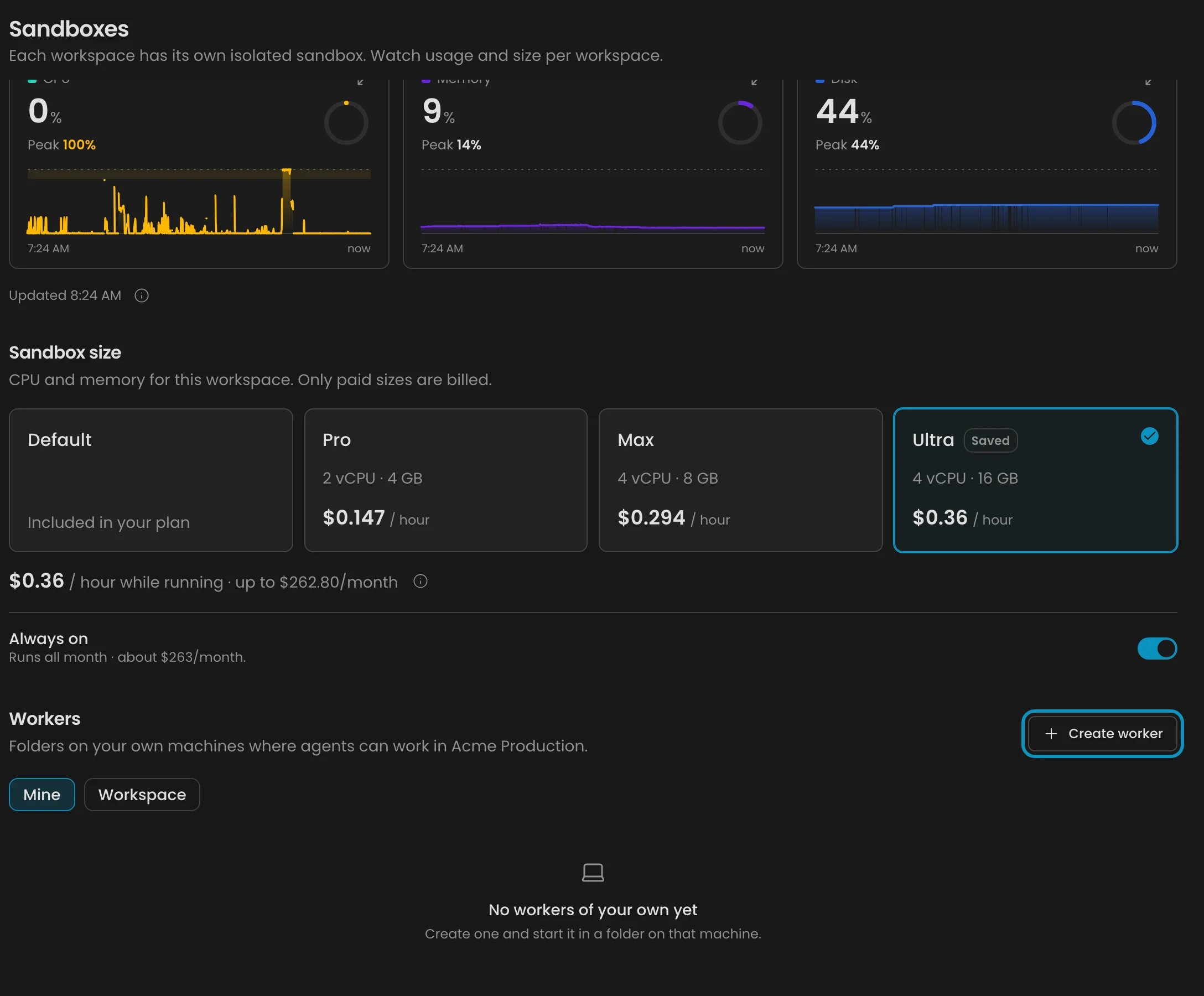
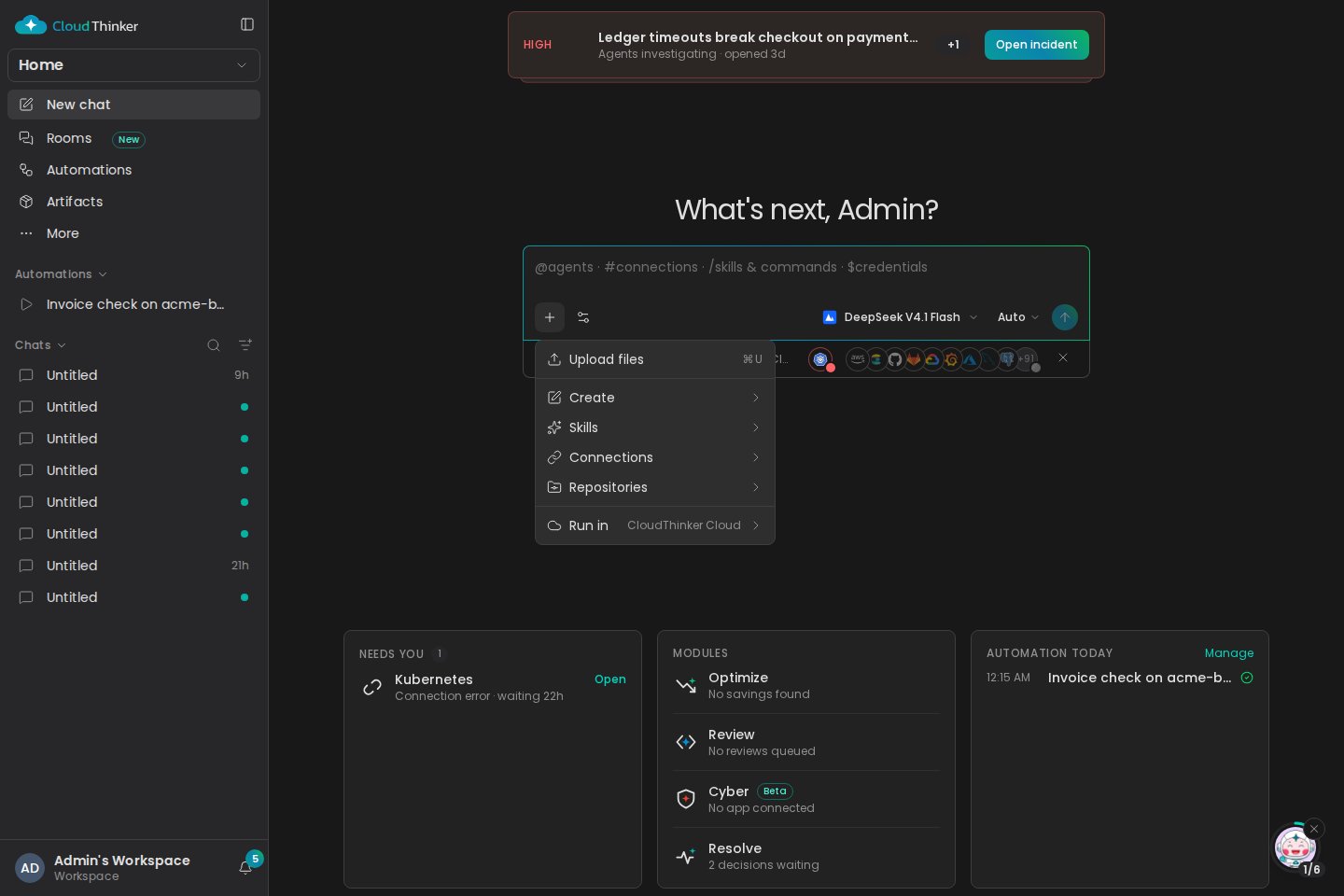
In a new chat, open the + menu beside the prompt box, select Run in, then select New environment. Admins can also go to Admin Settings → Sandboxes (an environment is another place a chat can run, next to CloudThinker Cloud) and select Create environment in the Environments section.
Admin Settings, Sandboxes: Create environment adds a folder on your machine where agents can work
2
Name the environment
Enter an Environment name, for example payments-api. Turn on Share with workspace if teammates and Automations should use it. Select Create environment. Only Admins see Share with workspace; everyone else creates a personal environment.Success state: the dialog shows a setup command. It works once and expires in 10 minutes (the dialog calls it a link).
3
Run the command in your project folder
Copy the command, open a terminal in the folder you want to serve, and run it. It looks like this:
<reference> is a one-time enrollment code from the dialog. --url falls back to the address of your last cloudthinker login, else https://app.cloudthinker.io, so you can usually drop it.The Environment saves its credential in a private file (mode 0600) on this machine. It then checks that it can read files, run a shell command, cancel a command, and upload results. It keeps running in the foreground until you press Ctrl-C.Success state: the terminal prints Waiting for work. and the dialog shows <name> is verified. If the command expired, select New command.
4
Start a chat on the environment
Select Start a chat. A new chat opens with the environment selected.
One Environment can have several machines, for example a build server and its standby. Open the environment’s settings, select Connect a machine, and run the command it gives on the new machine. Each enrollment is a separate machine with its own credential, and each handles up to 4 runs at once by default.A conversation stays on the first machine and folder that picks it up. It never moves to another machine, even when that machine goes offline.
In the CloudThinker Desktop app, the Run in menu also shows Open a folder…, which serves a folder from this computer as an environment with no terminal. For a selected Desktop folder, Remove this folder takes it off the list. Selecting a Desktop folder whose Environment is stopped starts it. These actions don’t appear in the browser.
In a new chat, open the + menu and select Run in. Choose CloudThinker Cloud or an environment by name. Picking a target closes the menu.The Run in row appears only when there’s something to choose, such as an environment. Offline Environments move to an Unavailable submenu, where a row opens that Environment’s settings. Organization Admins also see Manage environments, which opens Admin Settings → Sandboxes.
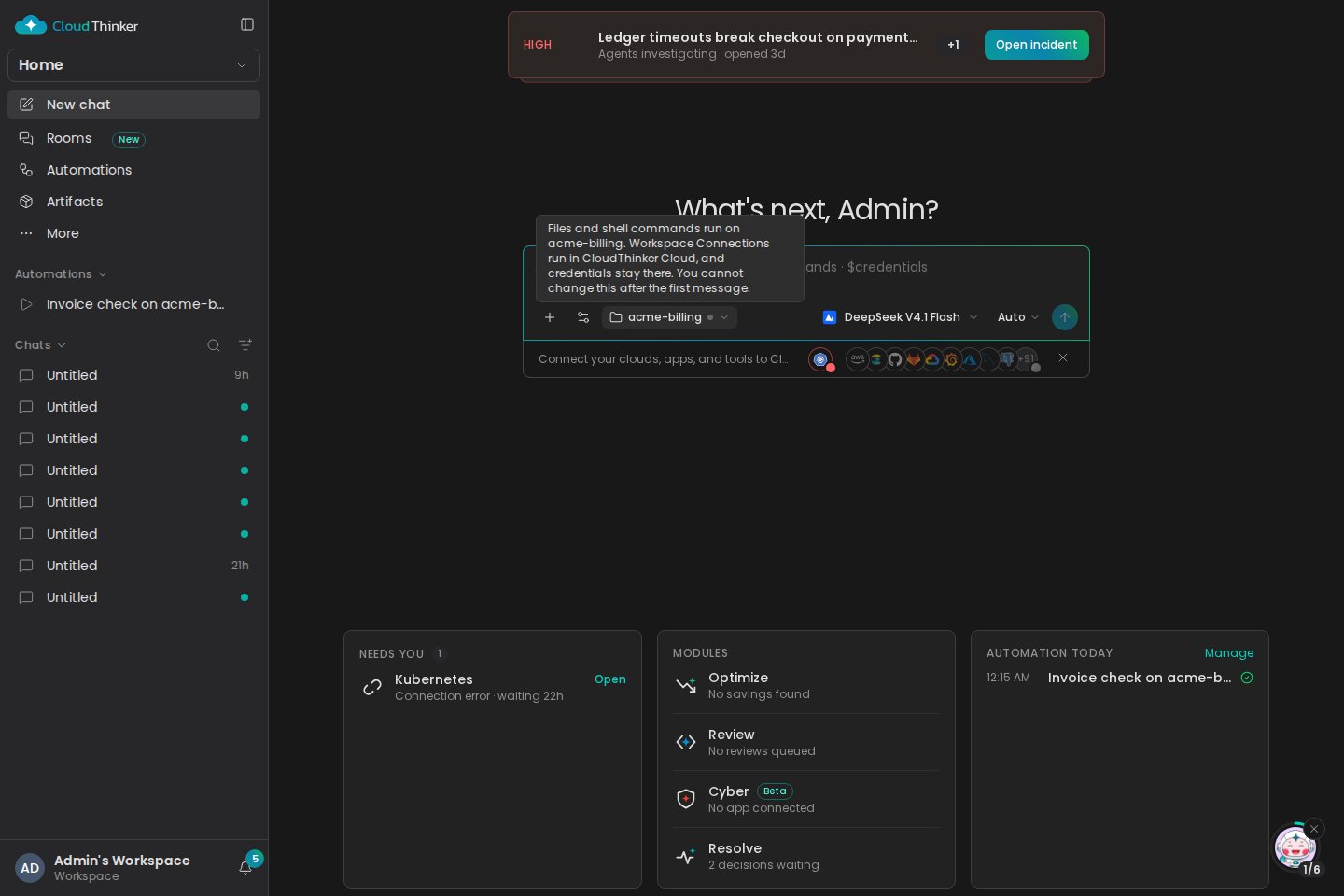
Success state: a chip with the environment’s name appears in the toolbar. Its tooltip reads like “Files and shell commands run on payments-api. Connections run in CloudThinker Cloud, and credentials stay there. You cannot change this after the first message.” While an environment is available, the chip also shows for CloudThinker Cloud, so switching is one click.
2
Send the first message
Ask for something that uses the folder:
Run the test suite and fix the first failing test. Show me the diff before you commit.
Success state: the chip locks. The conversation stays on that Environment for its whole life. To run somewhere else, start a new conversation.
The composer remembers your last choice for the workspace, so the next new chat starts on the same Environment.
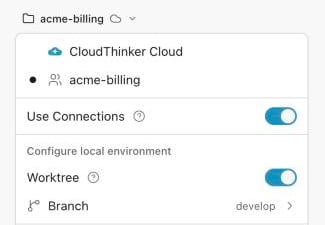
After you pick an environment, open Run in again. It now shows Configure local environment. If the folder is a git repository, turn on Worktree and pick a base Branch before the first message.The Environment then creates a cloudthinker/<id> branch in its own worktree, stored in the environment’s state folder outside the folder you serve, so your main checkout stays unchanged. It uses the local branch if one exists, and otherwise fetches origin/<base> once.
Cleanup: the environment removes a worktree after 14 days without use, but only when it has no uncommitted changes. It deletes the cloudthinker/<id> branch only when that branch is merged or pushed. List them with cloudthinker worker worktrees ls, or clean up now with cloudthinker worker worktrees prune. Dirty worktrees stay and show as dirty.
When the switch is greyed out: a line under it says why, for example “This folder is not a git repository.” or “Update the environment to use worktrees.” Run cloudthinker update, and cloudthinker worker doctor to check the git version.
Reads, writes, edits, or lists files with a file tool
Only inside --workdir. Paths outside it, including .., are rejected.
Runs a shell command
In host mode (the default), the whole machine, as your OS account, using /bin/bash. --workdir is only the starting directory. In container mode, only the folder and the hosts you allow. See Environment security.
Uses a workspace connection (AWS, Kubernetes, and more)
CloudThinker Cloud, with the credential injected there. Credentials already on the machine are a different matter: the shell can use them.
In host mode, shell commands on an environment are not sandboxed. They can read ~/.ssh, write outside the folder, and reach your network. On a sensitive machine:
Turn on container mode, so commands run in a container that mounts only the folder and reaches only the hosts you allow.
Run the environment under a dedicated, non-admin account. Never run worker start as root.
Keep SSH keys and cloud credentials out of that account’s home folder.
Don’t rely on Approvals to protect the machine. It checks commands that reach your systems, such as cloud CLIs, ssh, Git pushes, and requests that send a stored credential. A command that only acts on the machine, such as rm or a file write, may run without asking.
Shell commands get a reduced environment: PATH, HOME, LANG, TERM, USER, and TMPDIR. To pass more, add flags to worker start, for example cloudthinker worker start --outpost payments-api --workdir "$PWD" --env AWS_PROFILE. The value comes from the worker process’s environment, and you repeat --env for each variable. --inherit-env passes everything. The Environment’s own credential is always left out. --background doesn’t accept these flags.Every shell command, background task start or stop, and file write is recorded in Admin Settings → Audit Logs under the Command filter, for personal and shared environments alike. Organization Owners and Admins can open it. The record keeps a redacted preview of the command (at most 1 KiB), never its output. Reads are not recorded.
The Use Connections switch appears in the Run in menu after you pick an environment. It’s on by default, and anyone starting the chat can change it. It decides whether the run can use connection commands: commands that go through a workspace connection, such as aws or kubectl. Its ? help reads “Connections like AWS or Kubernetes run in CloudThinker Cloud, and credentials stay there. Turn it off to keep everything on this environment.” It never moves file or shell work off the environment.
Switch
Connection commands
File tools and shell
On (default)
Run in CloudThinker Cloud
Run on the environment
Off
Don’t run. A crossed-out cloud icon on the chip and a message such as “Use Connections is off. CloudThinker cannot use your Connections in these runs.” tell you so.
Run on the environment
The first message fixes the switch along with the environment.
Cyber runs and browser sessions need CloudThinker Cloud. In an environment conversation they return an error, and nothing silently moves to the cloud. Start a new conversation in CloudThinker Cloud for those.
When a conversation starts, the agent reads the instruction files at the root of the folder: AGENTS.override.md, AGENTS.md, CLAUDE.md, and GEMINI.md. It reads every one that exists, not just the first, in that order. When it works in a subfolder, it also picks up the same files from that subfolder and the folders above it. The root files are read once per conversation, so an edit applies from the next conversation.Skills come only from .agents/skills/ (up to 64), not from other tools’ folders such as .claude/skills/. Each Skill is a folder with a SKILL.md whose frontmatter has a description, and the agent loads it when a task matches. Set disable-model-invocation: true to hide one. See Skill format.
worker start stops when you close the terminal. To keep it up, add --background to the same command. That does service install and service start in one step, for the same Environment, folder, concurrency, and label: a systemd user unit on Linux, a LaunchAgent on macOS. On Linux it also turns on lingering so the environment survives logout, or prints the loginctl enable-linger <user> command when it can’t. It then prints the status, logs, and stop commands. On macOS the LaunchAgent runs only while you’re logged in.
Command (prefix cloudthinker worker)
What it does
service install --outpost <name> --workdir <path>
Register the service without starting it. On Linux, add --enable-linger to keep it running after logout.
service start / service stop
Start it, or stop it after current work drains.
service status --json
Show its state, last exit code, and where the logs are.
service uninstall
Remove the service. The credential and Environment stay.
service install --system --user <account>
Run as root: install a machine-wide service (systemd unit or macOS LaunchDaemon) that runs the environment as that account. Enroll the environment as that account first.
status --outpost <name>
Show availability and CLI version as the workspace sees it.
doctor
Check version, network, clock, credential, folder, and service. Prints one fix per problem.
outpost ls / outpost archive <name>
List Environments, or retire one after its open work finishes.
To upgrade the CLI on a connected machine: run cloudthinker worker service stop (it lets current work finish), then cloudthinker update, then cloudthinker worker service start. In the foreground, press Ctrl-C, update, and run the same worker start command again.Useful worker start flags: --concurrency <1-32> (default 4) for the most runs the environment handles at once, --label <name> for the folder’s display name, --health-addr 127.0.0.1:9464 for /healthz and Prometheus /metrics endpoints, --log-format json for one JSON log object per line, and --verbose (-v) to print each operation.
Select an environment’s row in Admin Settings → Sandboxes, or the settings icon beside the selected Environment in the Run in menu, to open its settings. The dialog lists each machine with its state (Online, Offline, Draining, Registered, or Needs enrollment), platform, CLI version, last IP address, last seen time, load, and credential age and expiry. Its Security section sets container mode, allowed hosts, and allowed IP addresses: see Environment security.A version badge shows when a machine’s CLI falls behind: Update available or Outdated. The fix for both is to run cloudthinker update on the machine. cloudthinker worker status shows the same badge.
In the Automation form, set Run in to a shared environment. Automations can’t use personal environments, and only workspace Admins can change where an Automation runs. A change to the Use Connections switch applies from the next run. If the environment is offline when a run is due, the run never moves to CloudThinker Cloud. Keep shared environments that serve Automations running as a service.
One of the startup checks failed. Stop the worker, run cloudthinker worker doctor in the folder, apply the fix it prints, then select New command and run it again. If it says Your CLI is out of date, run cloudthinker update first.
The Environment shows Offline
You see Offline on the environment’s row in Admin Settings → Sandboxes and in the Run in menu. The process stopped or lost the network. Check that worker start or the service is still running with cloudthinker worker status --outpost <name>. The Environment reconnects on its own after sleep or a network change.
A shell command can't find a variable or tool
Only PATH, HOME, LANG, TERM, USER, and TMPDIR are passed by default. Restart the environment with --env NAME for each variable, or --inherit-env.
The Environment exits with WORKDIR_IDENTITY_CHANGED
The folder was replaced, for example deleted and recloned. Run worker start once with the same --outpost and --workdir plus --reset-folder. Conversations that used the old folder stay unavailable.
The credential expired or was revoked (exit code 3)
A credential stays valid for 30 days after its last use and rotates on its own while the environment runs. If it expires, enroll again with a new command from Admin Settings → Sandboxes, or Run in → New environment.
Revoke an environment, for example on a lost laptop
In Admin Settings → Sandboxes, open the environment’s row. Select the revoke icon on one machine (Revoke this machine), or Revoke all machines (shown with 2 or more machines). Both ask you to confirm. The credential stops working right away: running work stops, and each machine must enroll again. To retire the environment for good, select Remove environment, or run cloudthinker worker outpost archive <name> once its open conversations finish.
A teammate sees "This conversation runs on another member's personal environment"
The conversation runs on your personal environment, so only you can send messages in it. Teammates can read it but not reply. Create a shared environment instead.
{"docsConfig":{"theme":"mint","$schema":"https://mintlify.com/docs.json","name":"CloudThinker","colors":{"primary":"#0c93c0","light":"#2897c1","dark":"#0c93c0"},"logo":{"light":"https://mintcdn.com/cloudthinker/-4m9DUjwzDxHfABz/logo/light.svg?fit=max\u0026auto=format\u0026n=-4m9DUjwzDxHfABz\u0026q=85\u0026s=a56a571509d1cd246f5b0e68db015e5f","dark":"https://mintcdn.com/cloudthinker/-4m9DUjwzDxHfABz/logo/dark.svg?fit=max\u0026auto=format\u0026n=-4m9DUjwzDxHfABz\u0026q=85\u0026s=4252f33496bbaa527e5408338963a31e"},"favicon":"https://mintcdn.com/cloudthinker/PoYnb4baZ54aMMQW/favicon.ico?fit=max\u0026auto=format\u0026n=PoYnb4baZ54aMMQW\u0026q=85\u0026s=6570e99ed2a763d9632c8f933fe9c164","background":{"color":{"light":"#eef0f3","dark":"#000000"}},"navbar":{"links":[{"href":"https://discord.com/invite/sRBWRWtaNR","label":"Community"},{"href":"https://cloudthinker.io/blogs","label":"Blog"},{"href":"https://cloudthinker.io/contact","label":"Contact us"}],"primary":{"type":"button","label":"Open app","href":"https://app.cloudthinker.io"}},"footer":{"socials":{"x":"https://x.com/cloudthinkerio?s=21","linkedin":"https://www.linkedin.com/company/cloud-thinker","github":"https://github.com/cloudthinker-ai","discord":"https://discord.com/invite/sRBWRWtaNR","youtube":"https://www.youtube.com/@cloudthinkerai"}},"seo":{"indexing":"navigable"},"fonts":{"family":"Poppins"},"contextual":{"options":["copy","view","chatgpt","claude"],"display":"header"},"metadata":{"timestamp":false},"styling":{"latex":true},"navigation":{"languages":[{"language":"en","href":""},{"language":"vi","href":"vi"},{"language":"ja","href":"ja"},{"language":"ko","href":"ko"}]}},"deployment":{"deploymentMetadataValue":{"subdomain":"cloudthinker","hasAudioNarration":false,"actualSubdomain":"cloudthinker","customDomains":["docs.cloudthinker.io"],"gitSource":{"type":"github","owner":"nhat-tranvan","repo":"docs","deployBranch":"main","contentDirectory":"","isPrivate":false,"mountPath":"","label":""},"feedback":{"thumbs":true,"edits":true,"issues":true,"agentFeedback":true},"entitlements":{},"buildId":"6af2bdaaca4de4868675335e","clientVersion":"0.0.4111","searchFilterCounts":[{"language":"vi","tag":"Nền tảng","count":130},{"language":"vi","tag":"Kết nối","count":100},{"language":"default","tag":"Platform","count":71},{"language":"en","tag":"Platform","count":64},{"language":"ja","tag":"プラットフォーム","count":63},{"language":"ko","tag":"플랫폼","count":63},{"language":"default","tag":"Connections","count":55},{"language":"vi","tag":"Sản phẩm","count":54},{"language":"en","tag":"Connections","count":50},{"language":"ja","tag":"接続","count":48},{"language":"ko","tag":"연결","count":48},{"language":"vi","tag":"Tài nguyên","count":39},{"language":"default","tag":"Products","count":33},{"language":"vi","tag":"Học","count":30},{"language":"en","tag":"Products","count":29},{"language":"ja","tag":"プロダクト","count":29},{"language":"ko","tag":"제품","count":29},{"language":"default","tag":"Resources","count":26},{"language":"vi","tag":"Bắt đầu","count":26},{"language":"vi","tag":"Observability \u0026 Monitoring","count":24},{"language":"vi","tag":"Resolve","count":20},{"language":"default","tag":"Learn","count":18},{"language":"default","tag":"Agentic Infrastructure Operations - Engineer Edition","count":18},{"language":"vi","tag":"Agentic Infrastructure Operations - Engineer Edition","count":18},{"language":"en","tag":"Get started","count":16},{"language":"ja","tag":"はじめに","count":16},{"language":"ko","tag":"시작하기","count":16},{"language":"vi","tag":"Databases","count":16},{"language":"default","tag":"Review","count":13},{"language":"en","tag":"Resources","count":13},{"language":"ja","tag":"リソース","count":13},{"language":"ko","tag":"리소스","count":13},{"language":"en","tag":"Monitoring","count":12},{"language":"en","tag":"Learn","count":12},{"language":"en","tag":"Agentic Infrastructure Operations - Leadership Edition","count":12},{"language":"ja","tag":"Observability \u0026 Monitoring","count":12},{"language":"ja","tag":"学ぶ","count":12},{"language":"ja","tag":"Agentic Infrastructure Operations - Leadership Edition","count":12},{"language":"ko","tag":"Observability \u0026 Monitoring","count":12},{"language":"ko","tag":"배우기","count":12},{"language":"ko","tag":"Agentic Infrastructure Operations - Leadership Edition","count":12},{"language":"default","tag":"Get started","count":11},{"language":"en","tag":"Resolve","count":11},{"language":"ja","tag":"Resolve","count":11},{"language":"ko","tag":"Resolve","count":11},{"language":"default","tag":"Resolve","count":9},{"language":"en","tag":"Enterprise","count":9},{"language":"default","tag":"Set up","count":8},{"language":"ja","tag":"Databases","count":8},{"language":"ko","tag":"Databases","count":8}]},"assistantConfig":{},"basePath":"","hasChatPermissions":false,"hasWebMcpPermissions":false,"toggles":[{"name":"kill-isr","enabled":true,"variant":{"name":"disabled","enabled":false,"feature_enabled":true},"impressionData":false},{"name":"custom-rbac-roles","enabled":true,"variant":{"name":"disabled","enabled":false,"feature_enabled":true},"impressionData":false},{"name":"agent-mintlify-slack","enabled":true,"variant":{"name":"disabled","enabled":false,"feature_enabled":true},"impressionData":false},{"name":"agent-integrations-settings","enabled":true,"variant":{"name":"disabled","enabled":false,"feature_enabled":true},"impressionData":false},{"name":"rbac-expansion","enabled":true,"variant":{"name":"disabled","enabled":false,"feature_enabled":true},"impressionData":false},{"name":"automations-pr-grouping","enabled":true,"variant":{"name":"disabled","enabled":false,"feature_enabled":true},"impressionData":false},{"name":"custom-prefix","enabled":true,"variant":{"name":"disabled","enabled":false,"feature_enabled":true},"impressionData":false},{"name":"analytics-v7","enabled":true,"variant":{"name":"disabled","enabled":false,"feature_enabled":true},"impressionData":false},{"name":"user-flows-analytics","enabled":true,"variant":{"name":"disabled","enabled":false,"feature_enabled":true},"impressionData":false},{"name":"no-publish-flow","enabled":true,"variant":{"name":"disabled","enabled":false,"feature_enabled":true},"impressionData":false},{"name":"workos-onboarding","enabled":true,"variant":{"name":"disabled","enabled":false,"feature_enabled":true},"impressionData":false},{"name":"llms-txt-v2","enabled":true,"variant":{"name":"disabled","enabled":false,"feature_enabled":true},"impressionData":false},{"name":"snapshot-serving-live","enabled":true,"variant":{"name":"disabled","enabled":false,"feature_enabled":true},"impressionData":false},{"name":"stripTemperatureMiddleware","enabled":true,"variant":{"name":"disabled","enabled":false,"feature_enabled":true},"impressionData":false},{"name":"support-platform-pylon-zendesk","enabled":true,"variant":{"name":"disabled","enabled":false,"feature_enabled":true},"impressionData":false},{"name":"snapshot-serving","enabled":true,"variant":{"name":"disabled","enabled":false,"feature_enabled":true},"impressionData":false},{"name":"instant-rollback","enabled":true,"variant":{"name":"disabled","enabled":false,"feature_enabled":true},"impressionData":false},{"name":"granular-notifications-server","enabled":true,"variant":{"name":"disabled","enabled":false,"feature_enabled":true},"impressionData":false},{"name":"granular-notifications","enabled":true,"variant":{"name":"disabled","enabled":false,"feature_enabled":true},"impressionData":false},{"name":"automations-fable","enabled":true,"variant":{"name":"disabled","enabled":false,"feature_enabled":true},"impressionData":false},{"name":"fixed-ai-action-pricing","enabled":true,"variant":{"name":"disabled","enabled":false,"feature_enabled":true},"impressionData":false},{"name":"automation-resolve-merge-conflict","enabled":true,"variant":{"name":"disabled","enabled":false,"feature_enabled":true},"impressionData":false},{"name":"scoped-publishing","enabled":true,"variant":{"name":"disabled","enabled":false,"feature_enabled":true},"impressionData":false},{"name":"mintql","enabled":true,"variant":{"name":"disabled","enabled":false,"feature_enabled":true},"impressionData":false},{"name":"page-level-analytics","enabled":true,"variant":{"name":"disabled","enabled":false,"feature_enabled":true},"impressionData":false},{"name":"editor-version-history-v2","enabled":true,"variant":{"name":"disabled","enabled":false,"feature_enabled":true},"impressionData":false},{"name":"billing-page-v2","enabled":true,"variant":{"name":"disabled","enabled":false,"feature_enabled":true},"impressionData":false},{"name":"full-page-search","enabled":true,"variant":{"name":"disabled","enabled":false,"feature_enabled":true},"impressionData":false},{"name":"workspace-projects","enabled":true,"variant":{"name":"disabled","enabled":false,"feature_enabled":true},"impressionData":false},{"name":"assistant-v5","enabled":true,"variant":{"name":"disabled","enabled":false,"feature_enabled":true},"impressionData":false},{"name":"fork-pr-previews","enabled":true,"variant":{"name":"disabled","enabled":false,"feature_enabled":true},"impressionData":false},{"name":"revalidation-jwt","enabled":true,"variant":{"name":"disabled","enabled":false,"feature_enabled":true},"impressionData":false},{"name":"workos-sso-scim","enabled":true,"variant":{"name":"disabled","enabled":false,"feature_enabled":true},"impressionData":false},{"name":"hobby-abuse-scan","enabled":true,"variant":{"name":"disabled","enabled":false,"feature_enabled":true},"impressionData":false},{"name":"dashboard-inbox","enabled":true,"variant":{"name":"disabled","enabled":false,"feature_enabled":true},"impressionData":false},{"name":"workos-signup","enabled":true,"variant":{"name":"disabled","enabled":false,"feature_enabled":true},"impressionData":false},{"name":"turbopuffer-dual-write","enabled":true,"variant":{"name":"disabled","enabled":false,"feature_enabled":true},"impressionData":false},{"name":"workos-enabled","enabled":true,"variant":{"name":"disabled","enabled":false,"feature_enabled":true},"impressionData":false},{"name":"approve-review-flow","enabled":true,"variant":{"name":"disabled","enabled":false,"feature_enabled":true},"impressionData":false},{"name":"editor-metadata","enabled":true,"variant":{"name":"disabled","enabled":false,"feature_enabled":true},"impressionData":false},{"name":"sso-setup-deadline-banner","enabled":true,"variant":{"name":"disabled","enabled":false,"feature_enabled":true},"impressionData":false},{"name":"turbopuffer-serve","enabled":true,"variant":{"name":"disabled","enabled":false,"feature_enabled":true},"impressionData":false},{"name":"live-agents","enabled":true,"variant":{"name":"disabled","enabled":false,"feature_enabled":true},"impressionData":false}],"googleFontsInlined":true},"customCss":[{"filePath":"style.css","content":"a.ct-featured{display:block;margin:1.25rem 0 1rem;padding:1.75rem 1.75rem 1.5rem;border:1px solid rgba(12, 147, 192, 0.45)!important;border-radius:16px;background:radial-gradient(120% 160% at 0% 0%, rgba(12, 147, 192, 0.14), transparent 55%),\n #ffffff;box-shadow:0 12px 32px -16px rgba(12, 147, 192, 0.45);text-decoration:none!important;transition:border-color 0.15s ease, transform 0.15s ease, box-shadow 0.15s ease}a.ct-featured:hover{border-color:#0c93c0!important;transform:translateY(-1px);box-shadow:0 16px 40px -16px rgba(12, 147, 192, 0.6)}.dark a.ct-featured{border-color:rgba(40, 151, 193, 0.45)!important;background:radial-gradient(120% 160% at 0% 0%, rgba(40, 151, 193, 0.16), transparent 55%),\n #05070a;box-shadow:0 12px 32px -16px rgba(40, 151, 193, 0.35)}.dark a.ct-featured:hover{border-color:#2897c1!important}.ct-featured-head{display:flex;align-items:center;gap:0.75rem;margin-bottom:0.875rem}.ct-featured-icon{display:inline-flex;align-items:center;justify-content:center;width:2.25rem;height:2.25rem;border-radius:999px;background:rgba(12, 147, 192, 0.12);color:#0a7aa0}.dark .ct-featured-icon{background:rgba(40, 151, 193, 0.14);color:#5bb8e0}.ct-eyebrow{font-size:0.75rem;font-weight:600;letter-spacing:0.14em;text-transform:uppercase;color:#0a7aa0}.dark .ct-eyebrow{color:#5bb8e0}.ct-title{font-size:1.375rem;font-weight:600;line-height:1.3;color:#0b1a2b}.dark .ct-title{color:#f5f5f7}.ct-body{margin:0.5rem 0 0!important;font-weight:400!important;font-size:1rem;max-width:46rem;color:#5b6577;line-height:1.6}.dark .ct-body{color:#a1a1a6}.ct-cta{display:inline-block;margin-top:1rem;font-weight:600;color:#0a7aa0}.dark .ct-cta{color:#5bb8e0}.ct-illustration{margin:1.5rem 0}.ct-illustration img{display:block;width:100%;max-width:720px;height:auto;margin:0 auto}.ct-iso-scene{margin:1.5rem 0 2rem;border:1px solid rgba(12, 147, 192, 0.18);border-radius:16px;background:#ffffff;overflow:hidden}.dark .ct-iso-scene{border-color:rgba(40, 151, 193, 0.22);background:#000000}.ct-iso-scene .ct-iso-svg{display:block;width:100%;height:auto}.ct-landing{max-width:1120px;margin:0 auto;padding:3rem 1.5rem 5rem}.ct-landing a{text-decoration:none!important;border-bottom-width:0}.ct-kicker{font-size:0.8125rem;font-weight:600;letter-spacing:0.08em;text-transform:uppercase;color:#0c93c0}.dark .ct-kicker{color:#2897c1}.ct-hero{text-align:center;padding:1.5rem 0 1rem}.ct-hero h1{margin:0.75rem 0 0;font-size:clamp(2.25rem, 5vw, 3.75rem);line-height:1.05;font-weight:600;letter-spacing:-0.03em}.ct-hero .ct-promise{margin:1rem auto 0;font-size:clamp(1.125rem, 2.2vw, 1.5rem);color:#5b6577}.dark .ct-hero .ct-promise{color:#a1a1a6}.ct-hero .ct-promise strong{color:#0c93c0;font-weight:600}.dark .ct-hero .ct-promise strong{color:#2897c1}.ct-hero p.ct-lead{max-width:44rem;margin:1rem auto 0;font-size:1.0625rem;line-height:1.65;color:#5b6577}.dark .ct-hero p.ct-lead{color:#a1a1a6}.ct-actions{display:flex;flex-wrap:wrap;gap:0.75rem;justify-content:center;margin-top:1.75rem}.ct-btn{display:inline-flex;align-items:center;gap:0.5rem;padding:0.7rem 1.25rem;border-radius:999px;font-weight:600;font-size:0.95rem;transition:transform .15s ease, background .15s ease}.ct-btn:hover{transform:translateY(-1px)}.ct-btn-primary{background:#0c93c0;color:#fff!important}.ct-btn-primary:hover{background:#0a7aa0}.ct-btn-ghost{border:1px solid rgba(12, 147, 192, 0.35)!important;color:#0b1a2b!important}.dark .ct-btn-ghost{color:#f5f5f7!important;border-color:rgba(40, 151, 193, 0.4)!important}.ct-landing .ct-iso-scene{margin-top:2.5rem}.ct-section{margin-top:4.5rem}.ct-section>h2{margin:0.4rem 0 0;font-size:1.75rem;font-weight:600;letter-spacing:-0.02em}.ct-section>p.ct-section-lead{margin:0.5rem 0 0;color:#5b6577;max-width:46rem}.dark .ct-section>p.ct-section-lead{color:#a1a1a6}.ct-steps{display:grid;grid-template-columns:repeat(4, minmax(0, 1fr));gap:1rem;margin-top:1.5rem}.ct-step{display:block;padding:1.25rem;border-radius:14px;border:1px solid rgba(12, 147, 192, 0.18)!important;background:#fff;transition:border-color .15s ease, transform .15s ease}.dark .ct-step{background:#05070a;border-color:rgba(40, 151, 193, 0.22)!important}.ct-step:hover{border-color:#0c93c0!important;transform:translateY(-1px)}.ct-step-num{display:inline-flex;width:1.75rem;height:1.75rem;border-radius:999px;align-items:center;justify-content:center;font-size:0.85rem;font-weight:700;color:#fff;background:#0c93c0}.ct-step h3,.ct-card h3{margin:0.75rem 0 0.25rem;font-size:1.05rem;font-weight:600;color:#0b1a2b}.dark .ct-step h3,.dark .ct-card h3{color:#f5f5f7}.ct-step p,.ct-card p{margin:0;font-size:0.925rem;line-height:1.55;color:#5b6577}.dark .ct-step p,.dark .ct-card p{color:#a1a1a6}.ct-grid{display:grid;gap:1rem;margin-top:1.5rem}.ct-grid-3{grid-template-columns:repeat(3, minmax(0, 1fr))}.ct-grid-5{grid-template-columns:repeat(5, minmax(0, 1fr))}.ct-card{display:flex;flex-direction:column;padding:1.25rem;border-radius:14px;border:1px solid rgba(12, 147, 192, 0.18);background:#fff}.dark .ct-card{background:#05070a;border-color:rgba(40, 151, 193, 0.22)}.ct-card .ct-card-head{display:flex;align-items:center;gap:0.6rem}.ct-card .ct-card-head span{font-weight:600;color:#0b1a2b}.dark .ct-card .ct-card-head span{color:#f5f5f7}.ct-card .ct-tagline{margin-top:0.75rem;font-size:1.05rem;font-weight:600;line-height:1.35;color:#0c93c0}.dark .ct-card .ct-tagline{color:#2897c1}.ct-card .ct-links{margin-top:auto;padding-top:1rem;display:flex;gap:1rem;font-size:0.9rem;font-weight:600}.ct-card .ct-links a{color:#0c93c0!important}.dark .ct-card .ct-links a{color:#2897c1!important}a.ct-card{transition:border-color .15s ease, transform .15s ease}a.ct-card:hover{border-color:#0c93c0!important;transform:translateY(-1px)}.ct-strip{display:flex;flex-wrap:wrap;gap:0.6rem;margin-top:1.25rem}.ct-strip a{display:inline-flex;align-items:center;gap:0.45rem;padding:0.55rem 0.95rem;border-radius:999px;border:1px solid rgba(12, 147, 192, 0.25)!important;font-size:0.9rem;font-weight:500;color:#0b1a2b!important}.dark .ct-strip a{color:#f5f5f7!important;border-color:rgba(40, 151, 193, 0.3)!important}.ct-strip a:hover{border-color:#0c93c0!important}@media (max-width: 900px){.ct-steps,.ct-grid-3,.ct-grid-5{grid-template-columns:repeat(2, minmax(0, 1fr))}}@media (max-width: 560px){.ct-landing{padding:2rem 1rem 4rem}.ct-steps,.ct-grid-3,.ct-grid-5{grid-template-columns:minmax(0, 1fr)}}.ct-hero h1{color:#0b1a2b;-webkit-text-fill-color:currentColor;background:none}.dark .ct-hero h1{color:#f5f5f7}.ct-landing table{width:100%;margin-top:1.25rem;border-collapse:collapse;font-size:0.925rem}.ct-landing th{text-align:left;font-weight:600;padding:0.7rem 0.9rem;border-bottom:1px solid rgba(12, 147, 192, 0.3)}.ct-landing td{vertical-align:top;padding:0.8rem 0.9rem;border-bottom:1px solid rgba(12, 147, 192, 0.12);color:#5b6577;line-height:1.55}.dark .ct-landing td{color:#a1a1a6}.ct-landing td:first-child{font-weight:600;color:#0b1a2b;width:22%}.dark .ct-landing td:first-child{color:#f5f5f7}.ct-landing td a{color:#0c93c0!important;font-weight:600}.dark .ct-landing td a{color:#2897c1!important}.ct-section>h2{color:#0b1a2b;-webkit-text-fill-color:currentColor;background:none}.dark .ct-section>h2{color:#f5f5f7}.ct-product{padding:1.1rem 1.2rem}.ct-product .ct-tagline{margin-top:0.55rem;font-size:1rem}.ct-product p{margin-top:0.3rem}.ct-powered{margin-top:0.6rem;font-size:0.75rem;font-weight:600;letter-spacing:0.02em;color:#8a94a6}.dark .ct-powered{color:#86868b}.ct-card-head .ct-arrow{margin-left:auto;font-weight:500!important;color:#0c93c0!important;transition:transform .15s ease}.dark .ct-card-head .ct-arrow{color:#2897c1!important}a.ct-product:hover .ct-arrow{transform:translateX(3px)}html:not(.dark) .ct-step,html:not(.dark) .ct-card,html:not(.dark) .ct-iso-scene{background:#f6f7f9}html:not(.dark) .ct-iso-scene{border-color:rgba(12, 147, 192, 0.12)}html:not(.dark) body{color:#2b3240}html:not(.dark) #content-area,html:not(.dark) .prose{color:#2b3240}html:not(.dark) .prose :where(h1,h2,h3,h4,strong){color:#1c2230}html:not(.dark) .ct-hero h1,html:not(.dark) .ct-section>h2,html:not(.dark) .ct-step h3,html:not(.dark) .ct-card h3,html:not(.dark) .ct-card .ct-card-head span{color:#1c2230}"}],"page":{"pagePath":"guide/workers","slug":"/guide/workers","pageMetadata":{"title":"Environments","sidebarTitle":"Environments","description":"Run a chat or Automation in a folder on your own machine, control what the agent can reach, and keep connection credentials in the cloud.","icon":"server","href":"/guide/workers"},"description":{"compiledSource":"\"use strict\";\nconst {jsx: _jsx} = arguments[0];\nconst {useMDXComponents: _provideComponents} = arguments[0];\nfunction _createMdxContent(props) {\n const _components = {\n p: \"p\",\n ..._provideComponents(),\n ...props.components\n };\n return _jsx(_components.p, {\n children: \"Run a chat or Automation in a folder on your own machine, control what the agent can reach, and keep connection credentials in the cloud.\"\n });\n}\nfunction MDXContent(props = {}) {\n const {wrapper: MDXLayout} = {\n ..._provideComponents(),\n ...props.components\n };\n return MDXLayout ? _jsx(MDXLayout, {\n ...props,\n children: _jsx(_createMdxContent, {\n ...props\n })\n }) : _createMdxContent(props);\n}\nreturn {\n default: MDXContent\n};\n","frontmatter":{},"scope":{}},"pageType":"default","mdx":{"mdxSource":{"compiledSource":"\"use strict\";const{Fragment:_Fragment,jsx:_jsx,jsxs:_jsxs}=arguments[0];const{useMDXComponents:_provideComponents}=arguments[0];function _createMdxContent(props){const _components={a:`a`,code:`code`,li:`li`,p:`p`,pre:`pre`,span:`span`,strong:`strong`,tbody:`tbody`,td:`td`,th:`th`,thead:`thead`,tr:`tr`,ul:`ul`,..._provideComponents(),...props.components},{Accordion,AccordionGroup,Card,CardGroup,CodeBlock,Frame,Heading,Note,OptimizedImage,Step,Steps,Table,Warning}=_components;if(!Accordion)_missingMdxReference(`Accordion`,true);if(!AccordionGroup)_missingMdxReference(`AccordionGroup`,true);if(!Card)_missingMdxReference(`Card`,true);if(!CardGroup)_missingMdxReference(`CardGroup`,true);if(!CodeBlock)_missingMdxReference(`CodeBlock`,true);if(!Frame)_missingMdxReference(`Frame`,true);if(!Heading)_missingMdxReference(`Heading`,true);if(!Note)_missingMdxReference(`Note`,true);if(!OptimizedImage)_missingMdxReference(`OptimizedImage`,true);if(!Step)_missingMdxReference(`Step`,true);if(!Steps)_missingMdxReference(`Steps`,true);if(!Table)_missingMdxReference(`Table`,true);if(!Warning)_missingMdxReference(`Warning`,true);return _jsxs(_Fragment,{children:[_jsxs(_components.p,{children:[`An `,_jsx(_components.strong,{children:`environment`}),` is where agents run commands and work on files. `,_jsx(_components.strong,{children:`CloudThinker Cloud`}),` is the managed option. A self-hosted environment connects machines you control, such as a laptop, server, or CI runner. Choose one through `,_jsx(_components.strong,{children:`Run in`}),` before starting a chat. Each connected machine runs a background worker process.`]}),`\n`,_jsxs(Note,{children:[_jsxs(_components.p,{children:[`Some screenshots show `,_jsx(_components.strong,{children:`Workers`}),`, the previous name for Environments.`]}),_jsxs(_components.p,{children:[_jsx(_components.strong,{children:`Beta.`}),` Environments run on the `,_jsx(_components.a,{href:`/guide/cli/overview`,children:`CloudThinker CLI`}),`, which is also in beta. Command names and flags may change before general availability. The CLI retains `,_jsx(_components.strong,{children:`outpost`}),` in its command syntax, so you’ll see `,_jsx(_components.code,{children:`--outpost`}),` in commands.`]})]}),`\n`,_jsx(Heading,{level:`2`,id:`how-it-works`,children:`How it works`}),`\n`,_jsxs(Frame,{caption:`File and shell work runs on your machine. The model and connection credentials stay in CloudThinker Cloud.`,children:[_jsx(OptimizedImage,{src:`https://mintcdn.com/cloudthinker/iI9Kw2iEqfV7Vhhh/images/workers/01-how-it-works-light.svg?fit=max\u0026auto=format\u0026n=iI9Kw2iEqfV7Vhhh\u0026q=85\u0026s=f236034b1cc5a6f370b0b3b2811d69ae`,alt:`The Environment on your machine connects out to CloudThinker Cloud, runs file and shell work locally, and sends results back, while connection commands run in the cloud`,className:`mint-block dark:mint-hidden`,style:{width:`100%`},\"data-og-width\":`800`,width:`800`,\"data-og-height\":`470`,height:`470`,\"data-path\":`images/workers/01-how-it-works-light.svg`,\"data-optimize\":`true`,\"data-opv\":`3`,srcset:`https://mintcdn.com/cloudthinker/iI9Kw2iEqfV7Vhhh/images/workers/01-how-it-works-light.svg?w=280\u0026fit=max\u0026auto=format\u0026n=iI9Kw2iEqfV7Vhhh\u0026q=85\u0026s=c59a312a596153df398f7f9bec73cf80 280w, https://mintcdn.com/cloudthinker/iI9Kw2iEqfV7Vhhh/images/workers/01-how-it-works-light.svg?w=560\u0026fit=max\u0026auto=format\u0026n=iI9Kw2iEqfV7Vhhh\u0026q=85\u0026s=151aef394cb3072a9791662253086114 560w, https://mintcdn.com/cloudthinker/iI9Kw2iEqfV7Vhhh/images/workers/01-how-it-works-light.svg?w=840\u0026fit=max\u0026auto=format\u0026n=iI9Kw2iEqfV7Vhhh\u0026q=85\u0026s=b90e721dba71959cbe686429fd9586b0 840w, https://mintcdn.com/cloudthinker/iI9Kw2iEqfV7Vhhh/images/workers/01-how-it-works-light.svg?w=1100\u0026fit=max\u0026auto=format\u0026n=iI9Kw2iEqfV7Vhhh\u0026q=85\u0026s=76f0ac3a964cdc07d86dcb19453cb35f 1100w, https://mintcdn.com/cloudthinker/iI9Kw2iEqfV7Vhhh/images/workers/01-how-it-works-light.svg?w=1650\u0026fit=max\u0026auto=format\u0026n=iI9Kw2iEqfV7Vhhh\u0026q=85\u0026s=0aecfcef9736535f72e8a613a48837eb 1650w, https://mintcdn.com/cloudthinker/iI9Kw2iEqfV7Vhhh/images/workers/01-how-it-works-light.svg?w=2500\u0026fit=max\u0026auto=format\u0026n=iI9Kw2iEqfV7Vhhh\u0026q=85\u0026s=c77677ce50926d776f772a12e6e8329a 2500w`}),_jsx(OptimizedImage,{src:`https://mintcdn.com/cloudthinker/iI9Kw2iEqfV7Vhhh/images/workers/01-how-it-works-dark.svg?fit=max\u0026auto=format\u0026n=iI9Kw2iEqfV7Vhhh\u0026q=85\u0026s=c651fa29c2d3f631fd21430a17be85c0`,alt:`The Environment on your machine connects out to CloudThinker Cloud, runs file and shell work locally, and sends results back, while connection commands run in the cloud`,className:`mint-hidden dark:mint-block`,style:{width:`100%`},\"data-og-width\":`800`,width:`800`,\"data-og-height\":`470`,height:`470`,\"data-path\":`images/workers/01-how-it-works-dark.svg`,\"data-optimize\":`true`,\"data-opv\":`3`,srcset:`https://mintcdn.com/cloudthinker/iI9Kw2iEqfV7Vhhh/images/workers/01-how-it-works-dark.svg?w=280\u0026fit=max\u0026auto=format\u0026n=iI9Kw2iEqfV7Vhhh\u0026q=85\u0026s=e12d227e923a30a6d942186e5819146e 280w, https://mintcdn.com/cloudthinker/iI9Kw2iEqfV7Vhhh/images/workers/01-how-it-works-dark.svg?w=560\u0026fit=max\u0026auto=format\u0026n=iI9Kw2iEqfV7Vhhh\u0026q=85\u0026s=2781c7329303329512d85606281bf186 560w, https://mintcdn.com/cloudthinker/iI9Kw2iEqfV7Vhhh/images/workers/01-how-it-works-dark.svg?w=840\u0026fit=max\u0026auto=format\u0026n=iI9Kw2iEqfV7Vhhh\u0026q=85\u0026s=e8907c914bd804d043b4eee90a1218e5 840w, https://mintcdn.com/cloudthinker/iI9Kw2iEqfV7Vhhh/images/workers/01-how-it-works-dark.svg?w=1100\u0026fit=max\u0026auto=format\u0026n=iI9Kw2iEqfV7Vhhh\u0026q=85\u0026s=3f62bcfa9f63d26c728964fc077929d0 1100w, https://mintcdn.com/cloudthinker/iI9Kw2iEqfV7Vhhh/images/workers/01-how-it-works-dark.svg?w=1650\u0026fit=max\u0026auto=format\u0026n=iI9Kw2iEqfV7Vhhh\u0026q=85\u0026s=ca164a5f4bbf75a2e5c9701f1e7a38fb 1650w, https://mintcdn.com/cloudthinker/iI9Kw2iEqfV7Vhhh/images/workers/01-how-it-works-dark.svg?w=2500\u0026fit=max\u0026auto=format\u0026n=iI9Kw2iEqfV7Vhhh\u0026q=85\u0026s=b171bc80a2c46c0880c0eb0357bbaf4d 2500w`})]}),`\n`,_jsx(`span`,{id:`why-use-a-worker`}),`\n`,_jsx(Heading,{level:`2`,id:`why-use-an-environment`,children:`Why use an environment`}),`\n`,_jsxs(_components.ul,{children:[`\n`,_jsxs(_components.li,{children:[_jsx(_components.strong,{children:`Work where your code lives.`}),` The agent edits files and runs your own tools in a private repository or on an internal host, with no inbound port opened. The Environment connects outward over HTTPS.`]}),`\n`,_jsxs(_components.li,{children:[_jsx(_components.strong,{children:`Connection credentials stay in the cloud.`}),` Commands that use a workspace connection, such as AWS or Kubernetes, still run in CloudThinker Cloud. That credential never reaches your machine. The agent’s shell can still use any credentials already on the machine, such as `,_jsx(_components.code,{children:`~/.aws`}),` or `,_jsx(_components.code,{children:`~/.kube/config`}),`, so run the environment under an account without them if that matters.`]}),`\n`,_jsxs(_components.li,{children:[_jsx(_components.strong,{children:`Your folder’s rules apply.`}),` The agent follows the instruction files and Skills you keep in the folder.`]}),`\n`,_jsxs(_components.li,{children:[_jsx(_components.strong,{children:`Personal or shared.`}),` Only you can use a personal environment. A shared environment is available to everyone in the workspace, including Automations.`]}),`\n`]}),`\n`,_jsx(Heading,{level:`2`,id:`prerequisites`,children:`Prerequisites`}),`\n`,_jsxs(_components.ul,{children:[`\n`,_jsxs(_components.li,{children:[`The CloudThinker CLI installed on the machine, on Linux or macOS. There is no native Windows build. See `,_jsx(_components.a,{href:`/guide/cli/overview`,children:`CLI`}),`.`]}),`\n`,_jsxs(_components.li,{children:[`Outbound HTTPS (port 443) from the machine to `,_jsx(_components.code,{children:`app.cloudthinker.io`}),`, directly or through `,_jsx(_components.code,{children:`HTTPS_PROXY`}),`. If your proxy re-signs HTTPS, set `,_jsx(_components.code,{children:`SSL_CERT_FILE`}),` to your company CA bundle.`]}),`\n`,_jsxs(_components.li,{children:[`A folder you want the agent to work in, such as a repository checkout. For `,_jsx(_components.strong,{children:`Worktree`}),`, it must be a git repository and the machine needs git 2.38 or newer.`]}),`\n`,_jsxs(_components.li,{children:[`To create a shared environment: the workspace Admin role. See `,_jsx(_components.a,{href:`/guide/security/roles`,children:`Roles`}),`.`]}),`\n`,_jsxs(_components.li,{children:[_jsx(_components.strong,{children:`Allow self-hosted environments`}),` turned on in `,_jsx(_components.strong,{children:`More → Workspace settings → General`}),` (see `,_jsx(_components.a,{href:`/guide/workspaces#open-workspace-settings`,children:`workspace settings`}),`). It’s on unless a workspace Admin turned it off.`]}),`\n`]}),`\n`,_jsxs(_components.p,{children:[`The dashboard setup below doesn’t need `,_jsx(_components.code,{children:`cloudthinker login`}),` on the machine. The setup command enrolls the environment by itself. The terminal-only setup does need a login.`]}),`\n`,_jsx(`span`,{id:`set-up-a-worker`}),`\n`,_jsx(Heading,{level:`2`,id:`set-up-an-environment`,children:`Set up an environment`}),`\n`,_jsxs(Steps,{children:[_jsxs(Step,{title:`Open the environment setup dialog`,children:[_jsxs(_components.p,{children:[`In a new chat, open the `,_jsx(_components.strong,{children:`+`}),` menu beside the prompt box, select `,_jsx(_components.strong,{children:`Run in`}),`, then select `,_jsx(_components.strong,{children:`New environment`}),`. Admins can also go to `,_jsx(_components.strong,{children:`Admin Settings → Sandboxes`}),` (an environment is another place a chat can run, next to CloudThinker Cloud) and select `,_jsx(_components.strong,{children:`Create environment`}),` in the `,_jsx(_components.strong,{children:`Environments`}),` section.`]}),_jsx(Frame,{caption:`Admin Settings, Sandboxes: Create environment adds a folder on your machine where agents can work`,children:_jsx(OptimizedImage,{src:`https://mintcdn.com/cloudthinker/x17Tte95w-p1fCkb/images/v2/workers-create.webp?fit=max\u0026auto=format\u0026n=x17Tte95w-p1fCkb\u0026q=85\u0026s=110a179f4c1334b4431fa9be4d9f99bb`,alt:`The Environments section of the Sandboxes page with the Create environment button`,\"data-og-width\":`2176`,width:`2176`,\"data-og-height\":`1800`,height:`1800`,\"data-path\":`images/v2/workers-create.webp`,\"data-optimize\":`true`,\"data-opv\":`3`,srcset:`https://mintcdn.com/cloudthinker/x17Tte95w-p1fCkb/images/v2/workers-create.webp?w=280\u0026fit=max\u0026auto=format\u0026n=x17Tte95w-p1fCkb\u0026q=85\u0026s=6aece02587ab51309250a114fd369ff8 280w, https://mintcdn.com/cloudthinker/x17Tte95w-p1fCkb/images/v2/workers-create.webp?w=560\u0026fit=max\u0026auto=format\u0026n=x17Tte95w-p1fCkb\u0026q=85\u0026s=5a7363c2d4862bc921d110ff60180fd2 560w, https://mintcdn.com/cloudthinker/x17Tte95w-p1fCkb/images/v2/workers-create.webp?w=840\u0026fit=max\u0026auto=format\u0026n=x17Tte95w-p1fCkb\u0026q=85\u0026s=ad1ed843be9c176218e012b9d435c44a 840w, https://mintcdn.com/cloudthinker/x17Tte95w-p1fCkb/images/v2/workers-create.webp?w=1100\u0026fit=max\u0026auto=format\u0026n=x17Tte95w-p1fCkb\u0026q=85\u0026s=9f47eeff840f0d1df204e6ab86ad6ac6 1100w, https://mintcdn.com/cloudthinker/x17Tte95w-p1fCkb/images/v2/workers-create.webp?w=1650\u0026fit=max\u0026auto=format\u0026n=x17Tte95w-p1fCkb\u0026q=85\u0026s=9b3cd8a3eda47a12aa5a8d7b4e781e56 1650w, https://mintcdn.com/cloudthinker/x17Tte95w-p1fCkb/images/v2/workers-create.webp?w=2500\u0026fit=max\u0026auto=format\u0026n=x17Tte95w-p1fCkb\u0026q=85\u0026s=ee159cbe42fc71c47cb227575ffb4e38 2500w`})})]}),_jsxs(Step,{title:`Name the environment`,children:[_jsxs(_components.p,{children:[`Enter an `,_jsx(_components.strong,{children:`Environment name`}),`, for example `,_jsx(_components.code,{children:`payments-api`}),`. Turn on `,_jsx(_components.strong,{children:`Share with workspace`}),` if teammates and Automations should use it. Select `,_jsx(_components.strong,{children:`Create environment`}),`. Only Admins see `,_jsx(_components.strong,{children:`Share with workspace`}),`; everyone else creates a personal environment.`]}),_jsxs(_components.p,{children:[_jsx(_components.strong,{children:`Success state:`}),` the dialog shows a setup command. It works once and expires in 10 minutes (the dialog calls it a link).`]})]}),_jsxs(Step,{title:`Run the command in your project folder`,children:[_jsx(_components.p,{children:`Copy the command, open a terminal in the folder you want to serve, and run it. It looks like this:`}),_jsx(CodeBlock,{filename:``,numberOfLines:`1`,language:`shellscript`,children:_jsx(_components.pre,{className:`shiki shiki-themes github-light-default dark-plus`,style:{backgroundColor:`#ffffff`,\"--shiki-dark-bg\":`#0B0C0E`,color:`#1f2328`,\"--shiki-dark\":`#D4D4D4`},language:`shellscript`,children:_jsxs(_components.code,{language:`shellscript`,numberOfLines:`1`,children:[_jsxs(_components.span,{className:`line`,children:[_jsx(_components.span,{style:{color:`#953800`,\"--shiki-dark\":`#DCDCAA`},children:`cloudthinker`}),_jsx(_components.span,{style:{color:`#0550AE`,\"--shiki-dark\":`#569CD6`},children:` --url`}),_jsx(_components.span,{style:{color:`#0A3069`,\"--shiki-dark\":`#CE9178`},children:` https://app.cloudthinker.io`}),_jsx(_components.span,{style:{color:`#0A3069`,\"--shiki-dark\":`#CE9178`},children:` worker`}),_jsx(_components.span,{style:{color:`#0A3069`,\"--shiki-dark\":`#CE9178`},children:` start`}),_jsx(_components.span,{style:{color:`#0550AE`,\"--shiki-dark\":`#569CD6`},children:` --register`}),_jsx(_components.span,{style:{color:`#CF222E`,\"--shiki-dark\":`#D4D4D4`},children:` \u003c`}),_jsx(_components.span,{style:{color:`#0A3069`,\"--shiki-dark\":`#CE9178`},children:`referenc`}),_jsx(_components.span,{style:{color:`#0A3069`,\"--shiki-dark\":`#CE9178`},children:`e`}),_jsx(_components.span,{style:{color:`#CF222E`,\"--shiki-dark\":`#D4D4D4`},children:`>`}),_jsx(_components.span,{style:{color:`#0550AE`,\"--shiki-dark\":`#569CD6`},children:` --workdir`}),_jsx(_components.span,{style:{color:`#0A3069`,\"--shiki-dark\":`#CE9178`},children:` \"`}),_jsx(_components.span,{style:{color:`#1F2328`,\"--shiki-dark\":`#9CDCFE`},children:`$PWD`}),_jsx(_components.span,{style:{color:`#0A3069`,\"--shiki-dark\":`#CE9178`},children:`\"`})]}),`\n`]})})}),_jsxs(_components.p,{children:[_jsx(_components.code,{children:`\u003creference>`}),` is a one-time enrollment code from the dialog. `,_jsx(_components.code,{children:`--url`}),` falls back to the address of your last `,_jsx(_components.code,{children:`cloudthinker login`}),`, else `,_jsx(_components.code,{children:`https://app.cloudthinker.io`}),`, so you can usually drop it.`]}),_jsxs(_components.p,{children:[`The Environment saves its credential in a private file (mode `,_jsx(_components.code,{children:`0600`}),`) on this machine. It then checks that it can read files, run a shell command, cancel a command, and upload results. It keeps running in the foreground until you press Ctrl-C.`]}),_jsxs(_components.p,{children:[_jsx(_components.strong,{children:`Success state:`}),` the terminal prints `,_jsx(_components.code,{children:`Waiting for work.`}),` and the dialog shows `,_jsxs(_components.strong,{children:[_jsx(_components.code,{children:`\u003cname>`}),` is verified`]}),`. If the command expired, select `,_jsx(_components.strong,{children:`New command`}),`.`]})]}),_jsx(Step,{title:`Start a chat on the environment`,children:_jsxs(_components.p,{children:[`Select `,_jsx(_components.strong,{children:`Start a chat`}),`. A new chat opens with the environment selected.`]})})]}),`\n`,_jsx(Heading,{level:`3`,id:`set-up-from-the-terminal-only`,children:`Set up from the terminal only`}),`\n`,_jsxs(_components.p,{children:[`Sign in with `,_jsx(_components.code,{children:`cloudthinker login`}),` first and check the workspace with `,_jsx(_components.code,{children:`cloudthinker whoami`}),`. Then:`]}),`\n`,_jsx(CodeBlock,{filename:``,numberOfLines:`2`,language:`shellscript`,children:_jsx(_components.pre,{className:`shiki shiki-themes github-light-default dark-plus`,style:{backgroundColor:`#ffffff`,\"--shiki-dark-bg\":`#0B0C0E`,color:`#1f2328`,\"--shiki-dark\":`#D4D4D4`},language:`shellscript`,children:_jsxs(_components.code,{language:`shellscript`,numberOfLines:`2`,children:[_jsxs(_components.span,{className:`line`,children:[_jsx(_components.span,{style:{color:`#953800`,\"--shiki-dark\":`#DCDCAA`},children:`cloudthinker`}),_jsx(_components.span,{style:{color:`#0A3069`,\"--shiki-dark\":`#CE9178`},children:` worker`}),_jsx(_components.span,{style:{color:`#0A3069`,\"--shiki-dark\":`#CE9178`},children:` outpost`}),_jsx(_components.span,{style:{color:`#0A3069`,\"--shiki-dark\":`#CE9178`},children:` create`}),_jsx(_components.span,{style:{color:`#0A3069`,\"--shiki-dark\":`#CE9178`},children:` payments-api`}),_jsx(_components.span,{style:{color:`#0550AE`,\"--shiki-dark\":`#569CD6`},children:` --shared`}),_jsx(_components.span,{style:{color:`#6E7781`,\"--shiki-dark\":`#6A9955`},children:` # omit --shared for a personal Worker`})]}),`\n`,_jsxs(_components.span,{className:`line`,children:[_jsx(_components.span,{style:{color:`#953800`,\"--shiki-dark\":`#DCDCAA`},children:`cloudthinker`}),_jsx(_components.span,{style:{color:`#0A3069`,\"--shiki-dark\":`#CE9178`},children:` worker`}),_jsx(_components.span,{style:{color:`#0A3069`,\"--shiki-dark\":`#CE9178`},children:` start`}),_jsx(_components.span,{style:{color:`#0550AE`,\"--shiki-dark\":`#569CD6`},children:` --outpost`}),_jsx(_components.span,{style:{color:`#0A3069`,\"--shiki-dark\":`#CE9178`},children:` payments-api`}),_jsx(_components.span,{style:{color:`#0550AE`,\"--shiki-dark\":`#569CD6`},children:` --workdir`}),_jsx(_components.span,{style:{color:`#0A3069`,\"--shiki-dark\":`#CE9178`},children:` \"`}),_jsx(_components.span,{style:{color:`#1F2328`,\"--shiki-dark\":`#9CDCFE`},children:`$PWD`}),_jsx(_components.span,{style:{color:`#0A3069`,\"--shiki-dark\":`#CE9178`},children:`\"`})]}),`\n`]})})}),`\n`,_jsxs(_components.p,{children:[_jsx(_components.strong,{children:`Success state:`}),` the terminal prints `,_jsx(_components.code,{children:`Waiting for work.`}),`, and the environment shows `,_jsx(_components.strong,{children:`Online`}),` in the `,_jsx(_components.strong,{children:`Run in`}),` menu.`]}),`\n`,_jsx(`span`,{id:`add-more-machines-to-a-worker`}),`\n`,_jsx(Heading,{level:`3`,id:`add-more-machines-to-an-environment`,children:`Add more machines to an environment`}),`\n`,_jsxs(_components.p,{children:[`One Environment can have several machines, for example a build server and its standby. Open the environment’s settings, select `,_jsx(_components.strong,{children:`Connect a machine`}),`, and run the command it gives on the new machine. Each enrollment is a separate machine with its own credential, and each handles up to 4 runs at once by default.`]}),`\n`,_jsx(_components.p,{children:`A conversation stays on the first machine and folder that picks it up. It never moves to another machine, even when that machine goes offline.`}),`\n`,_jsx(Heading,{level:`3`,id:`use-the-cloudthinker-desktop-app`,children:`Use the CloudThinker Desktop app`}),`\n`,_jsxs(_components.p,{children:[`In the CloudThinker Desktop app, the `,_jsx(_components.strong,{children:`Run in`}),` menu also shows `,_jsx(_components.strong,{children:`Open a folder…`}),`, which serves a folder from this computer as an environment with no terminal. For a selected Desktop folder, `,_jsx(_components.strong,{children:`Remove this folder`}),` takes it off the list. Selecting a Desktop folder whose Environment is stopped starts it. These actions don’t appear in the browser.`]}),`\n`,_jsx(Heading,{level:`2`,id:`choose-where-a-chat-runs`,children:`Choose where a chat runs`}),`\n`,_jsxs(Steps,{children:[_jsxs(Step,{title:`Pick the environment`,children:[_jsxs(_components.p,{children:[`In a new chat, open the `,_jsx(_components.strong,{children:`+`}),` menu and select `,_jsx(_components.strong,{children:`Run in`}),`. Choose `,_jsx(_components.strong,{children:`CloudThinker Cloud`}),` or an environment by name. Picking a target closes the menu.`]}),_jsxs(_components.p,{children:[`The `,_jsx(_components.strong,{children:`Run in`}),` row appears only when there’s something to choose, such as an environment. Offline Environments move to an `,_jsx(_components.strong,{children:`Unavailable`}),` submenu, where a row opens that Environment’s settings. Organization Admins also see `,_jsx(_components.strong,{children:`Manage environments`}),`, which opens `,_jsx(_components.strong,{children:`Admin Settings → Sandboxes`}),`.`]}),_jsx(Frame,{children:_jsx(OptimizedImage,{src:`https://mintcdn.com/cloudthinker/hM4B2TTyAHmL71Fz/images/workers/01-plus-menu-run-in-row.png?fit=max\u0026auto=format\u0026n=hM4B2TTyAHmL71Fz\u0026q=85\u0026s=15315e1456946e23c70eee0a56137106`,alt:`The + menu with a Run in row showing CloudThinker Cloud`,\"data-og-width\":`1440`,width:`1440`,\"data-og-height\":`960`,height:`960`,\"data-path\":`images/workers/01-plus-menu-run-in-row.png`,\"data-optimize\":`true`,\"data-opv\":`3`,srcset:`https://mintcdn.com/cloudthinker/hM4B2TTyAHmL71Fz/images/workers/01-plus-menu-run-in-row.png?w=280\u0026fit=max\u0026auto=format\u0026n=hM4B2TTyAHmL71Fz\u0026q=85\u0026s=d843d4226bd824fc55e7d644a611b359 280w, https://mintcdn.com/cloudthinker/hM4B2TTyAHmL71Fz/images/workers/01-plus-menu-run-in-row.png?w=560\u0026fit=max\u0026auto=format\u0026n=hM4B2TTyAHmL71Fz\u0026q=85\u0026s=b4fac7b0782bfb94138810a4edf05c9b 560w, https://mintcdn.com/cloudthinker/hM4B2TTyAHmL71Fz/images/workers/01-plus-menu-run-in-row.png?w=840\u0026fit=max\u0026auto=format\u0026n=hM4B2TTyAHmL71Fz\u0026q=85\u0026s=99c09d4f303a71b5d86803f1e14ff81d 840w, https://mintcdn.com/cloudthinker/hM4B2TTyAHmL71Fz/images/workers/01-plus-menu-run-in-row.png?w=1100\u0026fit=max\u0026auto=format\u0026n=hM4B2TTyAHmL71Fz\u0026q=85\u0026s=f314f9bc05f406bc03dfb14fdce56f23 1100w, https://mintcdn.com/cloudthinker/hM4B2TTyAHmL71Fz/images/workers/01-plus-menu-run-in-row.png?w=1650\u0026fit=max\u0026auto=format\u0026n=hM4B2TTyAHmL71Fz\u0026q=85\u0026s=e0bbbf499c6512914a61f13ecd30532a 1650w, https://mintcdn.com/cloudthinker/hM4B2TTyAHmL71Fz/images/workers/01-plus-menu-run-in-row.png?w=2500\u0026fit=max\u0026auto=format\u0026n=hM4B2TTyAHmL71Fz\u0026q=85\u0026s=17b6ba81bfb126b5596c0ec8f22425e7 2500w`})}),_jsxs(_components.p,{children:[_jsx(_components.strong,{children:`Success state:`}),` a chip with the environment’s name appears in the toolbar. Its tooltip reads like “Files and shell commands run on payments-api. Connections run in CloudThinker Cloud, and credentials stay there. You cannot change this after the first message.” While an environment is available, the chip also shows for `,_jsx(_components.strong,{children:`CloudThinker Cloud`}),`, so switching is one click.`]}),_jsx(Frame,{children:_jsx(OptimizedImage,{src:`https://mintcdn.com/cloudthinker/hM4B2TTyAHmL71Fz/images/workers/02-worker-chip-tooltip.png?fit=max\u0026auto=format\u0026n=hM4B2TTyAHmL71Fz\u0026q=85\u0026s=da691718c2fab722f7a2d7d1690bec1e`,alt:`The toolbar chip for an environment, with a tooltip that explains what runs where`,\"data-og-width\":`1440`,width:`1440`,\"data-og-height\":`960`,height:`960`,\"data-path\":`images/workers/02-worker-chip-tooltip.png`,\"data-optimize\":`true`,\"data-opv\":`3`,srcset:`https://mintcdn.com/cloudthinker/hM4B2TTyAHmL71Fz/images/workers/02-worker-chip-tooltip.png?w=280\u0026fit=max\u0026auto=format\u0026n=hM4B2TTyAHmL71Fz\u0026q=85\u0026s=dd2b84a680771c8ee2d12724d6a2da66 280w, https://mintcdn.com/cloudthinker/hM4B2TTyAHmL71Fz/images/workers/02-worker-chip-tooltip.png?w=560\u0026fit=max\u0026auto=format\u0026n=hM4B2TTyAHmL71Fz\u0026q=85\u0026s=9bb03b52fc5c1557b4411099646f28b9 560w, https://mintcdn.com/cloudthinker/hM4B2TTyAHmL71Fz/images/workers/02-worker-chip-tooltip.png?w=840\u0026fit=max\u0026auto=format\u0026n=hM4B2TTyAHmL71Fz\u0026q=85\u0026s=f230f6b631d1ab0dbea9d549ddbafa9c 840w, https://mintcdn.com/cloudthinker/hM4B2TTyAHmL71Fz/images/workers/02-worker-chip-tooltip.png?w=1100\u0026fit=max\u0026auto=format\u0026n=hM4B2TTyAHmL71Fz\u0026q=85\u0026s=db69f1069ad84d49eaf964db07539790 1100w, https://mintcdn.com/cloudthinker/hM4B2TTyAHmL71Fz/images/workers/02-worker-chip-tooltip.png?w=1650\u0026fit=max\u0026auto=format\u0026n=hM4B2TTyAHmL71Fz\u0026q=85\u0026s=285202e0e236a6e541c639ea59b9b15f 1650w, https://mintcdn.com/cloudthinker/hM4B2TTyAHmL71Fz/images/workers/02-worker-chip-tooltip.png?w=2500\u0026fit=max\u0026auto=format\u0026n=hM4B2TTyAHmL71Fz\u0026q=85\u0026s=b16f8250603bc43aaa37fc882fe39f72 2500w`})})]}),_jsxs(Step,{title:`Send the first message`,children:[_jsx(_components.p,{children:`Ask for something that uses the folder:`}),_jsx(CodeBlock,{filename:``,numberOfLines:`2`,language:`text`,children:_jsx(_components.pre,{className:`shiki shiki-themes github-light-default dark-plus`,style:{backgroundColor:`#ffffff`,\"--shiki-dark-bg\":`#0B0C0E`,color:`#1f2328`,\"--shiki-dark\":`#D4D4D4`},language:`text`,children:_jsxs(_components.code,{language:`text`,numberOfLines:`2`,children:[_jsx(_components.span,{className:`line`,children:_jsx(_components.span,{children:`Run the test suite and fix the first failing test. Show me the diff before you commit.`})}),`\n`,_jsx(_components.span,{className:`line`,children:_jsx(_components.span,{})})]})})}),_jsxs(_components.p,{children:[_jsx(_components.strong,{children:`Success state:`}),` the chip locks. The conversation stays on that Environment for its whole life. To run somewhere else, start a new conversation.`]})]})]}),`\n`,_jsx(_components.p,{children:`The composer remembers your last choice for the workspace, so the next new chat starts on the same Environment.`}),`\n`,_jsx(Heading,{level:`3`,id:`work-in-a-separate-worktree`,children:`Work in a separate worktree`}),`\n`,_jsxs(_components.p,{children:[`After you pick an environment, open `,_jsx(_components.strong,{children:`Run in`}),` again. It now shows `,_jsx(_components.strong,{children:`Configure local environment`}),`. If the folder is a git repository, turn on `,_jsx(_components.strong,{children:`Worktree`}),` and pick a base `,_jsx(_components.strong,{children:`Branch`}),` before the first message.`]}),`\n`,_jsxs(_components.p,{children:[`The Environment then creates a `,_jsx(_components.code,{children:`cloudthinker/\u003cid>`}),` branch in its own worktree, stored in the environment’s state folder outside the folder you serve, so your main checkout stays unchanged. It uses the local branch if one exists, and otherwise fetches `,_jsx(_components.code,{children:`origin/\u003cbase>`}),` once.`]}),`\n`,_jsxs(_components.ul,{children:[`\n`,_jsxs(_components.li,{children:[_jsx(_components.strong,{children:`Cleanup:`}),` the environment removes a worktree after 14 days without use, but only when it has no uncommitted changes. It deletes the `,_jsx(_components.code,{children:`cloudthinker/\u003cid>`}),` branch only when that branch is merged or pushed. List them with `,_jsx(_components.code,{children:`cloudthinker worker worktrees ls`}),`, or clean up now with `,_jsx(_components.code,{children:`cloudthinker worker worktrees prune`}),`. Dirty worktrees stay and show as `,_jsx(_components.code,{children:`dirty`}),`.`]}),`\n`,_jsxs(_components.li,{children:[_jsx(_components.strong,{children:`When the switch is greyed out:`}),` a line under it says why, for example “This folder is not a git repository.” or “Update the environment to use worktrees.” Run `,_jsx(_components.code,{children:`cloudthinker update`}),`, and `,_jsx(_components.code,{children:`cloudthinker worker doctor`}),` to check the git version.`]}),`\n`]}),`\n`,_jsx(`span`,{id:`what-a-worker-can-reach`}),`\n`,_jsx(Heading,{level:`2`,id:`what-an-environment-can-reach`,children:`What an environment can reach`}),`\n`,_jsxs(Table,{children:[_jsx(_components.thead,{children:_jsxs(_components.tr,{children:[_jsx(_components.th,{children:`The agent does this`}),_jsx(_components.th,{children:`Where it reaches`})]})}),_jsxs(_components.tbody,{children:[_jsxs(_components.tr,{children:[_jsx(_components.td,{children:`Reads, writes, edits, or lists files with a file tool`}),_jsxs(_components.td,{children:[`Only inside `,_jsx(_components.code,{children:`--workdir`}),`. Paths outside it, including `,_jsx(_components.code,{children:`..`}),`, are rejected.`]})]}),_jsxs(_components.tr,{children:[_jsx(_components.td,{children:`Runs a shell command`}),_jsxs(_components.td,{children:[`In host mode (the default), the whole machine, as your OS account, using `,_jsx(_components.code,{children:`/bin/bash`}),`. `,_jsx(_components.code,{children:`--workdir`}),` is only the starting directory. In container mode, only the folder and the hosts you allow. See `,_jsx(_components.a,{href:`/guide/worker-security`,children:`Environment security`}),`.`]})]}),_jsxs(_components.tr,{children:[_jsx(_components.td,{children:`Uses a workspace connection (AWS, Kubernetes, and more)`}),_jsx(_components.td,{children:`CloudThinker Cloud, with the credential injected there. Credentials already on the machine are a different matter: the shell can use them.`})]})]})]}),`\n`,_jsxs(Warning,{children:[_jsxs(_components.p,{children:[`In host mode, shell commands on an environment are not sandboxed. They can read `,_jsx(_components.code,{children:`~/.ssh`}),`, write outside the folder, and reach your network. On a sensitive machine:`]}),_jsxs(_components.ul,{children:[`\n`,_jsxs(_components.li,{children:[`\n`,_jsxs(_components.p,{children:[`Turn on `,_jsx(_components.a,{href:`/guide/worker-security`,children:`container mode`}),`, so commands run in a container that mounts only the folder and reaches only the hosts you allow.`]}),`\n`]}),`\n`,_jsxs(_components.li,{children:[`\n`,_jsxs(_components.p,{children:[`Run the environment under a dedicated, non-admin account. Never run `,_jsx(_components.code,{children:`worker start`}),` as root.`]}),`\n`]}),`\n`,_jsxs(_components.li,{children:[`\n`,_jsx(_components.p,{children:`Keep SSH keys and cloud credentials out of that account’s home folder.`}),`\n`]}),`\n`,_jsxs(_components.li,{children:[`\n`,_jsxs(_components.p,{children:[`Don’t rely on `,_jsx(_components.a,{href:`/guide/approvals/overview`,children:`Approvals`}),` to protect the machine. It checks commands that reach your systems, such as cloud CLIs, `,_jsx(_components.code,{children:`ssh`}),`, Git pushes, and requests that send a stored credential. A command that only acts on the machine, such as `,_jsx(_components.code,{children:`rm`}),` or a file write, may run without asking.`]}),`\n`]}),`\n`]})]}),`\n`,_jsxs(_components.p,{children:[`Shell commands get a reduced environment: `,_jsx(_components.code,{children:`PATH`}),`, `,_jsx(_components.code,{children:`HOME`}),`, `,_jsx(_components.code,{children:`LANG`}),`, `,_jsx(_components.code,{children:`TERM`}),`, `,_jsx(_components.code,{children:`USER`}),`, and `,_jsx(_components.code,{children:`TMPDIR`}),`. To pass more, add flags to `,_jsx(_components.code,{children:`worker start`}),`, for example `,_jsx(_components.code,{children:`cloudthinker worker start --outpost payments-api --workdir \"$PWD\" --env AWS_PROFILE`}),`. The value comes from the worker process’s environment, and you repeat `,_jsx(_components.code,{children:`--env`}),` for each variable. `,_jsx(_components.code,{children:`--inherit-env`}),` passes everything. The Environment’s own credential is always left out. `,_jsx(_components.code,{children:`--background`}),` doesn’t accept these flags.`]}),`\n`,_jsxs(_components.p,{children:[`Every shell command, background task start or stop, and file write is recorded in `,_jsx(_components.strong,{children:`Admin Settings → Audit Logs`}),` under the `,_jsx(_components.strong,{children:`Command`}),` filter, for personal and shared environments alike. Organization Owners and Admins can open it. The record keeps a redacted preview of the command (at most 1 KiB), never its output. Reads are not recorded.`]}),`\n`,_jsx(Heading,{level:`3`,id:`what-leaves-the-machine`,children:`What leaves the machine`}),`\n`,_jsx(_components.p,{children:`The Environment runs the tools, but the model runs in CloudThinker Cloud. These go there and become part of the conversation:`}),`\n`,_jsxs(_components.ul,{children:[`\n`,_jsx(_components.li,{children:`File contents the agent reads, up to 1.4 MB per file.`}),`\n`,_jsx(_components.li,{children:`Command output.`}),`\n`,_jsx(_components.li,{children:`Files the agent uploads as results, up to 64 files and 16 MiB per operation.`}),`\n`]}),`\n`,_jsxs(_components.p,{children:[`Serve only folders whose contents you’re fine sending to the model. See `,_jsx(_components.a,{href:`/guide/security/data-protection`,children:`Data protection`}),` for how conversations are stored.`]}),`\n`,_jsx(Heading,{level:`3`,id:`the-use-connections-switch`,children:`The Use Connections switch`}),`\n`,_jsxs(_components.p,{children:[`The `,_jsx(_components.strong,{children:`Use Connections`}),` switch appears in the `,_jsx(_components.strong,{children:`Run in`}),` menu after you pick an environment. It’s on by default, and anyone starting the chat can change it. It decides whether the run can use connection commands: commands that go through a workspace connection, such as `,_jsx(_components.code,{children:`aws`}),` or `,_jsx(_components.code,{children:`kubectl`}),`. Its `,_jsx(_components.strong,{children:`?`}),` help reads “Connections like AWS or Kubernetes run in CloudThinker Cloud, and credentials stay there. Turn it off to keep everything on this environment.” It never moves file or shell work off the environment.`]}),`\n`,_jsx(Frame,{children:_jsx(OptimizedImage,{src:`https://mintcdn.com/cloudthinker/Oe5_AUbJ0QRKLeSx/images/workers/03-workspace-connections-switch.png?fit=max\u0026auto=format\u0026n=Oe5_AUbJ0QRKLeSx\u0026q=85\u0026s=bd612e816c1cdbe4e55d29f233b852d4`,alt:`The Run in menu with the Use Connections switch`,\"data-og-width\":`325`,width:`325`,\"data-og-height\":`225`,height:`225`,\"data-path\":`images/workers/03-workspace-connections-switch.png`,\"data-optimize\":`true`,\"data-opv\":`3`,srcset:`https://mintcdn.com/cloudthinker/Oe5_AUbJ0QRKLeSx/images/workers/03-workspace-connections-switch.png?w=280\u0026fit=max\u0026auto=format\u0026n=Oe5_AUbJ0QRKLeSx\u0026q=85\u0026s=cf157139b8ea734461cf78464d75dfbc 280w, https://mintcdn.com/cloudthinker/Oe5_AUbJ0QRKLeSx/images/workers/03-workspace-connections-switch.png?w=560\u0026fit=max\u0026auto=format\u0026n=Oe5_AUbJ0QRKLeSx\u0026q=85\u0026s=768682ba88b1c455df3db9371082bdf0 560w, https://mintcdn.com/cloudthinker/Oe5_AUbJ0QRKLeSx/images/workers/03-workspace-connections-switch.png?w=840\u0026fit=max\u0026auto=format\u0026n=Oe5_AUbJ0QRKLeSx\u0026q=85\u0026s=1afe11927e745285eaf567752e4f85f6 840w, https://mintcdn.com/cloudthinker/Oe5_AUbJ0QRKLeSx/images/workers/03-workspace-connections-switch.png?w=1100\u0026fit=max\u0026auto=format\u0026n=Oe5_AUbJ0QRKLeSx\u0026q=85\u0026s=50baf9c3f1f3cf71c4e2f18c9cf46277 1100w, https://mintcdn.com/cloudthinker/Oe5_AUbJ0QRKLeSx/images/workers/03-workspace-connections-switch.png?w=1650\u0026fit=max\u0026auto=format\u0026n=Oe5_AUbJ0QRKLeSx\u0026q=85\u0026s=c10dc87198f7c4cf721a47bfa765655a 1650w, https://mintcdn.com/cloudthinker/Oe5_AUbJ0QRKLeSx/images/workers/03-workspace-connections-switch.png?w=2500\u0026fit=max\u0026auto=format\u0026n=Oe5_AUbJ0QRKLeSx\u0026q=85\u0026s=3d921cb17f3c941949eb0fb9621208cd 2500w`})}),`\n`,_jsxs(Table,{children:[_jsx(_components.thead,{children:_jsxs(_components.tr,{children:[_jsx(_components.th,{children:`Switch`}),_jsx(_components.th,{children:`Connection commands`}),_jsx(_components.th,{children:`File tools and shell`})]})}),_jsxs(_components.tbody,{children:[_jsxs(_components.tr,{children:[_jsxs(_components.td,{children:[_jsx(_components.strong,{children:`On`}),` (default)`]}),_jsx(_components.td,{children:`Run in CloudThinker Cloud`}),_jsx(_components.td,{children:`Run on the environment`})]}),_jsxs(_components.tr,{children:[_jsx(_components.td,{children:_jsx(_components.strong,{children:`Off`})}),_jsx(_components.td,{children:`Don’t run. A crossed-out cloud icon on the chip and a message such as “Use Connections is off. CloudThinker cannot use your Connections in these runs.” tell you so.`}),_jsx(_components.td,{children:`Run on the environment`})]})]})]}),`\n`,_jsx(_components.p,{children:`The first message fixes the switch along with the environment.`}),`\n`,_jsx(Heading,{level:`3`,id:`what-stays-in-cloudthinker-cloud`,children:`What stays in CloudThinker Cloud`}),`\n`,_jsxs(_components.p,{children:[_jsx(_components.a,{href:`/guide/security/cyber-overview`,children:`Cyber`}),` runs and browser sessions need CloudThinker Cloud. In an environment conversation they return an error, and nothing silently moves to the cloud. Start a new conversation in CloudThinker Cloud for those.`]}),`\n`,_jsx(Heading,{level:`2`,id:`folder-rules-and-skills`,children:`Folder rules and Skills`}),`\n`,_jsxs(_components.p,{children:[`When a conversation starts, the agent reads the instruction files at the root of the folder: `,_jsx(_components.code,{children:`AGENTS.override.md`}),`, `,_jsx(_components.code,{children:`AGENTS.md`}),`, `,_jsx(_components.code,{children:`CLAUDE.md`}),`, and `,_jsx(_components.code,{children:`GEMINI.md`}),`. It reads every one that exists, not just the first, in that order. When it works in a subfolder, it also picks up the same files from that subfolder and the folders above it. The root files are read once per conversation, so an edit applies from the next conversation.`]}),`\n`,_jsxs(_components.p,{children:[`Skills come only from `,_jsx(_components.code,{children:`.agents/skills/`}),` (up to 64), not from other tools’ folders such as `,_jsx(_components.code,{children:`.claude/skills/`}),`. Each Skill is a folder with a `,_jsx(_components.code,{children:`SKILL.md`}),` whose frontmatter has a `,_jsx(_components.code,{children:`description`}),`, and the agent loads it when a task matches. Set `,_jsx(_components.code,{children:`disable-model-invocation: true`}),` to hide one. See `,_jsx(_components.a,{href:`/guide/skills/skill-format`,children:`Skill format`}),`.`]}),`\n`,_jsx(`span`,{id:`keep-a-worker-running`}),`\n`,_jsx(Heading,{level:`2`,id:`keep-an-environment-running`,children:`Keep an environment running`}),`\n`,_jsxs(_components.p,{children:[_jsx(_components.code,{children:`worker start`}),` stops when you close the terminal. To keep it up, add `,_jsx(_components.code,{children:`--background`}),` to the same command. That does `,_jsx(_components.code,{children:`service install`}),` and `,_jsx(_components.code,{children:`service start`}),` in one step, for the same Environment, folder, concurrency, and label: a systemd user unit on Linux, a LaunchAgent on macOS. On Linux it also turns on lingering so the environment survives logout, or prints the `,_jsx(_components.code,{children:`loginctl enable-linger \u003cuser>`}),` command when it can’t. It then prints the status, logs, and stop commands. On macOS the LaunchAgent runs only while you’re logged in.`]}),`\n`,_jsxs(Table,{children:[_jsx(_components.thead,{children:_jsxs(_components.tr,{children:[_jsxs(_components.th,{children:[`Command (prefix `,_jsx(_components.code,{children:`cloudthinker worker`}),`)`]}),_jsx(_components.th,{children:`What it does`})]})}),_jsxs(_components.tbody,{children:[_jsxs(_components.tr,{children:[_jsx(_components.td,{children:_jsx(_components.code,{children:`service install --outpost \u003cname> --workdir \u003cpath>`})}),_jsxs(_components.td,{children:[`Register the service without starting it. On Linux, add `,_jsx(_components.code,{children:`--enable-linger`}),` to keep it running after logout.`]})]}),_jsxs(_components.tr,{children:[_jsxs(_components.td,{children:[_jsx(_components.code,{children:`service start`}),` / `,_jsx(_components.code,{children:`service stop`})]}),_jsx(_components.td,{children:`Start it, or stop it after current work drains.`})]}),_jsxs(_components.tr,{children:[_jsx(_components.td,{children:_jsx(_components.code,{children:`service status --json`})}),_jsx(_components.td,{children:`Show its state, last exit code, and where the logs are.`})]}),_jsxs(_components.tr,{children:[_jsx(_components.td,{children:_jsx(_components.code,{children:`service uninstall`})}),_jsx(_components.td,{children:`Remove the service. The credential and Environment stay.`})]}),_jsxs(_components.tr,{children:[_jsx(_components.td,{children:_jsx(_components.code,{children:`service install --system --user \u003caccount>`})}),_jsx(_components.td,{children:`Run as root: install a machine-wide service (systemd unit or macOS LaunchDaemon) that runs the environment as that account. Enroll the environment as that account first.`})]}),_jsxs(_components.tr,{children:[_jsx(_components.td,{children:_jsx(_components.code,{children:`status --outpost \u003cname>`})}),_jsx(_components.td,{children:`Show availability and CLI version as the workspace sees it.`})]}),_jsxs(_components.tr,{children:[_jsx(_components.td,{children:_jsx(_components.code,{children:`doctor`})}),_jsx(_components.td,{children:`Check version, network, clock, credential, folder, and service. Prints one fix per problem.`})]}),_jsxs(_components.tr,{children:[_jsxs(_components.td,{children:[_jsx(_components.code,{children:`outpost ls`}),` / `,_jsx(_components.code,{children:`outpost archive \u003cname>`})]}),_jsx(_components.td,{children:`List Environments, or retire one after its open work finishes.`})]})]})]}),`\n`,_jsxs(_components.p,{children:[_jsx(_components.strong,{children:`To upgrade the CLI on a connected machine:`}),` run `,_jsx(_components.code,{children:`cloudthinker worker service stop`}),` (it lets current work finish), then `,_jsx(_components.code,{children:`cloudthinker update`}),`, then `,_jsx(_components.code,{children:`cloudthinker worker service start`}),`. In the foreground, press Ctrl-C, update, and run the same `,_jsx(_components.code,{children:`worker start`}),` command again.`]}),`\n`,_jsxs(_components.p,{children:[`Useful `,_jsx(_components.code,{children:`worker start`}),` flags: `,_jsx(_components.code,{children:`--concurrency \u003c1-32>`}),` (default 4) for the most runs the environment handles at once, `,_jsx(_components.code,{children:`--label \u003cname>`}),` for the folder’s display name, `,_jsx(_components.code,{children:`--health-addr 127.0.0.1:9464`}),` for `,_jsx(_components.code,{children:`/healthz`}),` and Prometheus `,_jsx(_components.code,{children:`/metrics`}),` endpoints, `,_jsx(_components.code,{children:`--log-format json`}),` for one JSON log object per line, and `,_jsx(_components.code,{children:`--verbose`}),` (`,_jsx(_components.code,{children:`-v`}),`) to print each operation.`]}),`\n`,_jsx(`span`,{id:`manage-a-worker`}),`\n`,_jsx(Heading,{level:`2`,id:`manage-an-environment`,children:`Manage an environment`}),`\n`,_jsxs(_components.p,{children:[`Select an environment’s row in `,_jsx(_components.strong,{children:`Admin Settings → Sandboxes`}),`, or the settings icon beside the selected Environment in the `,_jsx(_components.strong,{children:`Run in`}),` menu, to open its settings. The dialog lists each machine with its state (`,_jsx(_components.strong,{children:`Online`}),`, `,_jsx(_components.strong,{children:`Offline`}),`, `,_jsx(_components.strong,{children:`Draining`}),`, `,_jsx(_components.strong,{children:`Registered`}),`, or `,_jsx(_components.strong,{children:`Needs enrollment`}),`), platform, CLI version, last IP address, last seen time, load, and credential age and expiry. Its `,_jsx(_components.strong,{children:`Security`}),` section sets container mode, allowed hosts, and allowed IP addresses: see `,_jsx(_components.a,{href:`/guide/worker-security`,children:`Environment security`}),`.`]}),`\n`,_jsxs(_components.p,{children:[`A version badge shows when a machine’s CLI falls behind: `,_jsx(_components.strong,{children:`Update available`}),` or `,_jsx(_components.strong,{children:`Outdated`}),`. The fix for both is to run `,_jsx(_components.code,{children:`cloudthinker update`}),` on the machine. `,_jsx(_components.code,{children:`cloudthinker worker status`}),` shows the same badge.`]}),`\n`,_jsx(`span`,{id:`when-workers-are-turned-off`}),`\n`,_jsx(Heading,{level:`3`,id:`when-self-hosted-environments-are-turned-off`,children:`When Self-hosted environments are turned off`}),`\n`,_jsxs(Table,{children:[_jsx(_components.thead,{children:_jsxs(_components.tr,{children:[_jsx(_components.th,{children:`Banner`}),_jsx(_components.th,{children:`Cause`}),_jsx(_components.th,{children:`What happens`})]})}),_jsxs(_components.tbody,{children:[_jsxs(_components.tr,{children:[_jsx(_components.td,{children:`”Self-hosted environments are turned off for this workspace…”`}),_jsxs(_components.td,{children:[`A workspace Admin turned off `,_jsx(_components.strong,{children:`Allow self-hosted environments`})]}),_jsxs(_components.td,{children:[`Environment rows leave the `,_jsx(_components.strong,{children:`Run in`}),` menu and `,_jsx(_components.strong,{children:`Create environment`}),` is disabled. Turn the setting back on to resume.`]})]}),_jsxs(_components.tr,{children:[_jsx(_components.td,{children:`”Environments are paused by CloudThinker…”`}),_jsx(_components.td,{children:`Your operator turned Environments off for the whole instance`}),_jsx(_components.td,{children:`Same as above, until the operator turns them back on`})]})]})]}),`\n`,_jsxs(_components.p,{children:[`A running `,_jsx(_components.code,{children:`worker start`}),` waits while Self-hosted environments are off, checks every 60 seconds, and resumes on its own, so you don’t need to restart it.`]}),`\n`,_jsx(`span`,{id:`run-an-automation-on-a-worker`}),`\n`,_jsx(Heading,{level:`2`,id:`run-an-automation-on-an-environment`,children:`Run an Automation on an environment`}),`\n`,_jsxs(_components.p,{children:[`In the `,_jsx(_components.a,{href:`/guide/automation/automations`,children:`Automation`}),` form, set `,_jsx(_components.strong,{children:`Run in`}),` to a shared environment. Automations can’t use personal environments, and only workspace Admins can change where an Automation runs. A change to the `,_jsx(_components.strong,{children:`Use Connections`}),` switch applies from the next run. If the environment is offline when a run is due, the run never moves to CloudThinker Cloud. Keep shared environments that serve Automations running as a service.`]}),`\n`,_jsx(Heading,{level:`2`,id:`troubleshooting`,children:`Troubleshooting`}),`\n`,_jsxs(AccordionGroup,{children:[_jsx(Accordion,{title:`The dialog says Verification failed`,id:`the-dialog-says-verification-failed`,children:_jsxs(_components.p,{children:[`One of the startup checks failed. Stop the worker, run `,_jsx(_components.code,{children:`cloudthinker worker doctor`}),` in the folder, apply the fix it prints, then select `,_jsx(_components.strong,{children:`New command`}),` and run it again. If it says `,_jsx(_components.strong,{children:`Your CLI is out of date`}),`, run `,_jsx(_components.code,{children:`cloudthinker update`}),` first.`]})}),_jsx(Accordion,{title:`The Environment shows Offline`,id:`the-environment-shows-offline`,children:_jsxs(_components.p,{children:[`You see `,_jsx(_components.strong,{children:`Offline`}),` on the environment’s row in `,_jsx(_components.strong,{children:`Admin Settings → Sandboxes`}),` and in the `,_jsx(_components.strong,{children:`Run in`}),` menu. The process stopped or lost the network. Check that `,_jsx(_components.code,{children:`worker start`}),` or the service is still running with `,_jsx(_components.code,{children:`cloudthinker worker status --outpost \u003cname>`}),`. The Environment reconnects on its own after sleep or a network change.`]})}),_jsx(Accordion,{title:`A shell command can't find a variable or tool`,id:`a-shell-command-cant-find-a-variable-or-tool`,children:_jsxs(_components.p,{children:[`Only `,_jsx(_components.code,{children:`PATH`}),`, `,_jsx(_components.code,{children:`HOME`}),`, `,_jsx(_components.code,{children:`LANG`}),`, `,_jsx(_components.code,{children:`TERM`}),`, `,_jsx(_components.code,{children:`USER`}),`, and `,_jsx(_components.code,{children:`TMPDIR`}),` are passed by default. Restart the environment with `,_jsx(_components.code,{children:`--env NAME`}),` for each variable, or `,_jsx(_components.code,{children:`--inherit-env`}),`.`]})}),_jsx(Accordion,{title:`The Environment exits with WORKDIR_IDENTITY_CHANGED`,id:`the-environment-exits-with-workdir-identity-changed`,children:_jsxs(_components.p,{children:[`The folder was replaced, for example deleted and recloned. Run `,_jsx(_components.code,{children:`worker start`}),` once with the same `,_jsx(_components.code,{children:`--outpost`}),` and `,_jsx(_components.code,{children:`--workdir`}),` plus `,_jsx(_components.code,{children:`--reset-folder`}),`. Conversations that used the old folder stay unavailable.`]})}),_jsx(Accordion,{title:`The credential expired or was revoked (exit code 3)`,id:`the-credential-expired-or-was-revoked-exit-code-3`,children:_jsxs(_components.p,{children:[`A credential stays valid for 30 days after its last use and rotates on its own while the environment runs. If it expires, enroll again with a new command from `,_jsx(_components.strong,{children:`Admin Settings → Sandboxes`}),`, or `,_jsx(_components.strong,{children:`Run in → New environment`}),`.`]})}),_jsx(Accordion,{title:`Revoke an environment, for example on a lost laptop`,id:`revoke-an-environment-for-example-on-a-lost-laptop`,children:_jsxs(_components.p,{children:[`In `,_jsx(_components.strong,{children:`Admin Settings → Sandboxes`}),`, open the environment’s row. Select the revoke icon on one machine (`,_jsx(_components.strong,{children:`Revoke this machine`}),`), or `,_jsx(_components.strong,{children:`Revoke all machines`}),` (shown with 2 or more machines). Both ask you to confirm. The credential stops working right away: running work stops, and each machine must enroll again. To retire the environment for good, select `,_jsx(_components.strong,{children:`Remove environment`}),`, or run `,_jsx(_components.code,{children:`cloudthinker worker outpost archive \u003cname>`}),` once its open conversations finish.`]})}),_jsx(Accordion,{title:`A teammate sees \"This conversation runs on another member's personal environment\"`,id:`a-teammate-sees-this-conversation-runs-on-another-members-personal-environment`,children:_jsx(_components.p,{children:`The conversation runs on your personal environment, so only you can send messages in it. Teammates can read it but not reply. Create a shared environment instead.`})})]}),`\n`,_jsx(Heading,{level:`2`,id:`next-steps`,children:`Next steps`}),`\n`,_jsxs(CardGroup,{cols:2,children:[_jsx(Card,{title:`CLI`,icon:`terminal`,href:`/guide/cli/overview`,children:_jsx(_components.p,{children:`Install the CLI, sign in, and run CloudThinker from your terminal.`})}),_jsx(Card,{title:`Approvals`,icon:`shield-check`,href:`/guide/approvals/overview`,children:_jsx(_components.p,{children:`Choose which agent actions need a person’s approval first.`})}),_jsx(Card,{title:`Automations`,icon:`robot`,href:`/guide/automation/automations`,children:_jsx(_components.p,{children:`Schedule work to run on a shared environment.`})}),_jsx(Card,{title:`Deployment options`,icon:`cloud`,href:`/guide/deployment/overview`,children:_jsx(_components.p,{children:`Compare CloudThinker Cloud, Environments, and private deployments.`})})]})]})}function MDXContent(props={}){const{wrapper:MDXLayout}={..._provideComponents(),...props.components};return MDXLayout?_jsx(MDXLayout,{...props,children:_jsx(_createMdxContent,{...props})}):_createMdxContent(props)}return{default:MDXContent};function _missingMdxReference(id,component){throw new Error(`Expected `+(component?`component`:`object`)+\" `\"+id+\"` to be defined: you likely forgot to import, pass, or provide it.\")}","frontmatter":{},"scope":{"config":{},"pageMetadata":{"title":"Environments","sidebarTitle":"Environments","description":"Run a chat or Automation in a folder on your own machine, control what the agent can reach, and keep connection credentials in the cloud.","icon":"server","href":"/guide/workers"}}},"mdxSourceWithNoJs":null},"mdxExtracts":{"tableOfContents":[{"title":"How it works","slug":"how-it-works","depth":2,"children":[]},{"title":"Why use an environment","slug":"why-use-an-environment","depth":2,"children":[]},{"title":"Prerequisites","slug":"prerequisites","depth":2,"children":[]},{"title":"Set up an environment","slug":"set-up-an-environment","depth":2,"children":[{"title":"Set up from the terminal only","slug":"set-up-from-the-terminal-only","depth":3,"children":[]},{"title":"Add more machines to an environment","slug":"add-more-machines-to-an-environment","depth":3,"children":[]},{"title":"Use the CloudThinker Desktop app","slug":"use-the-cloudthinker-desktop-app","depth":3,"children":[]}]},{"title":"Choose where a chat runs","slug":"choose-where-a-chat-runs","depth":2,"children":[{"title":"Work in a separate worktree","slug":"work-in-a-separate-worktree","depth":3,"children":[]}]},{"title":"What an environment can reach","slug":"what-an-environment-can-reach","depth":2,"children":[{"title":"What leaves the machine","slug":"what-leaves-the-machine","depth":3,"children":[]},{"title":"The Use Connections switch","slug":"the-use-connections-switch","depth":3,"children":[]},{"title":"What stays in CloudThinker Cloud","slug":"what-stays-in-cloudthinker-cloud","depth":3,"children":[]}]},{"title":"Folder rules and Skills","slug":"folder-rules-and-skills","depth":2,"children":[]},{"title":"Keep an environment running","slug":"keep-an-environment-running","depth":2,"children":[]},{"title":"Manage an environment","slug":"manage-an-environment","depth":2,"children":[{"title":"When Self-hosted environments are turned off","slug":"when-self-hosted-environments-are-turned-off","depth":3,"children":[]}]},{"title":"Run an Automation on an environment","slug":"run-an-automation-on-an-environment","depth":2,"children":[]},{"title":"Troubleshooting","slug":"troubleshooting","depth":2,"children":[]},{"title":"Next steps","slug":"next-steps","depth":2,"children":[]}],"codeExamples":{}},"jsLinks":[],"dynamicCss":".mint-block {\n display: block\n}\n.mint-hidden {\n display: none\n}\n.dark\\:mint-block:is(.dark *) {\n display: block\n}\n.dark\\:mint-hidden:is(.dark *) {\n display: none\n}","subdomain":"cloudthinker","siteName":"CloudThinker","title":"Environments - CloudThinker","navMaps":{"firstHrefInVersion":{},"firstHrefInLanguage":{"en":{"href":"/guide/workers","matchLevel":0},"vi":{"href":"/vi/guide/workers","matchLevel":1},"ja":{"href":"/guide/workers","matchLevel":0},"ko":{"href":"/guide/workers","matchLevel":0}}},"lastModified":"2026-11-09T16:53:31.210Z","originalFileLocation":"guide/workers.mdx","locale":"en"},"headHtml":"\u003cscript data-mint-head>(function(){var d=document.documentElement,p=null;if(!p){try{p=localStorage.getItem(\"isDarkMode\")}catch(e){}if(p==='true')p='dark';else if(p==='false')p='light';if(p!=='light'\u0026\u0026p!=='dark'\u0026\u0026p!=='system')p=\"system\"}var r=p==='system'?(matchMedia(\"(prefers-color-scheme: dark)\").matches?'dark':'light'):p;d.classList.remove(r==='dark'?'light':'dark');d.classList.add(r);d.setAttribute(\"data-theme-preference\",p)})();\u003c/script>\u003cmeta data-mint-head name=\"description\" content=\"Run a chat or Automation in a folder on your own machine, control what the agent can reach, and keep connection credentials in the cloud.\">\u003cmeta data-mint-head name=\"application-name\" content=\"CloudThinker\">\u003cmeta data-mint-head name=\"generator\" content=\"Mintlify\">\u003clink data-mint-head rel=\"icon\" type=\"image/png\" sizes=\"192x192\" href=\"/mintlify-assets/_mintlify/favicons/cloudthinker/2UjfrgdSjUW0wAzv/_generated/favicon/android-chrome-192x192.png\" media=\"(prefers-color-scheme: light)\">\u003clink data-mint-head rel=\"apple-touch-icon\" type=\"image/png\" sizes=\"180x180\" href=\"/mintlify-assets/_mintlify/favicons/cloudthinker/2UjfrgdSjUW0wAzv/_generated/favicon/apple-touch-icon.png\">\u003clink data-mint-head rel=\"icon\" type=\"image/png\" sizes=\"16x16\" href=\"/mintlify-assets/_mintlify/favicons/cloudthinker/2UjfrgdSjUW0wAzv/_generated/favicon/favicon-16x16.png\" media=\"(prefers-color-scheme: light)\">\u003clink data-mint-head rel=\"icon\" type=\"image/png\" sizes=\"32x32\" href=\"/mintlify-assets/_mintlify/favicons/cloudthinker/2UjfrgdSjUW0wAzv/_generated/favicon/favicon-32x32.png\" media=\"(prefers-color-scheme: light)\">\u003clink data-mint-head rel=\"shortcut icon\" type=\"image/x-icon\" href=\"/mintlify-assets/_mintlify/favicons/cloudthinker/2UjfrgdSjUW0wAzv/_generated/favicon/favicon.ico\" media=\"(prefers-color-scheme: light)\">\u003clink data-mint-head rel=\"icon\" type=\"image/png\" sizes=\"192x192\" href=\"/mintlify-assets/_mintlify/favicons/cloudthinker/2UjfrgdSjUW0wAzv/_generated/favicon-dark/android-chrome-192x192.png\" media=\"(prefers-color-scheme: dark)\">\u003clink data-mint-head rel=\"icon\" type=\"image/png\" sizes=\"16x16\" href=\"/mintlify-assets/_mintlify/favicons/cloudthinker/2UjfrgdSjUW0wAzv/_generated/favicon-dark/favicon-16x16.png\" media=\"(prefers-color-scheme: dark)\">\u003clink data-mint-head rel=\"icon\" type=\"image/png\" sizes=\"32x32\" href=\"/mintlify-assets/_mintlify/favicons/cloudthinker/2UjfrgdSjUW0wAzv/_generated/favicon-dark/favicon-32x32.png\" media=\"(prefers-color-scheme: dark)\">\u003clink data-mint-head rel=\"shortcut icon\" type=\"image/x-icon\" href=\"/mintlify-assets/_mintlify/favicons/cloudthinker/2UjfrgdSjUW0wAzv/_generated/favicon-dark/favicon.ico\" media=\"(prefers-color-scheme: dark)\">\u003cmeta data-mint-head property=\"og:title\" content=\"Environments - CloudThinker\">\u003cmeta data-mint-head property=\"og:description\" content=\"Run a chat or Automation in a folder on your own machine, control what the agent can reach, and keep connection credentials in the cloud.\">\u003cmeta data-mint-head property=\"og:site_name\" content=\"CloudThinker\">\u003cmeta data-mint-head property=\"og:url\" content=\"https://docs.cloudthinker.io/guide/workers\">\u003cmeta data-mint-head property=\"og:type\" content=\"website\">\u003cmeta data-mint-head property=\"og:image\" content=\"https://cloudthinker.mintlify.site/_mintlify/api/og/v2?division=Admin+Settings\u0026amp;title=Environments\u0026amp;description=Run+a+chat+or+Automation+in+a+folder+on+your+own+machine%2C+control+what+the+agent+can+reach%2C+and+keep+connection+credentials+in+the+cloud.\u0026amp;theme=230c6a413834b6d1621e25c6\u0026amp;signature=1548e0472fda75a51bd9de0dc5bc997b679b411dd8e328c8567cb9258193ed62\">\u003cmeta data-mint-head property=\"og:image:width\" content=\"1200\">\u003cmeta data-mint-head property=\"og:image:height\" content=\"630\">\u003cmeta data-mint-head name=\"twitter:card\" content=\"summary_large_image\">\u003cmeta data-mint-head name=\"twitter:title\" content=\"Environments - CloudThinker\">\u003cmeta data-mint-head name=\"twitter:description\" content=\"Run a chat or Automation in a folder on your own machine, control what the agent can reach, and keep connection credentials in the cloud.\">\u003cmeta data-mint-head name=\"twitter:image\" content=\"https://cloudthinker.mintlify.site/_mintlify/api/og/v2?division=Admin+Settings\u0026amp;title=Environments\u0026amp;description=Run+a+chat+or+Automation+in+a+folder+on+your+own+machine%2C+control+what+the+agent+can+reach%2C+and+keep+connection+credentials+in+the+cloud.\u0026amp;theme=230c6a413834b6d1621e25c6\u0026amp;signature=1548e0472fda75a51bd9de0dc5bc997b679b411dd8e328c8567cb9258193ed62\">\u003cmeta data-mint-head name=\"twitter:image:width\" content=\"1200\">\u003cmeta data-mint-head name=\"twitter:image:height\" content=\"630\">\u003cmeta data-mint-head name=\"msapplication-config\" content=\"/mintlify-assets/_mintlify/favicons/cloudthinker/2UjfrgdSjUW0wAzv/_generated/favicon/browserconfig.xml\">\u003cmeta data-mint-head name=\"apple-mobile-web-app-title\" content=\"CloudThinker\">\u003cmeta data-mint-head name=\"msapplication-TileColor\" content=\"#0c93c0\">\u003clink data-mint-head rel=\"canonical\" href=\"https://docs.cloudthinker.io/guide/workers\">\u003clink data-mint-head rel=\"alternate\" type=\"application/xml\" href=\"/sitemap.xml\">\u003clink data-mint-head rel=\"alternate\" type=\"text/markdown\" href=\"/guide/workers.md\">\u003clink data-mint-head rel=\"alternate\" hreflang=\"en\" href=\"https://docs.cloudthinker.io/guide/workers\">\u003clink data-mint-head rel=\"alternate\" hreflang=\"vi\" href=\"https://docs.cloudthinker.io/vi/guide/workers\">\u003clink data-mint-head rel=\"alternate\" hreflang=\"x-default\" href=\"https://docs.cloudthinker.io/guide/workers\">\u003cscript data-mint-head type=\"application/ld+json\">{\"@context\":\"https://schema.org\",\"@graph\":[{\"@type\":\"Organization\",\"@id\":\"https://docs.cloudthinker.io/#organization\",\"name\":\"CloudThinker\",\"url\":\"https://docs.cloudthinker.io\",\"logo\":{\"@type\":\"ImageObject\",\"url\":\"https://mintcdn.com/cloudthinker/-4m9DUjwzDxHfABz/logo/light.svg?fit=max\u0026auto=format\u0026n=-4m9DUjwzDxHfABz\u0026q=85\u0026s=a56a571509d1cd246f5b0e68db015e5f\"}},{\"@type\":\"WebSite\",\"@id\":\"https://docs.cloudthinker.io#website\",\"name\":\"CloudThinker\",\"url\":\"https://docs.cloudthinker.io\",\"publisher\":{\"@id\":\"https://docs.cloudthinker.io/#organization\"}},{\"@type\":\"WebPage\",\"@id\":\"https://docs.cloudthinker.io/guide/workers#webpage\",\"url\":\"https://docs.cloudthinker.io/guide/workers\",\"name\":\"Environments\",\"description\":\"Run a chat or Automation in a folder on your own machine, control what the agent can reach, and keep connection credentials in the cloud.\",\"dateModified\":\"2026-11-09T16:53:31.210Z\",\"isPartOf\":{\"@id\":\"https://docs.cloudthinker.io#website\"},\"breadcrumb\":{\"@id\":\"https://docs.cloudthinker.io/guide/workers#breadcrumb\"}},{\"@type\":\"BreadcrumbList\",\"@id\":\"https://docs.cloudthinker.io/guide/workers#breadcrumb\",\"itemListElement\":[{\"@type\":\"ListItem\",\"position\":1,\"name\":\"Admin Settings\",\"item\":\"https://docs.cloudthinker.io/guide/admin-settings\"},{\"@type\":\"ListItem\",\"position\":2,\"name\":\"Environments\",\"item\":\"https://docs.cloudthinker.io/guide/workers\"}]},{\"@type\":[\"Article\",\"TechArticle\"],\"@id\":\"https://docs.cloudthinker.io/guide/workers#article\",\"headline\":\"Environments\",\"name\":\"Environments\",\"description\":\"Run a chat or Automation in a folder on your own machine, control what the agent can reach, and keep connection credentials in the cloud.\",\"url\":\"https://docs.cloudthinker.io/guide/workers\",\"mainEntityOfPage\":{\"@id\":\"https://docs.cloudthinker.io/guide/workers#webpage\"},\"dateModified\":\"2026-11-09T16:53:31.210Z\",\"publisher\":{\"@id\":\"https://docs.cloudthinker.io/#organization\"},\"isPartOf\":{\"@id\":\"https://docs.cloudthinker.io#website\"}}]}\u003c/script>\u003cscript data-mint-head type=\"application/ld+json\">{\"@context\":\"https://schema.org\",\"@type\":\"WebSite\",\"name\":\"CloudThinker\",\"publisher\":{\"@type\":\"Organization\",\"name\":\"CloudThinker\"},\"provider\":{\"@type\":\"Organization\",\"name\":\"Mintlify\",\"url\":\"https://mintlify.com\"}}\u003c/script>","agentPointerHref":"/guide/workers.md","siteName":"CloudThinker","nav":{"global":null,"languages":[{"language":"en","tabs":[{"tab":"Get started","pages":[{"title":"Get started","href":""}]},{"tab":"Products","pages":[{"title":"Products","href":"/guide/incident/overview"}]},{"tab":"Platform","groups":[{"group":"Connections","pages":[{"title":"Connections","icon":"plug","href":"/guide/connections/overview"},{"group":"Cloud","pages":[{"title":"Amazon Web Services","icon":"https://mintlify.s3.us-west-1.amazonaws.com/cloudthinker/images/icons/aws.svg","href":"/guide/connections/aws"},{"title":"Microsoft Azure","icon":"https://mintlify.s3.us-west-1.amazonaws.com/cloudthinker/images/icons/azure.svg","href":"/guide/connections/azure"},{"title":"Cloudflare","icon":"https://mintlify.s3.us-west-1.amazonaws.com/cloudthinker/images/icons/cloudflare.svg","href":"/guide/connections/cloudflare"},{"title":"DigitalOcean","icon":"https://mintlify.s3.us-west-1.amazonaws.com/cloudthinker/images/icons/digitalocean.svg","href":"/guide/connections/digitalocean"},{"title":"FPT Cloud","icon":"https://mintlify.s3.us-west-1.amazonaws.com/cloudthinker/images/icons/fptcloud.svg","href":"/guide/connections/fptcloud"},{"title":"Google Cloud Platform","icon":"https://mintlify.s3.us-west-1.amazonaws.com/cloudthinker/images/icons/gcp.svg","href":"/guide/connections/gcp"},{"title":"GreenNode","icon":"https://mintlify.s3.us-west-1.amazonaws.com/cloudthinker/images/icons/greennode.svg","href":"/guide/connections/greennode"},{"title":"OpenStack","icon":"https://mintlify.s3.us-west-1.amazonaws.com/cloudthinker/images/icons/openstack.svg","href":"/guide/connections/openstack"},{"title":"VMware vCenter","icon":"server","href":"/guide/connections/vmware"}]},{"group":"Infrastructure","pages":[{"title":"AWX","icon":"https://mintlify.s3.us-west-1.amazonaws.com/cloudthinker/images/icons/awx.svg","href":"/guide/connections/awx"},{"title":"Pulumi","icon":"https://mintlify.s3.us-west-1.amazonaws.com/cloudthinker/images/icons/pulumi.svg","href":"/guide/connections/pulumi"},{"title":"SSH","icon":"https://mintlify.s3.us-west-1.amazonaws.com/cloudthinker/images/icons/ssh.svg","href":"/guide/connections/ssh"},{"title":"HCP Terraform","icon":"https://mintlify.s3.us-west-1.amazonaws.com/cloudthinker/images/icons/terraform.svg","href":"/guide/connections/terraform"}]},{"group":"Containers","pages":[{"title":"ArgoCD","icon":"https://mintlify.s3.us-west-1.amazonaws.com/cloudthinker/images/icons/argocd.svg","href":"/guide/connections/argocd"},{"title":"Docker Hub","icon":"https://mintlify.s3.us-west-1.amazonaws.com/cloudthinker/images/icons/dockerhub.svg","href":"/guide/connections/dockerhub"},{"title":"Kubernetes","icon":"https://mintlify.s3.us-west-1.amazonaws.com/cloudthinker/images/icons/kubernetes.svg","href":"/guide/connections/kubernetes"},{"title":"Rancher","icon":"https://mintlify.s3.us-west-1.amazonaws.com/cloudthinker/images/icons/rancher.svg","href":"/guide/connections/rancher"}]},{"group":"App Platforms","pages":[{"title":"Firebase","icon":"https://mintlify.s3.us-west-1.amazonaws.com/cloudthinker/images/icons/firebase.svg","href":"/guide/connections/firebase"},{"title":"Fly.io","icon":"https://mintlify.s3.us-west-1.amazonaws.com/cloudthinker/images/icons/flyio.svg","href":"/guide/connections/flyio"},{"title":"Heroku","icon":"https://mintlify.s3.us-west-1.amazonaws.com/cloudthinker/images/icons/heroku.svg","href":"/guide/connections/heroku"},{"title":"Netlify","icon":"https://mintlify.s3.us-west-1.amazonaws.com/cloudthinker/images/icons/netlify.svg","href":"/guide/connections/netlify"},{"title":"Render","icon":"server","href":"/guide/connections/render"},{"title":"Supabase","icon":"bolt","href":"/guide/connections/supabase"},{"title":"Vercel","icon":"https://mintlify.s3.us-west-1.amazonaws.com/cloudthinker/images/icons/vercel.svg","href":"/guide/connections/vercel"}]},{"group":"Databases","pages":[{"title":"Apache Cassandra","icon":"https://mintlify.s3.us-west-1.amazonaws.com/cloudthinker/images/icons/cassandra.svg","href":"/guide/connections/cassandra"},{"title":"ClickHouse","icon":"https://mintlify.s3.us-west-1.amazonaws.com/cloudthinker/images/icons/clickhouse.svg","href":"/guide/connections/clickhouse"},{"title":"CockroachDB","icon":"https://mintlify.s3.us-west-1.amazonaws.com/cloudthinker/images/icons/cockroachdb.svg","href":"/guide/connections/cockroachdb"},{"title":"Databricks","icon":"layer-group","href":"/guide/connections/databricks"},{"title":"InfluxDB","icon":"https://mintlify.s3.us-west-1.amazonaws.com/cloudthinker/images/icons/influxdb.svg","href":"/guide/connections/influxdb"},{"title":"MongoDB","icon":"https://mintlify.s3.us-west-1.amazonaws.com/cloudthinker/images/icons/mongodb.svg","href":"/guide/connections/mongodb"},{"title":"Microsoft SQL Server","icon":"https://mintlify.s3.us-west-1.amazonaws.com/cloudthinker/images/icons/mssql.svg","href":"/guide/connections/mssql"},{"title":"MySQL","icon":"https://mintlify.s3.us-west-1.amazonaws.com/cloudthinker/images/icons/mysql.svg","href":"/guide/connections/mysql"},{"title":"Neon","icon":"https://mintlify.s3.us-west-1.amazonaws.com/cloudthinker/images/icons/neon.svg","href":"/guide/connections/neon"},{"title":"PostgreSQL","icon":"https://mintlify.s3.us-west-1.amazonaws.com/cloudthinker/images/icons/postgresql.svg","href":"/guide/connections/postgresql"},{"title":"Redis","icon":"https://mintlify.s3.us-west-1.amazonaws.com/cloudthinker/images/icons/redis.svg","href":"/guide/connections/redis"},{"title":"Snowflake","icon":"https://mintlify.s3.us-west-1.amazonaws.com/cloudthinker/images/icons/snowflake.svg","href":"/guide/connections/snowflake"}]},{"group":"AI \u0026 Vectors","pages":[{"title":"Braintrust","icon":"https://mintlify.s3.us-west-1.amazonaws.com/cloudthinker/images/icons/braintrust.svg","href":"/guide/connections/braintrust"},{"title":"Langfuse","icon":"https://mintlify.s3.us-west-1.amazonaws.com/cloudthinker/images/icons/langfuse.svg","href":"/guide/connections/langfuse"},{"title":"LangSmith","icon":"https://mintlify.s3.us-west-1.amazonaws.com/cloudthinker/images/icons/langsmith.svg","href":"/guide/connections/langsmith"},{"title":"Pinecone","icon":"https://mintlify.s3.us-west-1.amazonaws.com/cloudthinker/images/icons/pinecone.svg","href":"/guide/connections/pinecone"}]},{"group":"Monitoring","pages":[{"title":"AppDynamics","icon":"https://mintlify.s3.us-west-1.amazonaws.com/cloudthinker/images/icons/appdynamics.svg","href":"/guide/connections/appdynamics"},{"title":"Coralogix","icon":"https://mintlify.s3.us-west-1.amazonaws.com/cloudthinker/images/icons/coralogix.svg","href":"/guide/connections/coralogix"},{"title":"Datadog","icon":"https://mintlify.s3.us-west-1.amazonaws.com/cloudthinker/images/icons/datadog.svg","href":"/guide/connections/datadog"},{"title":"Dynatrace","icon":"https://mintlify.s3.us-west-1.amazonaws.com/cloudthinker/images/icons/dynatrace.svg","href":"/guide/connections/dynatrace"},{"title":"Grafana","icon":"https://mintlify.s3.us-west-1.amazonaws.com/cloudthinker/images/icons/grafana.svg","href":"/guide/connections/grafana"},{"title":"Honeycomb","icon":"https://mintlify.s3.us-west-1.amazonaws.com/cloudthinker/images/icons/honeycomb.svg","href":"/guide/connections/honeycomb"},{"title":"New Relic","icon":"https://mintlify.s3.us-west-1.amazonaws.com/cloudthinker/images/icons/newrelic.svg","href":"/guide/connections/newrelic"},{"title":"Prometheus","icon":"https://mintlify.s3.us-west-1.amazonaws.com/cloudthinker/images/icons/prometheus.svg","href":"/guide/connections/prometheus"},{"title":"PRTG Network Monitor","href":"/guide/connections/prtg"},{"title":"Rollbar","icon":"https://mintlify.s3.us-west-1.amazonaws.com/cloudthinker/images/icons/rollbar.svg","href":"/guide/connections/rollbar"},{"title":"Sentry","icon":"bug","href":"/guide/connections/sentry"},{"title":"SigNoz","icon":"https://mintlify.s3.us-west-1.amazonaws.com/cloudthinker/images/icons/signoz.svg","href":"/guide/connections/signoz"},{"title":"Splunk Observability","icon":"https://mintlify.s3.us-west-1.amazonaws.com/cloudthinker/images/icons/splunkobservability.svg","href":"/guide/connections/splunkobservability"},{"title":"UptimeRobot","icon":"https://mintlify.s3.us-west-1.amazonaws.com/cloudthinker/images/icons/uptimerobot.svg","href":"/guide/connections/uptimerobot"},{"title":"Zabbix","icon":"https://mintlify.s3.us-west-1.amazonaws.com/cloudthinker/images/icons/zabbix.svg","href":"/guide/connections/zabbix"}]},{"group":"Logs \u0026 Search","pages":[{"title":"Elasticsearch","icon":"https://mintlify.s3.us-west-1.amazonaws.com/cloudthinker/images/icons/elasticsearch.svg","href":"/guide/connections/elasticsearch"},{"title":"Graylog","icon":"https://mintlify.s3.us-west-1.amazonaws.com/cloudthinker/images/icons/graylog.svg","href":"/guide/connections/graylog"},{"title":"OpenSearch","icon":"magnifying-glass-chart","href":"/guide/connections/opensearch"},{"title":"Splunk Platform","icon":"https://mintlify.s3.us-west-1.amazonaws.com/cloudthinker/images/icons/splunkplatform.svg","href":"/guide/connections/splunkplatform"},{"title":"Sumo Logic","icon":"https://mintlify.s3.us-west-1.amazonaws.com/cloudthinker/images/icons/sumologic.svg","href":"/guide/connections/sumologic"},{"title":"Wazuh","icon":"https://mintlify.s3.us-west-1.amazonaws.com/cloudthinker/images/icons/wazuh.svg","href":"/guide/connections/wazuh"}]},{"group":"Incidents","pages":[{"title":"Better Stack","icon":"https://mintlify.s3.us-west-1.amazonaws.com/cloudthinker/images/icons/betterstack.svg","href":"/guide/connections/betterstack"},{"title":"FireHydrant","icon":"https://mintlify.s3.us-west-1.amazonaws.com/cloudthinker/images/icons/firehydrant.svg","href":"/guide/connections/firehydrant"},{"title":"Jira Service Management","icon":"https://mintlify.s3.us-west-1.amazonaws.com/cloudthinker/images/icons/jsm.svg","href":"/guide/connections/jsm"},{"title":"PagerDuty","icon":"https://mintlify.s3.us-west-1.amazonaws.com/cloudthinker/images/icons/pagerduty.svg","href":"/guide/connections/pagerduty"},{"title":"Rootly","icon":"https://mintlify.s3.us-west-1.amazonaws.com/cloudthinker/images/icons/rootly.svg","href":"/guide/connections/rootly"},{"title":"ServiceNow","icon":"https://mintlify.s3.us-west-1.amazonaws.com/cloudthinker/images/icons/servicenow.svg","href":"/guide/connections/servicenow"}]},{"group":"Code \u0026 CI/CD","pages":[{"title":"AWS CodeCommit","icon":"https://mintlify.s3.us-west-1.amazonaws.com/cloudthinker/images/icons/aws-codecommit.svg","href":"/guide/connections/aws-codecommit"},{"title":"Azure DevOps","icon":"microsoft","href":"/guide/connections/azure-devops"},{"title":"Bitbucket","icon":"bitbucket","href":"/guide/connections/bitbucket"},{"title":"Buildkite","icon":"https://mintlify.s3.us-west-1.amazonaws.com/cloudthinker/images/icons/buildkite.svg","href":"/guide/connections/buildkite"},{"title":"CircleCI","icon":"https://mintlify.s3.us-west-1.amazonaws.com/cloudthinker/images/icons/circleci.svg","href":"/guide/connections/circleci"},{"title":"GitHub","icon":"https://mintlify.s3.us-west-1.amazonaws.com/cloudthinker/images/icons/github.svg","href":"/guide/connections/github"},{"title":"GitLab","icon":"gitlab","href":"/guide/connections/gitlab"},{"title":"Harness","icon":"https://mintlify.s3.us-west-1.amazonaws.com/cloudthinker/images/icons/harness.svg","href":"/guide/connections/harness"},{"title":"Jenkins","icon":"https://mintlify.s3.us-west-1.amazonaws.com/cloudthinker/images/icons/jenkins.svg","href":"/guide/connections/jenkins"}]},{"group":"Security","pages":[{"title":"Cortex XDR","icon":"https://mintlify.s3.us-west-1.amazonaws.com/cloudthinker/images/icons/cortex-xdr.svg","href":"/guide/connections/cortex-xdr"},{"title":"FortiGate","icon":"https://mintlify.s3.us-west-1.amazonaws.com/cloudthinker/images/icons/fortigate.svg","href":"/guide/connections/fortigate"},{"title":"GitGuardian","icon":"https://mintlify.s3.us-west-1.amazonaws.com/cloudthinker/images/icons/gitguardian.svg","href":"/guide/connections/gitguardian"},{"title":"IBM QRadar SIEM","icon":"https://mintlify.s3.us-west-1.amazonaws.com/cloudthinker/images/icons/qradar.svg","href":"/guide/connections/qradar"},{"title":"Keycloak","icon":"https://mintlify.s3.us-west-1.amazonaws.com/cloudthinker/images/icons/keycloak.svg","href":"/guide/connections/keycloak"},{"title":"Okta","icon":"https://mintlify.s3.us-west-1.amazonaws.com/cloudthinker/images/icons/okta.svg","href":"/guide/connections/okta"},{"title":"Palo Alto PAN-OS","icon":"https://mintlify.s3.us-west-1.amazonaws.com/cloudthinker/images/icons/pan-os.svg","href":"/guide/connections/pan-os"},{"title":"Prowler","icon":"shield-check","href":"/guide/connections/prowler"},{"title":"Semgrep","icon":"https://mintlify.s3.us-west-1.amazonaws.com/cloudthinker/images/icons/semgrep.svg","href":"/guide/connections/semgrep"},{"title":"SonarQube","icon":"https://mintlify.s3.us-west-1.amazonaws.com/cloudthinker/images/icons/sonarqube.svg","href":"/guide/connections/sonarqube"},{"title":"HashiCorp Vault","icon":"https://mintlify.s3.us-west-1.amazonaws.com/cloudthinker/images/icons/vault.svg","href":"/guide/connections/vault"}]},{"group":"Compliance","pages":[{"title":"Drata","icon":"clipboard-check","href":"/guide/connections/drata"}]},{"group":"Productivity","pages":[{"title":"Asana","icon":"https://mintlify.s3.us-west-1.amazonaws.com/cloudthinker/images/icons/asana.svg","href":"/guide/connections/asana"},{"title":"Atlassian","icon":"https://mintlify.s3.us-west-1.amazonaws.com/cloudthinker/images/icons/atlassian.svg","href":"/guide/connections/atlassian"},{"title":"Backlog","icon":"https://mintlify.s3.us-west-1.amazonaws.com/cloudthinker/images/icons/backlog.svg","href":"/guide/connections/backlog"},{"title":"Backstage","icon":"https://mintlify.s3.us-west-1.amazonaws.com/cloudthinker/images/icons/backstage.svg","href":"/guide/connections/backstage"},{"title":"ClickUp","icon":"https://mintlify.s3.us-west-1.amazonaws.com/cloudthinker/images/icons/clickup.svg","href":"/guide/connections/clickup"},{"title":"Linear","icon":"list-check","href":"/guide/connections/linear"},{"title":"monday.com","icon":"https://mintlify.s3.us-west-1.amazonaws.com/cloudthinker/images/icons/monday.svg","href":"/guide/connections/monday"},{"title":"Notion","icon":"book-open","href":"/guide/connections/notion"}]},{"group":"Analytics","pages":[{"title":"Microsoft Clarity","icon":"https://mintlify.s3.us-west-1.amazonaws.com/cloudthinker/images/icons/clarity.svg","href":"/guide/connections/clarity"},{"title":"Google Analytics","icon":"https://mintlify.s3.us-west-1.amazonaws.com/cloudthinker/images/icons/google-analytics.svg","href":"/guide/connections/google-analytics"},{"title":"HubSpot","icon":"https://mintlify.s3.us-west-1.amazonaws.com/cloudthinker/images/icons/hubspot.svg","href":"/guide/connections/hubspot"},{"title":"PostHog","icon":"https://mintlify.s3.us-west-1.amazonaws.com/cloudthinker/images/icons/posthog.svg","href":"/guide/connections/posthog"}]},{"group":"Messaging","pages":[{"title":"Flespi","icon":"https://mintlify.s3.us-west-1.amazonaws.com/cloudthinker/images/icons/flespi.svg","href":"/guide/connections/flespi"},{"title":"Apache Kafka","icon":"https://mintlify.s3.us-west-1.amazonaws.com/cloudthinker/images/icons/kafka.svg","href":"/guide/connections/kafka"},{"title":"RabbitMQ","icon":"https://mintlify.s3.us-west-1.amazonaws.com/cloudthinker/images/icons/rabbitmq.svg","href":"/guide/connections/rabbitmq"}]},{"group":"Custom MCP","pages":[{"title":"MCP","icon":"https://mintlify.s3.us-west-1.amazonaws.com/cloudthinker/images/icons/mcp.svg","href":"/guide/connections/mcp"}]}]},{"group":"Customize","pages":[{"title":"Teach CloudThinker","icon":"graduation-cap","href":"/guide/teach-cloudthinker"},{"title":"Custom Agent Quickstart","icon":"rocket","href":"/guide/agents/quickstart"},{"title":"Custom Skills","icon":"wand-magic-sparkles","href":"/guide/skills/custom-skills"},{"title":"Skill Format","icon":"file-code","href":"/guide/skills/skill-format"}]},{"group":"Approvals","pages":[{"title":"Approvals","icon":"shield-check","href":"/guide/approvals/overview"},{"title":"Approval Rules","icon":"list-check","href":"/guide/approvals/rules"},{"title":"Approval Mode","icon":"bolt","href":"/guide/approvals/approval-mode"},{"title":"Approvers and Activity","icon":"users","href":"/guide/approvals/approvers"}]},{"group":"Workspace settings","pages":[{"title":"Workspace Settings","icon":"gear","href":"/guide/workspace-settings"},{"title":"Workspace Members","icon":"users","href":"/guide/workspace-users"},{"title":"Workspace Branding","icon":"palette","href":"/guide/workspace-branding"},{"title":"Skills","icon":"sparkles","href":"/guide/skills/overview"},{"title":"Workspace Memory","icon":"brain-circuit","href":"/guide/memory"},{"title":"Dreaming","icon":"moon","href":"/guide/memory-dreaming"},{"title":"Customize","icon":"wand-magic-sparkles","href":"/guide/agents/customize"},{"title":"Knowledge Base","icon":"book","href":"/guide/knowledge"},{"title":"Credentials","icon":"vault","href":"/guide/credentials"},{"title":"Notifications","icon":"bell","href":"/guide/notifications"}]},{"group":"Admin Settings","pages":[{"title":"Admin Settings","icon":"building","href":"/guide/admin-settings"},{"title":"Organizations","icon":"building-columns","href":"/guide/organization"},{"title":"Workspaces","icon":"building","href":"/guide/workspaces"},{"title":"Manage Your Subscription","icon":"file-invoice-dollar","href":"/guide/billing/subscription"},{"title":"Pricing","icon":"credit-card","href":"/guide/billing/pricing"},{"title":"Credit Limits","icon":"sliders","href":"/guide/billing/credit-limits"},{"title":"Usage and Credits","icon":"coins","href":"/guide/billing/usage"},{"title":"Capabilities","description":"Turn Advisor, Blind Spot, and Conversation recaps on or off for one workspace or for your whole organization, and see who can change each setting.","icon":"toggle-on","href":"/guide/capabilities"},{"title":"Environments","sidebarTitle":"Environments","icon":"server","href":"/guide/workers"},{"title":"Environment Network and Security","sidebarTitle":"Environment security","description":"Run an environment's commands in a container that reaches only allowed hosts, limit where it connects from, and see how its credentials work.","icon":"shield-halved","tag":"Beta","href":"/guide/worker-security"}]},{"group":"Artifacts and sharing","pages":[{"title":"Artifacts","icon":"chart-mixed","href":"/guide/artifacts/overview"},{"title":"Sharing","icon":"share-nodes","href":"/guide/sharing"}]}]},{"tab":"Enterprise","pages":[{"title":"Enterprise","href":"/guide/security/overview"}]},{"tab":"Developers","pages":[{"title":"Developers","href":"/guide/api/overview"}]},{"tab":"Resources","pages":[{"title":"Resources","href":"/learn/aio/introduction"}]},{"tab":"Changelog","pages":[{"title":"Changelog","href":"/changelog"}]},{"tab":"Pricing","href":"https://cloudthinker.io/pricing"}]},{"language":"vi","pages":[{"title":"vi","href":"/vi/guide/workers"}]},{"language":"ja","tabs":[{"tab":"はじめに","pages":[{"title":"はじめに","href":"/ja"}]},{"tab":"プロダクト","pages":[{"title":"プロダクト","href":"/ja/guide/incident/overview"}]},{"tab":"プラットフォーム","groups":[{"group":"接続","pages":[{"title":"接続","href":"/ja/guide/connections/overview"},{"group":"Cloud Platforms","pages":[{"title":"AWS","icon":"https://mintlify.s3.us-west-1.amazonaws.com/cloudthinker/images/icons/aws.svg","href":"/ja/guide/connections/aws"},{"title":"Google Cloud","icon":"https://mintlify.s3.us-west-1.amazonaws.com/cloudthinker/images/icons/gcp.svg","href":"/ja/guide/connections/gcp"},{"title":"Azure","icon":"https://mintlify.s3.us-west-1.amazonaws.com/cloudthinker/images/icons/azure.svg","href":"/ja/guide/connections/azure"},{"title":"Firebase","icon":"https://mintlify.s3.us-west-1.amazonaws.com/cloudthinker/images/icons/firebase.svg","href":"/ja/guide/connections/firebase"},{"title":"Cloudflare","icon":"https://mintlify.s3.us-west-1.amazonaws.com/cloudthinker/images/icons/cloudflare.svg","href":"/guide/connections/cloudflare"},{"title":"Vercel","icon":"https://mintlify.s3.us-west-1.amazonaws.com/cloudthinker/images/icons/vercel.svg","href":"/ja/guide/connections/vercel"},{"title":"Netlify","icon":"https://mintlify.s3.us-west-1.amazonaws.com/cloudthinker/images/icons/netlify.svg","href":"/guide/connections/netlify"},{"title":"Heroku","icon":"https://mintlify.s3.us-west-1.amazonaws.com/cloudthinker/images/icons/heroku.svg","href":"/guide/connections/heroku"},{"title":"Render","icon":"server","href":"/guide/connections/render"},{"title":"DigitalOcean","icon":"https://mintlify.s3.us-west-1.amazonaws.com/cloudthinker/images/icons/digitalocean.svg","href":"/guide/connections/digitalocean"},{"title":"Fly.io","icon":"https://mintlify.s3.us-west-1.amazonaws.com/cloudthinker/images/icons/flyio.svg","href":"/guide/connections/flyio"},{"title":"GreenNode","icon":"https://mintlify.s3.us-west-1.amazonaws.com/cloudthinker/images/icons/greennode.svg","href":"/guide/connections/greennode"},{"title":"FPT Cloud","icon":"https://mintlify.s3.us-west-1.amazonaws.com/cloudthinker/images/icons/fptcloud.svg","href":"/guide/connections/fptcloud"},{"title":"OpenStack","icon":"https://mintlify.s3.us-west-1.amazonaws.com/cloudthinker/images/icons/openstack.svg","href":"/guide/connections/openstack"},{"title":"VMware vCenter","icon":"server","href":"/guide/connections/vmware"}]},{"group":"Infrastructure \u0026 Access","pages":[{"title":"Kubernetes","icon":"https://mintlify.s3.us-west-1.amazonaws.com/cloudthinker/images/icons/kubernetes.svg","href":"/ja/guide/connections/kubernetes"},{"title":"Rancher","icon":"https://mintlify.s3.us-west-1.amazonaws.com/cloudthinker/images/icons/rancher.svg","href":"/guide/connections/rancher"},{"title":"Pulumi","icon":"https://mintlify.s3.us-west-1.amazonaws.com/cloudthinker/images/icons/pulumi.svg","href":"/ja/guide/connections/pulumi"},{"title":"HCP Terraform","icon":"https://mintlify.s3.us-west-1.amazonaws.com/cloudthinker/images/icons/terraform.svg","href":"/guide/connections/terraform"},{"title":"SSH","icon":"https://mintlify.s3.us-west-1.amazonaws.com/cloudthinker/images/icons/ssh.svg","href":"/ja/guide/connections/ssh"},{"title":"HashiCorp Vault","icon":"https://mintlify.s3.us-west-1.amazonaws.com/cloudthinker/images/icons/vault.svg","href":"/ja/guide/connections/vault"},{"title":"Keycloak","icon":"https://mintlify.s3.us-west-1.amazonaws.com/cloudthinker/images/icons/keycloak.svg","href":"/ja/guide/connections/keycloak"},{"title":"Backstage","icon":"https://mintlify.s3.us-west-1.amazonaws.com/cloudthinker/images/icons/backstage.svg","href":"/guide/connections/backstage"},{"title":"Okta","icon":"https://mintlify.s3.us-west-1.amazonaws.com/cloudthinker/images/icons/okta.svg","href":"/guide/connections/okta"}]},{"group":"Databases","pages":[{"title":"PostgreSQL","icon":"https://mintlify.s3.us-west-1.amazonaws.com/cloudthinker/images/icons/postgresql.svg","href":"/ja/guide/connections/postgresql"},{"title":"CockroachDB","icon":"https://mintlify.s3.us-west-1.amazonaws.com/cloudthinker/images/icons/cockroachdb.svg","href":"/guide/connections/cockroachdb"},{"title":"MySQL","icon":"https://mintlify.s3.us-west-1.amazonaws.com/cloudthinker/images/icons/mysql.svg","href":"/ja/guide/connections/mysql"},{"title":"MongoDB","icon":"https://mintlify.s3.us-west-1.amazonaws.com/cloudthinker/images/icons/mongodb.svg","href":"/ja/guide/connections/mongodb"},{"title":"Redis","icon":"https://mintlify.s3.us-west-1.amazonaws.com/cloudthinker/images/icons/redis.svg","href":"/ja/guide/connections/redis"},{"title":"ClickHouse","icon":"https://mintlify.s3.us-west-1.amazonaws.com/cloudthinker/images/icons/clickhouse.svg","href":"/ja/guide/connections/clickhouse"},{"title":"Apache Cassandra","icon":"https://mintlify.s3.us-west-1.amazonaws.com/cloudthinker/images/icons/cassandra.svg","href":"/guide/connections/cassandra"},{"title":"Snowflake","icon":"https://mintlify.s3.us-west-1.amazonaws.com/cloudthinker/images/icons/snowflake.svg","href":"/ja/guide/connections/snowflake"},{"title":"Databricks","icon":"layer-group","href":"/guide/connections/databricks"},{"title":"Neon","icon":"https://mintlify.s3.us-west-1.amazonaws.com/cloudthinker/images/icons/neon.svg","href":"/ja/guide/connections/neon"},{"title":"Supabase","icon":"bolt","href":"/guide/connections/supabase"},{"title":"Elasticsearch","icon":"https://mintlify.s3.us-west-1.amazonaws.com/cloudthinker/images/icons/elasticsearch.svg","href":"/ja/guide/connections/elasticsearch"},{"title":"OpenSearch","icon":"magnifying-glass-chart","href":"/guide/connections/opensearch"},{"title":"InfluxDB","icon":"https://mintlify.s3.us-west-1.amazonaws.com/cloudthinker/images/icons/influxdb.svg","href":"/guide/connections/influxdb"},{"title":"Microsoft SQL Server","icon":"https://mintlify.s3.us-west-1.amazonaws.com/cloudthinker/images/icons/mssql.svg","href":"/guide/connections/mssql"},{"title":"Pinecone","icon":"https://mintlify.s3.us-west-1.amazonaws.com/cloudthinker/images/icons/pinecone.svg","href":"/guide/connections/pinecone"}]},{"group":"Messaging \u0026 Streaming","pages":[{"title":"Kafka","icon":"https://mintlify.s3.us-west-1.amazonaws.com/cloudthinker/images/icons/kafka.svg","href":"/ja/guide/connections/kafka"},{"title":"RabbitMQ","icon":"https://mintlify.s3.us-west-1.amazonaws.com/cloudthinker/images/icons/rabbitmq.svg","href":"/ja/guide/connections/rabbitmq"},{"title":"Flespi","icon":"https://mintlify.s3.us-west-1.amazonaws.com/cloudthinker/images/icons/flespi.svg","href":"/ja/guide/connections/flespi"}]},{"group":"Observability \u0026 Monitoring","pages":[{"title":"Grafana","icon":"https://mintlify.s3.us-west-1.amazonaws.com/cloudthinker/images/icons/grafana.svg","href":"/ja/guide/connections/grafana"},{"title":"Prometheus","icon":"https://mintlify.s3.us-west-1.amazonaws.com/cloudthinker/images/icons/prometheus.svg","href":"/ja/guide/connections/prometheus"},{"title":"Datadog","icon":"https://mintlify.s3.us-west-1.amazonaws.com/cloudthinker/images/icons/datadog.svg","href":"/ja/guide/connections/datadog"},{"title":"New Relic","icon":"https://mintlify.s3.us-west-1.amazonaws.com/cloudthinker/images/icons/newrelic.svg","href":"/ja/guide/connections/newrelic"},{"title":"Dynatrace","icon":"https://mintlify.s3.us-west-1.amazonaws.com/cloudthinker/images/icons/dynatrace.svg","href":"/ja/guide/connections/dynatrace"},{"title":"AppDynamics","icon":"https://mintlify.s3.us-west-1.amazonaws.com/cloudthinker/images/icons/appdynamics.svg","href":"/ja/guide/connections/appdynamics"},{"title":"Coralogix","icon":"https://mintlify.s3.us-west-1.amazonaws.com/cloudthinker/images/icons/coralogix.svg","href":"/ja/guide/connections/coralogix"},{"title":"SigNoz","icon":"https://mintlify.s3.us-west-1.amazonaws.com/cloudthinker/images/icons/signoz.svg","href":"/ja/guide/connections/signoz"},{"title":"Honeycomb","icon":"https://mintlify.s3.us-west-1.amazonaws.com/cloudthinker/images/icons/honeycomb.svg","href":"/ja/guide/connections/honeycomb"},{"title":"Splunk Observability","icon":"https://mintlify.s3.us-west-1.amazonaws.com/cloudthinker/images/icons/splunkobservability.svg","href":"/guide/connections/splunkobservability"},{"title":"Sumo Logic","icon":"https://mintlify.s3.us-west-1.amazonaws.com/cloudthinker/images/icons/sumologic.svg","href":"/guide/connections/sumologic"},{"title":"Graylog","icon":"https://mintlify.s3.us-west-1.amazonaws.com/cloudthinker/images/icons/graylog.svg","href":"/guide/connections/graylog"},{"title":"Zabbix","icon":"https://mintlify.s3.us-west-1.amazonaws.com/cloudthinker/images/icons/zabbix.svg","href":"/ja/guide/connections/zabbix"},{"title":"Better Stack","icon":"https://mintlify.s3.us-west-1.amazonaws.com/cloudthinker/images/icons/betterstack.svg","href":"/guide/connections/betterstack"},{"title":"Rollbar","icon":"https://mintlify.s3.us-west-1.amazonaws.com/cloudthinker/images/icons/rollbar.svg","href":"/ja/guide/connections/rollbar"},{"title":"Sentry","icon":"bug","href":"/guide/connections/sentry"},{"title":"Langfuse","icon":"https://mintlify.s3.us-west-1.amazonaws.com/cloudthinker/images/icons/langfuse.svg","href":"/ja/guide/connections/langfuse"},{"title":"PostHog","icon":"https://mintlify.s3.us-west-1.amazonaws.com/cloudthinker/images/icons/posthog.svg","href":"/guide/connections/posthog"},{"title":"Splunk Platform","icon":"https://mintlify.s3.us-west-1.amazonaws.com/cloudthinker/images/icons/splunkplatform.svg","href":"/guide/connections/splunkplatform"},{"title":"Braintrust","icon":"https://mintlify.s3.us-west-1.amazonaws.com/cloudthinker/images/icons/braintrust.svg","href":"/guide/connections/braintrust"},{"title":"LangSmith","icon":"https://mintlify.s3.us-west-1.amazonaws.com/cloudthinker/images/icons/langsmith.svg","href":"/guide/connections/langsmith"},{"title":"UptimeRobot","icon":"https://mintlify.s3.us-west-1.amazonaws.com/cloudthinker/images/icons/uptimerobot.svg","href":"/guide/connections/uptimerobot"},{"title":"Microsoft Clarity","icon":"https://mintlify.s3.us-west-1.amazonaws.com/cloudthinker/images/icons/clarity.svg","href":"/guide/connections/clarity"}]},{"group":"CI/CD \u0026 Code Quality","pages":[{"title":"GitHub","icon":"https://mintlify.s3.us-west-1.amazonaws.com/cloudthinker/images/icons/github.svg","href":"/guide/connections/github"},{"title":"GitLab","icon":"gitlab","href":"/guide/connections/gitlab"},{"title":"Bitbucket","icon":"bitbucket","href":"/guide/connections/bitbucket"},{"title":"Azure DevOps","icon":"microsoft","href":"/guide/connections/azure-devops"},{"title":"Jenkins","icon":"https://mintlify.s3.us-west-1.amazonaws.com/cloudthinker/images/icons/jenkins.svg","href":"/ja/guide/connections/jenkins"},{"title":"CircleCI","icon":"https://mintlify.s3.us-west-1.amazonaws.com/cloudthinker/images/icons/circleci.svg","href":"/ja/guide/connections/circleci"},{"title":"Buildkite","icon":"https://mintlify.s3.us-west-1.amazonaws.com/cloudthinker/images/icons/buildkite.svg","href":"/ja/guide/connections/buildkite"},{"title":"Docker Hub","icon":"https://mintlify.s3.us-west-1.amazonaws.com/cloudthinker/images/icons/dockerhub.svg","href":"/guide/connections/dockerhub"},{"title":"ArgoCD","icon":"https://mintlify.s3.us-west-1.amazonaws.com/cloudthinker/images/icons/argocd.svg","href":"/ja/guide/connections/argocd"},{"title":"AWX","icon":"https://mintlify.s3.us-west-1.amazonaws.com/cloudthinker/images/icons/awx.svg","href":"/ja/guide/connections/awx"},{"title":"SonarQube","icon":"https://mintlify.s3.us-west-1.amazonaws.com/cloudthinker/images/icons/sonarqube.svg","href":"/ja/guide/connections/sonarqube"},{"title":"GitGuardian","icon":"https://mintlify.s3.us-west-1.amazonaws.com/cloudthinker/images/icons/gitguardian.svg","href":"/ja/guide/connections/gitguardian"},{"title":"Harness","icon":"https://mintlify.s3.us-west-1.amazonaws.com/cloudthinker/images/icons/harness.svg","href":"/guide/connections/harness"},{"title":"AWS CodeCommit","icon":"https://mintlify.s3.us-west-1.amazonaws.com/cloudthinker/images/icons/aws-codecommit.svg","href":"/guide/connections/aws-codecommit"},{"title":"Semgrep","icon":"https://mintlify.s3.us-west-1.amazonaws.com/cloudthinker/images/icons/semgrep.svg","href":"/guide/connections/semgrep"}]},{"group":"Incident \u0026 Ticketing","pages":[{"title":"PagerDuty","icon":"https://mintlify.s3.us-west-1.amazonaws.com/cloudthinker/images/icons/pagerduty.svg","href":"/ja/guide/connections/pagerduty"},{"title":"Rootly","icon":"https://mintlify.s3.us-west-1.amazonaws.com/cloudthinker/images/icons/rootly.svg","href":"/guide/connections/rootly"},{"title":"ServiceNow","icon":"https://mintlify.s3.us-west-1.amazonaws.com/cloudthinker/images/icons/servicenow.svg","href":"/ja/guide/connections/servicenow"},{"title":"Atlassian","icon":"https://mintlify.s3.us-west-1.amazonaws.com/cloudthinker/images/icons/atlassian.svg","href":"/ja/guide/connections/atlassian"},{"title":"Jira Service Management","icon":"https://mintlify.s3.us-west-1.amazonaws.com/cloudthinker/images/icons/jsm.svg","href":"/guide/connections/jsm"},{"title":"Backlog","icon":"https://mintlify.s3.us-west-1.amazonaws.com/cloudthinker/images/icons/backlog.svg","href":"/ja/guide/connections/backlog"},{"title":"monday.com","icon":"https://mintlify.s3.us-west-1.amazonaws.com/cloudthinker/images/icons/monday.svg","href":"/ja/guide/connections/monday"},{"title":"Linear","icon":"list-check","href":"/guide/connections/linear"},{"title":"Notion","icon":"book-open","href":"/guide/connections/notion"},{"title":"ClickUp","icon":"https://mintlify.s3.us-west-1.amazonaws.com/cloudthinker/images/icons/clickup.svg","href":"/ja/guide/connections/clickup"},{"title":"Asana","icon":"https://mintlify.s3.us-west-1.amazonaws.com/cloudthinker/images/icons/asana.svg","href":"/guide/connections/asana"},{"title":"HubSpot","icon":"https://mintlify.s3.us-west-1.amazonaws.com/cloudthinker/images/icons/hubspot.svg","href":"/guide/connections/hubspot"},{"title":"FireHydrant","icon":"https://mintlify.s3.us-west-1.amazonaws.com/cloudthinker/images/icons/firehydrant.svg","href":"/guide/connections/firehydrant"}]},{"group":"Security \u0026 Compliance","pages":[{"title":"FortiGate","icon":"https://mintlify.s3.us-west-1.amazonaws.com/cloudthinker/images/icons/fortigate.svg","href":"/guide/connections/fortigate"},{"title":"Prowler","icon":"shield-check","href":"/guide/connections/prowler"},{"title":"Wazuh","icon":"https://mintlify.s3.us-west-1.amazonaws.com/cloudthinker/images/icons/wazuh.svg","href":"/guide/connections/wazuh"},{"title":"Cortex XDR","icon":"https://mintlify.s3.us-west-1.amazonaws.com/cloudthinker/images/icons/cortex-xdr.svg","href":"/guide/connections/cortex-xdr"},{"title":"Palo Alto PAN-OS","icon":"https://mintlify.s3.us-west-1.amazonaws.com/cloudthinker/images/icons/pan-os.svg","href":"/guide/connections/pan-os"},{"title":"IBM QRadar SIEM","icon":"https://mintlify.s3.us-west-1.amazonaws.com/cloudthinker/images/icons/qradar.svg","href":"/guide/connections/qradar"},{"title":"Drata","icon":"clipboard-check","href":"/guide/connections/drata"}]},{"group":"Custom MCP","pages":[{"title":"MCP","icon":"https://mintlify.s3.us-west-1.amazonaws.com/cloudthinker/images/icons/mcp.svg","href":"/ja/guide/connections/mcp"}]}]},{"group":"Customize","pages":[{"title":"Teach CloudThinker","icon":"graduation-cap","href":"/guide/teach-cloudthinker"},{"title":"Custom Agent Quickstart","icon":"rocket","href":"/guide/agents/quickstart"},{"title":"Custom Skills","icon":"wand-magic-sparkles","href":"/ja/guide/skills/custom-skills"},{"title":"Skill Format","icon":"file-code","href":"/ja/guide/skills/skill-format"}]},{"group":"Approvals","pages":[{"title":"Approvals","icon":"shield-check","href":"/guide/approvals/overview"},{"title":"Approval Rules","icon":"list-check","href":"/guide/approvals/rules"},{"title":"Approval Mode","icon":"bolt","href":"/guide/approvals/approval-mode"},{"title":"Approvers and Activity","icon":"users","href":"/guide/approvals/approvers"}]},{"group":"ワークスペース設定","pages":[{"title":"Workspace Settings","icon":"gear","href":"/guide/workspace-settings"},{"title":"Workspace Members","icon":"users","href":"/ja/guide/workspace-users"},{"title":"Workspace Branding","icon":"palette","href":"/ja/guide/workspace-branding"},{"title":"Skills","icon":"sparkles","href":"/ja/guide/skills/overview"},{"title":"Workspace Memory","icon":"brain-circuit","href":"/guide/memory"},{"title":"Dreaming","icon":"moon","href":"/guide/memory-dreaming"},{"title":"エージェントのカスタマイズ","icon":"wand-magic-sparkles","href":"/ja/guide/agents/customize"},{"title":"ナレッジベース","icon":"book","href":"/ja/guide/knowledge"},{"title":"Credentials","icon":"vault","href":"/guide/credentials"},{"title":"Notifications Center","icon":"bell","href":"/ja/guide/notifications"}]},{"group":"Admin Settings","pages":[{"title":"Admin Settings","icon":"building","href":"/guide/admin-settings"},{"title":"Organizations","icon":"building-columns","href":"/ja/guide/organization"},{"title":"Workspaces","icon":"building","href":"/ja/guide/workspaces"},{"title":"サブスクリプション","icon":"gear","href":"/ja/guide/billing/subscription"},{"title":"料金プラン","icon":"credit-card","href":"/ja/guide/billing/pricing"},{"title":"Credit Limits","icon":"sliders","href":"/guide/billing/credit-limits"},{"title":"使用状況","icon":"coins","href":"/ja/guide/billing/usage"},{"title":"Capabilities","description":"Turn Advisor, Blind Spot, and Conversation recaps on or off for one workspace or for your whole organization, and see who can change each setting.","icon":"toggle-on","href":"/guide/capabilities"},{"title":"Environments","sidebarTitle":"Environments","icon":"server","href":"/guide/workers"},{"title":"Environment Network and Security","sidebarTitle":"Environment security","description":"Run an environment's commands in a container that reaches only allowed hosts, limit where it connects from, and see how its credentials work.","icon":"shield-halved","tag":"Beta","href":"/guide/worker-security"}]},{"group":"デプロイメント","pages":[{"title":"デプロイメント","icon":"server","href":"/ja/guide/deployment/overview"}]},{"group":"アーティファクトと共有","pages":[{"title":"Artifacts","icon":"chart-mixed","href":"/ja/guide/artifacts/overview"},{"title":"Sharing","icon":"share-nodes","href":"/guide/sharing"}]}]},{"tab":"エンタープライズ","pages":[{"title":"エンタープライズ","href":"/ja/guide/security/overview"}]},{"tab":"開発者","pages":[{"title":"開発者","href":"/ja/guide/api/overview"}]},{"tab":"リソース","pages":[{"title":"リソース","href":"/ja/learn/aio/introduction"}]},{"tab":"変更履歴","pages":[{"title":"変更履歴","href":"/changelog"}]},{"tab":"料金","href":"https://cloudthinker.io/pricing"}]},{"language":"ko","tabs":[{"tab":"시작하기","pages":[{"title":"시작하기","href":"/ko"}]},{"tab":"제품","pages":[{"title":"제품","href":"/ko/guide/incident/overview"}]},{"tab":"플랫폼","groups":[{"group":"연결","pages":[{"title":"Connections","href":"/ko/guide/connections/overview"},{"group":"Cloud Platforms","pages":[{"title":"AWS","icon":"https://mintlify.s3.us-west-1.amazonaws.com/cloudthinker/images/icons/aws.svg","href":"/ko/guide/connections/aws"},{"title":"Google Cloud","icon":"https://mintlify.s3.us-west-1.amazonaws.com/cloudthinker/images/icons/gcp.svg","href":"/ko/guide/connections/gcp"},{"title":"Azure","icon":"https://mintlify.s3.us-west-1.amazonaws.com/cloudthinker/images/icons/azure.svg","href":"/ko/guide/connections/azure"},{"title":"Firebase","icon":"https://mintlify.s3.us-west-1.amazonaws.com/cloudthinker/images/icons/firebase.svg","href":"/ko/guide/connections/firebase"},{"title":"Cloudflare","icon":"https://mintlify.s3.us-west-1.amazonaws.com/cloudthinker/images/icons/cloudflare.svg","href":"/guide/connections/cloudflare"},{"title":"Vercel","icon":"https://mintlify.s3.us-west-1.amazonaws.com/cloudthinker/images/icons/vercel.svg","href":"/ko/guide/connections/vercel"},{"title":"Netlify","icon":"https://mintlify.s3.us-west-1.amazonaws.com/cloudthinker/images/icons/netlify.svg","href":"/guide/connections/netlify"},{"title":"Heroku","icon":"https://mintlify.s3.us-west-1.amazonaws.com/cloudthinker/images/icons/heroku.svg","href":"/guide/connections/heroku"},{"title":"Render","icon":"server","href":"/guide/connections/render"},{"title":"DigitalOcean","icon":"https://mintlify.s3.us-west-1.amazonaws.com/cloudthinker/images/icons/digitalocean.svg","href":"/guide/connections/digitalocean"},{"title":"Fly.io","icon":"https://mintlify.s3.us-west-1.amazonaws.com/cloudthinker/images/icons/flyio.svg","href":"/guide/connections/flyio"},{"title":"GreenNode","icon":"https://mintlify.s3.us-west-1.amazonaws.com/cloudthinker/images/icons/greennode.svg","href":"/guide/connections/greennode"},{"title":"FPT Cloud","icon":"https://mintlify.s3.us-west-1.amazonaws.com/cloudthinker/images/icons/fptcloud.svg","href":"/guide/connections/fptcloud"},{"title":"OpenStack","icon":"https://mintlify.s3.us-west-1.amazonaws.com/cloudthinker/images/icons/openstack.svg","href":"/guide/connections/openstack"},{"title":"VMware vCenter","icon":"server","href":"/guide/connections/vmware"}]},{"group":"Infrastructure \u0026 Access","pages":[{"title":"Kubernetes","icon":"https://mintlify.s3.us-west-1.amazonaws.com/cloudthinker/images/icons/kubernetes.svg","href":"/ko/guide/connections/kubernetes"},{"title":"Rancher","icon":"https://mintlify.s3.us-west-1.amazonaws.com/cloudthinker/images/icons/rancher.svg","href":"/guide/connections/rancher"},{"title":"Pulumi","icon":"https://mintlify.s3.us-west-1.amazonaws.com/cloudthinker/images/icons/pulumi.svg","href":"/ko/guide/connections/pulumi"},{"title":"HCP Terraform","icon":"https://mintlify.s3.us-west-1.amazonaws.com/cloudthinker/images/icons/terraform.svg","href":"/guide/connections/terraform"},{"title":"SSH","icon":"https://mintlify.s3.us-west-1.amazonaws.com/cloudthinker/images/icons/ssh.svg","href":"/ko/guide/connections/ssh"},{"title":"HashiCorp Vault","icon":"https://mintlify.s3.us-west-1.amazonaws.com/cloudthinker/images/icons/vault.svg","href":"/ko/guide/connections/vault"},{"title":"Keycloak","icon":"https://mintlify.s3.us-west-1.amazonaws.com/cloudthinker/images/icons/keycloak.svg","href":"/ko/guide/connections/keycloak"},{"title":"Backstage","icon":"https://mintlify.s3.us-west-1.amazonaws.com/cloudthinker/images/icons/backstage.svg","href":"/guide/connections/backstage"},{"title":"Okta","icon":"https://mintlify.s3.us-west-1.amazonaws.com/cloudthinker/images/icons/okta.svg","href":"/guide/connections/okta"}]},{"group":"Databases","pages":[{"title":"PostgreSQL","icon":"https://mintlify.s3.us-west-1.amazonaws.com/cloudthinker/images/icons/postgresql.svg","href":"/ko/guide/connections/postgresql"},{"title":"CockroachDB","icon":"https://mintlify.s3.us-west-1.amazonaws.com/cloudthinker/images/icons/cockroachdb.svg","href":"/guide/connections/cockroachdb"},{"title":"MySQL","icon":"https://mintlify.s3.us-west-1.amazonaws.com/cloudthinker/images/icons/mysql.svg","href":"/ko/guide/connections/mysql"},{"title":"MongoDB","icon":"https://mintlify.s3.us-west-1.amazonaws.com/cloudthinker/images/icons/mongodb.svg","href":"/ko/guide/connections/mongodb"},{"title":"Redis","icon":"https://mintlify.s3.us-west-1.amazonaws.com/cloudthinker/images/icons/redis.svg","href":"/ko/guide/connections/redis"},{"title":"ClickHouse","icon":"https://mintlify.s3.us-west-1.amazonaws.com/cloudthinker/images/icons/clickhouse.svg","href":"/ko/guide/connections/clickhouse"},{"title":"Apache Cassandra","icon":"https://mintlify.s3.us-west-1.amazonaws.com/cloudthinker/images/icons/cassandra.svg","href":"/guide/connections/cassandra"},{"title":"Snowflake","icon":"https://mintlify.s3.us-west-1.amazonaws.com/cloudthinker/images/icons/snowflake.svg","href":"/ko/guide/connections/snowflake"},{"title":"Databricks","icon":"layer-group","href":"/guide/connections/databricks"},{"title":"Neon","icon":"https://mintlify.s3.us-west-1.amazonaws.com/cloudthinker/images/icons/neon.svg","href":"/ko/guide/connections/neon"},{"title":"Supabase","icon":"bolt","href":"/guide/connections/supabase"},{"title":"Elasticsearch","icon":"https://mintlify.s3.us-west-1.amazonaws.com/cloudthinker/images/icons/elasticsearch.svg","href":"/ko/guide/connections/elasticsearch"},{"title":"OpenSearch","icon":"magnifying-glass-chart","href":"/guide/connections/opensearch"},{"title":"InfluxDB","icon":"https://mintlify.s3.us-west-1.amazonaws.com/cloudthinker/images/icons/influxdb.svg","href":"/guide/connections/influxdb"},{"title":"Microsoft SQL Server","icon":"https://mintlify.s3.us-west-1.amazonaws.com/cloudthinker/images/icons/mssql.svg","href":"/guide/connections/mssql"},{"title":"Pinecone","icon":"https://mintlify.s3.us-west-1.amazonaws.com/cloudthinker/images/icons/pinecone.svg","href":"/guide/connections/pinecone"}]},{"group":"Messaging \u0026 Streaming","pages":[{"title":"Kafka","icon":"https://mintlify.s3.us-west-1.amazonaws.com/cloudthinker/images/icons/kafka.svg","href":"/ko/guide/connections/kafka"},{"title":"RabbitMQ","icon":"https://mintlify.s3.us-west-1.amazonaws.com/cloudthinker/images/icons/rabbitmq.svg","href":"/ko/guide/connections/rabbitmq"},{"title":"Flespi","icon":"https://mintlify.s3.us-west-1.amazonaws.com/cloudthinker/images/icons/flespi.svg","href":"/ko/guide/connections/flespi"}]},{"group":"Observability \u0026 Monitoring","pages":[{"title":"Grafana","icon":"https://mintlify.s3.us-west-1.amazonaws.com/cloudthinker/images/icons/grafana.svg","href":"/ko/guide/connections/grafana"},{"title":"Prometheus","icon":"https://mintlify.s3.us-west-1.amazonaws.com/cloudthinker/images/icons/prometheus.svg","href":"/ko/guide/connections/prometheus"},{"title":"Datadog","icon":"https://mintlify.s3.us-west-1.amazonaws.com/cloudthinker/images/icons/datadog.svg","href":"/ko/guide/connections/datadog"},{"title":"New Relic","icon":"https://mintlify.s3.us-west-1.amazonaws.com/cloudthinker/images/icons/newrelic.svg","href":"/ko/guide/connections/newrelic"},{"title":"Dynatrace","icon":"https://mintlify.s3.us-west-1.amazonaws.com/cloudthinker/images/icons/dynatrace.svg","href":"/ko/guide/connections/dynatrace"},{"title":"AppDynamics","icon":"https://mintlify.s3.us-west-1.amazonaws.com/cloudthinker/images/icons/appdynamics.svg","href":"/ko/guide/connections/appdynamics"},{"title":"Coralogix","icon":"https://mintlify.s3.us-west-1.amazonaws.com/cloudthinker/images/icons/coralogix.svg","href":"/ko/guide/connections/coralogix"},{"title":"SigNoz","icon":"https://mintlify.s3.us-west-1.amazonaws.com/cloudthinker/images/icons/signoz.svg","href":"/ko/guide/connections/signoz"},{"title":"Honeycomb","icon":"https://mintlify.s3.us-west-1.amazonaws.com/cloudthinker/images/icons/honeycomb.svg","href":"/ko/guide/connections/honeycomb"},{"title":"Splunk Observability","icon":"https://mintlify.s3.us-west-1.amazonaws.com/cloudthinker/images/icons/splunkobservability.svg","href":"/guide/connections/splunkobservability"},{"title":"Sumo Logic","icon":"https://mintlify.s3.us-west-1.amazonaws.com/cloudthinker/images/icons/sumologic.svg","href":"/guide/connections/sumologic"},{"title":"Graylog","icon":"https://mintlify.s3.us-west-1.amazonaws.com/cloudthinker/images/icons/graylog.svg","href":"/guide/connections/graylog"},{"title":"Zabbix","icon":"https://mintlify.s3.us-west-1.amazonaws.com/cloudthinker/images/icons/zabbix.svg","href":"/ko/guide/connections/zabbix"},{"title":"Better Stack","icon":"https://mintlify.s3.us-west-1.amazonaws.com/cloudthinker/images/icons/betterstack.svg","href":"/guide/connections/betterstack"},{"title":"Rollbar","icon":"https://mintlify.s3.us-west-1.amazonaws.com/cloudthinker/images/icons/rollbar.svg","href":"/ko/guide/connections/rollbar"},{"title":"Sentry","icon":"bug","href":"/guide/connections/sentry"},{"title":"Langfuse","icon":"https://mintlify.s3.us-west-1.amazonaws.com/cloudthinker/images/icons/langfuse.svg","href":"/ko/guide/connections/langfuse"},{"title":"PostHog","icon":"https://mintlify.s3.us-west-1.amazonaws.com/cloudthinker/images/icons/posthog.svg","href":"/guide/connections/posthog"},{"title":"Splunk Platform","icon":"https://mintlify.s3.us-west-1.amazonaws.com/cloudthinker/images/icons/splunkplatform.svg","href":"/guide/connections/splunkplatform"},{"title":"Braintrust","icon":"https://mintlify.s3.us-west-1.amazonaws.com/cloudthinker/images/icons/braintrust.svg","href":"/guide/connections/braintrust"},{"title":"LangSmith","icon":"https://mintlify.s3.us-west-1.amazonaws.com/cloudthinker/images/icons/langsmith.svg","href":"/guide/connections/langsmith"},{"title":"UptimeRobot","icon":"https://mintlify.s3.us-west-1.amazonaws.com/cloudthinker/images/icons/uptimerobot.svg","href":"/guide/connections/uptimerobot"},{"title":"Microsoft Clarity","icon":"https://mintlify.s3.us-west-1.amazonaws.com/cloudthinker/images/icons/clarity.svg","href":"/guide/connections/clarity"}]},{"group":"CI/CD \u0026 Code Quality","pages":[{"title":"GitHub","icon":"https://mintlify.s3.us-west-1.amazonaws.com/cloudthinker/images/icons/github.svg","href":"/guide/connections/github"},{"title":"GitLab","icon":"gitlab","href":"/guide/connections/gitlab"},{"title":"Bitbucket","icon":"bitbucket","href":"/guide/connections/bitbucket"},{"title":"Azure DevOps","icon":"microsoft","href":"/guide/connections/azure-devops"},{"title":"Jenkins","icon":"https://mintlify.s3.us-west-1.amazonaws.com/cloudthinker/images/icons/jenkins.svg","href":"/ko/guide/connections/jenkins"},{"title":"CircleCI","icon":"https://mintlify.s3.us-west-1.amazonaws.com/cloudthinker/images/icons/circleci.svg","href":"/ko/guide/connections/circleci"},{"title":"Buildkite","icon":"https://mintlify.s3.us-west-1.amazonaws.com/cloudthinker/images/icons/buildkite.svg","href":"/ko/guide/connections/buildkite"},{"title":"Docker Hub","icon":"https://mintlify.s3.us-west-1.amazonaws.com/cloudthinker/images/icons/dockerhub.svg","href":"/guide/connections/dockerhub"},{"title":"ArgoCD","icon":"https://mintlify.s3.us-west-1.amazonaws.com/cloudthinker/images/icons/argocd.svg","href":"/ko/guide/connections/argocd"},{"title":"AWX","icon":"https://mintlify.s3.us-west-1.amazonaws.com/cloudthinker/images/icons/awx.svg","href":"/ko/guide/connections/awx"},{"title":"SonarQube","icon":"https://mintlify.s3.us-west-1.amazonaws.com/cloudthinker/images/icons/sonarqube.svg","href":"/ko/guide/connections/sonarqube"},{"title":"GitGuardian","icon":"https://mintlify.s3.us-west-1.amazonaws.com/cloudthinker/images/icons/gitguardian.svg","href":"/ko/guide/connections/gitguardian"},{"title":"Harness","icon":"https://mintlify.s3.us-west-1.amazonaws.com/cloudthinker/images/icons/harness.svg","href":"/guide/connections/harness"},{"title":"AWS CodeCommit","icon":"https://mintlify.s3.us-west-1.amazonaws.com/cloudthinker/images/icons/aws-codecommit.svg","href":"/guide/connections/aws-codecommit"},{"title":"Semgrep","icon":"https://mintlify.s3.us-west-1.amazonaws.com/cloudthinker/images/icons/semgrep.svg","href":"/guide/connections/semgrep"}]},{"group":"Incident \u0026 Ticketing","pages":[{"title":"PagerDuty","icon":"https://mintlify.s3.us-west-1.amazonaws.com/cloudthinker/images/icons/pagerduty.svg","href":"/ko/guide/connections/pagerduty"},{"title":"Rootly","icon":"https://mintlify.s3.us-west-1.amazonaws.com/cloudthinker/images/icons/rootly.svg","href":"/guide/connections/rootly"},{"title":"ServiceNow","icon":"https://mintlify.s3.us-west-1.amazonaws.com/cloudthinker/images/icons/servicenow.svg","href":"/ko/guide/connections/servicenow"},{"title":"Atlassian","icon":"https://mintlify.s3.us-west-1.amazonaws.com/cloudthinker/images/icons/atlassian.svg","href":"/ko/guide/connections/atlassian"},{"title":"Jira Service Management","icon":"https://mintlify.s3.us-west-1.amazonaws.com/cloudthinker/images/icons/jsm.svg","href":"/guide/connections/jsm"},{"title":"Backlog","icon":"https://mintlify.s3.us-west-1.amazonaws.com/cloudthinker/images/icons/backlog.svg","href":"/ko/guide/connections/backlog"},{"title":"monday.com","icon":"https://mintlify.s3.us-west-1.amazonaws.com/cloudthinker/images/icons/monday.svg","href":"/ko/guide/connections/monday"},{"title":"Linear","icon":"list-check","href":"/guide/connections/linear"},{"title":"Notion","icon":"book-open","href":"/guide/connections/notion"},{"title":"ClickUp","icon":"https://mintlify.s3.us-west-1.amazonaws.com/cloudthinker/images/icons/clickup.svg","href":"/ko/guide/connections/clickup"},{"title":"Asana","icon":"https://mintlify.s3.us-west-1.amazonaws.com/cloudthinker/images/icons/asana.svg","href":"/guide/connections/asana"},{"title":"HubSpot","icon":"https://mintlify.s3.us-west-1.amazonaws.com/cloudthinker/images/icons/hubspot.svg","href":"/guide/connections/hubspot"},{"title":"FireHydrant","icon":"https://mintlify.s3.us-west-1.amazonaws.com/cloudthinker/images/icons/firehydrant.svg","href":"/guide/connections/firehydrant"}]},{"group":"Security \u0026 Compliance","pages":[{"title":"FortiGate","icon":"https://mintlify.s3.us-west-1.amazonaws.com/cloudthinker/images/icons/fortigate.svg","href":"/guide/connections/fortigate"},{"title":"Prowler","icon":"shield-check","href":"/guide/connections/prowler"},{"title":"Wazuh","icon":"https://mintlify.s3.us-west-1.amazonaws.com/cloudthinker/images/icons/wazuh.svg","href":"/guide/connections/wazuh"},{"title":"Cortex XDR","icon":"https://mintlify.s3.us-west-1.amazonaws.com/cloudthinker/images/icons/cortex-xdr.svg","href":"/guide/connections/cortex-xdr"},{"title":"Palo Alto PAN-OS","icon":"https://mintlify.s3.us-west-1.amazonaws.com/cloudthinker/images/icons/pan-os.svg","href":"/guide/connections/pan-os"},{"title":"IBM QRadar SIEM","icon":"https://mintlify.s3.us-west-1.amazonaws.com/cloudthinker/images/icons/qradar.svg","href":"/guide/connections/qradar"},{"title":"Drata","icon":"clipboard-check","href":"/guide/connections/drata"}]},{"group":"Custom MCP","pages":[{"title":"MCP","icon":"https://mintlify.s3.us-west-1.amazonaws.com/cloudthinker/images/icons/mcp.svg","href":"/ko/guide/connections/mcp"}]}]},{"group":"Customize","pages":[{"title":"Teach CloudThinker","icon":"graduation-cap","href":"/guide/teach-cloudthinker"},{"title":"Custom Agent Quickstart","icon":"rocket","href":"/guide/agents/quickstart"},{"title":"Custom Skills","icon":"wand-magic-sparkles","href":"/ko/guide/skills/custom-skills"},{"title":"Skill Format","icon":"file-code","href":"/ko/guide/skills/skill-format"}]},{"group":"Approvals","pages":[{"title":"Approvals","icon":"shield-check","href":"/guide/approvals/overview"},{"title":"Approval Rules","icon":"list-check","href":"/guide/approvals/rules"},{"title":"Approval Mode","icon":"bolt","href":"/guide/approvals/approval-mode"},{"title":"Approvers and Activity","icon":"users","href":"/guide/approvals/approvers"}]},{"group":"워크스페이스 설정","pages":[{"title":"Workspace Settings","icon":"gear","href":"/guide/workspace-settings"},{"title":"Workspace Members","icon":"users","href":"/ko/guide/workspace-users"},{"title":"Workspace Branding","icon":"palette","href":"/ko/guide/workspace-branding"},{"title":"Skills","icon":"sparkles","href":"/ko/guide/skills/overview"},{"title":"Workspace Memory","icon":"brain-circuit","href":"/guide/memory"},{"title":"Dreaming","icon":"moon","href":"/guide/memory-dreaming"},{"title":"에이전트 사용자 정의","icon":"wand-magic-sparkles","href":"/ko/guide/agents/customize"},{"title":"지식 베이스","icon":"book","href":"/ko/guide/knowledge"},{"title":"Credentials","icon":"vault","href":"/guide/credentials"},{"title":"알림 센터","icon":"bell","href":"/ko/guide/notifications"}]},{"group":"Admin Settings","pages":[{"title":"Admin Settings","icon":"building","href":"/guide/admin-settings"},{"title":"조직 (Organizations)","icon":"building-columns","href":"/ko/guide/organization"},{"title":"Workspaces","icon":"building","href":"/ko/guide/workspaces"},{"title":"구독","icon":"gear","href":"/ko/guide/billing/subscription"},{"title":"요금제","icon":"credit-card","href":"/ko/guide/billing/pricing"},{"title":"Credit Limits","icon":"sliders","href":"/guide/billing/credit-limits"},{"title":"사용량","icon":"coins","href":"/ko/guide/billing/usage"},{"title":"Capabilities","description":"Turn Advisor, Blind Spot, and Conversation recaps on or off for one workspace or for your whole organization, and see who can change each setting.","icon":"toggle-on","href":"/guide/capabilities"},{"title":"Environments","sidebarTitle":"Environments","icon":"server","href":"/guide/workers"},{"title":"Environment Network and Security","sidebarTitle":"Environment security","description":"Run an environment's commands in a container that reaches only allowed hosts, limit where it connects from, and see how its credentials work.","icon":"shield-halved","tag":"Beta","href":"/guide/worker-security"}]},{"group":"배포","pages":[{"title":"배포","icon":"server","href":"/ko/guide/deployment/overview"}]},{"group":"아티팩트 및 공유","pages":[{"title":"Artifacts","icon":"chart-mixed","href":"/ko/guide/artifacts/overview"},{"title":"Sharing","icon":"share-nodes","href":"/guide/sharing"}]}]},{"tab":"엔터프라이즈","pages":[{"title":"엔터프라이즈","href":"/ko/guide/security/overview"}]},{"tab":"개발자","pages":[{"title":"개발자","href":"/ko/guide/api/overview"}]},{"tab":"리소스","pages":[{"title":"리소스","href":"/ko/learn/aio/introduction"}]},{"tab":"변경 로그","pages":[{"title":"변경 로그","href":"/changelog"}]},{"tab":"요금","href":"https://cloudthinker.io/pricing"}]}]},"basePath":"","title":"Environments - CloudThinker","buildId":"dpl_DqYu5MPb49gWBBbUGgpHQUmCHY3P","deploymentId":"dpl_DqYu5MPb49gWBBbUGgpHQUmCHY3P","dynamics":["07c022d89b","a74be98ba7"],"chunks":["Frame-u3J1-UOn.js","DynamicMarkdown-B-f2cqXQ.js","zoom-image-lightbox-DTFzvaXJ.js","lightbox-handle-r17bVUz3.js"]}