

Documentation Index
Fetch the complete documentation index at: https://docs.cloudthinker.io/llms.txt
Use this file to discover all available pages before exploring further.
The Cost of Manual Cloud Operations
Cloud operations teams spend countless hours on routine maintenance tasks: security audits, cost reviews, compliance checks, and resource cleanup. These tasks are critical but predictable—and they consume 40-60% of engineering capacity without delivering strategic value. Traditional approach challenges:- Repetitive manual work: Weekly security audits take 4-6 hours per account, scaling to 60+ hours for enterprises with 15+ accounts
- Inconsistency across environments: Different engineers interpret guidelines differently; compliance gaps appear when expertise concentrates in individuals
- Reactive firefighting: Issues surface during crisis moments (compliance audit, cost spike, security breach) rather than being caught proactively
- False positives everywhere: Manual scripts flag legitimate backup resources as orphaned, or miss context-aware risks entirely
What Are CloudKeepers?
CloudKeepers are autonomous pilots that enforce guardrails for cost, security, and operational health. They continuously scan your cloud infrastructure on a schedule you define, identify drift and misconfigurations, and surface intelligent recommendations with step-by-step remediation playbooks. Two specialized pilots:- CostOps: Identify unused resources, right-sizing opportunities, and cost anomalies with context-aware analysis
- SecurityOps: Detect IAM misconfigurations, exposed resources, encryption gaps, and compliance risks
The CloudKeepers Workflow
Enable keepers
Open CloudKeepers and click Enable Your First Keepers. Select keepers by provider and pillar, then review detection rules and autonomy levels.
CloudKeepers onboarding page
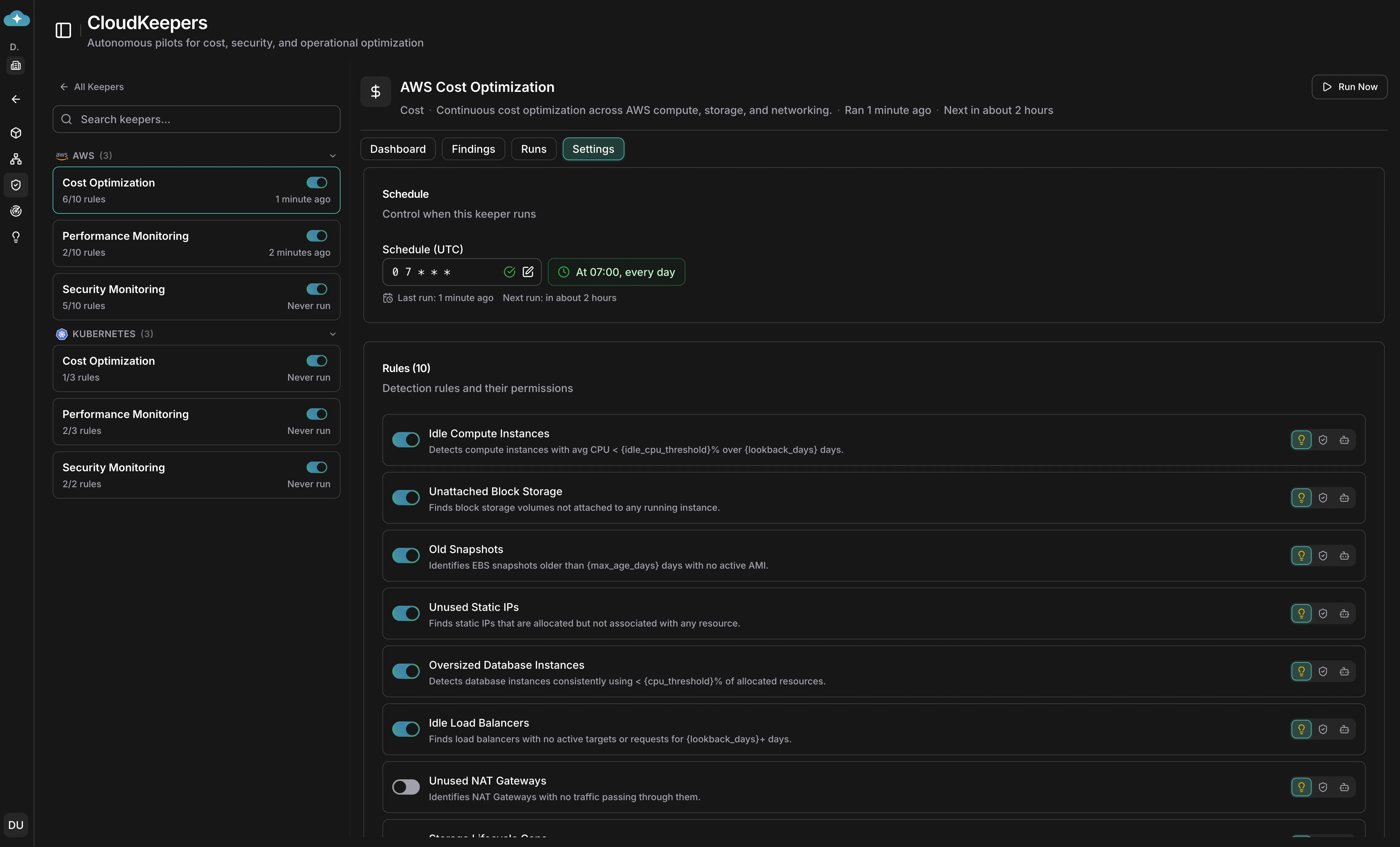
Configure keepers and schedules
The two-step wizard lets you select keepers, then fine-tune detection rules per keeper. Set autonomy levels (Suggest, Approve, or Autonomous) and configure cron schedules in the Settings tab.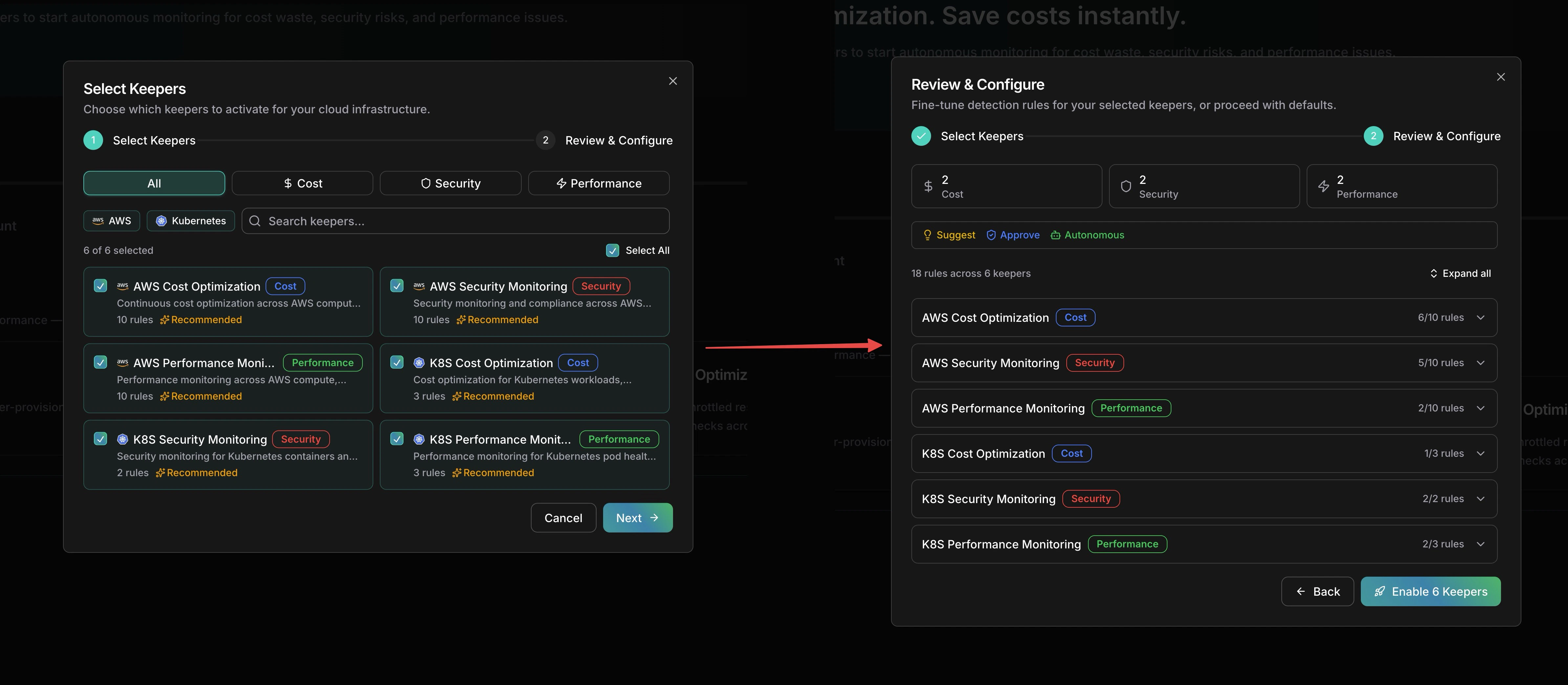
Select keepers and review detection rules
Review the dashboard
Each keeper’s Dashboard tab shows stat cards for open findings, critical/high count, potential savings, and this week’s detections, along with a findings-over-time trend chart.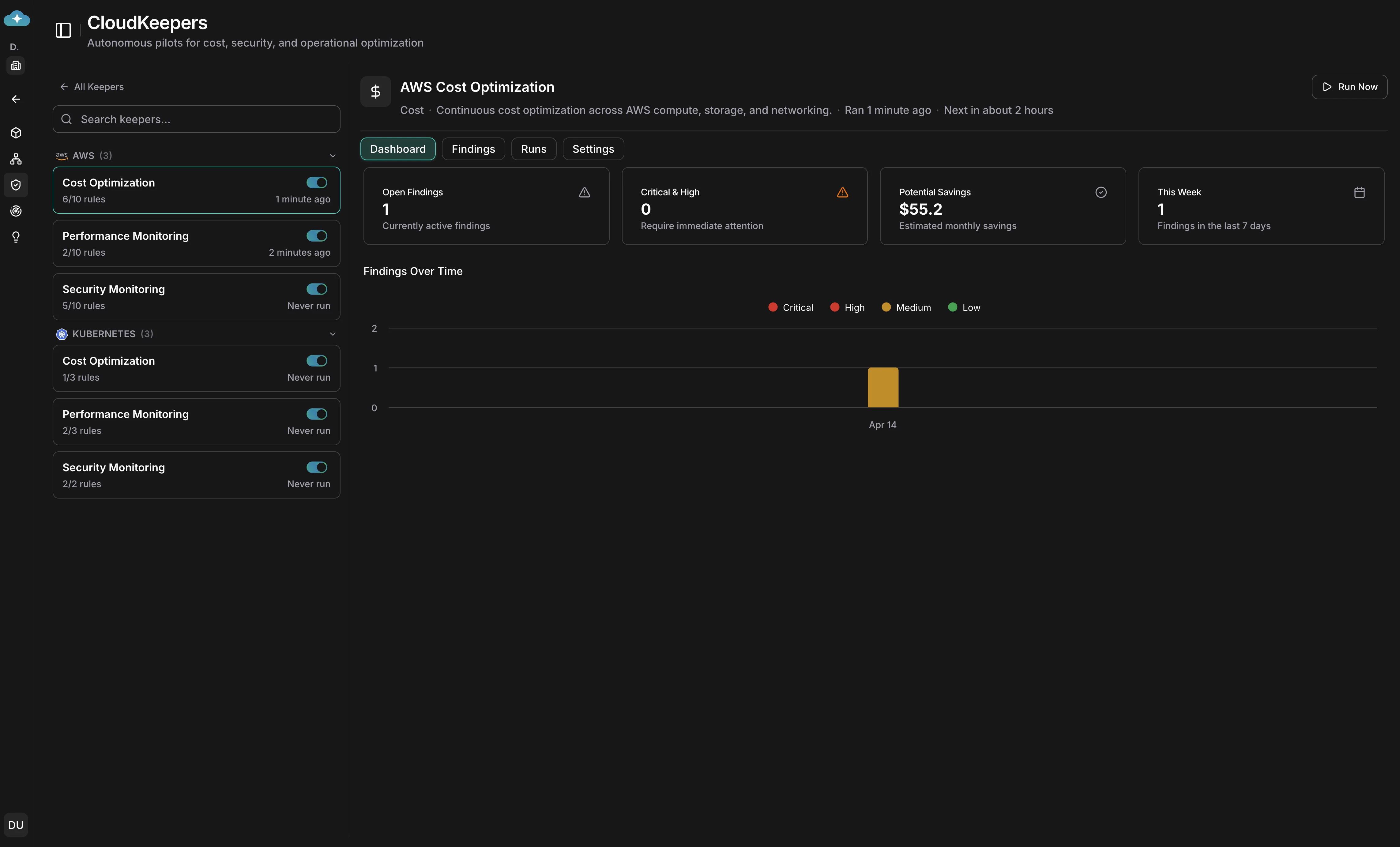
Keeper dashboard with savings and severity breakdown
Triage findings
Switch to the Findings tab to see a Kanban board with columns for Pending, In Progress, Implemented, and Ignored. Each card shows estimated savings, effort, and risk severity.
Findings Kanban board for triage
Review detection runs
The Runs tab shows every detection run with status, summary, duration, and findings created — an audit trail to verify keepers are running on schedule.
Detection run history
Use Case 1: Proactive Cost Optimization with CostOps
Scenario: Your infrastructure has grown organically over 18 months. You’re aware costs are climbing, but pinpointing what’s actually unused (vs. reserved for disaster recovery or testing) requires deep investigation. Your CostOps team lacks the bandwidth to do monthly audits. CostOps pilot discovers:- Underutilized compute instances: 8 EC2 instances running at 5-15% average CPU (ideal candidates for right-sizing or shutdown)
- Orphaned storage: 12 unattached EBS volumes and snapshots accumulating $2,400/month
- Reserved capacity misalignment: Reserved instances for a deprecated service tier, losing $8,500/month in discounts
- NAT gateway inefficiency: Multi-AZ NAT setup processing minimal traffic, could consolidate to single gateway
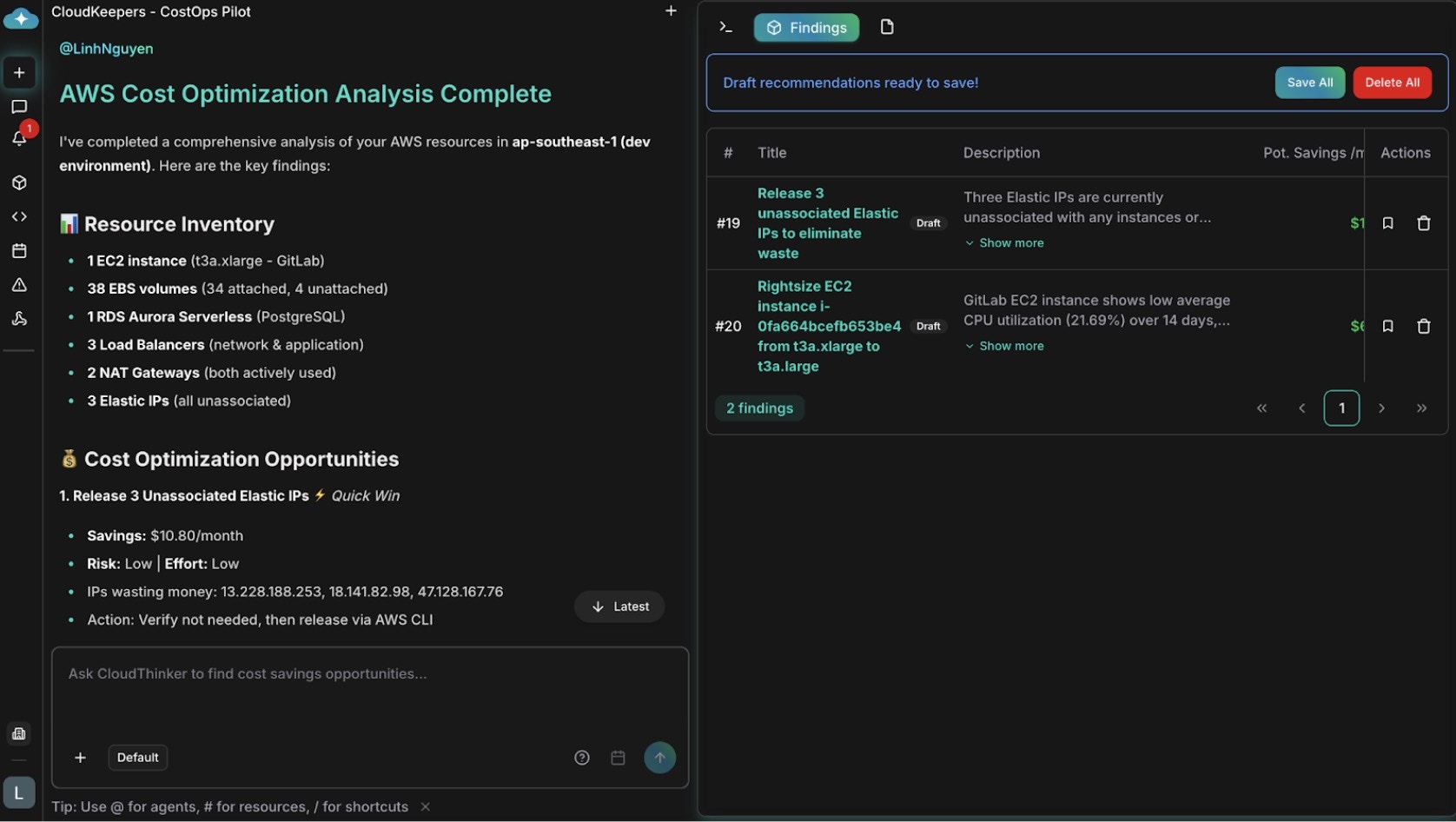
Cost optimization recommendations with savings analysis
Workflow:- Schedule runs: CostOps scan runs every Wednesday at 10:00 UTC
- Review findings: Your FinOps team reviews the dashboard each Thursday morning, seeing $14,200/month in identified savings
- Assess impact: For the EC2 right-sizing recommendation, generate impact guidelines and share with engineering to validate performance assumptions
- Save to Plan: Move high-confidence items (orphaned volumes, NAT consolidation) to Plan for approval and scheduling
- Execute and track: Plan workflows handle approvals, scheduling, and execution with full audit trails
Use Case 2: Continuous Security Posture Monitoring with SecurityOps
Scenario: Your organization maintains 12 AWS accounts across dev, staging, and production. Security compliance requires monthly audits, but inconsistent findings (different engineers miss different issues) and no standardized remediation creates gaps. A recent audit found IAM policies that hadn’t been reviewed in 8 months. SecurityOps pilot discovers:- IAM configuration drift: 23 IAM users/roles with overly-broad permissions (Developer policy attached when ReadOnlyAccess would suffice)
- Exposed resources: 2 S3 buckets with public read access (not intentional); 1 RDS database with public accessibility enabled
- Encryption gaps: 15 EBS volumes without encryption; 3 S3 buckets lacking default encryption
- Access anomalies: Root account used for day-to-day operations; detected unused service accounts not cleaned up
- Network exposure: 4 security groups allowing 0.0.0.0/0 SSH access (high-risk for compute; acceptable for ALBs)
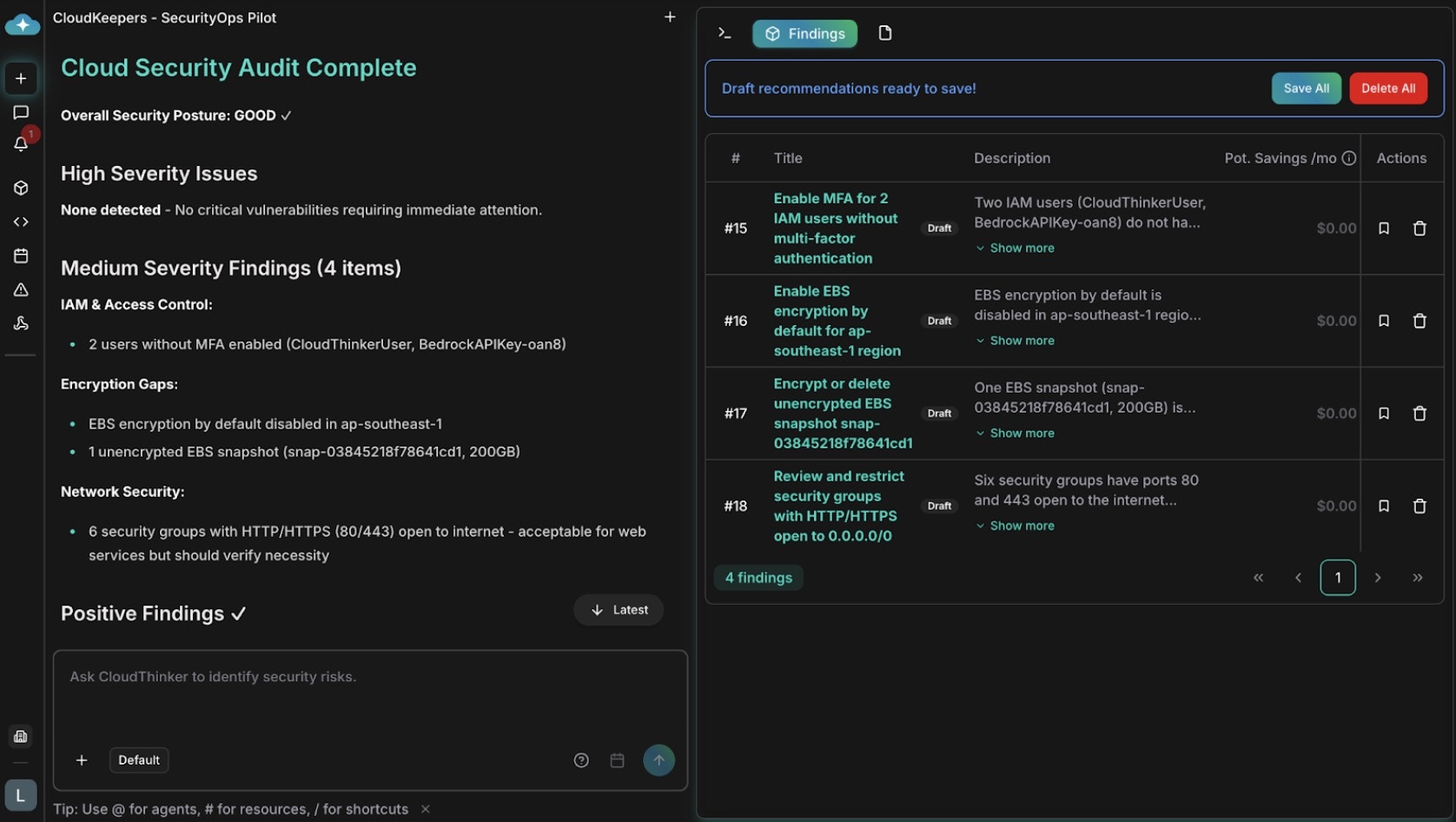
Security audit recommendations with remediation steps
Workflow:- Schedule runs: SecurityOps scan runs every Friday at 14:00 UTC (before your Monday compliance standup)
- Alert on critical findings: Your security team receives Slack notifications immediately for high-severity items (exposed database, root account in use)
- Review full report: Monday morning, your security team reviews the findings dashboard—23 medium-risk IAM findings, 2 critical exposure risks
- Generate playbooks: For the S3 bucket fix, generate implementation guidelines with AWS CLI commands; distribute to the owning team
- Save to Plan: Move findings requiring multi-team coordination (e.g., “remove root account access key”) to Plan for assignment, approval, and tracking
- Close findings: After remediation, mark findings as resolved or ignored to tune alert tuning
Integration with Plan for Governance
CloudKeepers findings begin as drafts in your infrastructure view. When you’re ready to act, you save them to Plan, where they become work items with:- Full audit trails: Every finding, its status, and remediation steps are documented automatically
- Approvals and assignment: Route findings to the right teams (security, FinOps, platform engineering) for review and sign-off
- Execution tracking: Plan tracks status (pending, approved, in progress, completed) with timestamps and ownership
- Compliance evidence: For audits, Plan provides timestamped records of when issues were identified and how they were resolved
Why CloudKeepers Beat Manual Processes
| Dimension | Manual Audits | CloudKeepers |
|---|---|---|
| Execution frequency | Monthly (if lucky) | Daily/weekly—continuous guardrails |
| Time investment | 4-8 hours per session | 2-5 min setup; 15-30 min weekly review |
| Consistency | Varies by engineer | Identical analysis every run |
| Context understanding | Relies on engineer judgment | Domain expertise baked into agents |
| Scaling with accounts | Linear growth (4-6 hrs per account) | Constant time regardless of scale |
| False positives | High (scripts miss context) | 95% reduction via intelligent filtering |
| Issue detection time | Weeks to discovery | Hours to detection |
| Knowledge transfer | Lost when experts leave | Persistent in agent behavior |
| Audit evidence | Manual documentation | Automatic comprehensive logs |
Getting Started
- Open CloudKeepers in your workspace
- Configure pilots: Enable CostOps and SecurityOps with your preferred schedules
- Set notifications: Choose channels and severity thresholds
- Run your first scan: Manually trigger a scan to see findings immediately
- Review and save: Save high-impact findings to Plan for team review and remediation tracking
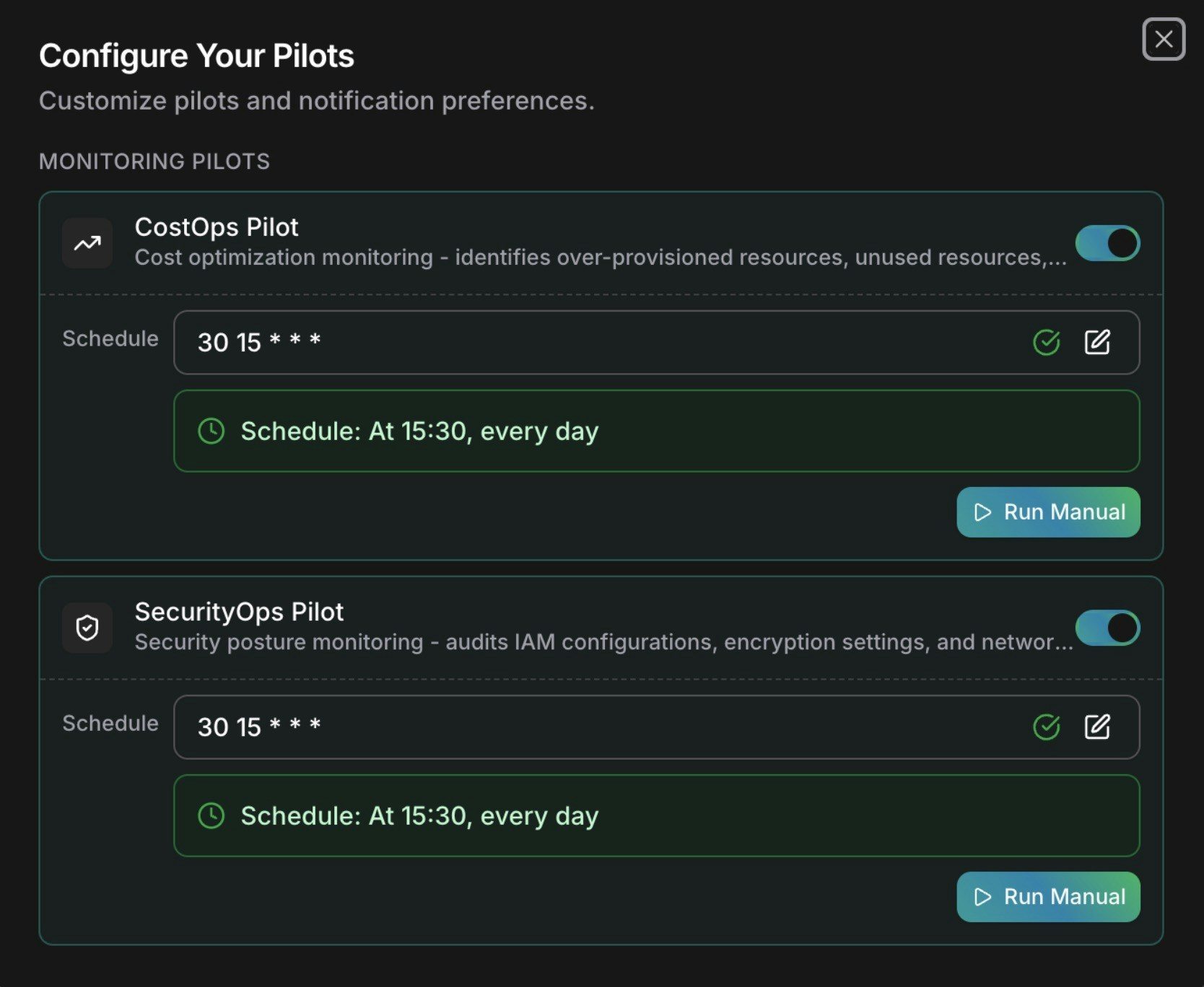
CloudKeeper scheduler setup interface
Your cloud infrastructure can now maintain continuous guardrails autonomously, freeing your team to focus on strategic initiatives instead of operational toil.What’s Next
CloudKeepers Reference
Full CloudKeepers documentation — configuration, scheduling, and pilot types
Cost Optimization
AI-generated cost recommendations with effort, risk, and savings estimates
Security Assessment
Run a Well-Architected assessment across all 6 pillars with actionable findings
Notifications
Configure how and where CloudKeeper alerts are delivered